
Use Web Highlights on your phone or tablet
Web Highlights is built for computers first. On a phone, this is what works:
| Device | Browser | Web Highlights |
|---|---|---|
| Android | Web Highlights app | Google Play — save pages, PDFs and text from any app (how it works) |
| Android | Microsoft Edge | Extension works — install it |
| Android | Firefox | Extension works — install it |
| Android | Chrome, Samsung Browser | Not possible — these browsers don't run extensions |
| iPhone / iPad | Safari, Chrome, Edge, Firefox | Extension not possible — use the reader |
| Any | Any browser | Web app: library, notes, reader, learning |
Android: install the extension in Edge
- Install Microsoft Edge from Google Play and open it.
- Tap the menu button (☰) in the bottom bar, then Extensions.
- Search for Web Highlights and tap Get next to "Web Highlights: PDF & Web Highlighter + Notes".
- Confirm with Add.
Edge may say that the extension was not tested on mobile devices. You can still add it.
Version 13.0.45 or newer
Older versions don't show the highlight bar on phones. Edge updates extensions automatically.
Android: install the extension in Firefox
- Install Firefox from Google Play and open it.
- Open addons.mozilla.org/android in Firefox and search for Web Highlights.
- Tap Add to Firefox and confirm with Add.
Android: highlight and find your highlights
This works the same in Edge and Firefox.
Highlight text
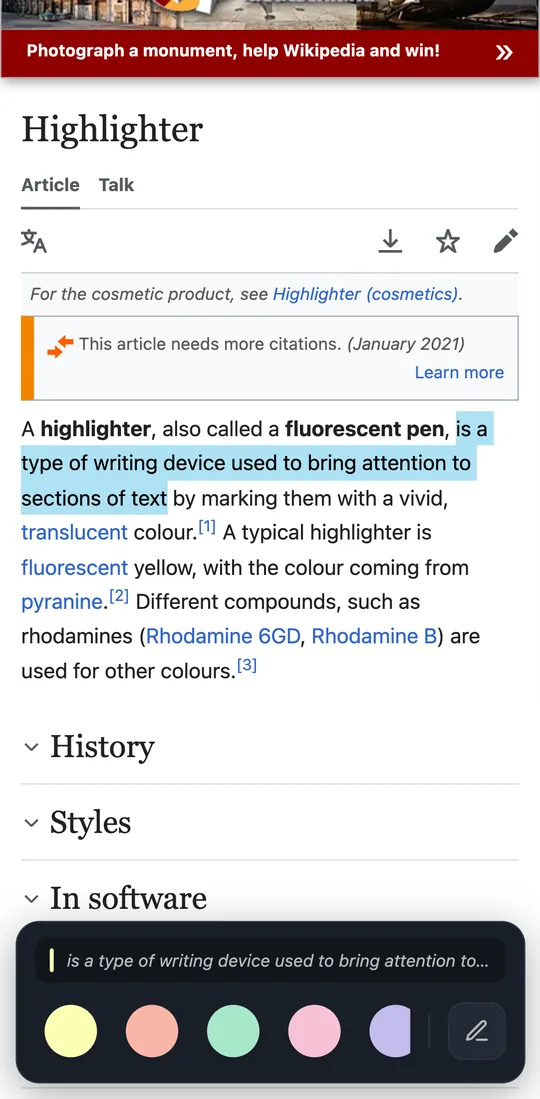
- Long-press a word and drag the selection handles over the text.
- Let go. A bar slides up from the bottom with a preview of the selection.
- Tap a color to highlight, or tap the pen to highlight and add a note.
Edit a highlight
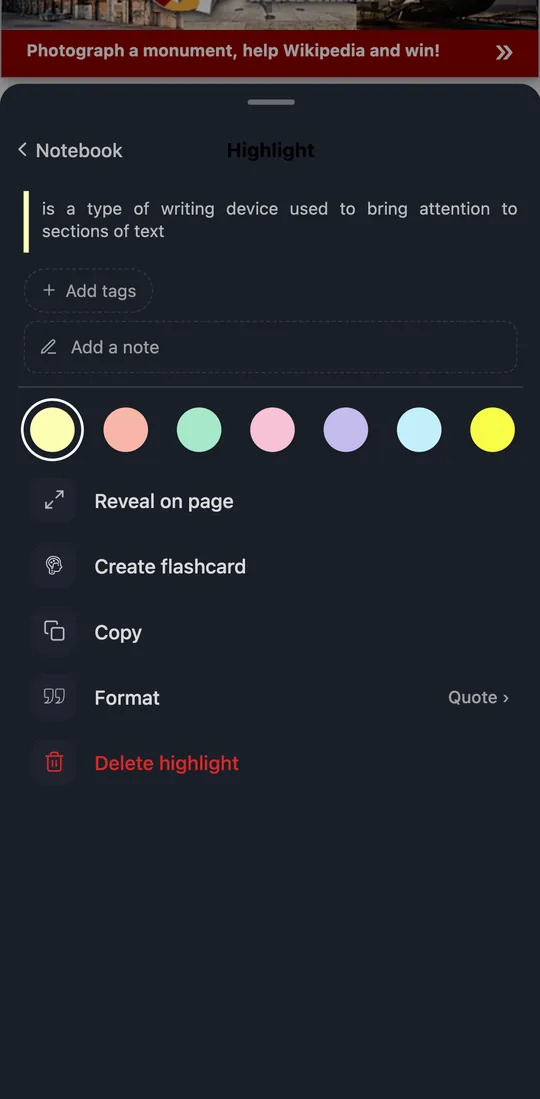
Tap a highlight on the page. Its actions open in a sheet: color, tags, note, reveal on page, flashcard, copy, format, delete.
Open the notebook and the dashboard
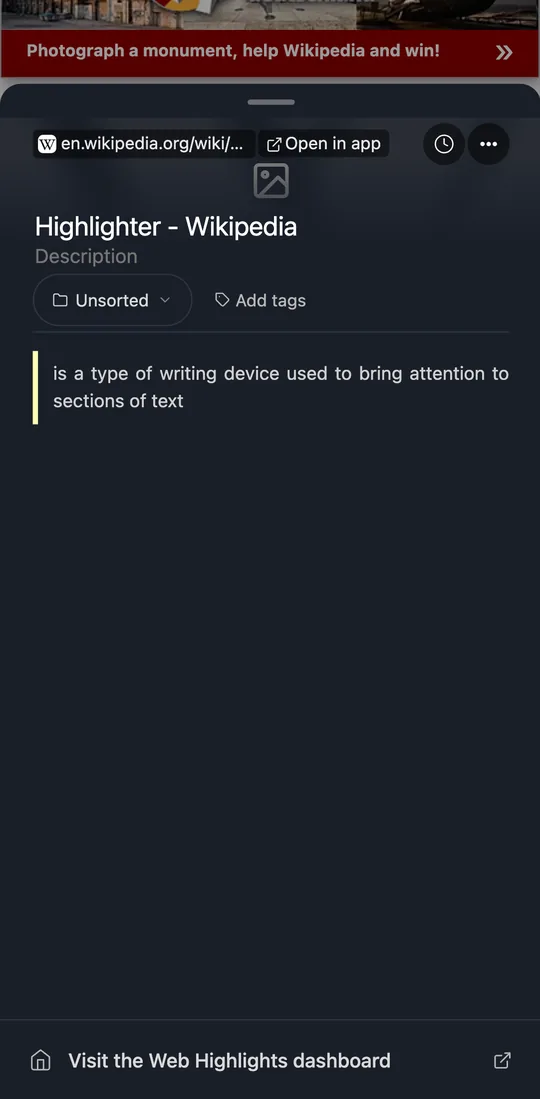
Tap the Web Highlights icon in Edge, or open Web Highlights from the Extensions menu in Firefox. The notebook of the current page opens as a sheet from the bottom. Visit the Web Highlights dashboard at the bottom of the sheet opens your library in a new tab (sign in first).
What stays desktop-only
The extension popup, settings, the reader and the PDF viewer keep their desktop layout on a phone. AI summaries, chat and flashcard generation need the on-device model of desktop Chrome or Edge and are not available on phones.
iPhone and iPad: highlight in the reader
iPhone and iPad browsers only run extensions that come as App Store apps. Web Highlights has no iOS app, so the extension can't be installed. Highlight articles in the reader instead:
- Copy the article's link (Share → Copy).
- Open the Reader Mode tool, paste the link and tap Open in Reader.
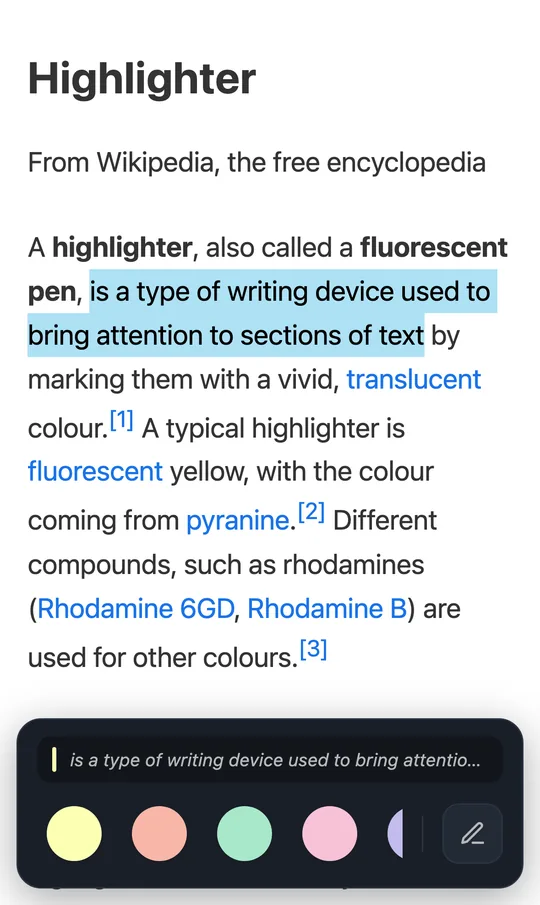
- Long-press a word and drag the handles over the text.
- Tap a color in the bar at the bottom.
Create a free account to keep your highlights in your library.
Add the web app to your Home Screen
- Open app.web-highlights.com in Safari and sign in.
- Tap ••• (or Share, depending on your Safari layout), then Share.
- Tap Add to Home Screen, turn on Open as Web App, and tap Add.
On iPhone, web apps can't appear in other apps' Share menu. To save a page, copy its link and paste it into Web Highlights.
Sync between phone and computer
Sign in with the same account on your phone and your computer to sync your highlights between them. Syncing between devices is free for a 7-day trial, then part of the paid plans.
Related
- Save bookmarks from your phone
- Reader Mode
- Step-by-step guides: Android · iPhone & iPad