
Free Online PDF Highlighter
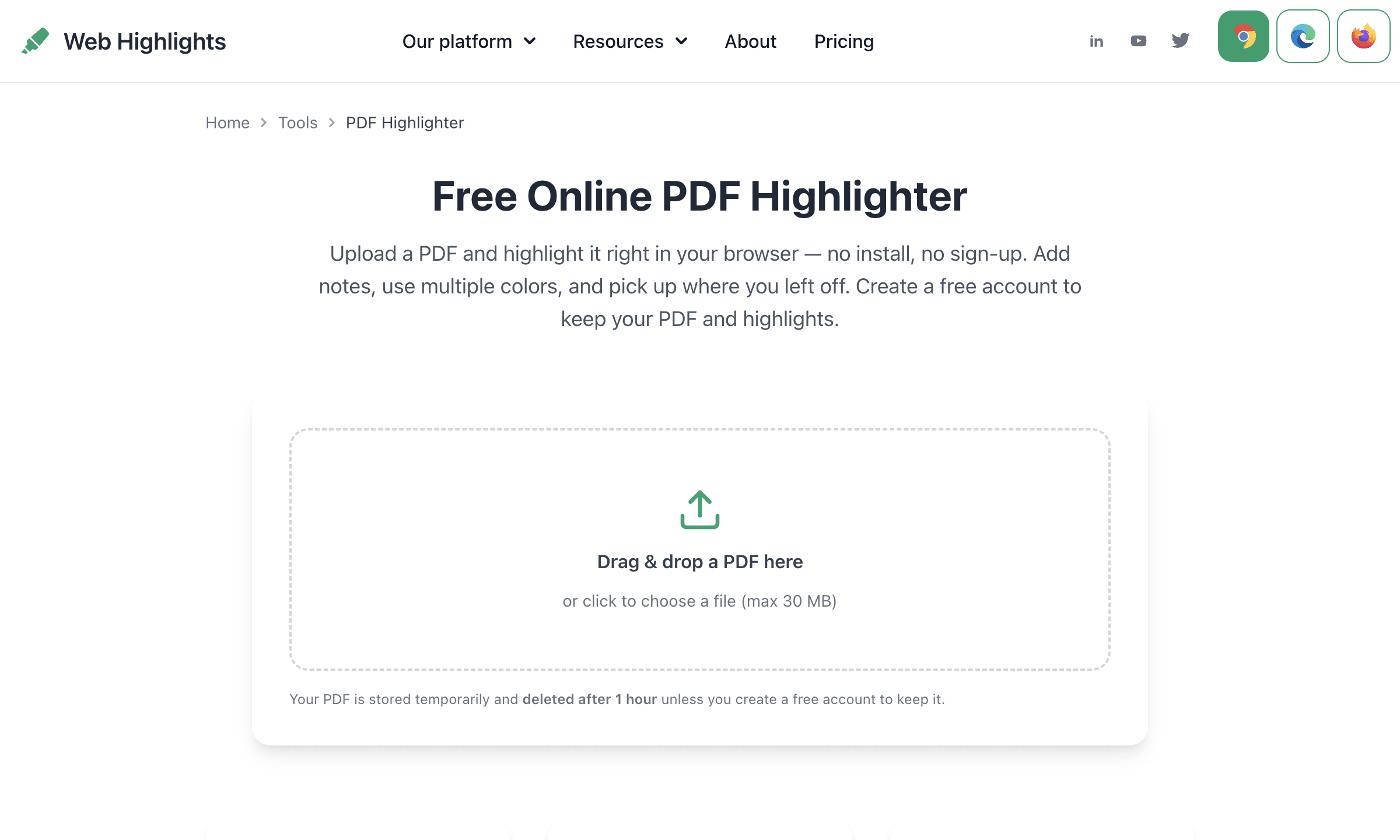
Don't want to install our browser extension? No problem, our Free Online PDF Highlighter lets anyone highlight a PDF right in the browser — no extension to install, no software to download, and no account to create.
Upload a file, select text, pick a color, and you are highlighting in about 30 seconds. It runs the same in-app PDF viewer signed-in users get, so the highlighting experience matches the rest of Web Highlights.
It is the no-setup entry point: upload a PDF, highlight it, and take your highlights with you — download, print, or import existing annotations, all in the browser. To highlight every PDF you open without uploading (plus cloud sync and more), add the Web Highlights browser extension; see Online tool vs. extension below.
How it works
- Open the Free Online PDF Highlighter.
- Drag a PDF onto the page — or click the upload card to pick a file from your computer (up to 30 MB).
- The PDF opens in the viewer, ready to mark.
- Select any text, then pick a color from the popup to highlight it. Click a highlight to attach a note.
Your highlights save as you go and appear in the sidebar — the same workflow described in Highlight PDFs.
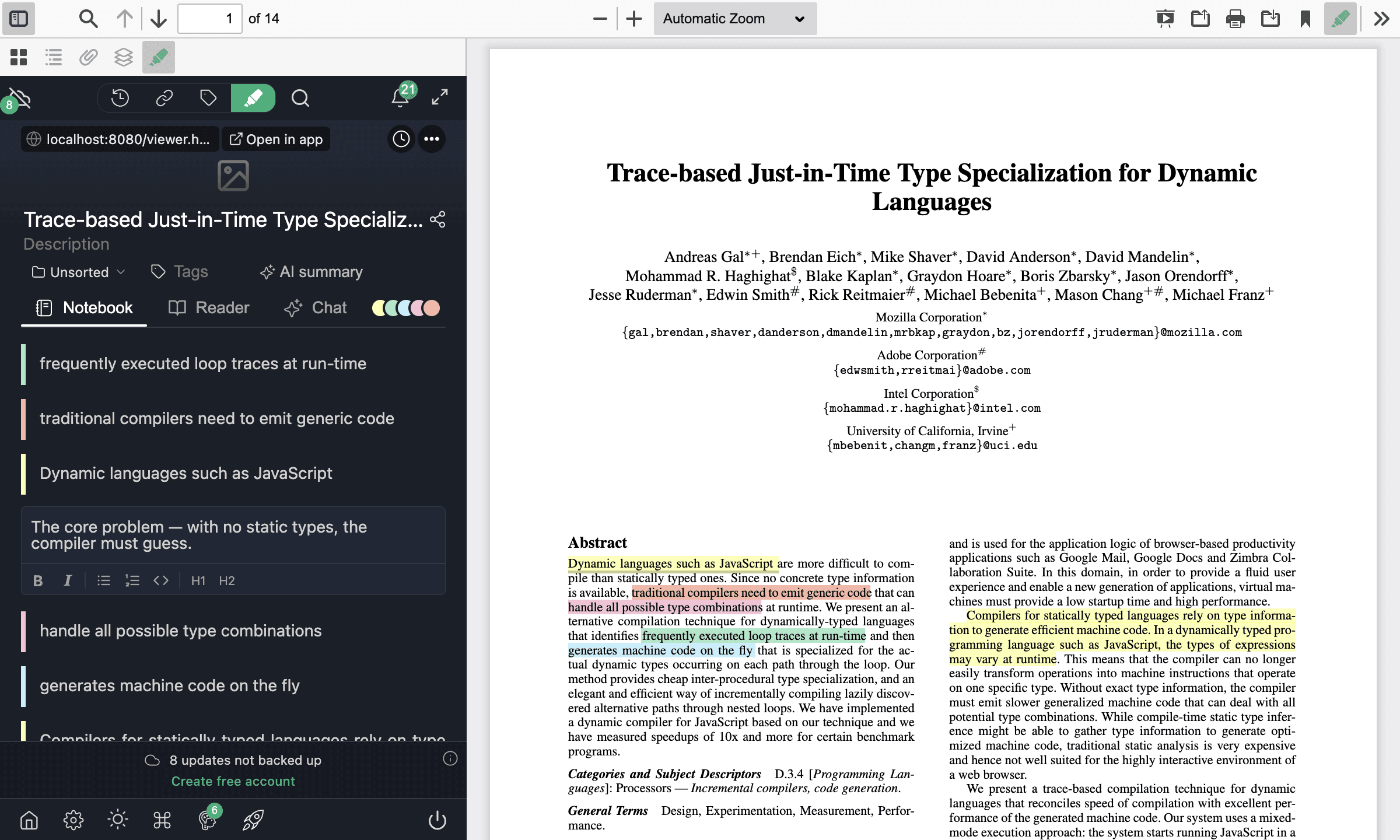
No install, no sign-up
Because it is a web page rather than an extension, it works in any modern browser — Chrome, Edge, Firefox, and Safari — with nothing to install, and you can highlight a whole PDF without creating an account.
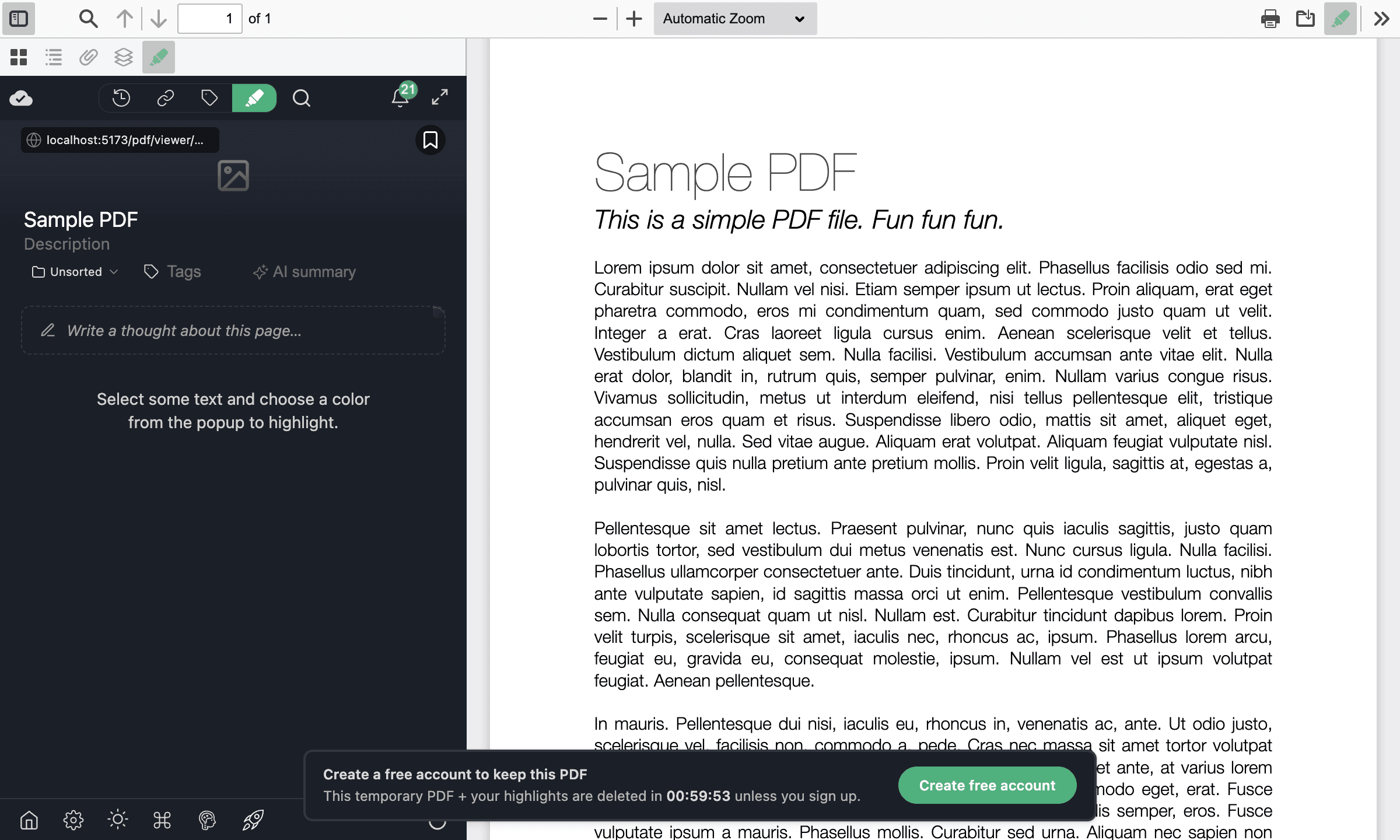
Take your highlights with you
- Download the PDF with your highlights embedded as real PDF annotations — original colors, with your notes as comments — that open (and stay editable) in Adobe Acrobat, macOS Preview, and Microsoft Edge, with the text still selectable.
- Print (or "Save as PDF") with the highlight colors baked onto the pages.
- Import the highlights a PDF already contains — made in Acrobat, Preview, or any app that writes standard PDF annotations — with one click; colors and notes are preserved.
See Download or Print a PDF With Highlights and Import PDF Annotations for the details.
Your PDF is kept for 1 hour
Without an account, an uploaded PDF is treated as temporary: the file and its highlights are kept for 1 hour, then deleted. A banner in the viewer shows the countdown.
Keep your PDF and highlights
Create a free account from the banner in the viewer, and the PDF plus every highlight become permanent. Syncing them across devices is free for your first 7 days and part of the paid plans after that. Signed-in PDFs live in your private library; see Upload Your Own PDFs.
One free upload per day
To keep the free tool available to everyone, anonymous uploads are limited to one PDF per day. Create a free account to upload without that limit.
Online tool vs. extension
The online tool already highlights a single PDF — and lets you download, print, and import (above) — with nothing to install. The free Web Highlights extension uses the same viewer and adds the rest:
- Highlight any PDF (and any web page) in place — no upload step.
- Cloud sync across all your devices.
- Tags, search, and spaced-repetition learning across everything you highlight.
Next Steps
- Highlight PDFs — the full highlighting workflow, which applies here too
- Download or Print a PDF With Highlights — take a marked-up copy with you
- Import PDF Annotations — bring in highlights from Acrobat and other apps
- Upload Your Own PDFs — the signed-in way to keep PDFs in your library
- Install the extension — highlight every PDF and web page you open
Common Questions
Is it really free?
Yes. You can open a PDF and highlight it for free, without an account. A free account is optional — it is what keeps your PDF beyond the 1-hour window. Syncing it across devices is free for your first 7 days and part of the paid plans after that.
Do I need to install anything?
No. The online tool is a web page — nothing to download, no extension required. Open it, drop in a PDF, and start highlighting.
How long is my PDF kept?
Without an account, 1 hour — then the file and its highlights are deleted. Create a free account to keep them permanently. Syncing them across your devices is free for your first 7 days and part of the paid plans after that.
Can I download or print the PDF with my highlights?
Yes — right from the free tool. The viewer's Download button embeds your highlights as real PDF annotations (colors and notes), and Print keeps the colors on the page. See Download or Print a PDF With Highlights.
Which browsers does it work in?
Any modern browser, including Chrome, Edge, Firefox, and Safari — there is nothing to install for it to work.