
Collections (Folders)
Video transcript
- 0:02 Collections. Here is how you organize your saved pages into collections with Web Highlights.
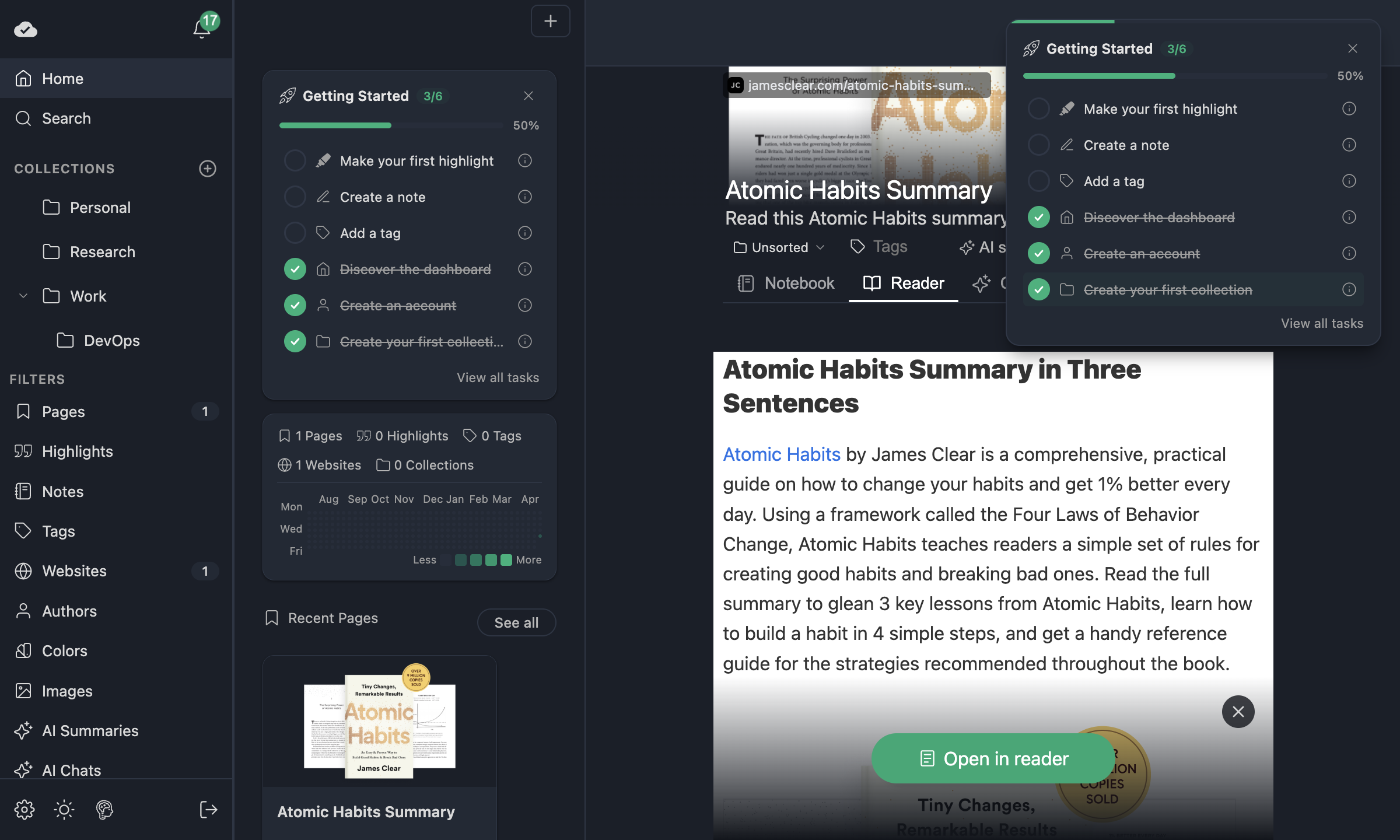
- 0:06 Create a collection. Collections work like folders. In the dashboard, simply click the plus icon next to Collections, type a name, and create it.
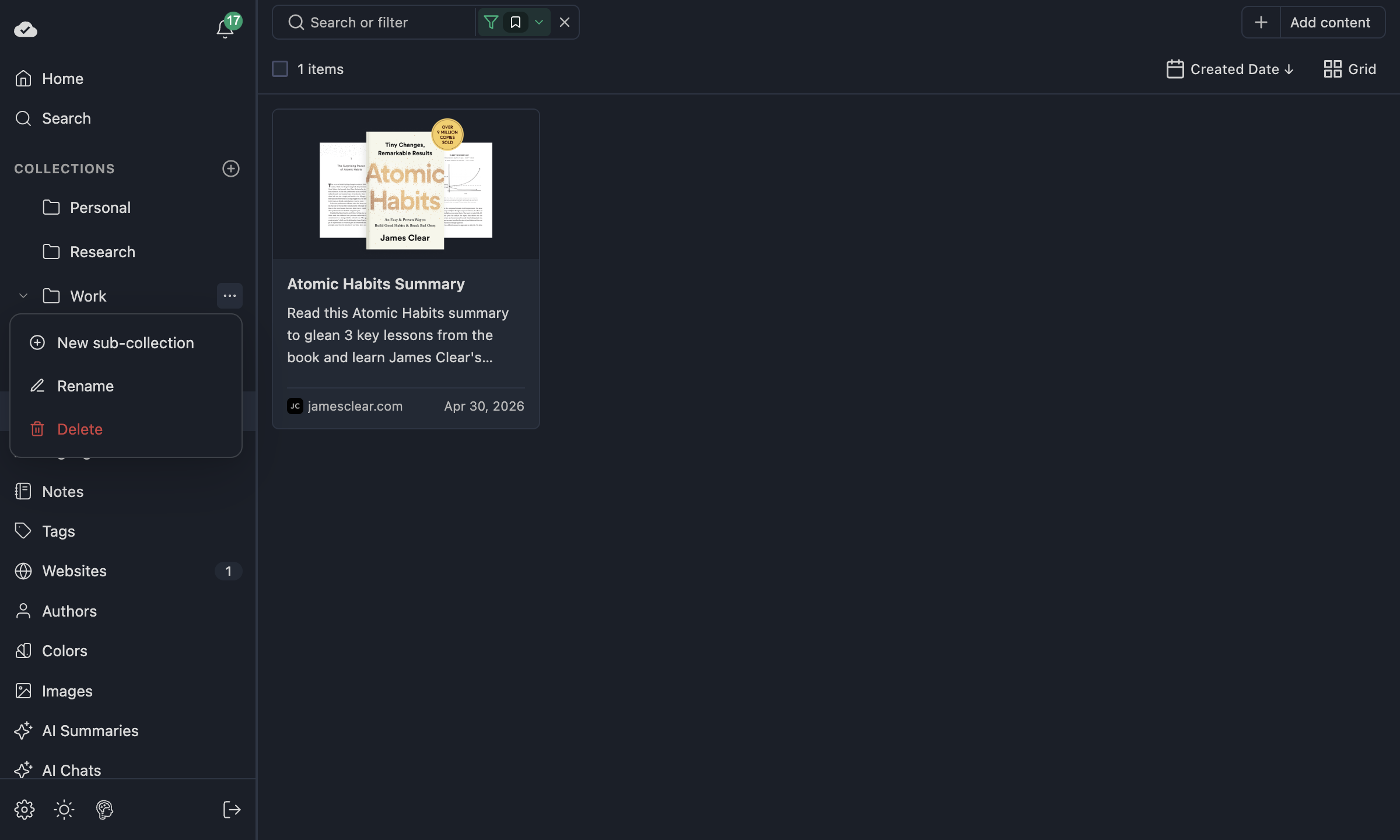
- 0:14 Nest collections. They can be nested, too: open the menu next to a collection and choose New sub-collection.
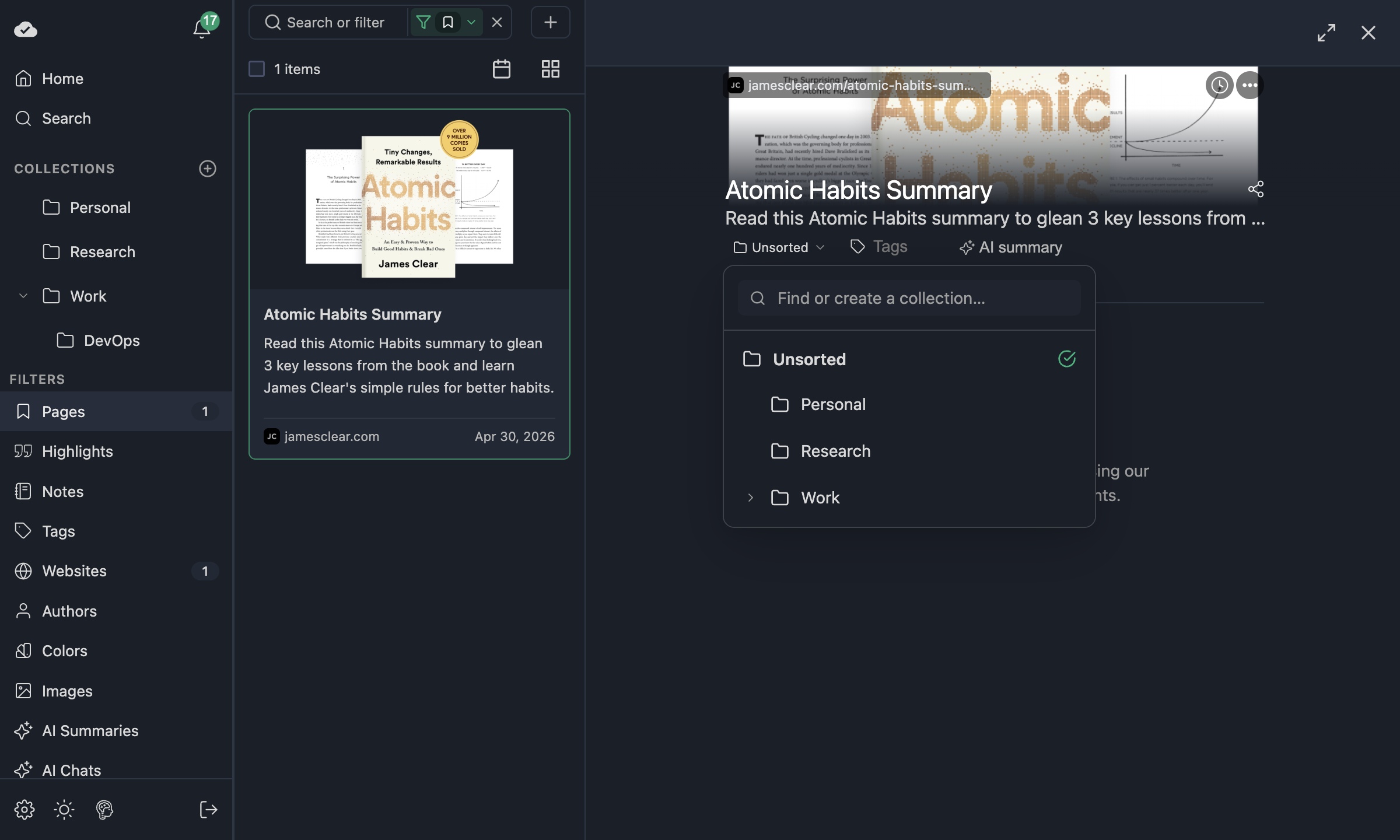
- 0:19 Move this page. To put the page you are reading into a collection, click the folder chip in the sidebar. Right now it says Unsorted, so I just pick my new collection.
- 0:27 Drag and drop. On desktop, you can also drag a page from the dashboard straight onto a collection.
- 0:31 Move several pages. And if you want to move several pages at once, simply select them in the grid, click Move to, and pick the collection.
- 0:37 Browse your collections. Under Collections you then see all of them as cards, with the number of pages in each. One click opens a collection, with its sub-collections and all the pages inside.
Tags are great for cross-cutting labels, but sometimes you want a single place for a page — like a file folder. Collections give you that: a tree of folders in the sidebar, one collection per saved page, optional nesting, and the same filtering power as the rest of the app.
Collections complement tags; they do not replace them. You can still tag highlights and pages as before.
What it looks like
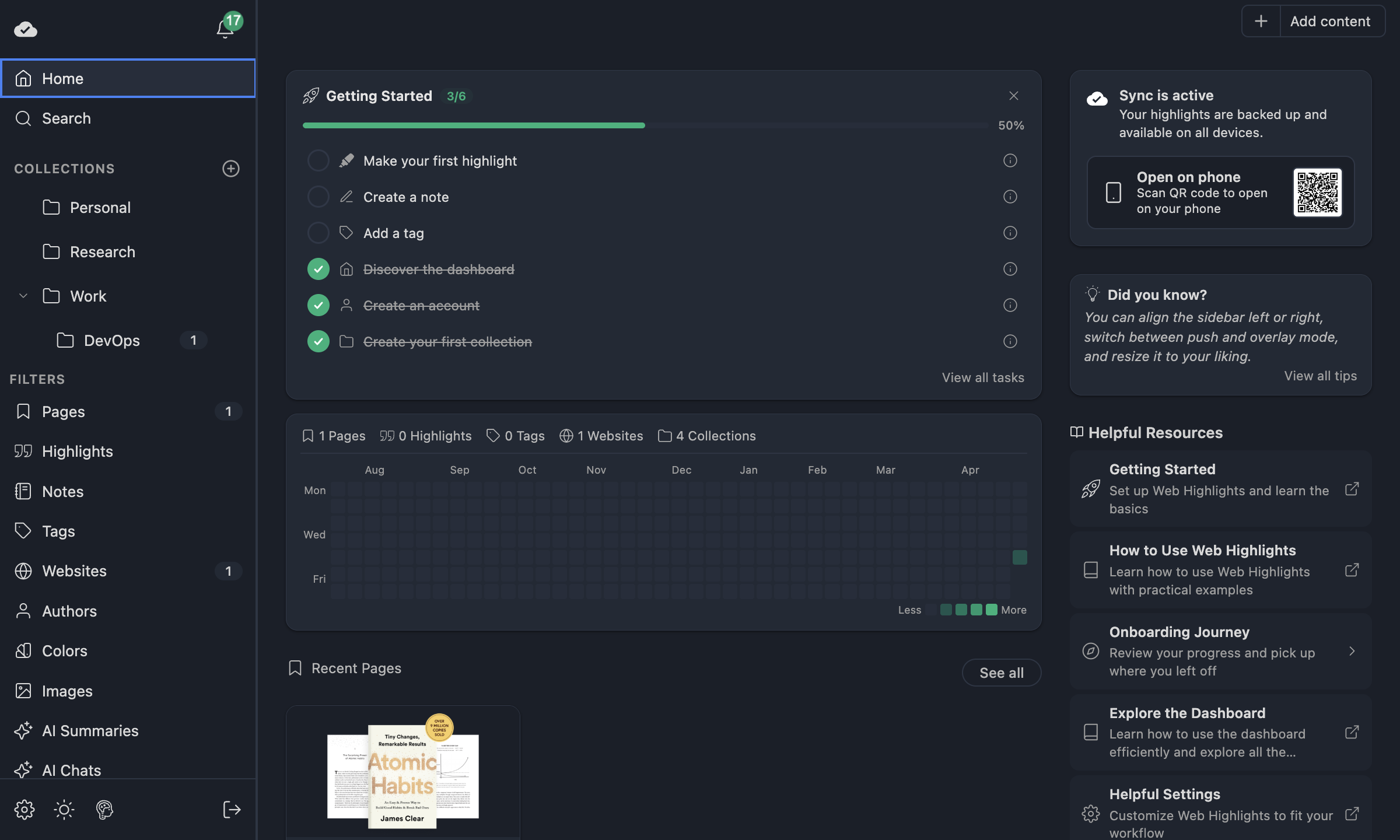
The COLLECTIONS block sits in the app sidebar (extension expanded view and web app). You see your folders, counts on each row, expand/collapse chevrons, and a + to create a new top-level folder.
Why one folder per page?
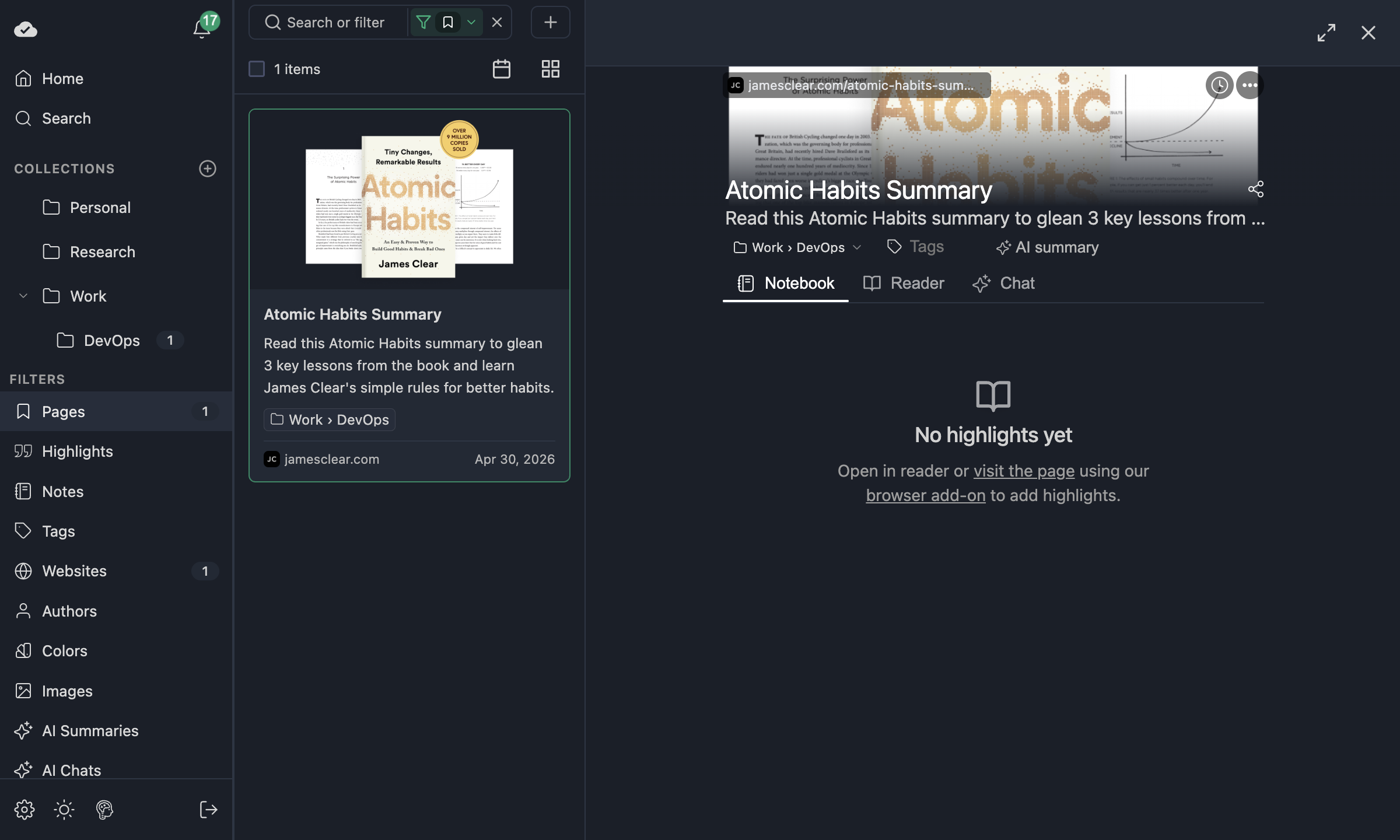
Each bookmark (saved page) can sit in at most one collection. That keeps the model simple: the chip on bookmark details always shows either a folder path (e.g. Work › DevOps) or Unsorted (not in any folder yet).
Creating folders
- In the sidebar, under COLLECTIONS, click +.
- Type a name and click Create “…” in the picker. Pressing Enter picks the first existing collection whose name contains what you typed, and only creates a new one when nothing matches.
Sub-folders
- Hover a folder row and click ⋯ → New sub-collection, or right-click the row for the same menu.
- When the picker opens with a “Adding sub-collection to …” banner, type the new name and confirm — the new folder is created under that parent.
Moving pages into a folder
From bookmark details (all platforms)
Open a saved page, then use the folder chip next to the tags area. Click it to open the picker: search, tree, Unsorted, and inline Create when you type a new name. In the extension sidebar the chip is already there for the page you are reading — picking a collection saves the page for you.
After you assign a page, the chip shows the folder path (nested folders use a › breadcrumb).
Two actions in one chip
When you hover the folder chip, two extra affordances fade in so it's clear the chip has more than one job:
- A small chevron next to the label — clicking the chip body opens the picker (change folder / move to Unsorted / create a new one).
- An open icon on the right — clicking it drills into that folder in the grid, the same as clicking the folder in the sidebar tree or as a card in the Collections grid.
TIP
You only see these icons on hover or while the chip has keyboard focus, so the resting view stays calm. Keyboard users can Tab to the chip, then Tab again to focus the open icon and press Enter to drill in.
Drag and drop (desktop)
On desktop (non-touch), you can drag a bookmark card from the grid onto a folder row in the sidebar to assign it. Touch devices rely on the chip + picker instead — drag sources are disabled there so the UI stays predictable.
Browsing folders in the grid
The web app (and in-extension app view) includes a Collections section in the nav, same idea as Tags or Websites: you get a grid of folder cards with labels, paths, page counts, and sub-folder counts.
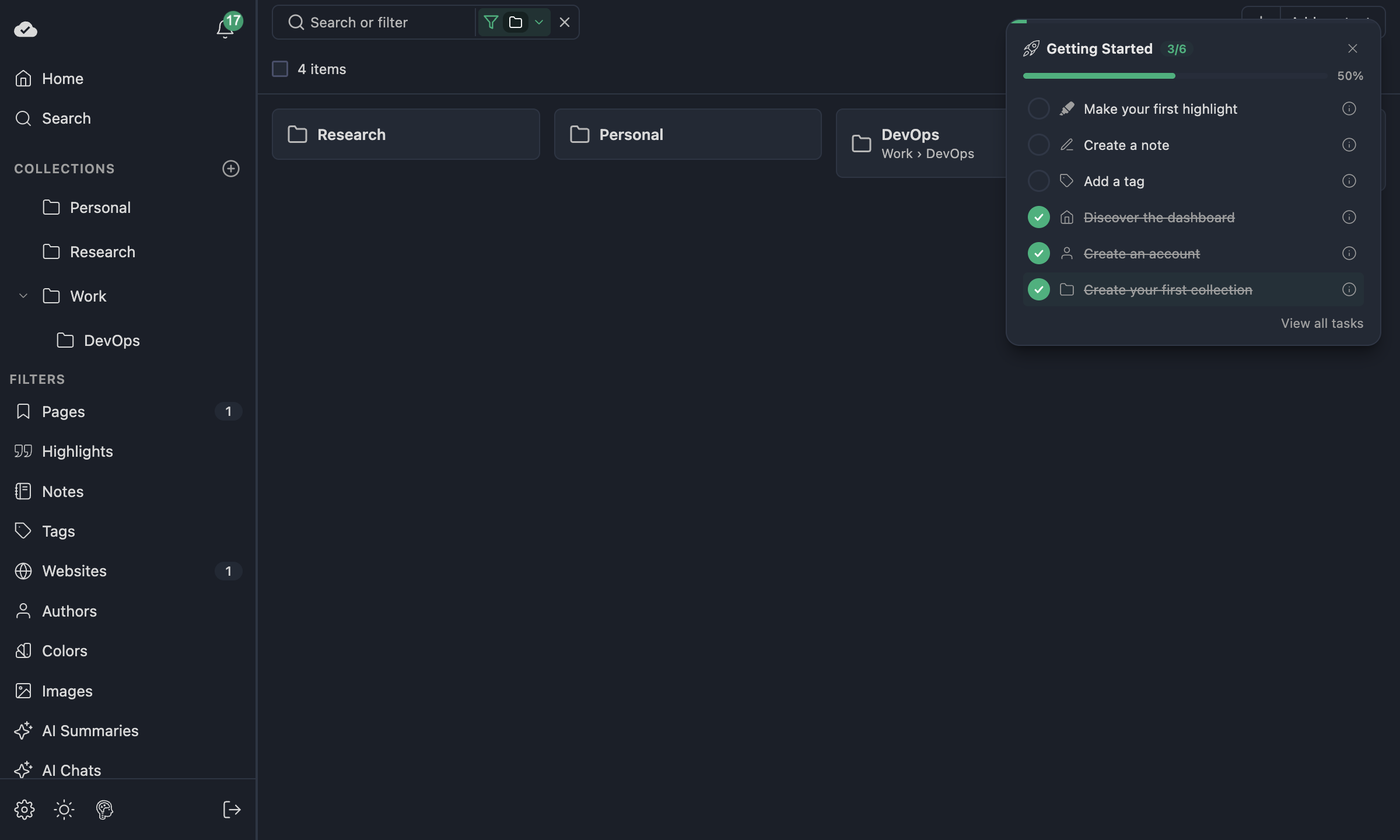
Clicking a folder card drills into that folder: you see direct child folders and pages whose collection is exactly that folder — like stepping into a folder in a file manager, not “everything under this tree merged into one list.”
You can also click a folder in the sidebar tree to apply the same drill-down filter.
Quick filter
In contexts where bookmark filters apply, you can use the collection: prefix in the search / filter flow (see Web App — Grid & Filters) to narrow pages by folder, consistent with other quick filters.
Bulk move
When multiple bookmark cards are selected in the grid, the toolbar can include Move to, which opens the same collection picker and assigns every selected page to the folder you pick.
Deleting folders
Deleting a folder does not delete your saved pages. Sub-folders are removed with the parent; bookmarks that were inside are moved back to Unsorted. You’ll see a confirmation before delete, and a short summary after.
Home dashboard
The Home overview includes your total Collections count in the stats bar so you can jump into organizing at a glance.
Further reading
- Tags & Organization — tags, filtering, and
tag:search syntax. - Web App — Grid, Search & Filters — filter bar, AND/OR, quick filters, view modes.
- Explore the Dashboard — sidebar layout and multi-select toolbar.