
PDF Highlighter — Highlight & Annotate PDFs in Chrome
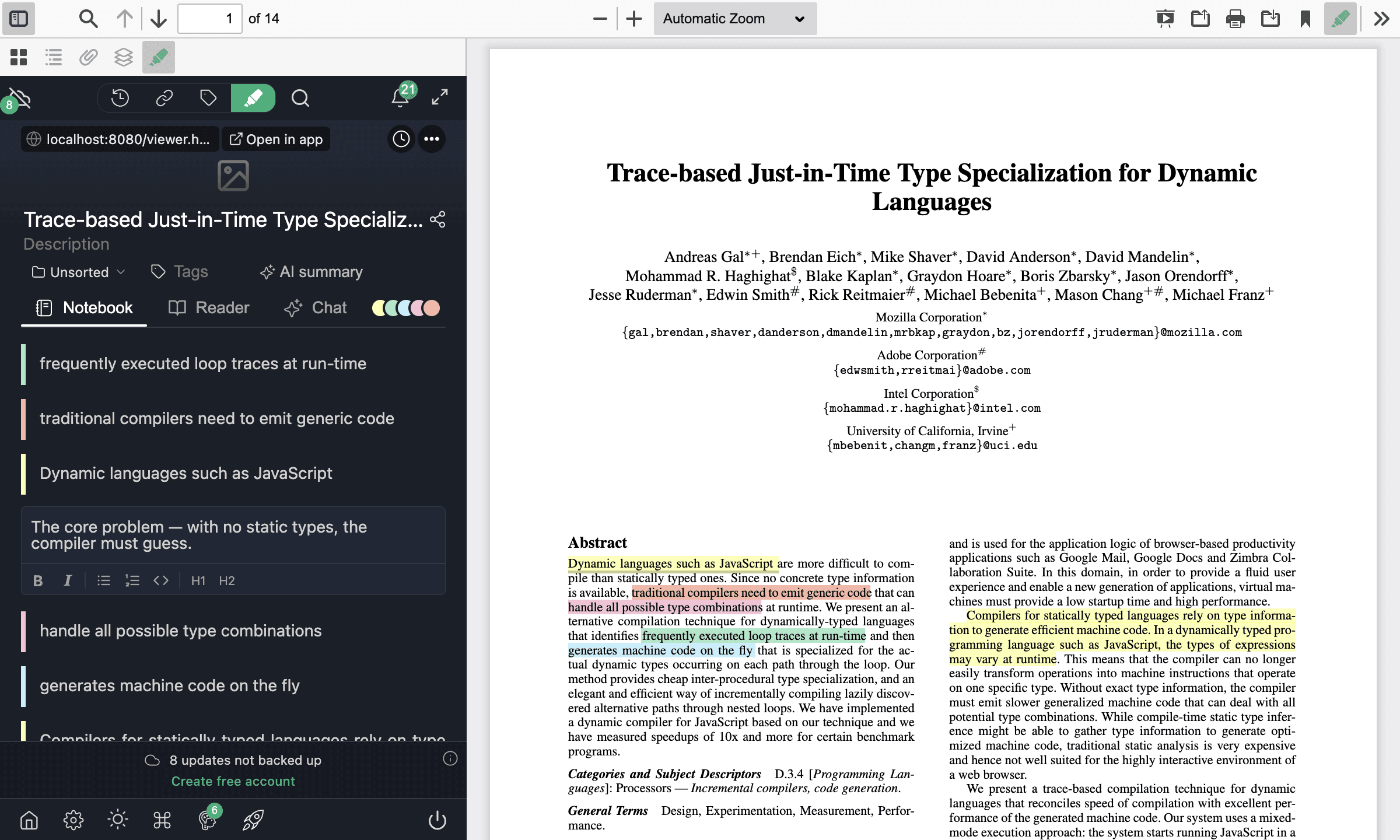
With Web Highlights, you can highlight text and add notes on any PDF — whether it's hosted online or stored locally on your computer. Chrome's built-in PDF viewer cannot highlight or annotate at all, so Web Highlights opens PDFs in its own viewer instead. No separate PDF software needed; everything works right inside your Chrome browser.
Have your own PDF you want to keep in your library?
Signed-in users can also upload PDFs directly to Web Highlights and read them in the in-app viewer. See Upload Your Own PDFs for the upload flow, storage caps, and how uploaded PDFs sync across devices.
Just want to highlight one PDF fast — no install?
Use the Free Online PDF Highlighter: open the tool, drop in a PDF, and highlight it right in your browser — no extension, no sign-up. The extension below is for highlighting every PDF (and web page) you open, in place.
Prerequisites
Before we begin, make sure you have our browser extension installed. You can install it here or get it from the Chrome Web Store, Firefox Add-ons, or Microsoft Edge Add-ons.
How to Highlight a PDF in Chrome
Highlighting a PDF with Web Highlights works the same way as highlighting any webpage:
- Open a PDF in Chrome — Navigate to any online PDF, or drag a local PDF file into Chrome
- Web Highlights automatically detects the PDF and opens it in our built-in PDF viewer
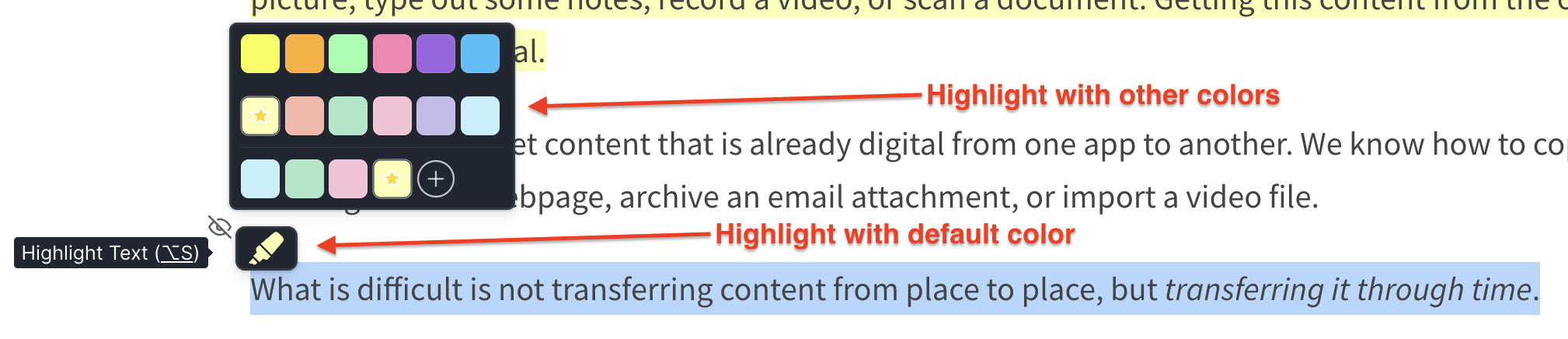
- Select any text in the PDF — the highlighter popup appears
- Click the highlight color to save your highlight
- Add notes by clicking the note icon on any highlight
Your PDF highlights are automatically saved and will reappear whenever you open the same PDF again.
Step-by-step tutorial
For a complete walkthrough — from your first highlight to exporting your notes — follow the tutorial: Highlight and annotate PDFs.
How to Annotate a PDF
Beyond simple highlighting, Web Highlights lets you annotate PDFs with rich notes:
- Add notes to any highlight — Click a highlight to open the note editor and add your thoughts
- Use multiple highlight colors — Color-code your annotations to categorize information (e.g., key points, questions, definitions). Learn more about multiple color highlighting.
- Tag your highlights — Organize PDF annotations with custom tags for easy retrieval
- Export annotations — Export your PDF highlights and notes to Markdown, HTML, PDF, Notion, or Capacities
Highlight Local PDF Files
PDFs stored on your computer work too. Drag the file into Chrome (or open it with Chrome), enable the "Allow access to file URLs" extension permission once, and highlight it like any other document. Your highlights sync to the cloud — the file itself stays on your device.
How to highlight local PDF files →
Download or Print a PDF With Your Highlights
What you highlight here doesn't stay locked inside the extension. The Download button saves a copy of the PDF in which every highlight is an ordinary PDF annotation — Adobe Acrobat, macOS Preview, and other PDF apps open the file, show your highlights, and let you edit them. Your notes come along too. The Print button puts the highlights onto the printed pages in their colors.
Download or print a PDF with highlights →
Import Highlights From Acrobat and Other PDF Apps
Already annotated a PDF in Adobe Acrobat, macOS Preview, or another editor? When you open it in the viewer, Web Highlights finds the existing highlights and offers to import them — one click, and they appear with their colors and notes. Nothing is ever imported twice. If the file changes later, you are offered the new and updated highlights on reopen.
Reader Mode for PDFs
A saved PDF doesn't have to stay a stack of pages. Open it in Reader Mode and Web Highlights presents it as a structured article: the document title, headings, paragraphs, lists, and code blocks are all recognized. Two-column papers are read in the correct reading order, and tagged PDFs keep the exact structure the publisher embedded. PDFs you saved before this feature shipped upgrade automatically the next time you open them.
What About Large PDFs?
They open fast, too. The viewer renders the pages near your viewport first and prepares the rest in the background — even a 500-page document is readable within seconds and stays responsive while you scroll, search, and highlight.
Organize Your PDF Research
Once you've highlighted a PDF, you can organize your annotations just like any other page in Web Highlights:
- Add tags to group PDFs by topic, project, or priority
- Take notes on individual highlights to add your own context
- Share your annotations with a public link so others can see your highlights
- Export to Notion or Markdown to integrate PDF research into your workflow
Read More
You can find a detailed walkthrough with screenshots in our blog post:
For a comparison of PDF highlighter tools, see our blog post on the best PDF web highlighter Chrome extensions.
PDF Highlighting Limitations
PDF files always need to be opened in our PDF viewer. Web Highlights transforms those PDFs into a format that can be highlighted. A few limitations remain:
- Scanned, image-only PDFs cannot be highlighted — without an OCR text layer there is no selectable text
- Password-protected PDFs are not supported
- Images inside PDFs cannot be highlighted — highlighting works on text
- Local files need the "Allow access to file URLs" extension toggle, and highlights reappear on the document only when the file is opened from the same path on the same device — see Highlight local PDF files
Common Questions
Can I highlight any PDF in Chrome?
Yes — Web Highlights works with most PDFs that contain selectable text. Scanned PDFs (image-based) without an OCR text layer cannot be highlighted, as there is no selectable text.
Can I download a PDF with my highlights included?
Yes. The Download button saves a copy in which each highlight is a normal PDF annotation and your note is its comment. Acrobat, Preview, and every other standard PDF reader show them. Learn more in Download or print a PDF with highlights.
Can I import highlights I made in Adobe Acrobat?
Yes. Open the PDF in the Web Highlights viewer and a callout offers to import the highlights it finds, together with their colors and notes — and reopening never creates duplicates. Learn more in Import PDF annotations.
Do my PDF highlights sync across devices?
Yes. All your highlights are stored in the cloud and accessible from any device through the web app. For local PDFs, the file itself is not uploaded — it must be at the same path on each device for the highlights to appear on the document.
Can I export my PDF annotations?
Yes. You can export highlights and notes from any PDF to Markdown, HTML, PDF, Notion, or Capacities using the export menu in the sidebar.
Is Web Highlights free as a PDF highlighter?
Web Highlights offers a free tier that includes PDF highlighting. For advanced features like unlimited highlights and more storage, check our pricing page.