You open a PDF in Chrome, find the one sentence that actually matters—and want to mark it. Since Chrome 145, the built-in viewer has a Draw tool with a pen and a freehand highlighter, which is fine for a quick scribble. But you trace the line by hand, you can't attach a note to it, and your marks never end up anywhere you can search later.
Good news—you're in the right place! All you need is a free Chrome extension, and you'll have your first highlight saved in about 30 seconds.
In this guide, I'll show you how to highlight a PDF in Chrome—both online PDFs and local files—using Web Highlights , a free PDF highlighter I built that lets you highlight text on any website or PDF . We'll start with the 30-second version. Then we'll add notes and tags, download or print the PDF with your highlights embedded, and even import highlights you've already made in Adobe Acrobat.
💡 Don't want to install anything? You can also highlight a PDF online with the free online PDF highlighter—upload a file and mark it up right in your browser, no extension required. The extension in this guide is the upgrade: it highlights every PDF (and web page) you open, in place, with everything saved automatically.
So, let's dive in—it's really easy!
Highlight your first PDF
Three steps, no sign-up required. Here's the quickest way to highlight a PDF in your browser:
Step 1: Install the PDF & Web Highlighter extension.
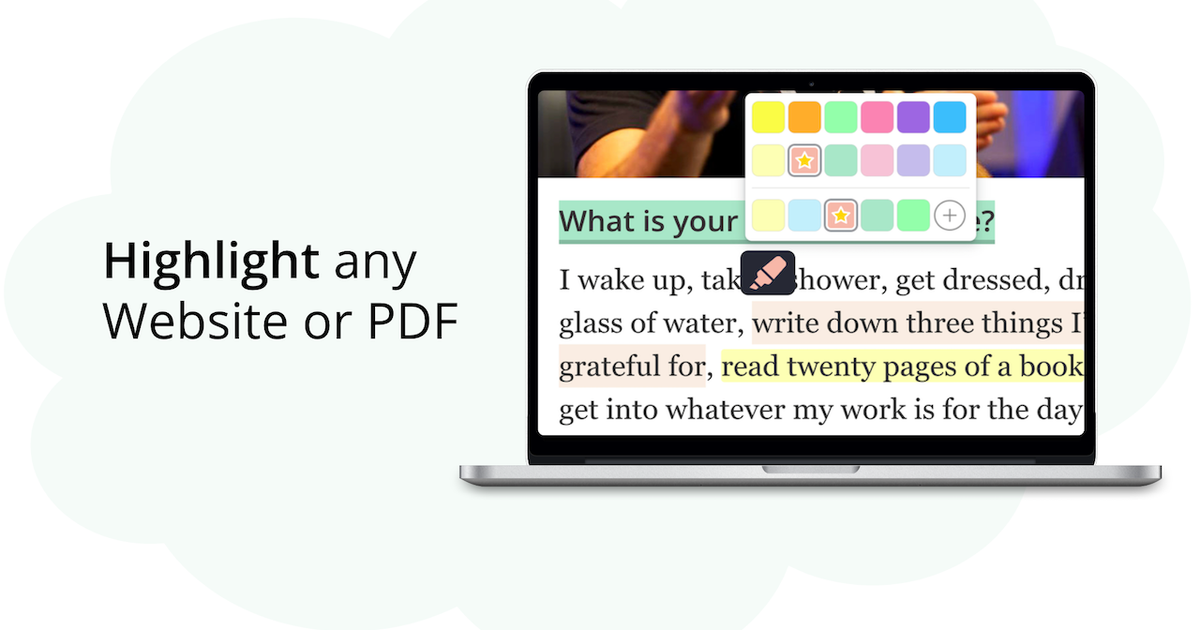
Web Highlights is a simple tool for highlighting text on any website or PDF. It's loved by hundreds of thousands of users, free, and you can use it without signing up.
The browser extension is available in the Chrome Web Store , Microsoft Edge Store , and Mozilla Firefox. It also works on any other Chromium-based browser like Brave or Vivaldi.
You can install Web Highlights on most browsers using this link.
Step 2: Open a PDF and click "Highlight this PDF"
Go to any PDF in your browser, such as this sample PDF. You'll see a popup in the top right corner saying "Highlight this PDF".
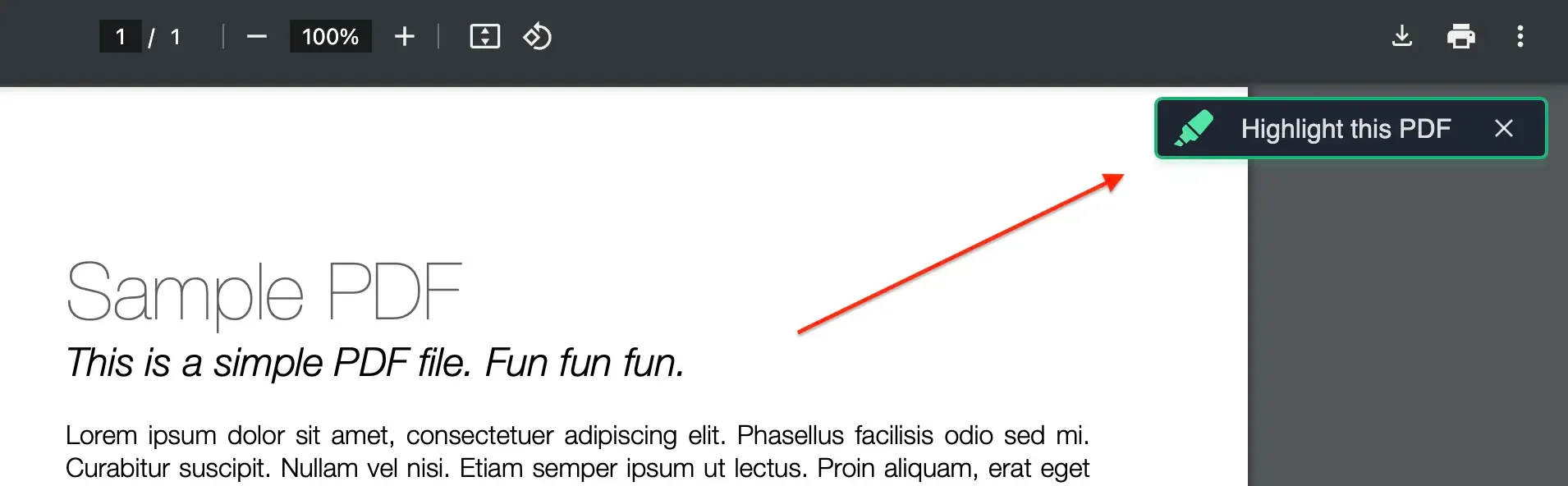
Click it, and Web Highlights opens the PDF in its own viewer, formatted and ready for highlighting. This step matters because the Web Highlights PDF viewer is what saves your highlights, notes, and tags—it makes everything in this guide possible.
💡 Tip: Alternatively, you can also click the Web Highlights extension icon from your extension toolbar to open the Web Highlights PDF viewer.
You should now see the Web Highlights PDF viewer, with the PDF ready for highlighting.
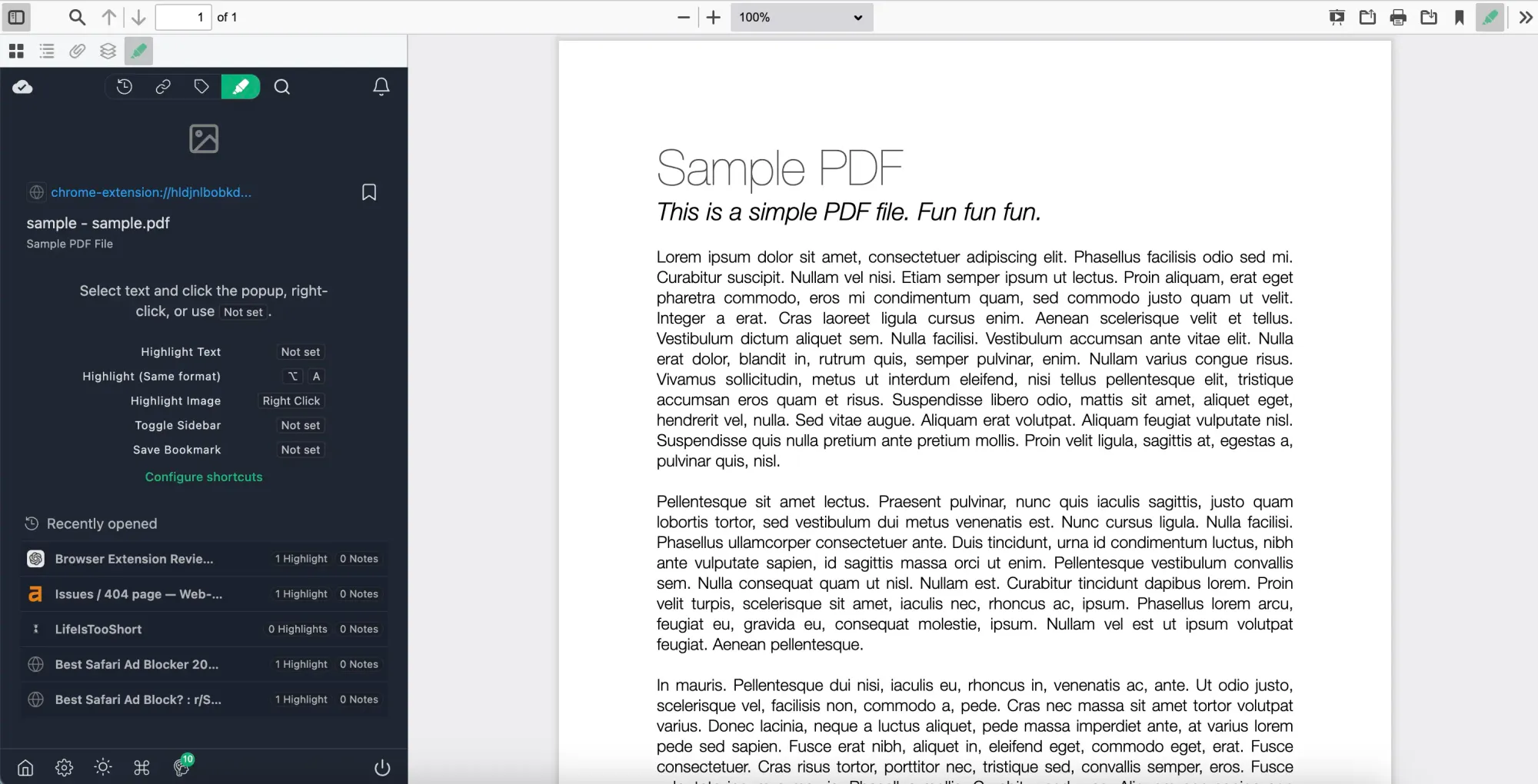
You can also see the Web Highlights sidebar, where your highlights, tags, and notes will be stored.
Now, let's finally highlight & annotate some text in our PDF.
Step 3: Select text and highlight it.
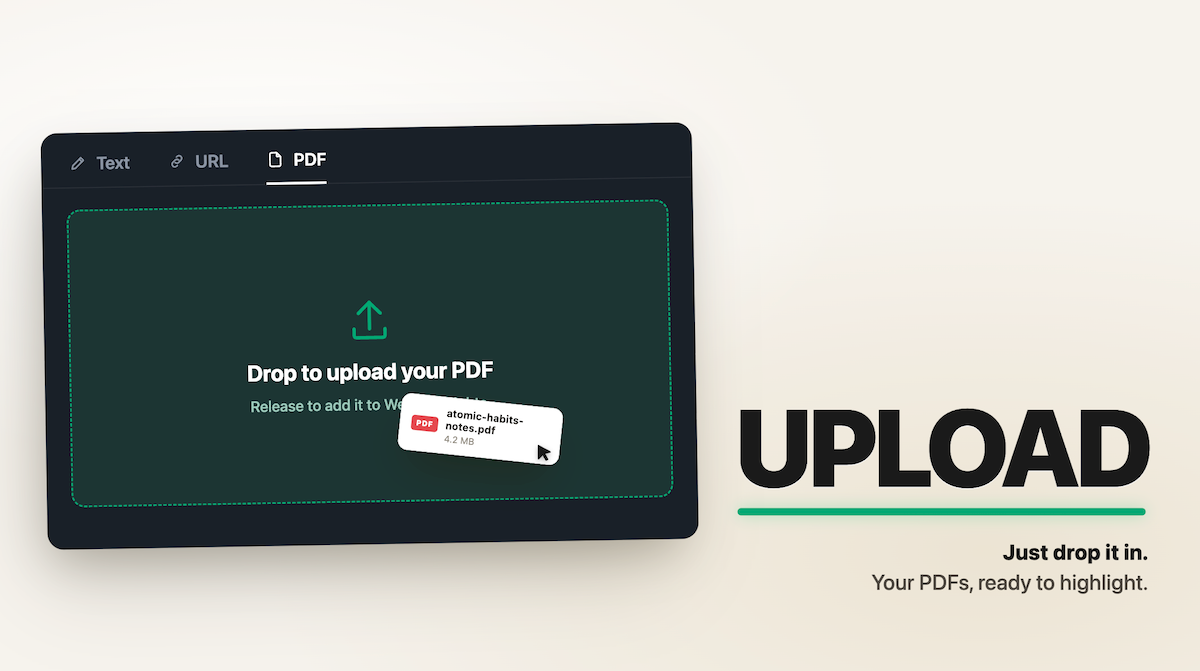
Within the Web Highlights PDF viewer, we can select any PDF text and save it to our sidebar.
Select some text and create a highlight by:
- Clicking the highlighter popup or choosing one of the colors
- Right-clicking the selected text
- Using a keyboard shortcut (Mac: ⌥ + S, Windows: ALT + S)
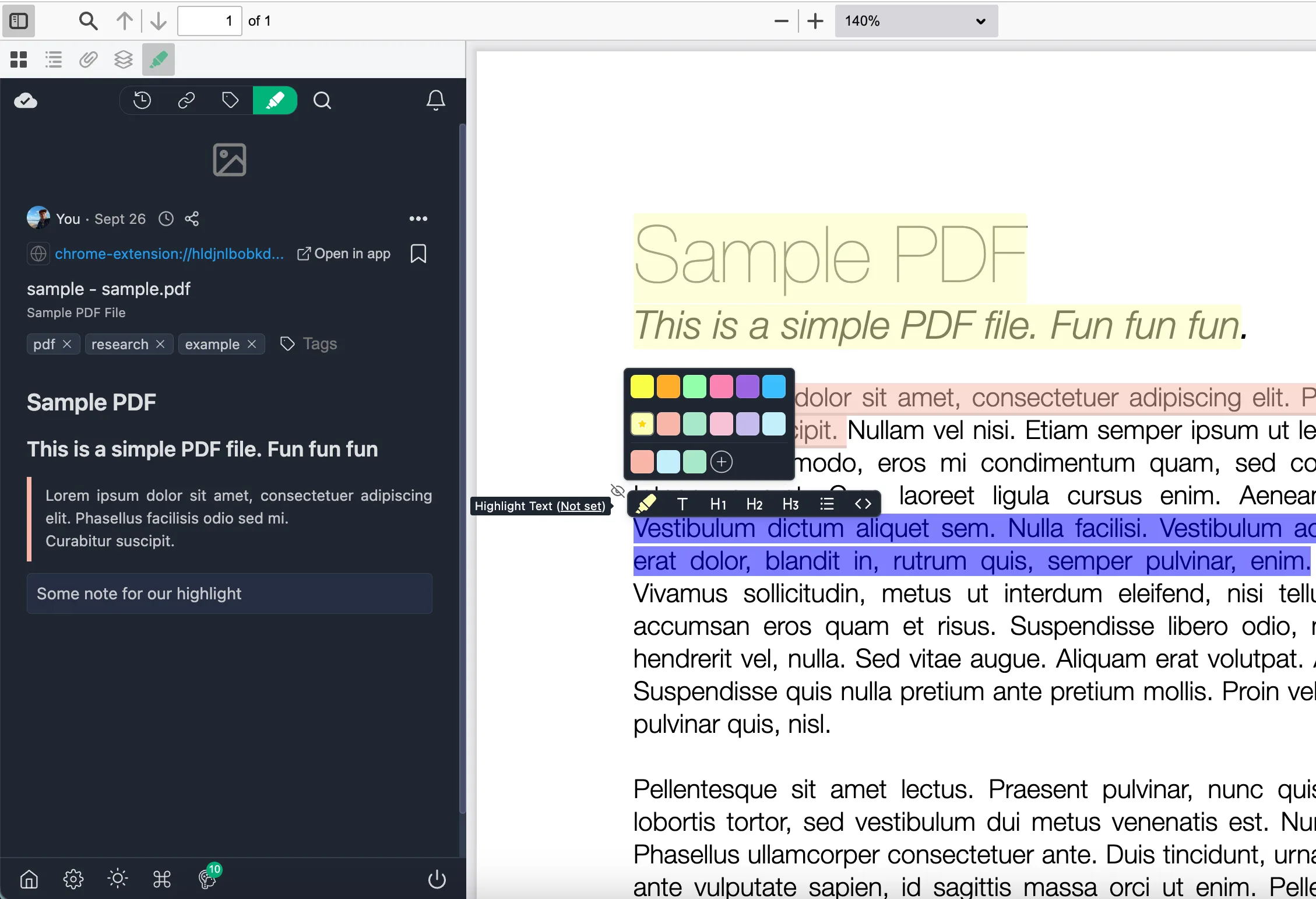
Once you've created a highlight, you can add your own thoughts by making a note or adding a tag to easily find it later.
Highlight local PDFs from your computer
You can highlight PDFs stored on your computer, too—no Adobe Acrobat needed. There's just one small Chrome setting to flip the first time.
Step 1: Open the local PDF in Chrome
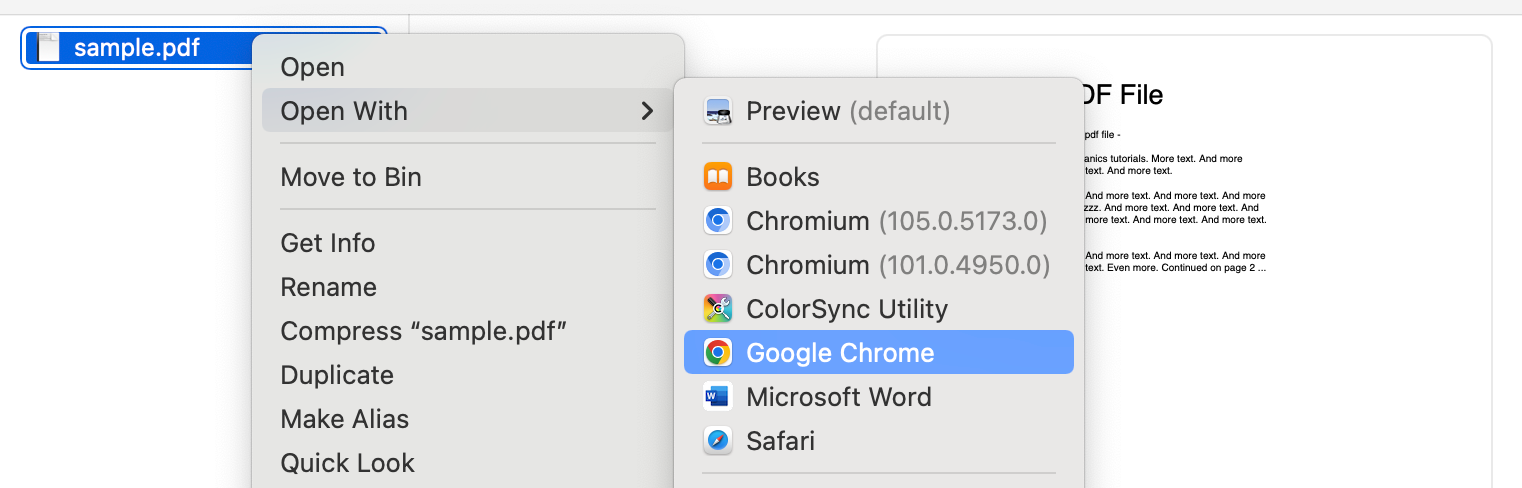
Right-click the PDF file, choose "Open With," and select Chrome—or simply drag the file into a Chrome tab.
Step 2: Click the Web Highlights extension icon
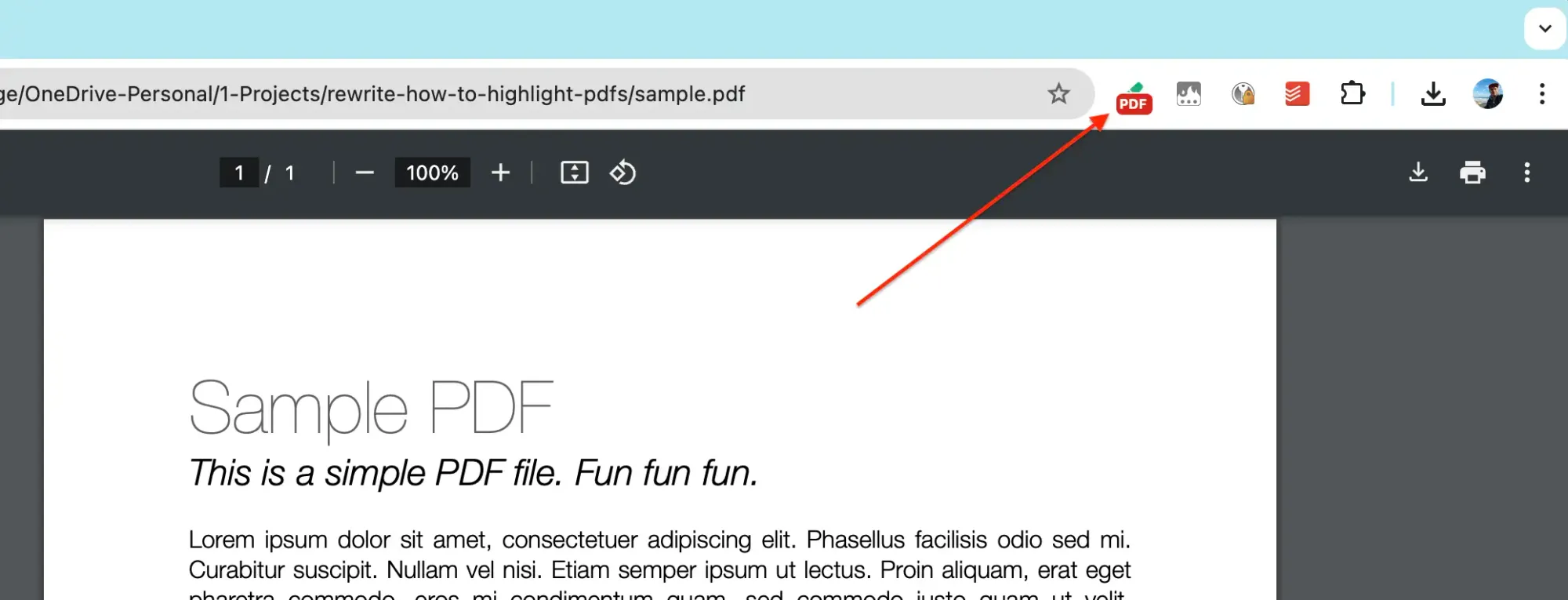
Once the PDF is open, you'll notice a small PDF icon next to the Web Highlights extension icon—that means the PDF was detected. Click the extension icon to proceed.
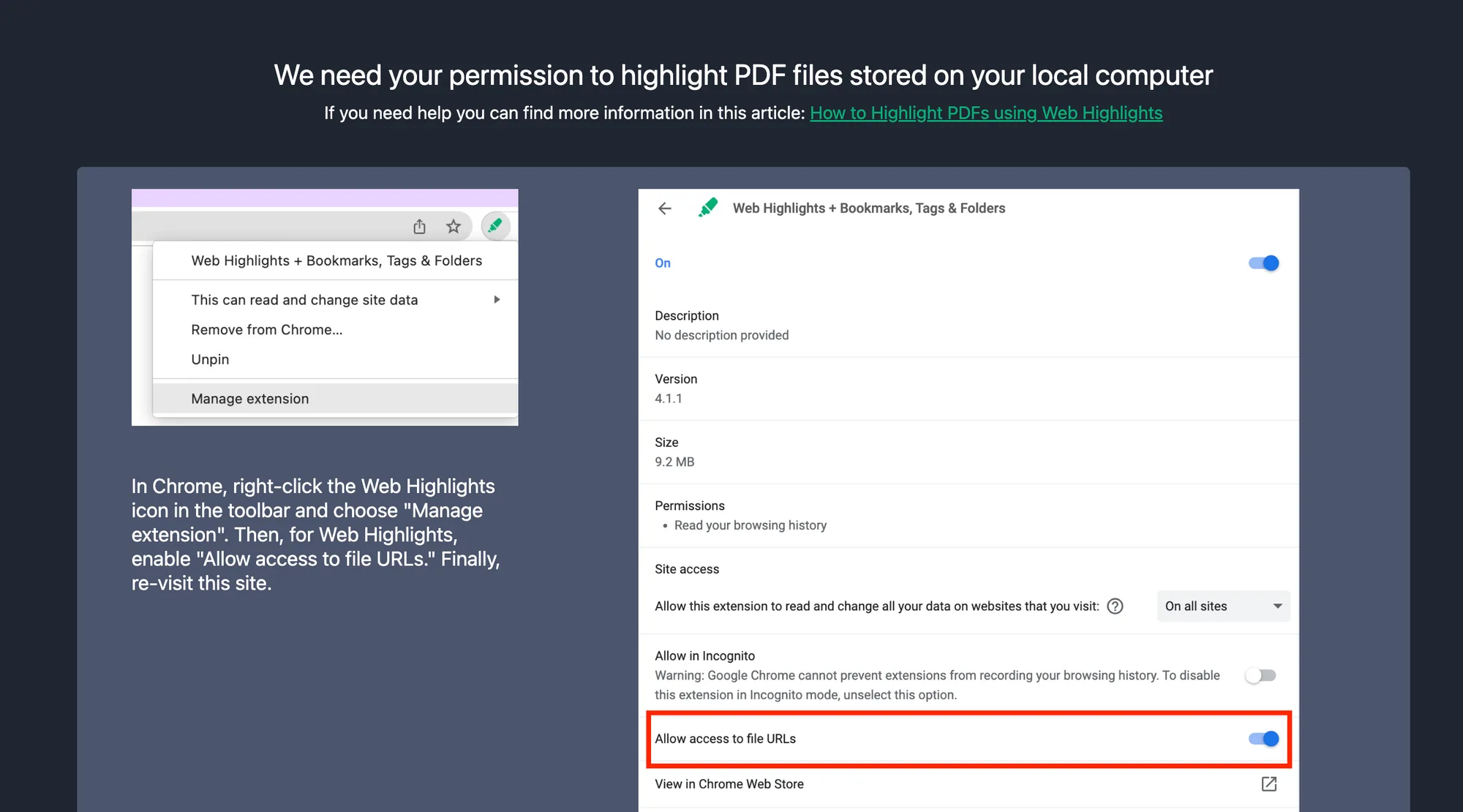
Chrome blocks extensions from reading local files by default, so Web Highlights will show you a screen asking for one permission:
Step 3: Allow access to file URLs
This is a one-time setting, and Web Highlights shows you built-in instructions. In short:
- right-click the Web Highlights icon in the toolbar
- choose "Manage extension"
- then enable "Allow access to file URLs"
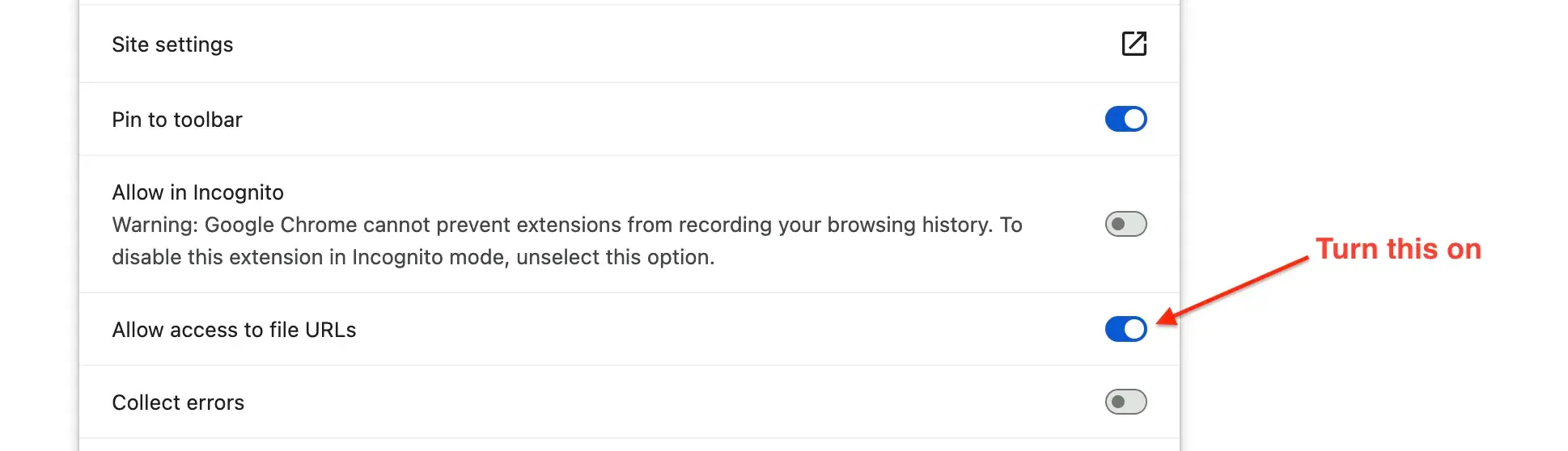
Now reopen your PDF and click the "Highlight this PDF" popup—from here, everything works exactly like with online PDFs.
One thing to know: highlights on a local file are tied to the file's location on your computer, so keep the PDF in the same place to see them again. You'll find all the details in the local PDF documentation .
Use colors with intent
Once highlighting takes no effort, the next step is making your highlights mean something. The trick is to stop asking "is this important?" and start asking "what kind of important is it?"
A simple system that works for most people:
- Yellow — key points and main arguments
- Red — questions, doubts, things to verify
- Green — definitions and terms worth remembering
You can pick a color right from the highlighter popup, and the color picker lets you create custom colors—your most recent ones stay one click away.
When you come back to a 40-page paper weeks later, the colors alone will tell you where to look. That's the difference between a marked-up PDF and a useful one.
Add notes and tags
Highlights capture what the author said. Notes capture what you thought—and that's where annotation really starts.
Click any highlight to add a note : a thought, a counter-argument, a reminder for your future self. The note stays attached to the exact passage, so you'll never find a brilliant idea again without knowing what it referred to.
Tags work across documents. Tag highlights with things like "thesis," "statistics," or "to-quote," and you can pull up every related highlight in one place—even when they're spread over a dozen PDFs and websites.
And if you remember only a single word from a passage, the search in the sidebar digs through all your highlighted content and finds it.
Everything in one place
While you read, the Web Highlights sidebar keeps your highlights, notes, and tags right next to the PDF.
The Web Highlights sidebar is the heart of the productivity tool, letting you search through all your highlighted content in one central place.
Beyond the sidebar, there's the Web Highlights dashboard —a web app where every PDF and webpage you've ever highlighted lives, searchable and organized into collections.
Create a free account and everything is kept for good. Syncing across devices is free for your first 7 days and part of the paid plans after that: highlight a paper on your work laptop, review it on your phone on the train. It works in Chrome, Edge, Brave, Vivaldi—any Chromium-based browser.
Turn highlights into knowledge
Here's the uncomfortable truth about highlighting: marking text doesn't make you remember it. Reviewing does.
That's why Web Highlights has a built-in learning mode that turns your highlights into flashcards and quizzes you with spaced repetition —each card comes back right before you'd forget it.
If you're a student working through lecture PDFs or a researcher reading papers, this is the difference between "I read that somewhere" and actually knowing it.
Download or print the PDF with your highlights
This is the part I'm most proud of. For a long time, the question I got more than any other was: "Can I download the PDF with my highlights still in it?"
Now the answer is yes.
Click the Download button in the Web Highlights PDF viewer, and the file you get contains your highlights as real PDF annotations —not flattened images. Each highlight becomes its own annotation in its original color, and your notes ride along as plain-text comments.
Open that file in Adobe Acrobat, macOS Preview, Microsoft Edge, or any standard PDF reader, and you can edit your highlights like comments made in those apps—while the document's text stays fully selectable.
Printing works just as well: hit the viewer's Print button (or your browser's print shortcut), and your highlights keep their colors on paper, with the text still readable beneath them. "Save as PDF" from the print dialog works too.
So when your supervisor insists on Acrobat, or you need a marked-up printout for a meeting—your work travels with the file. Your highlights belong to you, not to an extension. The download & print documentation has all the details.
Already have highlights in Acrobat? Import them
It works in the other direction, too.
If you open a PDF that already contains highlights—made in Adobe Acrobat, macOS Preview, or any PDF app that writes standard annotations—Web Highlights detects them and offers a small callout: "Found N highlights in this PDF."
One click, and they all become Web Highlights highlights—colors preserved, notes imported as plain text, everything on the page and in your sidebar. No retyping years of annotations.
And the import stays smart afterwards:
- Reopen the PDF, and nothing gets imported twice.
- Delete an imported highlight, and it stays deleted—even though the file still contains the annotation.
- Edit the file later in Acrobat, and the next time you open it, Web Highlights offers exactly what changed—"N new, M updated."
Curious how it handles edge cases like conflicting edits? The import documentation covers them all.
Export your highlights anywhere
Once your PDF research lives in Web Highlights, you can send it wherever you actually work:
- Notion — export your highlights to Notion with one click, each highlight with its note and tags. The free plan includes one export a day; Ultimate makes it unlimited.
- Markdown — copy your highlights as clean Markdown and paste them into Obsidian or any note-taking app.
- More formats — Capacities gets the same one-click export, and HTML and PDF files are available with Ultimate.
FAQ
Can you highlight a PDF in Chrome?
Yes. Since Chrome 145, the built-in PDF viewer has a Draw tool with a freehand highlighter, but you mark lines by hand, can't add notes or tags, and your marks only stay if you save a copy. To highlight the text itself, install a free PDF highlighter Chrome extension like Web Highlights, open the PDF, and click "Highlight this PDF." From there you can select and highlight any text, in online PDFs as well as local files.
How do I highlight a PDF for free?
Web Highlights is a free PDF highlighter: install it from the Chrome Web Store , open any PDF in your browser, select text, and click the highlighter popup. Highlighting, notes, and tags work for free—you don't even need to create an account to get started. Prefer not to install an extension? The free online PDF highlighter does the same right in your browser—upload a PDF and highlight it, no sign-up.
Can I download the PDF with my highlights?
Yes. Click the Download button in the Web Highlights PDF viewer, and the downloaded file carries your highlights as standard PDF annotations—original colors, notes included as comments. They open editable in Adobe Acrobat, macOS Preview, Microsoft Edge, and any standard PDF reader. Printing keeps the highlight colors on paper, too.
Does it work with scanned PDFs?
Honestly—no. A scanned PDF is just a photo of a page, so there's no selectable text to highlight. You'd need to run it through an OCR tool first. Password-protected PDFs aren't supported either—you'd have to unlock the file before highlighting it.
Final thoughts
I hope this guide helps you highlight PDFs in Chrome with ease—from your first highlight to a fully annotated PDF you can hand to anyone, in any PDF app. If you want to dig deeper into any feature, the PDF highlighter documentation covers everything in detail, and the step-by-step PDF tutorial walks the whole workflow with screenshots.
I am always happy to answer questions, and I am open to criticism. Feel free to contact me at any time 😊
Get in touch with me via LinkedIn or follow me on Twitter .