
Notes on Highlights
Video transcript
- 0:02 Notes on highlights. Here is how you add notes to your highlights with Web Highlights.
- 0:05 Highlight a passage. First, simply highlight a passage that matters to you.
- 0:08 Write a note. Then click on the highlight, and you can write your note right here. I usually write down why this part is important to me. The note is saved automatically while you type.
- 0:16 Format your note. The editor also supports bold and italic text, headings and lists, so your notes can have a bit of structure.
- 0:23 Notes about the page. You can also write a note about the whole page, without any highlight. Just open the sidebar, hover over the list, and click the small plus icon to add a page note.
- 0:30 Everything in the sidebar. As you can see, all your notes show up in the sidebar, right next to your highlights.
- 0:35 All notes in the dashboard. And in the dashboard, under Notes, you find every note you have ever written, across all of your pages.
Every highlight you create in Web Highlights can carry a note. You can also create standalone page notes — thoughts about a page that aren't tied to any specific highlight, so you can capture impressions that no single phrase represents. Notes let you capture your own thoughts alongside the text you've highlighted — whether that's a quick reaction, a summary, a question to follow up on, or a connection to something else you've read.
Adding a Note
- Click any highlight on a webpage, PDF, or YouTube transcript
- The highlight popup opens with the note editor already active — no extra click needed
- Write your note in the rich-text editor
- Your note is saved automatically as you type
You can also add notes from the sidebar or the web app by clicking on any highlight in your library.
Adding a Standalone Page Note
Sometimes you want to jot down a thought about the page itself — not anchored to any specific sentence ("ignore the intro — the real argument starts at section 3"). A standalone page note captures that. There are three ways to add one, and each opens the editor focused so you can start typing right away:
1. The empty-state prompt
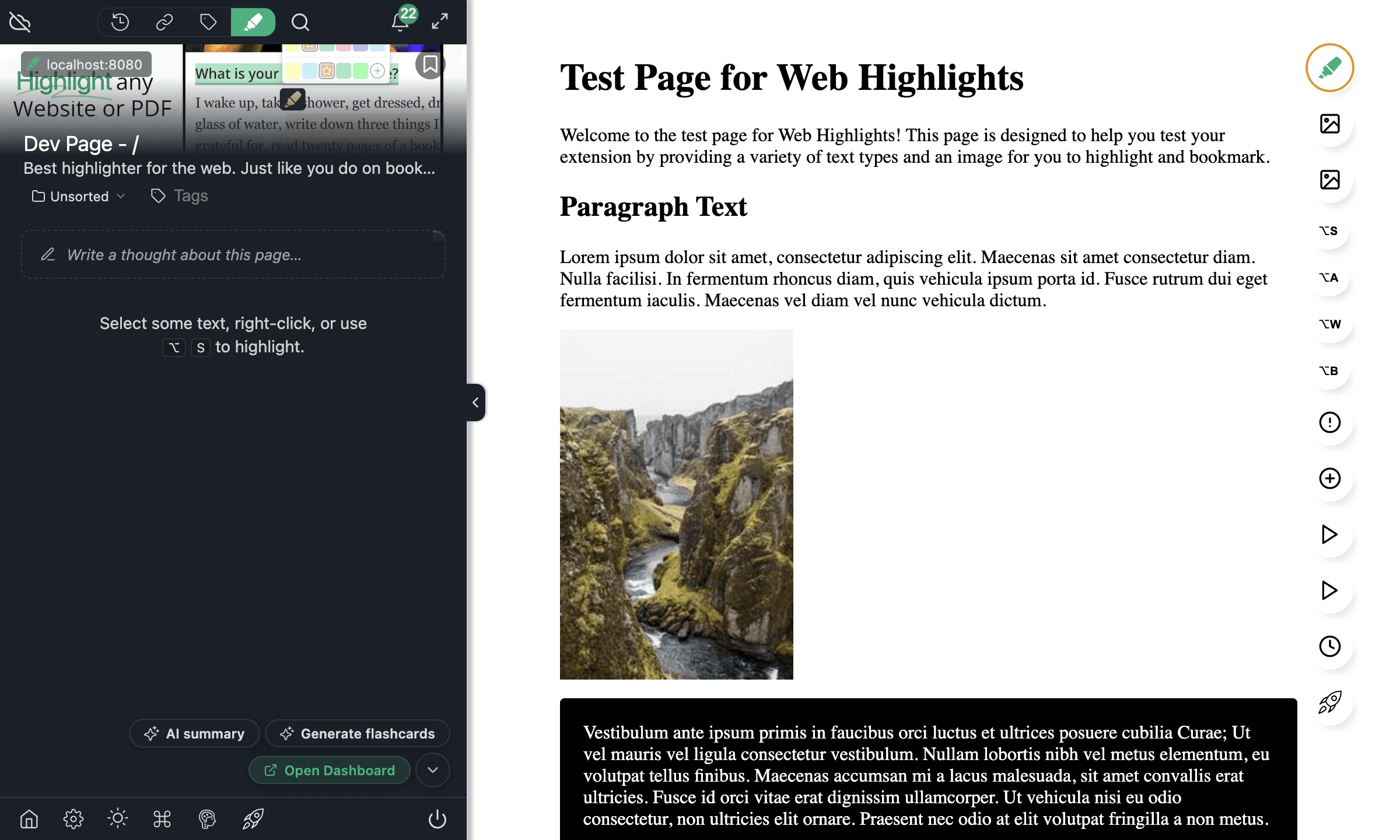
Open the sidebar on a page with no highlights yet — or open a bookmark with no marks in the web app — and click "Write a thought about this page…" at the top.
2. The inline inserter
Already have highlights on the page? Hover the sidebar list — or the mark list in the web app bookmark view — and a small note-plus inserter appears between marks (and below the last one). Click it to drop a page note at exactly that position in your reading order.
3. The outline rail
Hover an empty stretch of the outline rail on the edge of the page and click the "+" that appears. A pop-out editor opens anchored to the rail; the note slots into the list at the position you dropped it. (This rail "+" is specific to the live page — the first two methods also work in the web app bookmark view.)
Type your note and click outside the editor — non-empty content saves automatically; an empty editor discards itself, so you never accumulate empty drafts. Standalone page notes appear in the sidebar alongside your highlights with a neutral folded-corner card. They behave like any other mark: you can tag them, copy them, delete them, drag-reorder them past highlights, and they sync across devices. When you reopen a page, existing page notes load quietly (the editor is there but not focused) — only a note you just created or click opens ready to type.
In the web app, page notes are counted and filed under Notes (not Highlights), since they have no highlighted text.
Show or hide page notes
When a page has both highlights and page notes, a small note-shaped filter chip appears in the sidebar's filter row. Toggle it to hide or show your page notes (on the list and the outline rail) independently of the colour filter; the choice is remembered across sessions.
The Notes Editor
Web Highlights uses a rich-text editor with a compact formatting toolbar that slides open when the editor is focused. It works the same on highlight notes and standalone page notes, and supports:
- Bold and italic formatting
- Headings (H1 / H2)
- Bullet and numbered lists
- Inline code
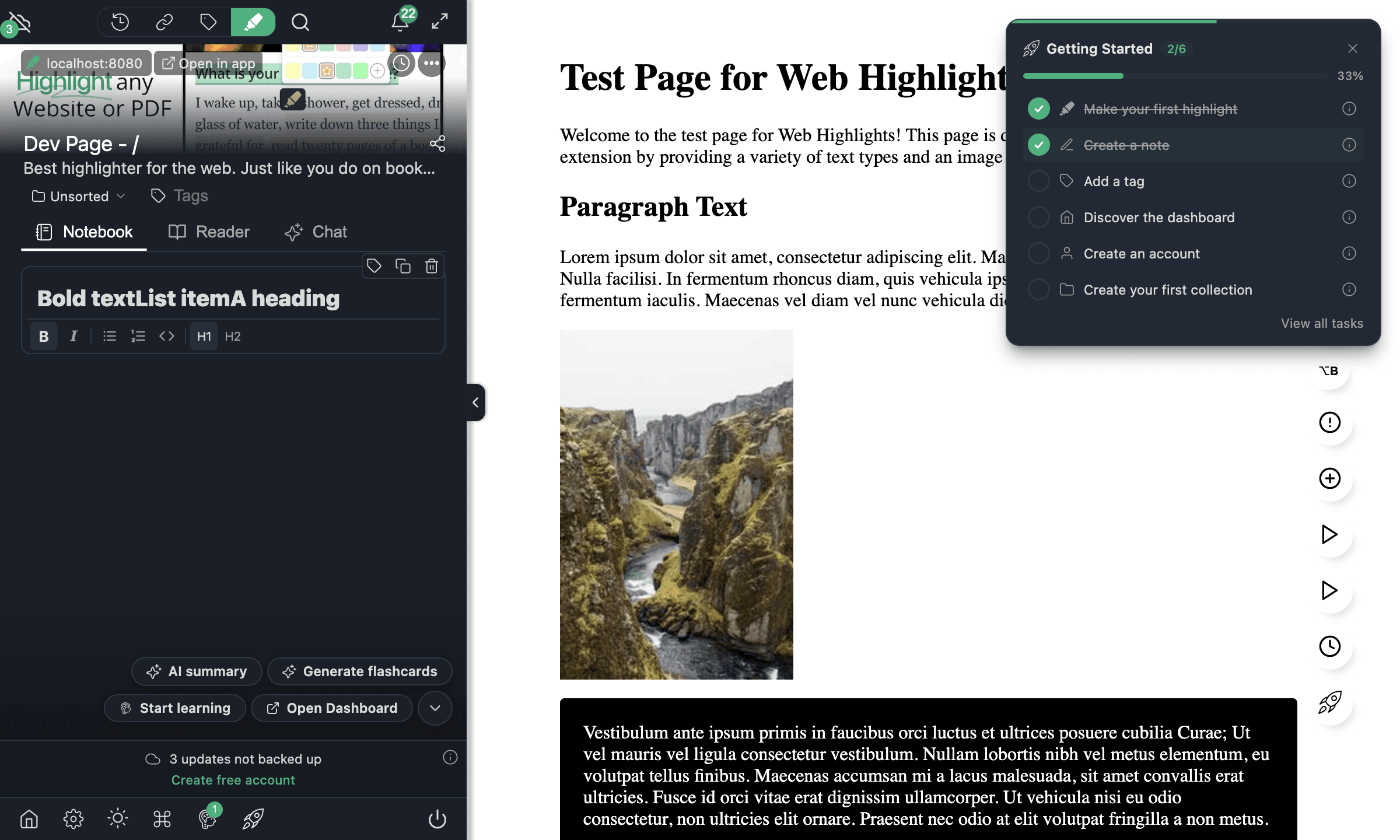
The editor saves your changes automatically with a short delay, so you never lose your work.
Where Notes Appear
Your notes show up everywhere your highlights do:
- Sidebar — Notes appear below each highlight when you expand it
- Web app — Notes are visible in the highlight detail view and in search results
- Exports — Notes are included when you export to Markdown, Notion, or Capacities
- Learning cards — If you use spaced repetition, your notes appear on the back of flashcards
Notes in Your Workflow
Research & Study
Add context to highlights as you read — "this contradicts the Smith (2024) paper" or "use this quote in chapter 3." When you review your highlights later, the notes remind you why you highlighted something, not just what.
Annotating Articles
Notes turn Web Highlights into a full annotation tool. When you read an article online, you can highlight key passages and attach notes that capture your analysis, questions, or connections to other sources. This is how effective annotation works:
- Highlight the passage that matters
- Annotate — write your reaction, question, or summary in the note
- Tag the page with a topic (see Tags & Organization) for easy retrieval
- Export your annotated article to Markdown or Notion for further processing
For Students
Notes are especially useful for academic work. Here are a few annotation patterns students use:
- Source tracking — Note the page number, author, or publication alongside each highlight for citation later
- Critical reading — Write notes that question the author's reasoning or compare arguments across sources
- Exam prep — Use notes on the back of flashcards (spaced repetition) to test yourself on highlighted material
- Collaborative annotation — Share a page with highlights and notes so study partners can see your analysis
Summarizing
Use notes to write one-sentence summaries of each highlight. When you export a page, these summaries form a condensed version of the original content.
Connecting Ideas
Tag your highlighted pages with tags and write notes that reference other sources. Over time, your Web Highlights library becomes a connected knowledge base.
Plan Availability
Notes are available on all plans, including the free tier.
Common Questions
Can I add notes to PDF highlights?
Yes. Notes work the same way on PDF highlights as they do on web page highlights. Click any highlight in the PDF to open the note editor.
Can I add notes to YouTube transcript highlights?
Yes. When you highlight text in a YouTube transcript, you can attach a note just like any other highlight.
Are my notes included in exports?
Yes. Notes are included in all export formats — Markdown, Notion, Capacities, PDF, and HTML.
Is there a character limit for notes?
There is no strict character limit. The rich-text editor supports long-form notes with formatting, so you can write as much as you need.
Can I search my notes?
Yes. Notes are searchable in the web app. Use the search bar to find text within your notes across your entire library.