
Edit Page Details
Every saved page in Web Highlights stores three editable fields you can fix or polish at any time: the title, the description, and the URL. The edits apply immediately, sync to your other devices when you're signed in, and — importantly — your highlights stay attached even when you rename the URL.
You can edit these fields from three places, depending on where you are:
- The extension sidebar — while you're on the page.
- The Recently Updated popover in the sidebar — for a page you saved earlier but aren't on right now.
- The web app bookmark modal — for any page in your library at app.web-highlights.com.
From the extension sidebar
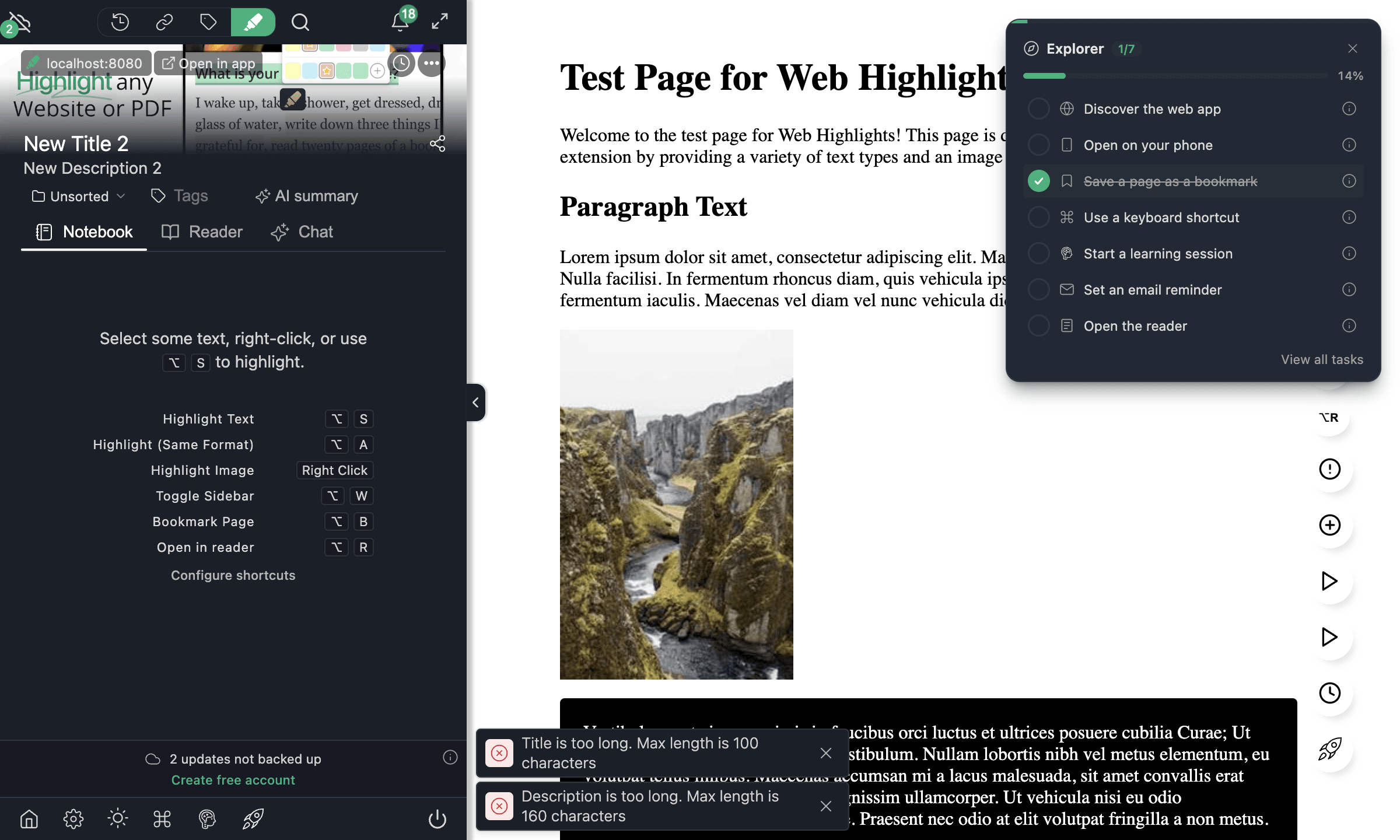
When the page you're on is saved (the bookmark icon at the top right of the sidebar is filled), the title and description fields at the top of the sidebar become editable. Just click into either field and type — your edit saves automatically after a short pause.
Limits
- Title — up to 100 characters. Longer titles are trimmed and a brief toast lets you know.
- Description — up to 160 characters, same rule.
If the page hasn't been saved yet (the bookmark icon is empty), the title and description fields are read-only — save the page first by clicking the bookmark icon, then come back to edit.
From the Recently Updated popover
You don't have to be on a page to edit its details. Open the Web Highlights sidebar on any page, and the Recently Updated tiles show pages you've worked on lately. Clicking a tile opens that page's details in a popover — title, description, and the same edit affordances:
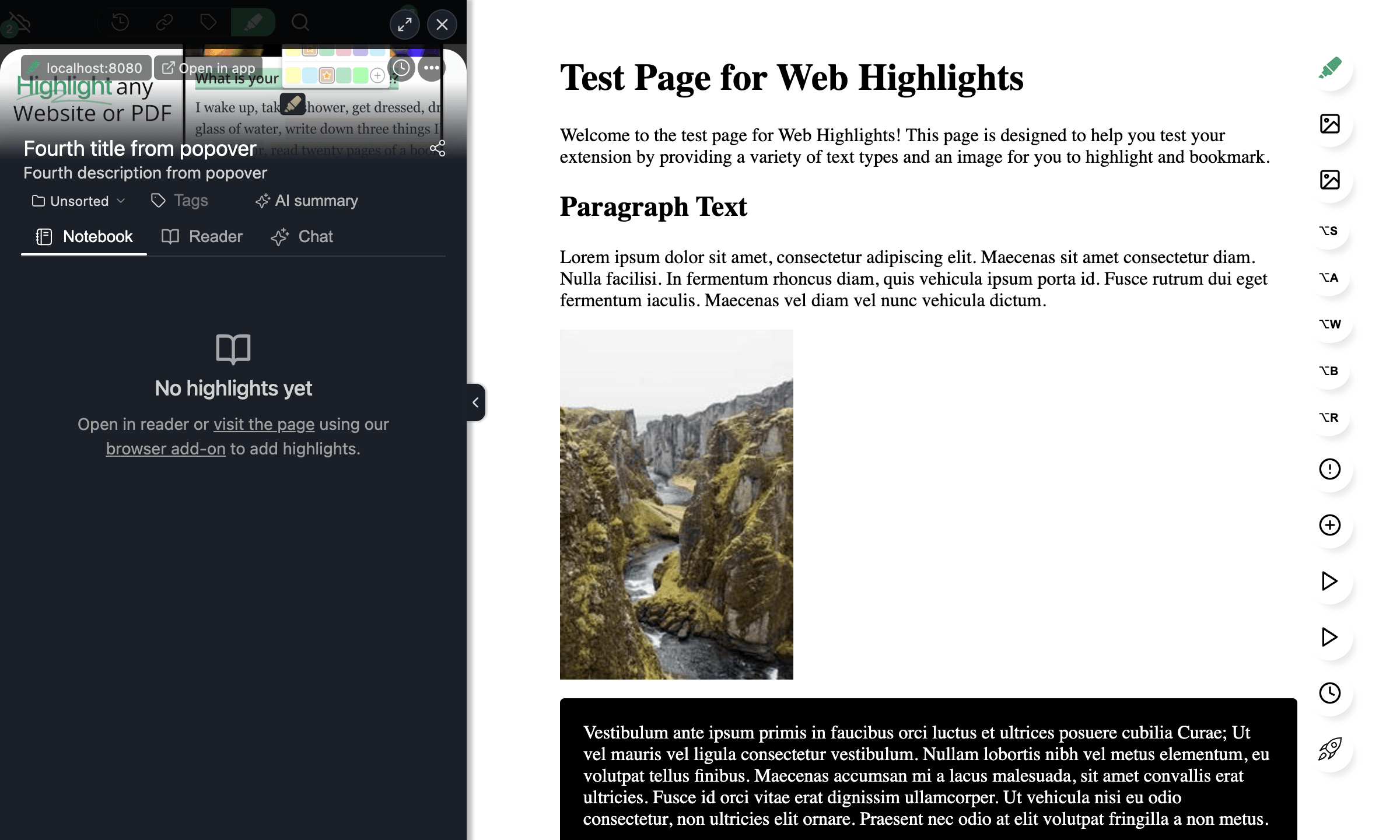
This is the fastest way to rename a page right after you saved it — no need to navigate back to it first.
From the web app
In the web app, open Pages in the sidebar and click any bookmark to open its detail modal. The title and description fields work exactly the same way as in the extension:
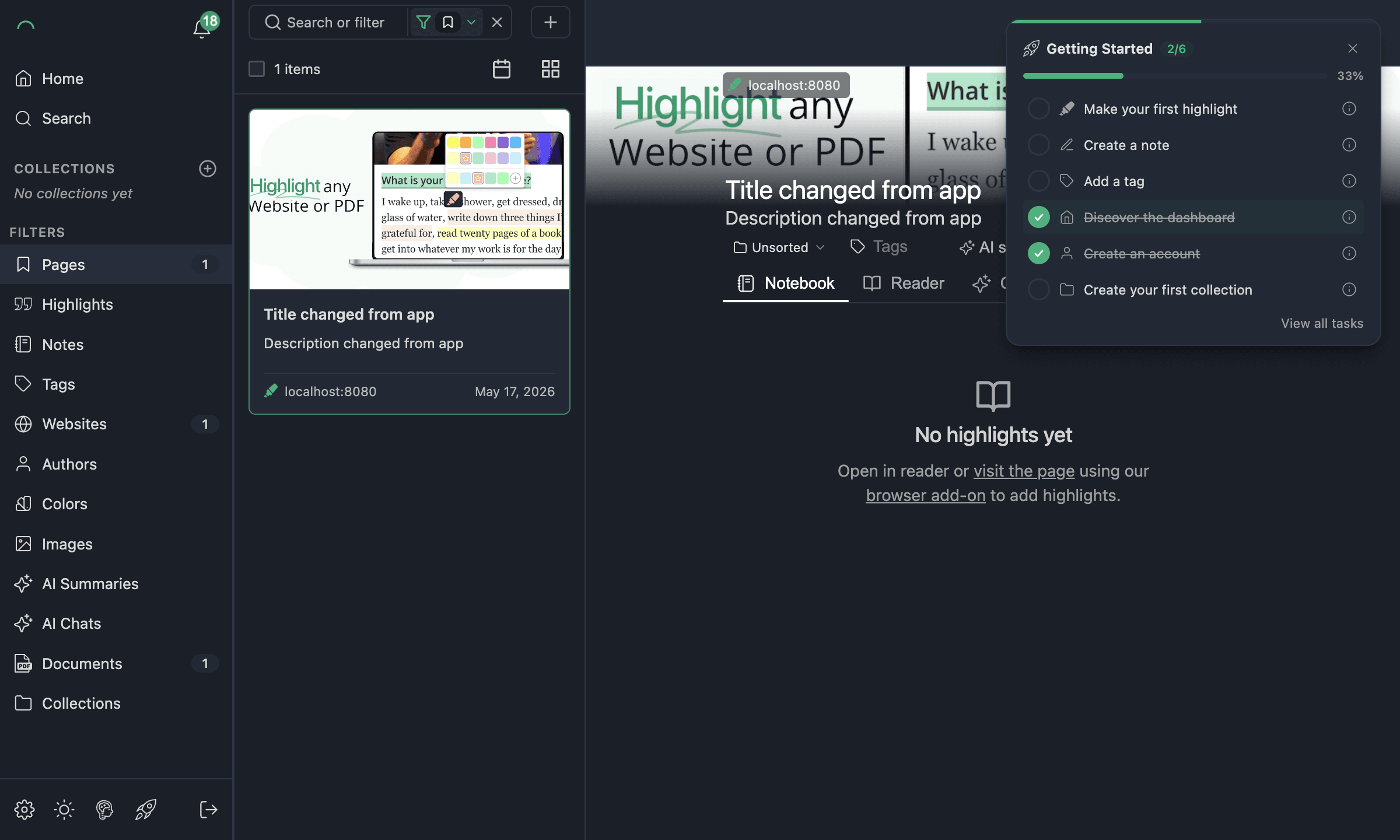
Edits made in the web app sync back to the extension within a few seconds.
Changing the URL of a page
You can also rename the URL of any saved page. This is useful when:
- A page has moved to a new domain or path.
- You saved the page with the wrong URL by mistake.
- The site switched from
httptohttps. - A query string or trailing slash crept in.
When you change the URL, all of your highlights for that page follow the new URL automatically — nothing is lost. Visiting the old URL will no longer show the bookmark or highlights; visiting the new URL will.
How to change the URL
- Hover the URL row in the bookmark preview (sidebar, popover, or web-app modal). A small pencil edit icon appears to the right of the URL.
- Click the pencil. The URL becomes editable.
- Type the new URL — make sure to include the
http://orhttps://prefix. - Press Enter to save, or Escape to cancel.
Web Highlights validates the URL before saving. If you enter something that isn't a valid URL, a toast appears and the edit stays open so you can fix it.
Highlights follow the URL
The new URL is written to the bookmark and to every highlight attached to it, so the next time you visit the new URL the highlights render as expected — both on the page and in the sidebar. This works across devices once the change has synced.
You can only edit URLs on pages you saved
If you're viewing a page someone shared with you, the URL is read-only — the same rule that prevents you from editing the title or description of a shared page.
When edits sync
If you're signed in, every change you make — title, description, or URL — is pushed to your other devices within a few seconds. You can confirm sync status by checking the cloud icon in the extension sidebar footer. If you're offline or signed out, edits are saved locally and will sync the next time you come back online.
Related documentation
- Sidebar — finding the bookmark preview and the Recently Updated tiles.
- Save Bookmarks — saving a page before you can edit its details.
- Web App — Grid, Search & Filters — finding any saved page to edit.