
Upload Your Own PDFs
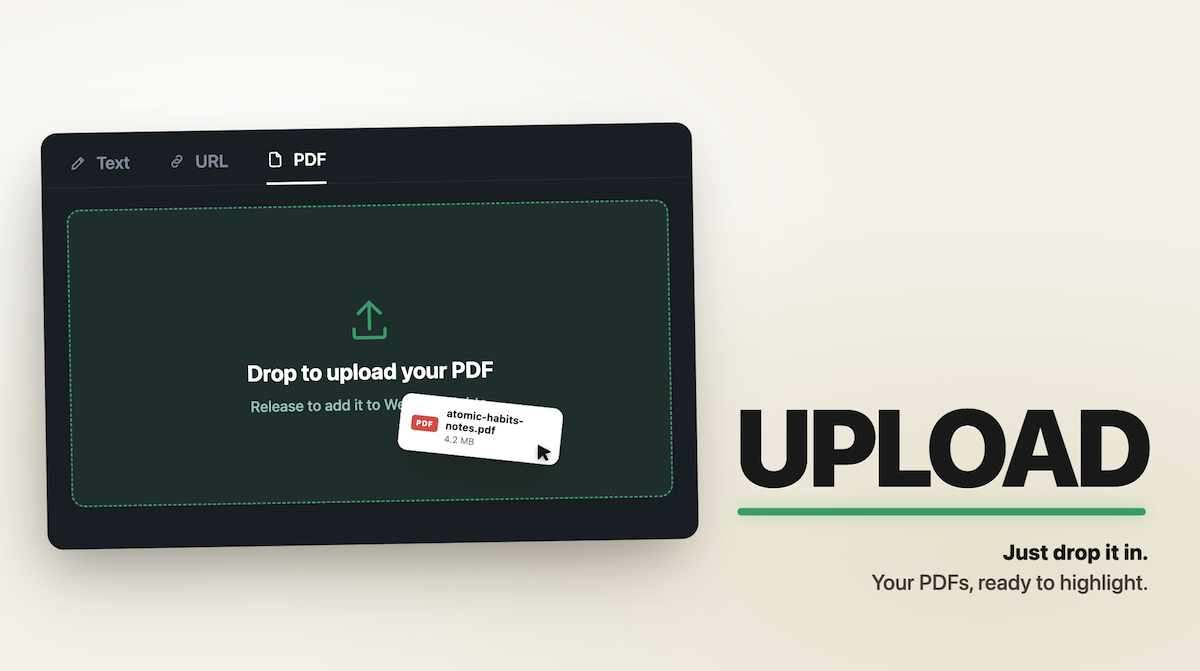
Web Highlights lets signed-in users upload PDFs directly to their library. Once uploaded, you can read, highlight, annotate and chat with them inside the in-app PDF viewer — the same way you would with any web page or YouTube transcript you've already saved.
This is the right feature for:
- Research papers you downloaded as PDFs.
- Contracts, manuals, technical specs.
- eBooks (DRM-free) and lecture notes.
- Any PDF that doesn't live at a public URL — your private documents stay private.
How to upload a PDF
- Open the Web Highlights web app at app.web-highlights.com and sign in.
- Click Add Content (the + button in the top-right).
- Switch to the PDF tab.
- Drop your PDF file onto the dropzone — or click to pick one from your computer.
- Web Highlights shows a preview with the filename and size. Click Create.
- Your PDF lands in your library as a bookmark. Open it to read and highlight inside the in-app viewer.
Highlighting an uploaded PDF
Once a PDF is in your library, the experience matches every other Web Highlights surface:
- Select text → the color picker appears next to the selection.
- Pick a color → the highlight is saved and shows in the sidebar's marks list.
- Add notes → click the note icon on any highlight to write your thoughts.
- Tag and organise → drop highlights into tags and collections like any web-page highlight.
- Sync — your PDF, its highlights and notes follow you to every device you sign into.
See Highlight PDFs for the highlighting workflow that applies to both browser-viewed and uploaded PDFs.
Storage and plan limits
Uploaded PDFs count against your account's Document storage cap — the same cap that limits how many web pages you can keep cached for offline reading.
| Plan | Document storage cap | Per-file cap |
|---|---|---|
| Basic / Ultimate Trial | 10 MB | 30 MB |
| Premium | 100 MB | 30 MB |
| Ultimate | 1 GB | 30 MB |
Every paid plan supports uploads up to the cap. Not signed in users get a sign-up prompt when they click the PDF tab.
If an upload would exceed your cap, Web Highlights shows the rejected file size, your current usage, and offers an upgrade dialog (or, on Ultimate, a hint to delete saved PDFs / pages to free space). The dialog never silently rejects an upload.
Where your PDF is stored
Uploaded PDFs are stored privately in Cloudflare R2 (already listed in our privacy policy as a subprocessor). Only you can open the file — every download is authenticated against your account.
PDFs you upload are not cached locally for offline reading like web-page documents. They live in the cloud and stream into the viewer on demand. Reading requires an internet connection; highlighting and the sidebar continue to work the same way.
Limitations (current scope)
- One file at a time. Batch uploads aren't supported yet.
- PDF only. Other file types (docx, epub) aren't supported in this release.
- 30 MB per file server-side. Larger files are rejected with a clear error message.
- No PDF-page thumbnail previews in the library grid yet — uploaded PDFs show as a generic file card with the filename and size.
- Search inside PDFs uses the browser viewer's built-in search; full-text search across your uploaded PDFs is a future feature.
Removing an uploaded PDF
Deleting an uploaded PDF works like deleting any bookmark:
- Right-click the bookmark in your library → Delete.
- Or open the bookmark and click the delete icon in its detail panel.
- The deletion cascades to the PDF binary in Cloudflare R2 — there is no orphan storage charge.
Deletion is permanent. If you change your mind, re-upload the file.
Related features
- Highlight PDFs — the highlighting workflow inside Web Highlights' built-in PDF viewer.
- Save Bookmarks — the analogous flow for web pages.
- Web App Grid and Filters — how uploaded PDFs appear in your library grid alongside web pages and notes.