How to Use Web Highlights on Your iPhone and iPad
On iPhone and iPad, browser extensions only come from the App Store, and Web Highlights is not there yet. So Safari, Chrome and Edge on iOS cannot run it. What does work: paste a link into the Web Highlights reader and highlight the article right there.
Key takeaways
- The Web Highlights extension does not run on iPhone or iPad, in any browser we have tested.
- Highlight in the reader instead: paste a link, the article opens as clean text, select a sentence and tap a color.
- Add the web app to your Home Screen to open your library like an app.
- Sign in with the same account as on your computer to see your highlights on both (sync is free for 7 days, then a paid feature).
Why can't I install the extension on my iPhone?
Safari on iPhone and iPad only runs extensions that are installed as apps from the App Store. Chrome, Edge and Firefox for iOS do not support extensions at all. Web Highlights has no iOS app yet, so there is nothing to install. This is also true on iPad, even though iPad Safari shows the desktop version of websites.
How do I highlight an article on my iPhone?
- Copy the link of the article you want to read (Share → Copy).
- Open the free Reader Mode tool, paste the link and tap Open in Reader.
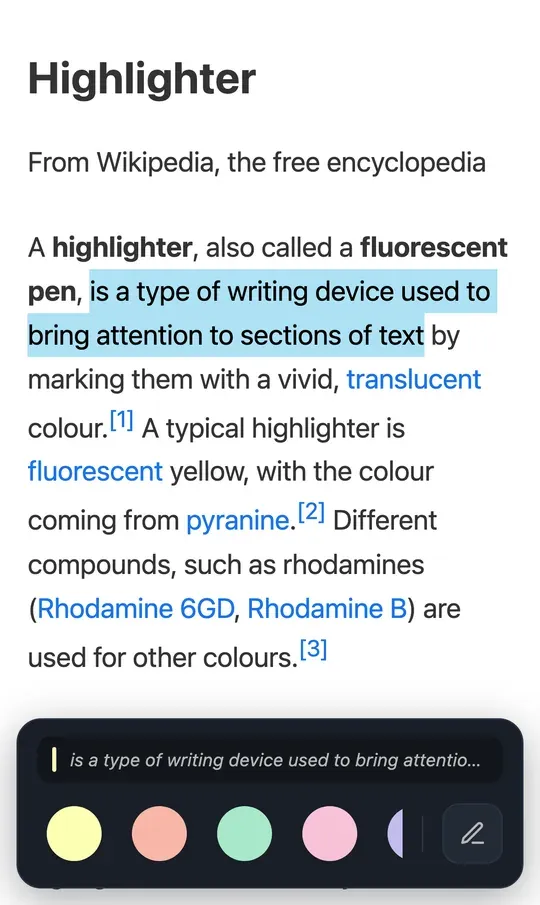
- The article opens as clean, readable text. Long-press a word and drag the handles over the text you want.
- A bar slides up from the bottom. Tap a color to highlight, or the pen to add a note.
Tip: create a free account to keep your highlights in your library.
How do I add Web Highlights to my Home Screen?
- Open app.web-highlights.com in Safari and sign in.
- Tap the ••• button (or the Share button, depending on your Safari layout), then Share.
- Scroll down and tap Add to Home Screen. Turn on Open as Web App and tap Add.
Note: on iPhone, web apps cannot appear in the Share menu of other apps. To save a page from another app, copy its link and paste it into Web Highlights.
What about iPhone browsers that support extensions?
Orion, a browser by Kagi, can load some Chrome and Firefox extensions on iPhone and iPad. That support is in beta and covers fewer features than on a computer. We have not tested Web Highlights in Orion, so we cannot promise it works. The reader above is the way we support.
More on extensions on iPhone: Can you use browser extensions on an iPhone?
Frequently asked questions
Is there a Web Highlights app for iPhone?
Not yet. Use the web app at app.web-highlights.com and add it to your Home Screen, and use the reader to highlight articles.
Do my highlights sync with my computer?
Yes, when you are signed in with the same account on your iPhone and in the extension on your computer. Sync is free for a 7-day trial, then part of the paid plans.
Do I need an account to highlight on my iPhone?
No, you can start highlighting in the reader right away. To keep your highlights in your library, create a free account.
Highlight your first article
Paste any article link and highlight it in the reader, right on your iPhone.
Open the Reader Mode toolUsing an Android phone? Read how to use Web Highlights on your Android phone.