I keep getting emails from people who want to use Web Highlights on their iPhone or iPad. And every time, I have to give the same answer: the extension doesn't run there — and it's not something I can fix, because Apple decides how extensions work on iOS.
That's not a very satisfying answer, I know. So I looked into what does work on an iPhone today.
The short answer: iPhones do support extensions, but only in Safari, and only extensions that come as apps from the App Store. Chrome, Edge and Firefox on iPhone can't run extensions at all. The one exception is Orion, a browser that can load some Chrome and Firefox extensions in a beta.
Key Takeaways
- Safari extensions on iPhone and iPad are small apps you install from the App Store.
- You add them in Safari under Manage Extensions and switch them on in Settings → Apps → Safari → Extensions.
- Chrome, Edge and Firefox for iOS have no extension support. There is no Chrome Web Store on iPhone.
- Orion by Kagi can load some Chrome and Firefox extensions on iPhone, with fewer features than on a computer.
- If the extension you need isn't available on iOS, look for a web version of the tool.
How Do I Install Safari Extensions on iPhone?
Safari extensions on iPhone aren't downloaded from a website like on a computer. They're small apps from the App Store. This is how Apple describes it in its iPhone User Guide:
- Open Safari.
- Tap the page menu button on the left side of the address bar, then Manage Extensions.
- Search for an extension, or tap Browse Extensions to look in the App Store.
- Tap Get (or the price) and follow the instructions.
After installing one, make sure it's actually switched on:
- Open the Settings app.
- Tap Apps, then Safari, then Extensions.
- Tap the extension and turn on Allow Extension.
You can also switch an extension on or off for a single website: tap the page menu button next to the address bar and choose Manage Extensions there. To remove an extension, delete it like any other app.
Can I Create My Own Safari Extension in iOS 27?
Yes, if your iPhone supports Apple Intelligence. With iOS 27, Safari has a Describe Extension option in the same page menu: you describe what you want, and Safari first checks whether a matching extension already exists in the App Store. If not, it creates one for you that you can try out and edit. I find that pretty wild, and I'm curious how well it works for more than small tweaks.
Can I Use Chrome Extensions on My iPhone?
Not in Chrome. Chrome for iOS has no extension support, and neither do Edge and Firefox for iOS. On iPhone, every browser has to use Apple's WebKit engine, and Apple only allows extensions through Safari's App Store route. So there is no Chrome Web Store on iPhone, no developer mode and no workaround inside those apps.
Many popular extensions do have a Safari version in the App Store, though. So before you give up, search the App Store for the extension's name.
Can Orion Run Chrome Extensions on iPhone?
Partly. Orion is a browser by Kagi that implements the extension APIs of Chrome and Firefox on top of WebKit. In its own docs, Kagi explains how to turn it on:
- In Orion, tap the ••• menu, then Settings.
- In the Extensions section, turn on Chrome extensions, Firefox extensions or both.
- Go back to the ••• menu, tap Extensions and use + to install one from the Chrome Web Store or Firefox Add-ons.
Kagi is open about the limits: extension support on iOS is in beta, and Apple restricts which APIs a browser can offer, so fewer extensions work fully than on a computer. I haven't tested Web Highlights in Orion, so I can't tell you whether it works there.
Can I Use Chrome Extensions on iPad?
No, iPad follows the same rules as iPhone. iPad Safari shows the desktop version of websites, which makes many people expect desktop extensions too. But the rules don't change: extensions only run in Safari, they come from the App Store, and Orion is the one beta exception.
What If the Extension You Need Isn't on iOS?
Look for a web version of the tool. Many extensions come with a website or web app that does the core job without any install.
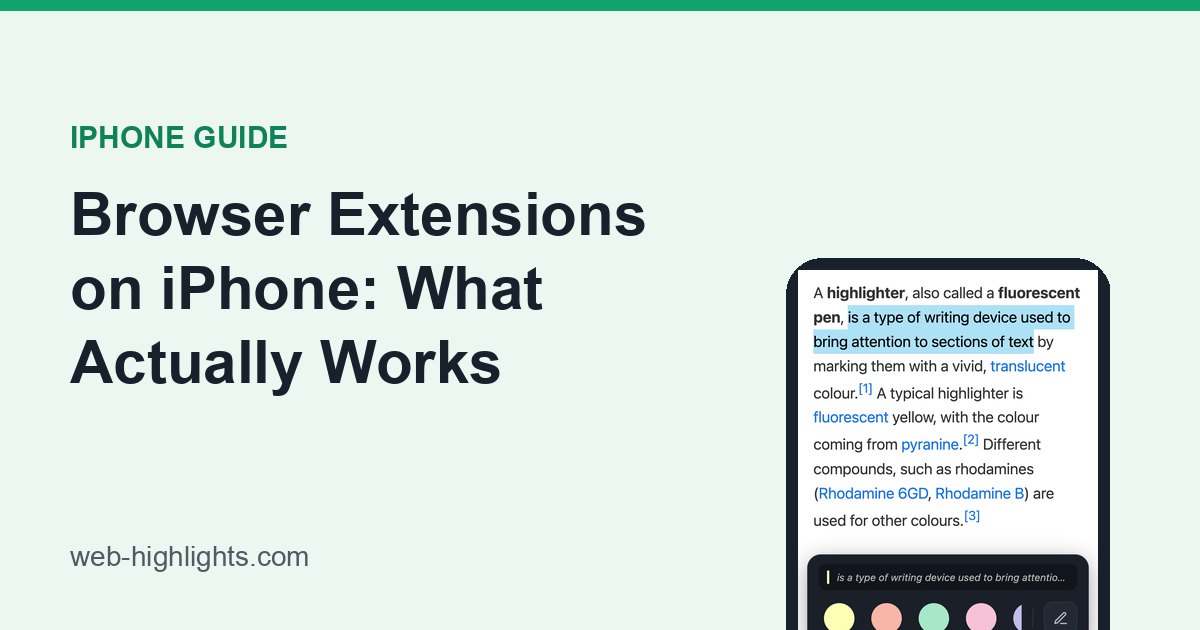
That's exactly what I did for Web Highlights, the free highlighter extension I've been building for the past few years. Hundreds of thousands of people use it on their computers, but it doesn't run on an iPhone. So instead, you can paste any article link into the free Reader Mode tool on our website and highlight the article right there, with the same highlight bar as on Android:
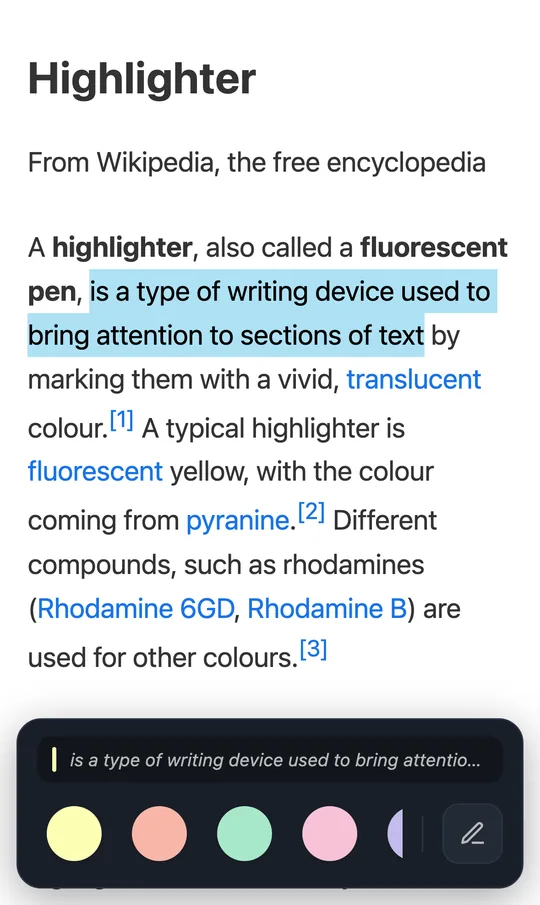
The steps are here: How to use Web Highlights on your iPhone and iPad. And if you have an Android phone, you have more options: How to install Chrome extensions on Android.
If Apple changes the rules again, I'll update this article. I'm happy to answer any questions, and I'm always open to criticism 😊