Recently, a user wrote me that highlighting had stopped working on their phone and their tablet. They were using Web Highlights in Edge on Android.
I installed it on my own Android phone, found the bug, and fixed it. And while doing that, I learned a lot about which Android browsers can run extensions at all. Here is what works in 2026.
So, can you use Chrome extensions on Android? Not in the Chrome app. But you can use them in Microsoft Edge (from Edge's own extension list), in Firefox (add-ons marked for Android), in Vivaldi (since September 2026), and in a few smaller browsers that open the Chrome Web Store directly.
Key Takeaways
- Chrome for Android has no extension support. On a phone, the Chrome Web Store only offers to install an extension on your computer.
- Microsoft Edge for Android installs extensions from its menu: ☰ → Extensions, search, tap Get.
- Firefox for Android installs every add-on that its developer marked as Android-compatible.
- Vivaldi for Android installs extensions from the Chrome Web Store since version 8.2 (September 2026).
- Kiwi Browser was discontinued in January 2025. Browsers like Lemur, Quetta and Yandex open the Chrome Web Store instead.
- Samsung Browser only runs its own add-ons from the Galaxy Store, not Chrome extensions.
Can I Install Chrome Extensions in Chrome for Android?
No. The Chrome app from Google Play doesn't support extensions, and there is no setting or flag that turns them on. If you open the Chrome Web Store on your phone, the button says Add to Desktop. That installs the extension in Chrome on your computer the next time you open it, not on your phone (see Google's Chrome Web Store help).
You might have read that Google is testing extensions on Android. That's true, but only in experimental "desktop" Chromium builds for Android-powered PCs. You have to sideload them, they show up as "Chromium" instead of Chrome, and they aren't made for phones (Android Authority). For your phone, you need a different browser.
Which Android Browsers Support Extensions?
| Browser | Extensions? | Where they come from |
|---|---|---|
| Microsoft Edge | Yes | Edge Add-ons, from ☰ → Extensions |
| Firefox | Yes | Firefox add-ons marked for Android |
| Vivaldi (8.2 and later) | Yes | Chrome Web Store, from the puzzle icon in the address bar |
| Lemur, Quetta, Yandex | Yes | Chrome Web Store (third-party browsers) |
| Samsung Browser (formerly Samsung Internet) | Only its own | Samsung add-ons from the Galaxy Store |
| Google Chrome | No | – |
| Brave, Opera | No | – |
| Kiwi Browser | Discontinued | No longer maintained since January 2025 |
How Can I Install Extensions in Microsoft Edge for Android?
Edge is the easiest way to get desktop extensions on an Android phone. It started in 2025 with a short list of hand-picked extensions (22 at launch, according to How-To Geek). Today, you can search the Edge Add-ons catalog right from the menu:
- Install Microsoft Edge from Google Play and open it.
- Tap the menu button (☰) in the bottom bar, then Extensions.
- Search for the extension you want and tap Get.
- Confirm with Add. That's it, the extension now runs on every page you open in Edge.
Edge may warn you that an extension was not tested on mobile devices. You can still add it. Just don't be surprised if some buttons or popups don't fit on your phone screen.
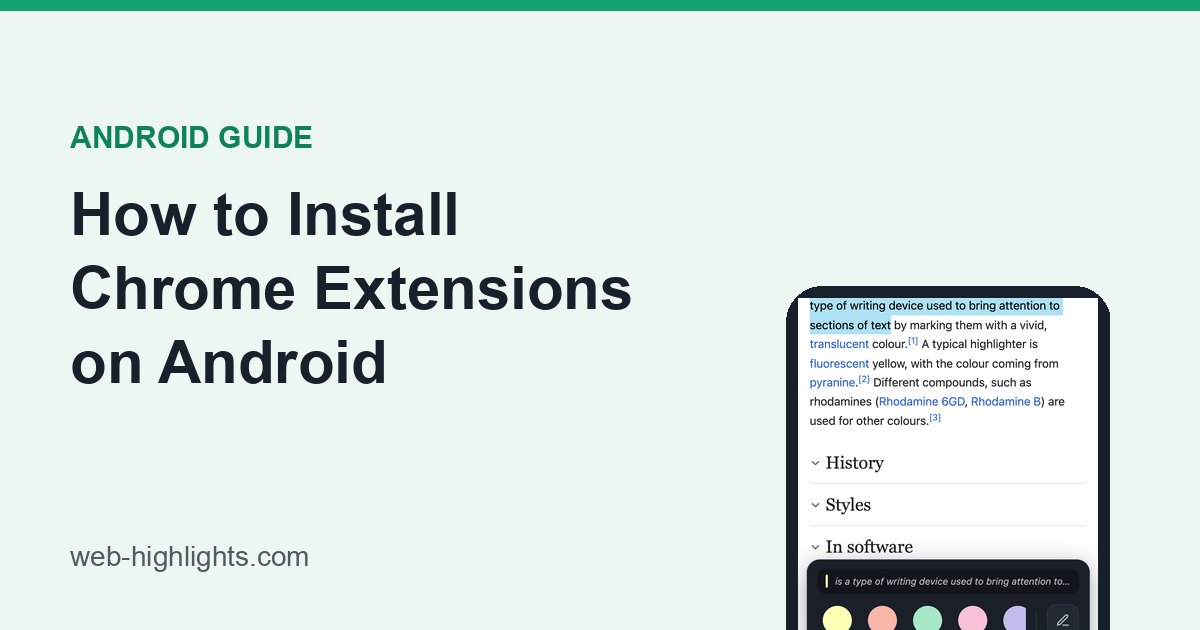
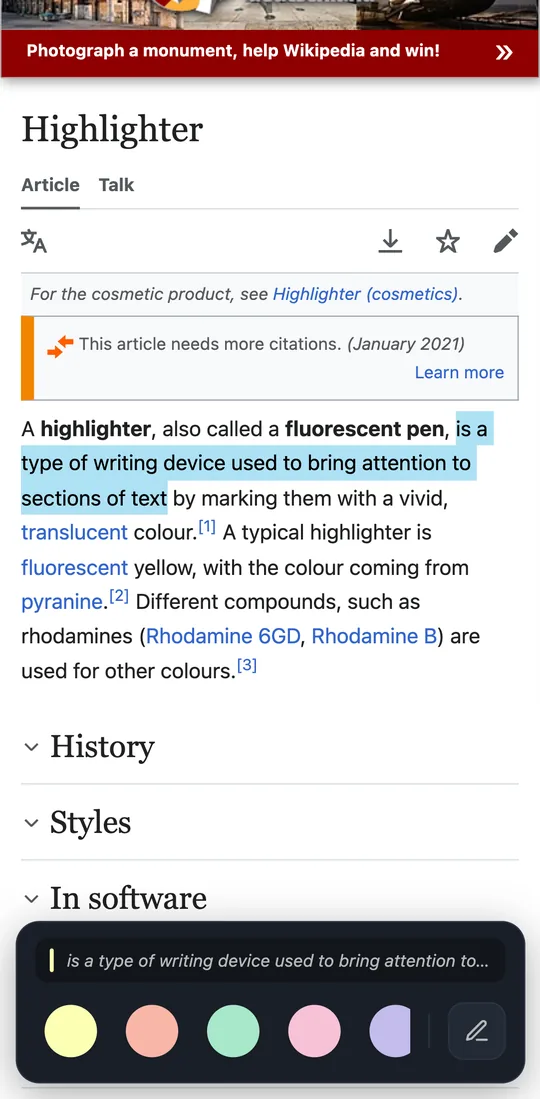
Here is how that looks with my own extension. Web Highlights is my free extension for highlighting websites and PDFs, and hundreds of thousands of people use it. On a phone, you select text as usual, a bar slides up from the bottom, and you tap a color to highlight:
If you want to try it, the full walkthrough (including where your highlights end up afterwards) is here: How to use Web Highlights on your Android phone.
And if you'd rather not switch browsers at all: since October 2026, Web Highlights also has its own Android app. You share a page or PDF from any app into it and highlight there, synced with the extension.
How Can I Install Add-ons in Firefox for Android?
Firefox for Android has an open add-on store. Since December 2023, you can install every add-on whose developer marked it as Android-compatible. Mozilla's own help article describes it like this:
- Tap the three-dot menu (⋮), then Extensions.
- Tap an extension to learn more, then tap + to install it.
- Check the permissions it asks for and tap Add.
You can also browse all Android add-ons on addons.mozilla.org/android and install them from there.
If an add-on you know from desktop Firefox doesn't show up, its developer hasn't marked it for Android yet. Web Highlights wasn't marked either until recently. It is now: I tested it in Firefox on my own Android phone, and highlighting works just like in Edge.
What Happened to Kiwi Browser?
For years, Kiwi was the answer to "Chrome extensions on Android". It was discontinued in January 2025 because its developer no longer had time to maintain it, and its extension code went into Microsoft Edge (see AlternativeTo). Please don't install old Kiwi APKs from random websites: an unmaintained browser doesn't get security updates.
If you're looking for a Kiwi alternative that opens the Chrome Web Store directly, a few Chromium-based browsers in Google Play do that, for example Lemur, Quetta and Yandex Browser. The idea is the same in all of them:
- Install the browser from Google Play.
- Open chromewebstore.google.com in that browser and find the extension.
- Tap Add to Chrome and confirm.
Vivaldi now does the same with its own menu: in version 8.2, it added a puzzle icon to the address bar that opens the Chrome Web Store, where you tap Add to Vivaldi. Vivaldi says not every desktop extension works on a phone and that "Desktop site" has to stay on in the store (Vivaldi blog).
I haven't tested Web Highlights in these browsers, so I can't vouch for them. They're made by small third-party teams, so check who makes the browser and which permissions an extension asks for before you install it.
Does Samsung Browser Support Extensions?
Only its own. Samsung Browser, which was called Samsung Internet until recently, has an add-on menu, but the add-ons come from Samsung's Galaxy Store, not from the Chrome Web Store. On a Galaxy phone, Samsung describes it like this: tap the three-dot Tools icon, then Add-ons → Get more add-ons, and install one from the Galaxy Store.
So if you need a specific Chrome extension, Samsung Browser won't help you. Use Edge instead.
Which Android Browser Has the Best Extension Support?
It depends on what you need, but here is how I'd pick:
- Edge if you want the easiest setup. It's one of the two browsers I test Web Highlights on, and it searches the same catalog as Edge on your computer.
- Firefox if the add-on you need is marked for Android. It's the same Mozilla store the desktop version uses, and it's the other browser I test Web Highlights on.
- Vivaldi if you need a Chrome extension that's in neither store. You get the whole Chrome Web Store from an established browser maker, but its extension support is brand new.
- Lemur, Quetta or Yandex if Vivaldi doesn't work for you. They also open the whole Chrome Web Store, but come from much smaller teams.
Why Do Some Extensions Not Work on a Phone?
Almost every extension was built for a computer: a mouse, a right-click menu, keyboard shortcuts and a big screen. On a phone, some of that simply doesn't exist.
While preparing Web Highlights for Firefox on Android, I found out that Firefox for Android has no right-click menu and no keyboard shortcuts for extensions at all. An extension that expects them at startup can stop working completely. Popups are another problem: many are designed for a desktop window and end up cut off on a phone.
So if an extension behaves strangely on your phone, it's usually not your fault. Check whether the developer says anything about mobile support, or look for a web version of the tool instead.
What About iPhone?
On an iPhone, the rules are completely different: extensions only come as apps from the App Store, and only Safari runs them. I wrote about it here: Safari extensions on iPhone, and what about Chrome?
I hope this saves you some trial and error. If a browser on this list changed or I missed one, let me know. I'm happy to answer any questions, and I'm always open to criticism 😊