How to Use Web Highlights on Your Android Phone
Chrome for Android can't run extensions, but Microsoft Edge for Android can, and Web Highlights runs in it. Add it once from Edge's extension list, and you can highlight every web page you read on your phone.
Key takeaways
- Use Microsoft Edge from Google Play. It installs Web Highlights from its Extensions menu, without flags or developer options.
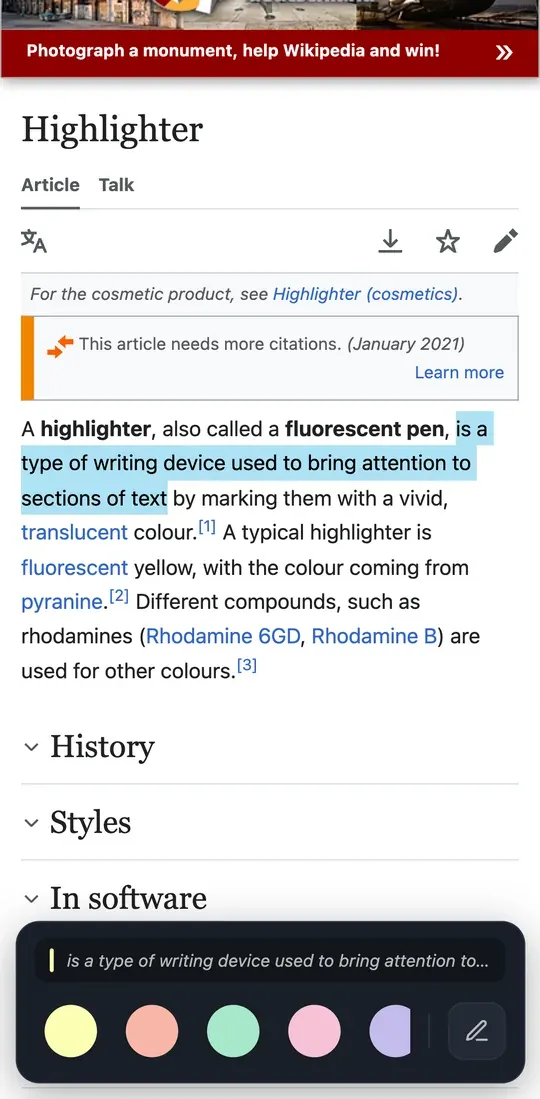
- Select text as usual. A bar slides up from the bottom of the screen; tap a color to highlight.
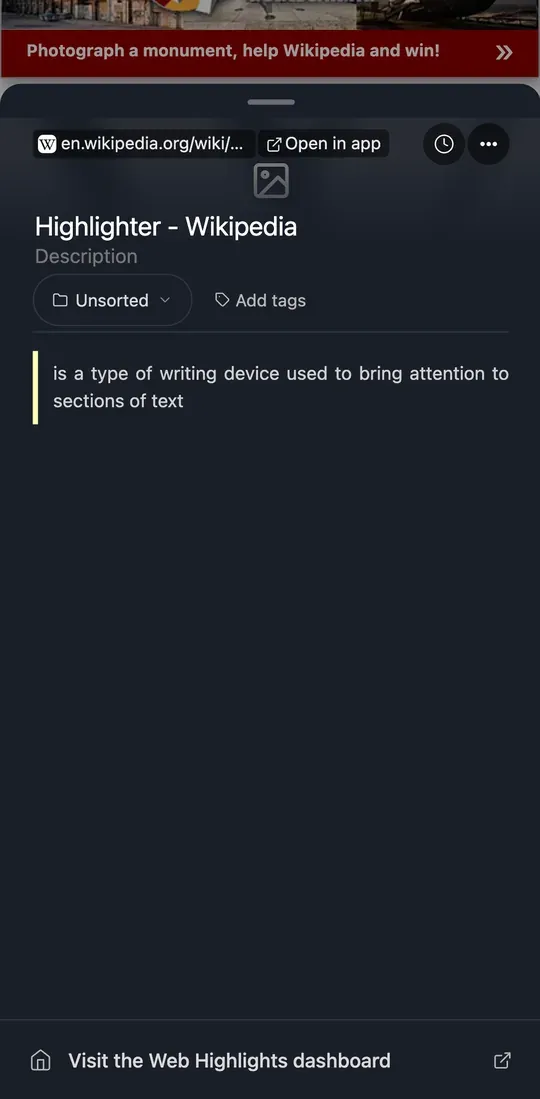
- Tap the Web Highlights icon to see the page's highlights. Your dashboard opens from the bottom of that sheet.
- Chrome and Samsung Browser (formerly Samsung Internet) on Android can't run Web Highlights. Firefox for Android can.
How do I install Web Highlights in Edge for Android?
- Install Microsoft Edge from Google Play and open it.
- Tap the menu button (☰) in the bottom bar, then Extensions.
- Search for Web Highlights and tap Get next to "Web Highlights: PDF & Web Highlighter + Notes".
- Confirm with Add. Web Highlights is now active on every page you open in Edge.
Note: Edge may tell you that the extension was not tested on mobile devices. You can still add it. Web Highlights is built for computers first; highlighting, notes and the notebook are adapted for touch screens, other screens look like they do on a laptop.
How do I highlight text on my phone?
- Long-press a word, then drag the selection handles over the text you want.
- Let go. A bar slides up from the bottom with a preview of your selection and the colors.
- Tap a color to highlight the text, or tap the pen to highlight it and write a note right away.
Tip: Tap an existing highlight to change its color, add tags or a note, copy it, turn it into a flashcard, or delete it.
Where do I find my highlights?
Tap the Web Highlights icon in Edge. The notebook for the current page slides up from the bottom and lists the page's highlights. At the bottom of the sheet, Visit the Web Highlights dashboard opens your whole library in a new tab.
Sync: sign in with the same account on your phone and your computer to see your highlights on both. Syncing between devices is free for a 7-day trial, then part of the paid plans.
Does Web Highlights work in other Android browsers?
- Chrome: no. Chrome for Android does not support extensions.
- Firefox: yes. Open addons.mozilla.org/android in Firefox, find Web Highlights and tap Add to Firefox.
- Samsung Browser: no. It only runs Samsung’s own add-ons.
- Other browsers that install from the Chrome Web Store may run it, but we have not tested them. We test on Edge and Firefox.
More on which browsers support extensions: How to install Chrome extensions on Android.
Can I use Web Highlights on Android without the extension?
Yes. Open the web app at app.web-highlights.com in any browser and add it to your home screen. Then share a page from any app to Web Highlights to save it, open it in the reader, and highlight it there.
Frequently asked questions
Is there a Web Highlights app for Android?
Yes. Web Highlights is on Google Play: share an article or PDF from any app into it, highlight it in the reader and turn your highlights into flashcards. The Edge extension still covers highlighting while you browse.
Do my highlights sync between my phone and my computer?
Yes, when you are signed in with the same account on both. Sync is free for a 7-day trial, then part of the paid plans.
Do the AI features work on Android?
No. AI summaries, chat and flashcard generation run on-device in desktop Chrome and Edge, and phones do not ship that on-device model.
Get Web Highlights for Edge
On your phone, open Edge and search for Web Highlights under Menu → Extensions. This button opens the Edge Add-ons listing.
View on Edge Add-onsUsing an iPhone or iPad? Read how to use Web Highlights on your iPhone.