
Save Screenshots as Highlights
Some things on a page don't work as a text highlight: a chart, a table, a formula, a code sample in its colors, or an image made of text. Save them as a screenshot. Drag over the part you want, and it's saved as a highlight next to your other highlights on that page.
🚀 Ultimate Feature
This feature is available in our Ultimate plan. You can try it free for 7 days. Upgrade to Ultimate anytime from the pricing page within the app.
Where you find it
Screenshots are part of the Web Highlights browser extension on your computer. They are not available in the web app or on your phone.
Take screenshots with the quick highlighter
The quick highlighter's bar has a camera. Use it when you want to save several parts of a page in a row.
Turn on the quick highlighter: click the highlighter button in the sidebar header, or press
Alt + Q(Option + Qon Mac).Click the camera in the bar at the bottom of the page. Hover it and you see "Screenshot an area".

Drag over an area. The page dims and shows "Drag over an area to save it". When you let go, the area is saved and you see "Screenshot saved".
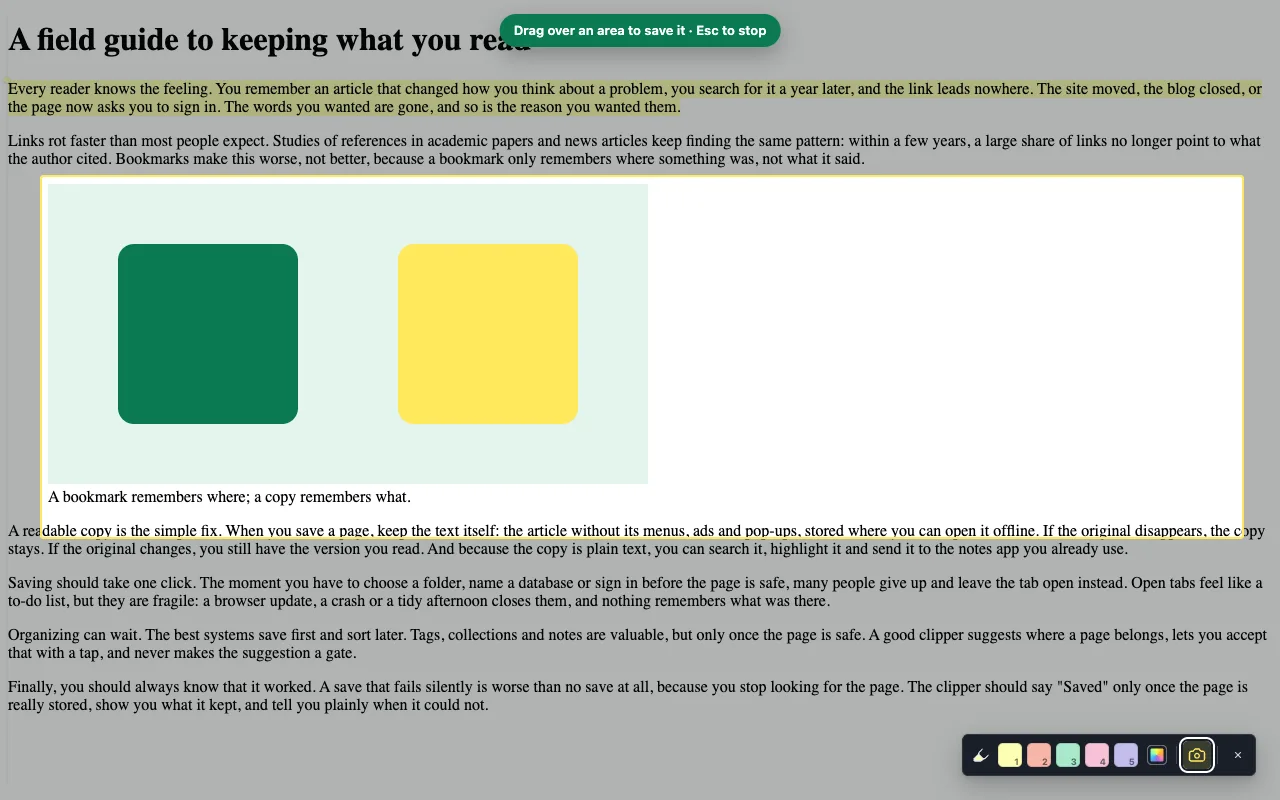
Drag the next one right away: screenshot mode stays on. A click without dragging does nothing, so you can't save an empty screenshot by accident.
Press
Escwhen you're done, or click the camera again. You can also pick a color in the bar to go back to highlighting text. The quick highlighter stays on.
The sidebar and the quick highlighter's bar keep working while screenshot mode is on.
Take a screenshot from the right-click menu
Right-click anywhere on the page and open Web Highlights:
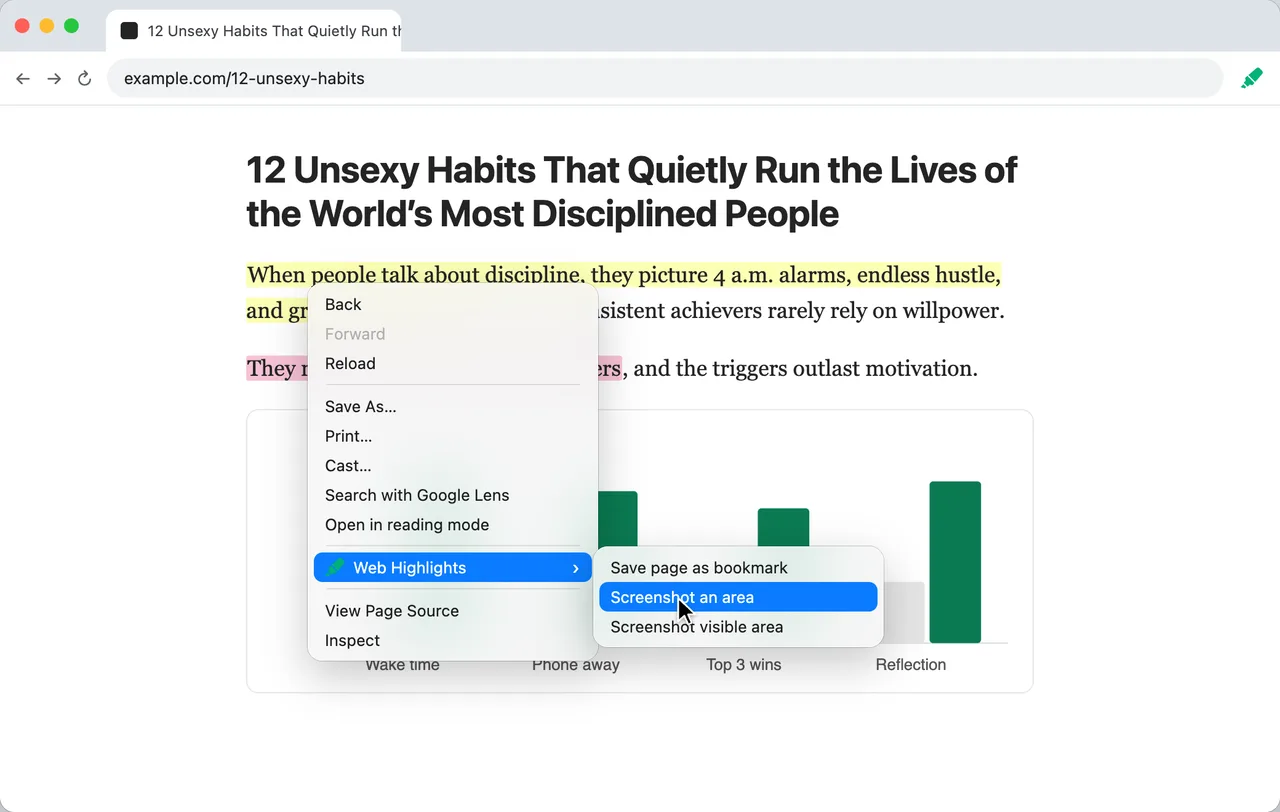
- Screenshot an area: drag over the part you want.
Esccancels. - Screenshot visible area: saves everything you see of the page at once, without the sidebar.
"Save page as bookmark" is in the same submenu.
Take a screenshot with a keyboard shortcut
The Screenshot an area command starts out unassigned: Chrome lets an extension suggest only four shortcuts, and Web Highlights uses them for highlighting, the sidebar and the quick highlighter. Set your own key at chrome://extensions/shortcuts, see Keyboard Shortcuts. Then press it on any page and drag over an area.
Where your screenshots go
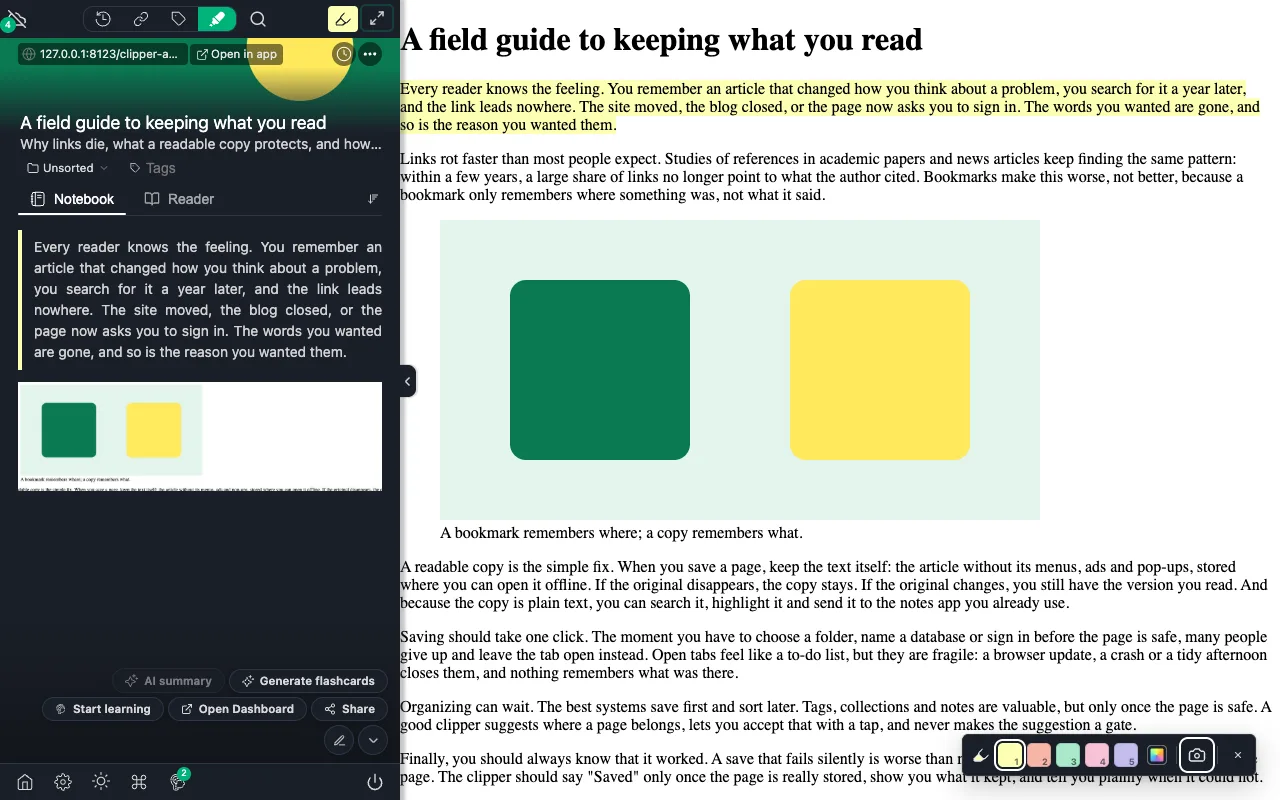
- In the sidebar, in reading order. A screenshot sits between the highlights around it on the page, not at the end of the list.
- One click takes you back. Click a screenshot in the sidebar, and the page scrolls to where you took it and outlines that spot for a moment.
- Like any highlight. Add a note or tags, open it bigger, use it in learning, and find it in your library. It goes along when you export a page to Markdown, HTML or PDF, or send it to Obsidian.
- Synced to your other devices once you are signed in, like your other highlights.
- Undo: the "Screenshot saved" message has an Undo button that deletes the screenshot again.
Web Highlights' own bar, popup and messages are never part of your screenshot.
Good to know
- Which plan: screenshots are an Ultimate feature, like image highlights. They are included in the free trial. On another plan, the camera and the menu entries show what you get with Ultimate.
- Pages where it doesn't work: Web Highlights doesn't run on the browser's own pages (settings, the new tab page) or in extension stores, so you won't find the camera or the menu entry there. If a screenshot can't be taken on another page, you see "Screenshots aren't possible on this page."
- What a screenshot covers: what you see on the screen. To save a part further down, scroll to it first; a screenshot of the whole page at once isn't possible yet.