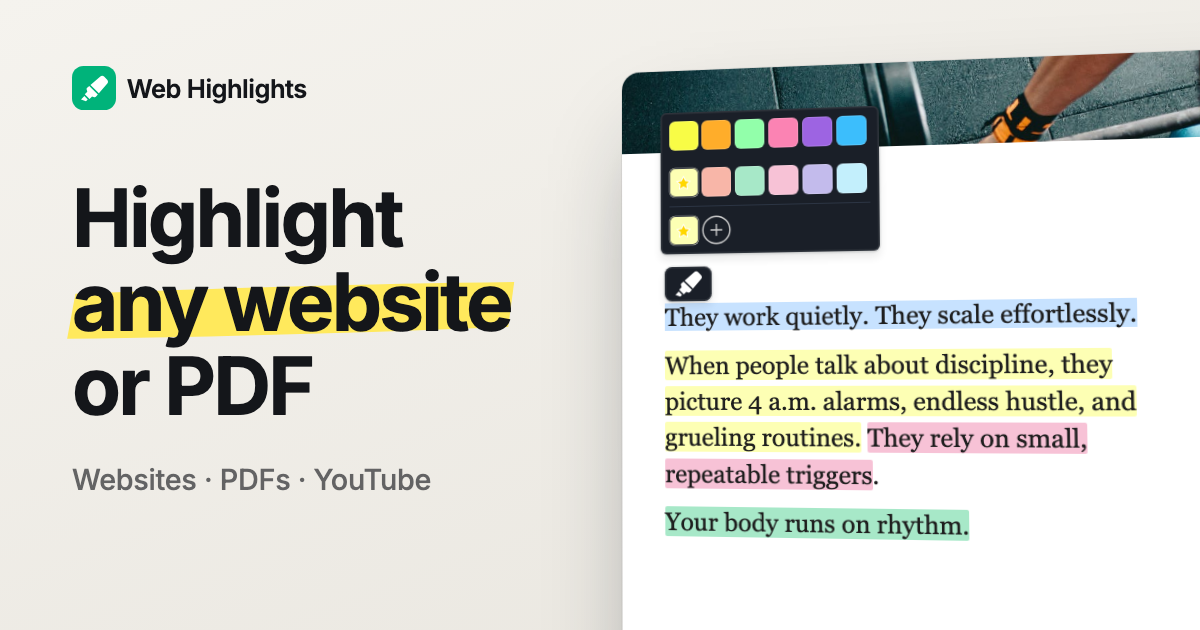

Want to highlight text on any online article or website, without installing anything? You can do it instantly, for free - no account required.
TL;DR:
Paste any public webpage URL into our
Free Highlighter Tool
, click “Highlight,” and start marking up the page & take notes - No install or signup needed.
Introduction
Highlighting isn’t just for books and PDFs.
Sometimes you’re reading an article, blog post, or research paper online and wish you could mark important points, add notes, or organize your thoughts—right there on the page.
With our page marker, you can do exactly that, and you don’t even need to install our browser extension or sign up for an account.

Why Highlight Webpages Online?
Highlighting isn’t just for textbooks. On the web, it helps you:
- Remember key points from articles, blog posts, and research papers
- Organize your thoughts with our colorful highlighter
- Copy your highlights as Markdown into your notes app for study, sharing, or future reference
And with our online tool, you don’t need to install anything or create an account. It’s as easy as copy, paste, and highlight!
How It Works: Highlight Any Website in 3 Simple Steps
1. Enter the Website URL
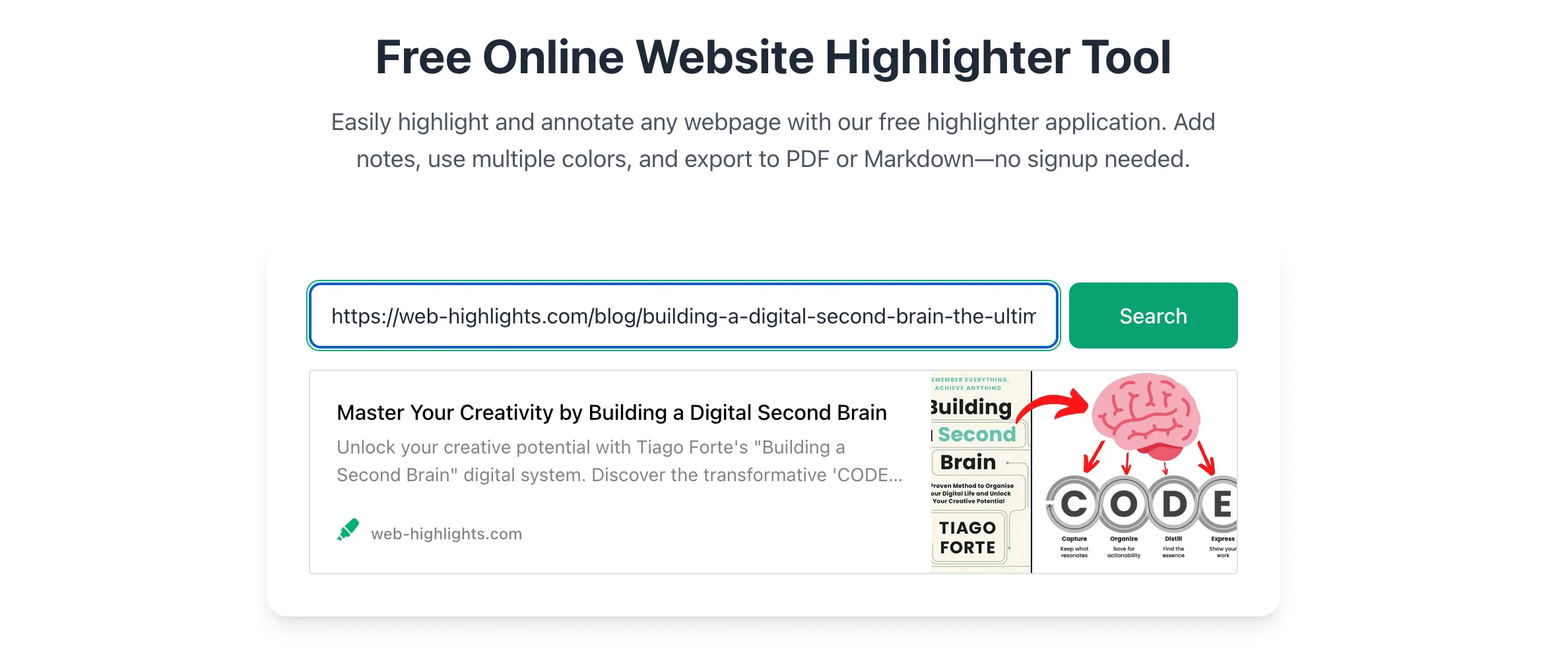
Visit our free highlighter tool and paste the URL of any public webpage you’d like to highlight. It works best with text-heavy pages like articles, blogs, or research papers.
Note: The tool does not work for pages behind a login or paywalls. For those pages, you could install our free browser extension.
Our highlighter app will then grab the content of the page, turn it into a clean, reader-friendly format, and open it in our reader, where you can highlight text and take notes right inside the document.
2. Start Highlighting
Given you have entered a correct URL, you can click "Highlight" on the article, and the website will parse the website into a simplified reader format - this can take a few seconds.
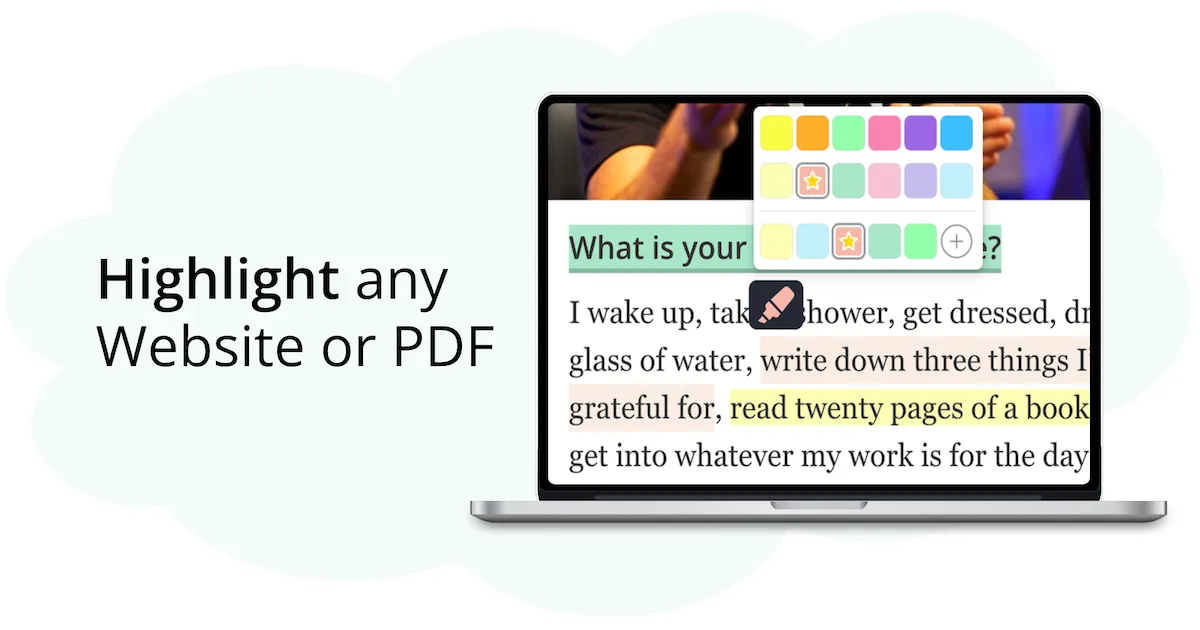
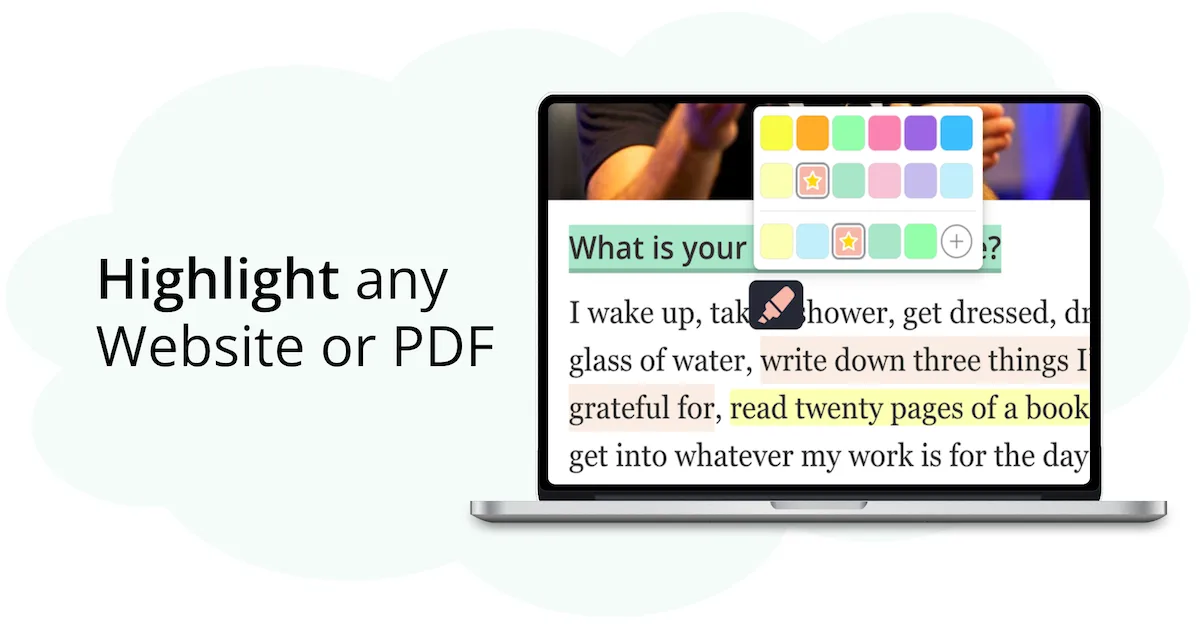
Once the page loads, just select any text to use our page marker and pick your favorite color—yellow, green, pink, blue, and more.
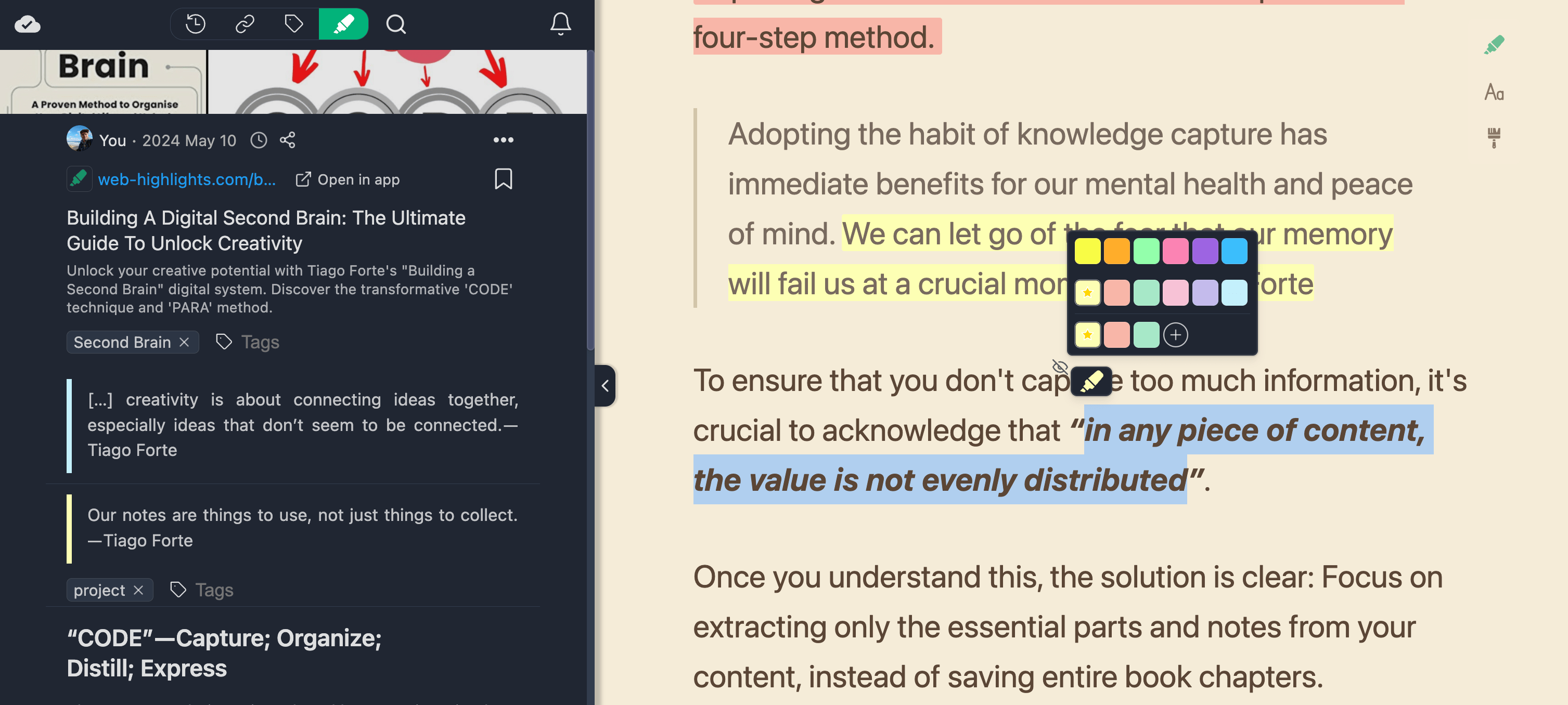
Once a highlight is created, you can see it in the sidebar where you can take notes and add tags for better organization.
Plus, if you click on a highlight, a toolbox opens where you can add notes and tags to that highlight:
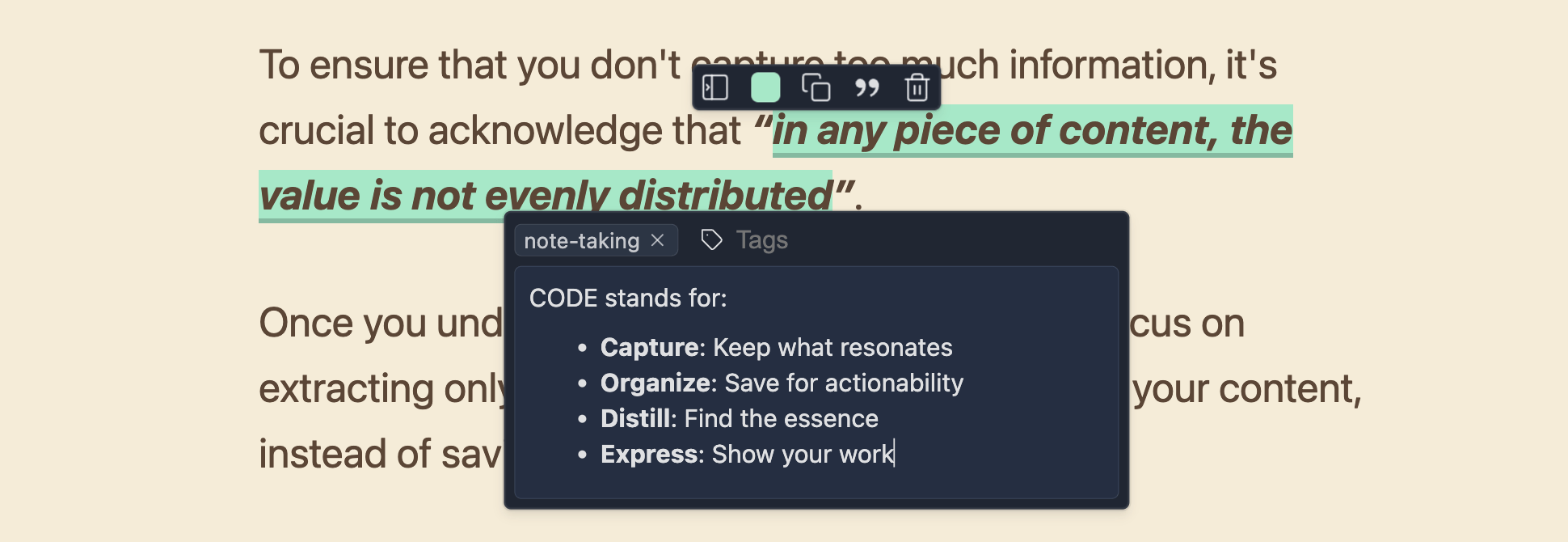
Our tool will save your highlights & notes in the browser storage, so your highlights reappear when you revisit the website. Also, you can find all of your pages you have ever highlighted in the sidebar.
3. Export Your Highlights
The tool does more than we can cover in this article.
But one of the most useful features is that you can instantly paste all your highlights into any note-taking editor
you like.
With a free account, Web Highlights also exports to Notion in one click and to Capacities (one export a day to each on the Free plan). Without any account, you can use the Markdown export to add your highlights to any Personal Knowledge Management (PKM) tool.
For example, here is how to export your highlights & notes to Notion:
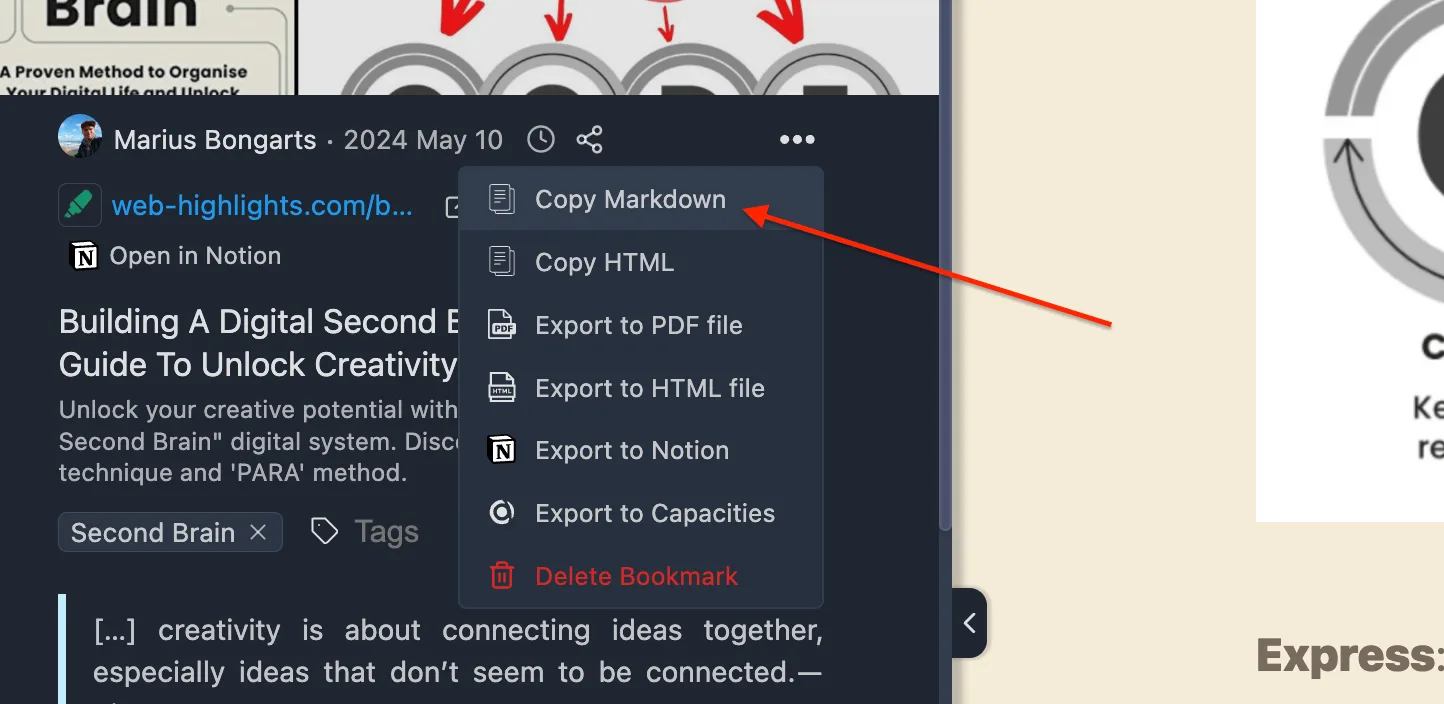
- Just click the three dots in the sidebar and select "Copy Markdown". This will copy your highlights, notes, and tags to your clipboard.
- Paste the content into Notion. All highlighted information, including the website preview image, tags, and notes, will be parsed into a Notion page.
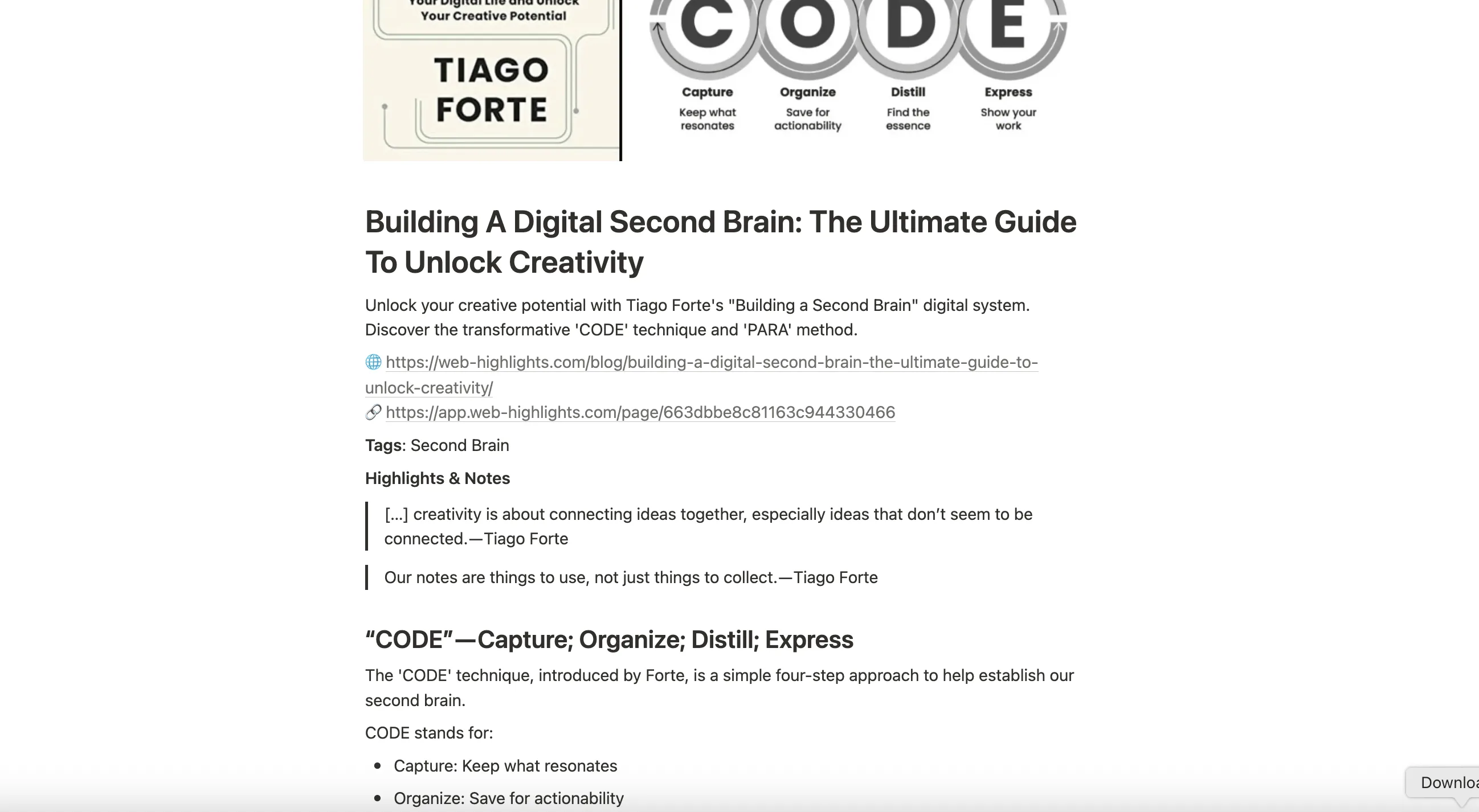
Of course, this doesn’t just work with Notion — it works with any note-taking tool that supports Markdown. For example: Obsidian, Capacities, Logseq, Craft, and many more.
Try It Now—No Installation Needed
Ready to get started? Open the Free Online Website Highlighter Tool and try it out:
- Paste your article or webpage URL
- Click Highlight
- Select text and start marking up!
It’s that simple.

Frequently Asked Questions
Can I highlight websites that require a login?
For private or paywalled pages, we recommend installing our browser extension, which also works on pages behind a login or paywall that you can open in your browser.
Will my highlights be saved?
Yes! Your highlights are stored in your browser and stay there until you clear your browser data. To keep them for good, you can create a free account or use the extension. Syncing them across devices is free for your first 7 days and part of the paid plans after that.
What colors can I use?
Choose from a thoughtfully curated palette of standard and pastel colors —yellow, green, blue, purple, and pink. You can even customize your own color-coding system.
Can I highlight a PDF the same way?
Yes. The free online PDF highlighter also works without an install or an account: open a PDF, highlight it, and download or print it with your highlights. The file is kept for one hour, so download it before the countdown runs out.