Frankly, Chrome’s PDF tool could cost me users.
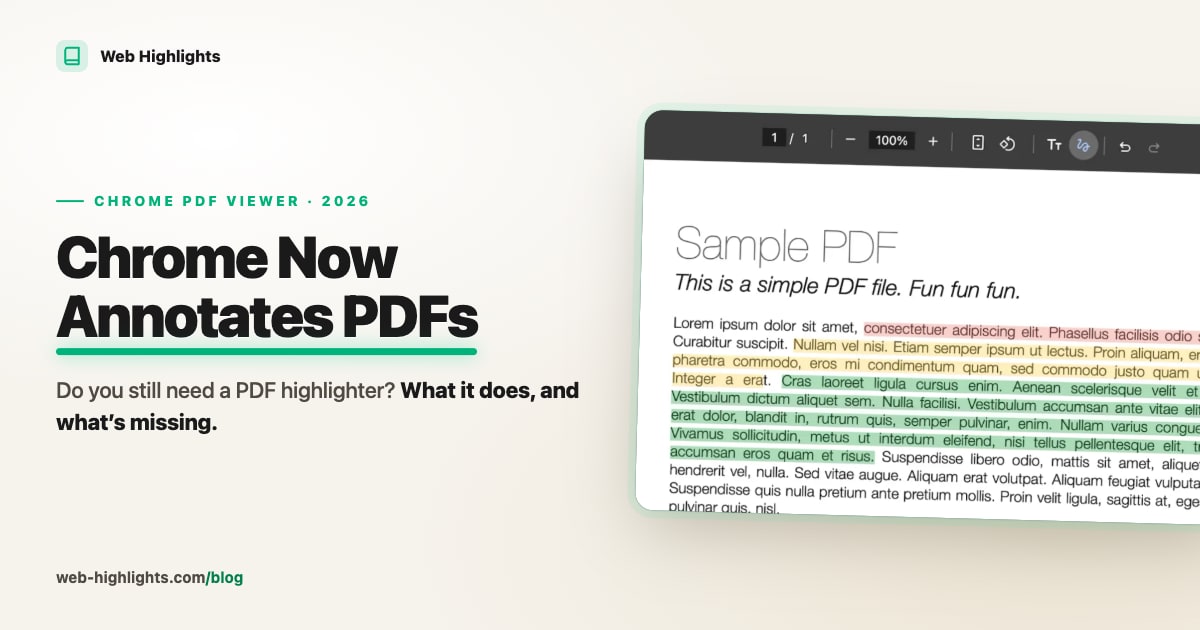
I build Web Highlights, a PDF and web highlighter with 300,000+ users. Since February, Chrome’s own PDF viewer has a Draw button with a pen, a highlighter and an eraser, no extension needed. Anyone searching for a way to highlight a PDF may now stop right there.
Some of them should. Here’s what Chrome’s annotation tool can do, where it stops, and how to tell whether it’s enough for you.
Key Takeaways
- Chrome’s built-in PDF viewer now annotates. You can highlight, draw, add text and hand-draw a signature, for free and without an extension.
- That’s enough for quick jobs. Signing a form or marking up one report doesn’t need anything else.
- Your marks stay inside one file. There’s no list of your highlights, no note attached to a highlight, no tags and no search across PDFs.
- Web Highlights is for what you want to find again. It collects highlights from PDFs, websites and YouTube videos in one searchable place. It’s free to use, and syncing between devices is paid after a 7-day trial.
What Is Chrome’s New PDF Annotation Tool?
It’s a set of markup tools inside the PDF viewer Chrome already opens your PDFs with. There’s nothing to install and nothing to switch on.
Google announced it on February 19, 2026, calling annotations “your most-requested feature”. It came with Chrome 145 on desktop. So it’s not brand new, but it’s easy to miss: two months later, Tom’s Guide was still calling it a “secret” tool.
Google’s help page explains the steps but says little about the limits. So let’s go through each tool, and what’s missing from it.
How Do You Annotate a PDF in Chrome?
Open any PDF in Chrome, either online or dragged in from your computer, and click the squiggly Draw icon in the toolbar.
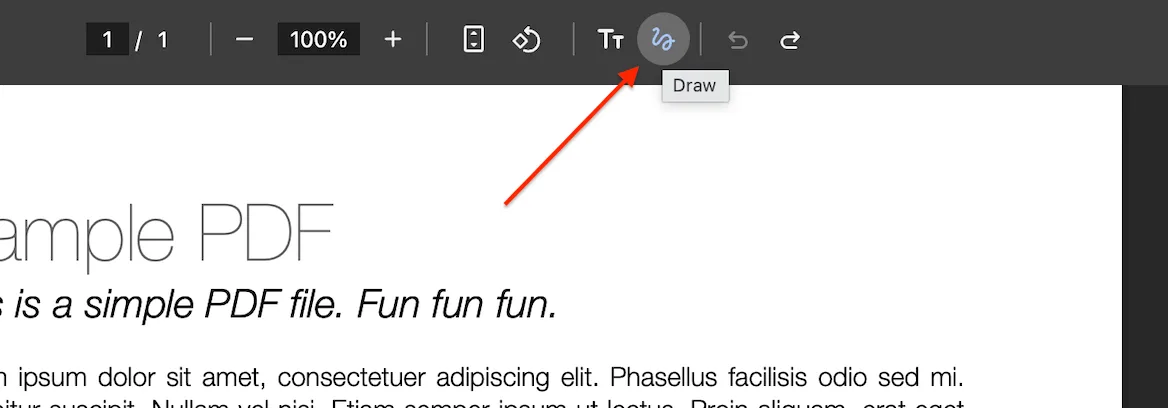
A panel opens on the right with three tools: pen, highlighter and eraser.
Pen: Write Anywhere on the Page
The pen is the default. Pick one of 5 sizes and 20 colors, then drag to write, underline or circle something.
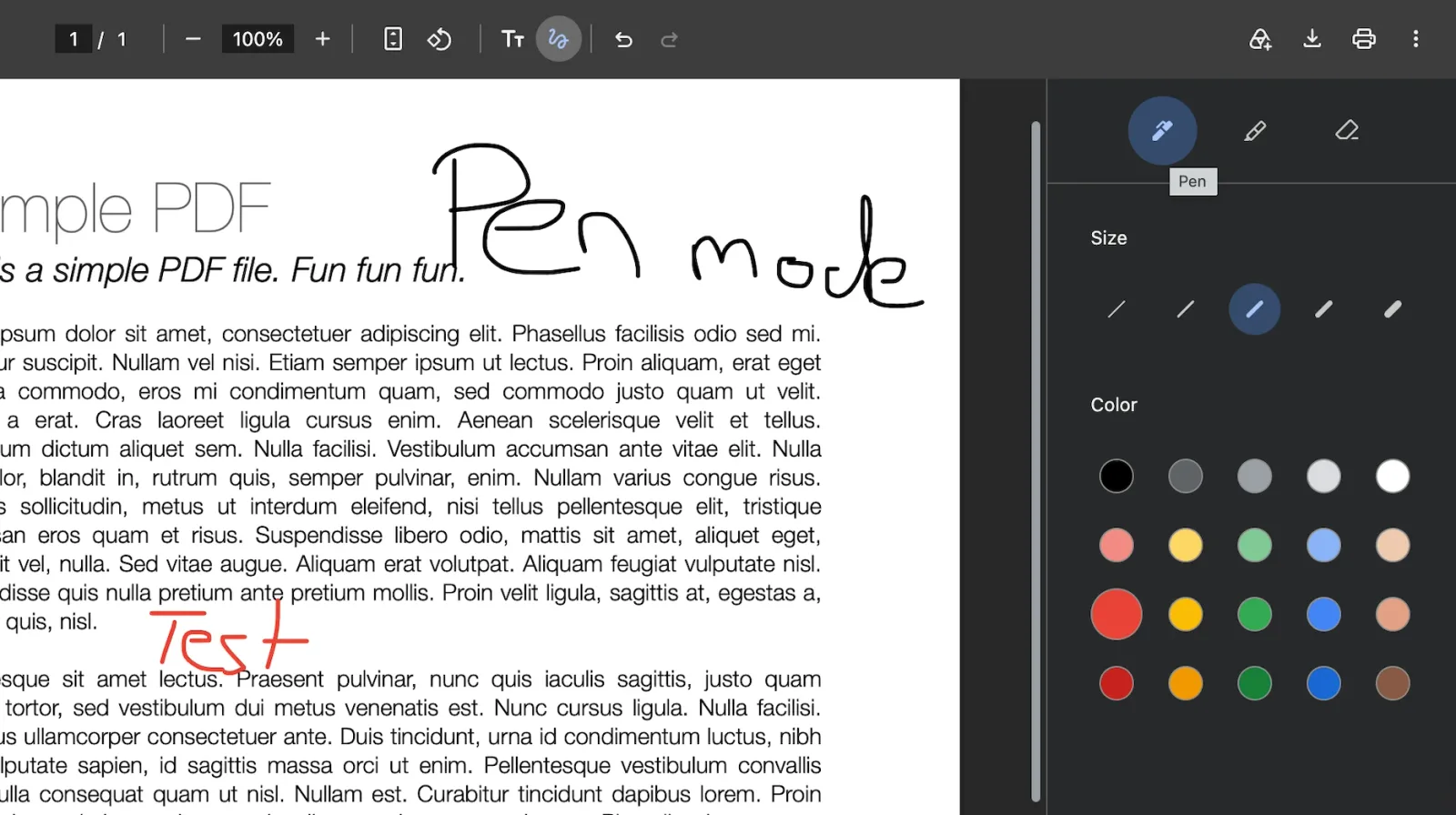
This is also how you sign. Google’s advice is to choose the pen, zoom in for precision and sign by dragging your mouse or touchpad. Just keep in mind that it’s a drawing of your signature. If a contract asks for a certified e-signature, you’ll need a dedicated tool.
What’s missing? Your handwriting is ink, not text, so you can’t search for what you wrote.
Highlighter: The Part That Competes With Me
This is the closest thing to what Web Highlights does, and it works well.
You get 5 sizes and 10 colors. Start your drag on a line of text and the highlight snaps to that text, even if your hand wobbles. Start in empty space and you get a freehand stroke instead. You can also highlight with the keyboard by selecting text while Draw is on.
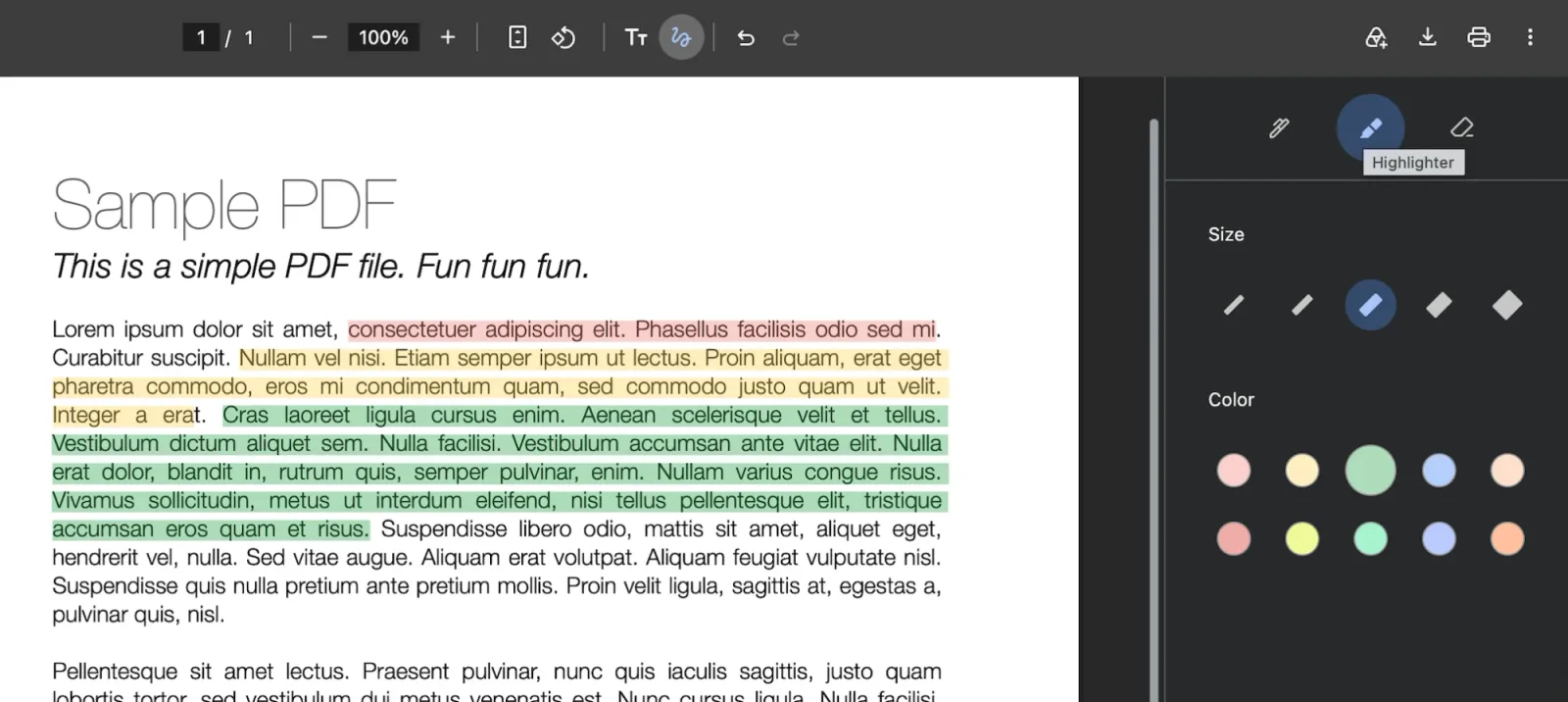
But a highlight here is only paint. You can’t attach a note to it, you can’t tag it, and those 10 colors are all you get. Once it’s on the page, the only thing left to do with it is erase it.
Eraser: Remove Ink and Highlights
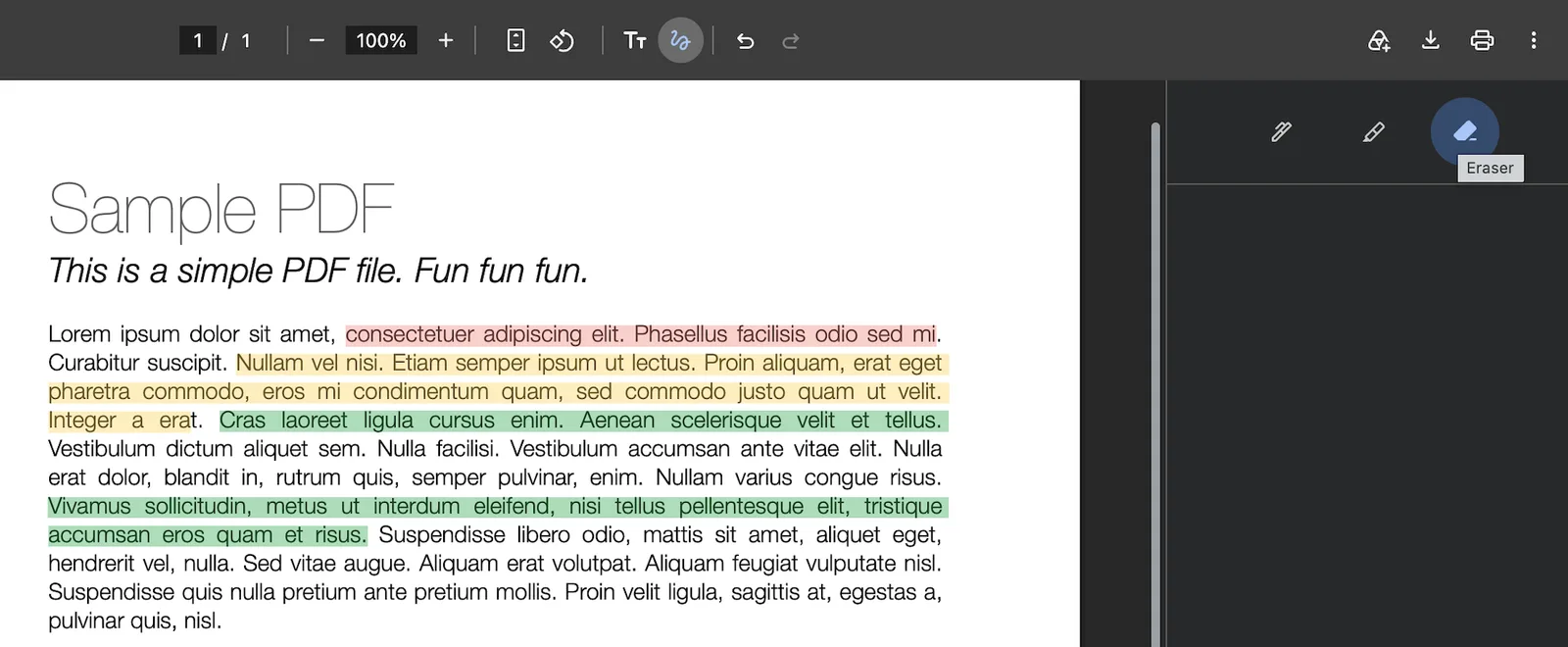
The eraser removes whatever you drag it over, even a single line from the middle of a longer highlight. Compare the green block below with the one above: two lines are gone. Undo and redo sit in the toolbar, right next to the Draw icon.
Add Text: Type on the Page
Next to Draw, there’s a T icon. Choose a font, style and color, then click where the text should go. This is what Google means when it says you can “add notes”.
It’s handy for filling a blank line on a form. But it’s a text box on the page, not a note that belongs to a highlight.
Saving: Don’t Skip This Step
Nothing is kept until you save it. Click Download and choose With your changes. Chrome warns you if you try to leave with unsaved edits. You can also click the Save to Google Drive icon, which puts a copy in a folder called “Saved from Chrome”. That one doesn’t work in Incognito or Guest mode.
One thing to watch for: if you annotate a PDF from a website, your marks live only in your saved copy. Open the same link next month and you’re looking at a clean PDF again.
What Does Chrome Actually Write Into the PDF?
This one isn’t in Google’s guide. We saved an annotated copy of a sample PDF in Chrome 157 and inspected the file: it contained zero PDF annotations. Highlights and pen strokes are drawn directly into the page as shapes, which matches Chromium’s source code. The text underneath stays selectable.
So other PDF apps show your marks, but as part of the page. They aren’t annotation objects, so they won’t appear as comments in Acrobat, and nobody can click one to change it. It also means our own annotation import can’t pick them up.
Web Highlights goes the other way. When you download a PDF from our viewer, every highlight becomes a real PDF annotation in its own color, and your notes become comments. You can still edit them in Acrobat or Preview.
What Can’t Chrome’s PDF Annotator Do?
Chrome works one file at a time. It doesn’t know what you highlighted in your last PDF, so there’s nothing to browse or search later.
Here’s the full comparison. I’m obviously biased, so I’ve kept the rows where Chrome wins. Chrome’s column comes from Google’s help pages and from using the tool on a sample PDF.
| Chrome’s PDF viewer | Web Highlights | |
|---|---|---|
| Highlight text in a PDF | Yes, 10 colors | Yes, plus your own custom colors |
| Note attached to a highlight | No, only text boxes on the page | Yes, with formatting |
| Tags | No | Yes |
| One page with all your highlights | No | Yes |
| Search across all your PDFs | No, only inside the open file | Yes |
| Highlights return when you reopen an online PDF | No, only in your saved copy | Yes |
| Websites, YouTube videos, your own text | No | Yes |
| Flashcards from your highlights | No | Yes |
| Downloaded PDF | Marks drawn into the page | Real, editable annotations |
| Pen and hand-drawn signature | Yes | No |
| Type text onto the page | Yes | No |
| Scanned PDFs | Yes, with on-device text recognition | No, the PDF needs selectable text |
| Phones and tablets | Android: pen, highlighter and eraser through Google Drive (Android 12+) | Android app, web app on iPhone and iPad |
| Setup | None, it’s built in | A browser extension |
| Price | Free | Free to use, sync between devices is paid after a 7-day trial |
What Does Web Highlights Do Differently?
The biggest difference: your highlights don’t stay in the file. They land on one central page, together with everything else you’ve ever highlighted.
It takes one extra click. Open a PDF in Chrome, click Highlight this PDF in the top right corner, and it opens in our own viewer. Then select any text and pick a color. For PDFs on your computer, you have to allow access to file URLs once.

All Your Highlights in One Place
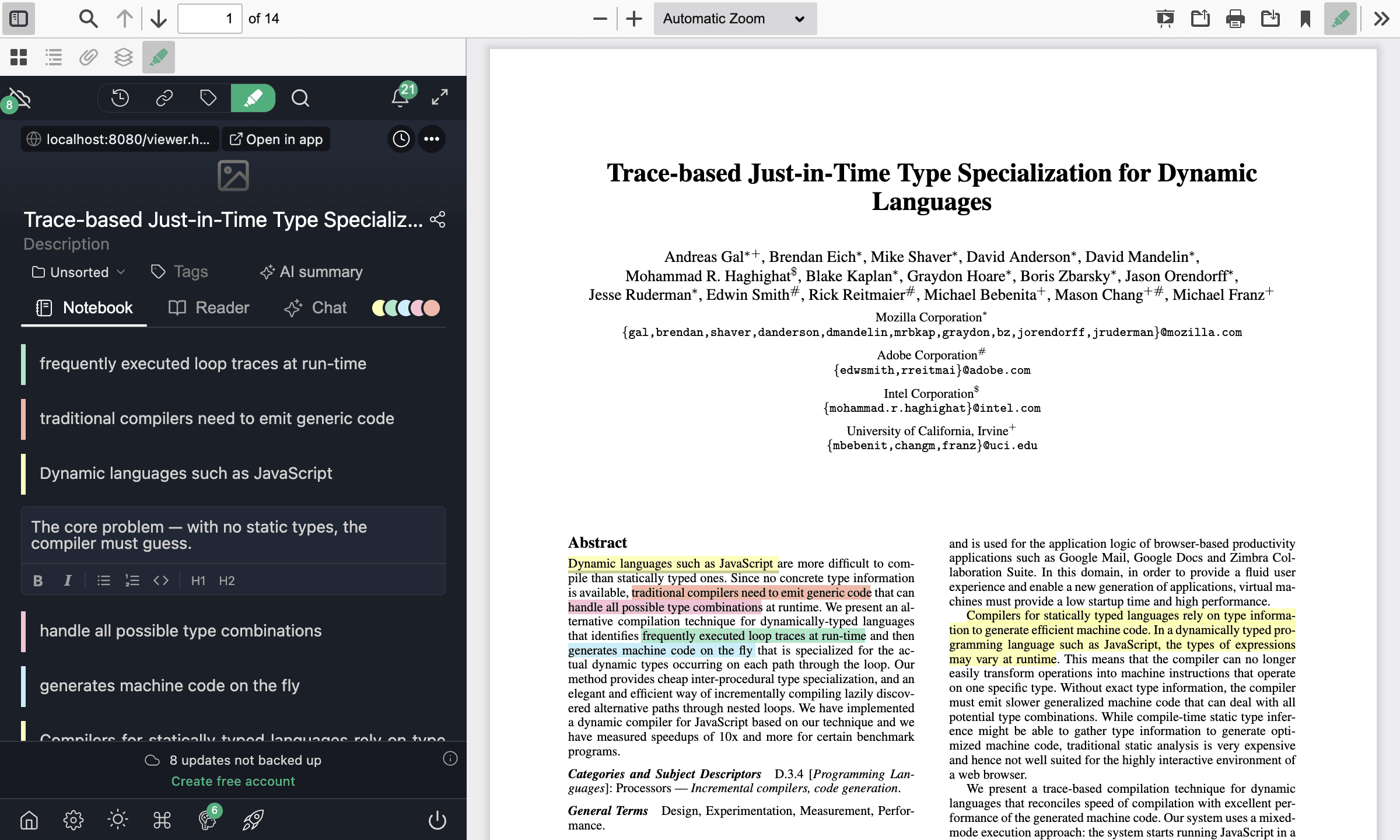
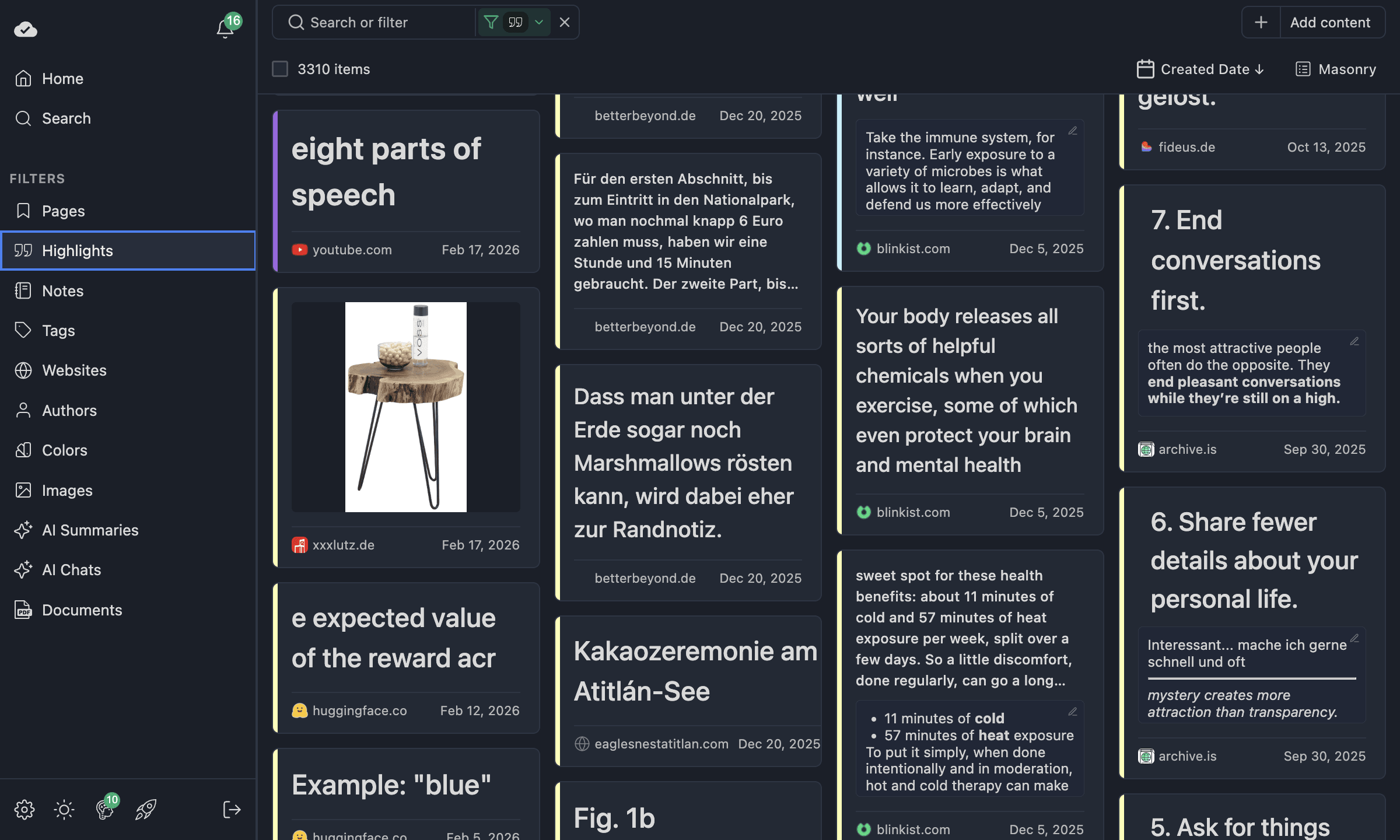
This is the part Chrome doesn’t try to do. The web app shows every highlight you’ve made, from any PDF or page.
Notes That Stay With the Highlight
Click a highlight and write down what you think about it. The note stays attached to that passage, supports formatting and shows up in the sidebar next to your PDF. Chrome’s text box just sits on the page.

Tags, Collections and Any Color You Want
Chrome gives you 10 highlighter colors. Here, you can add your own from a color wheel and give each color a meaning, like green for evidence and red for questions. On top of that, you can tag your highlights by topic and sort saved pages into collections, which work like folders.
Search Everything You Highlighted
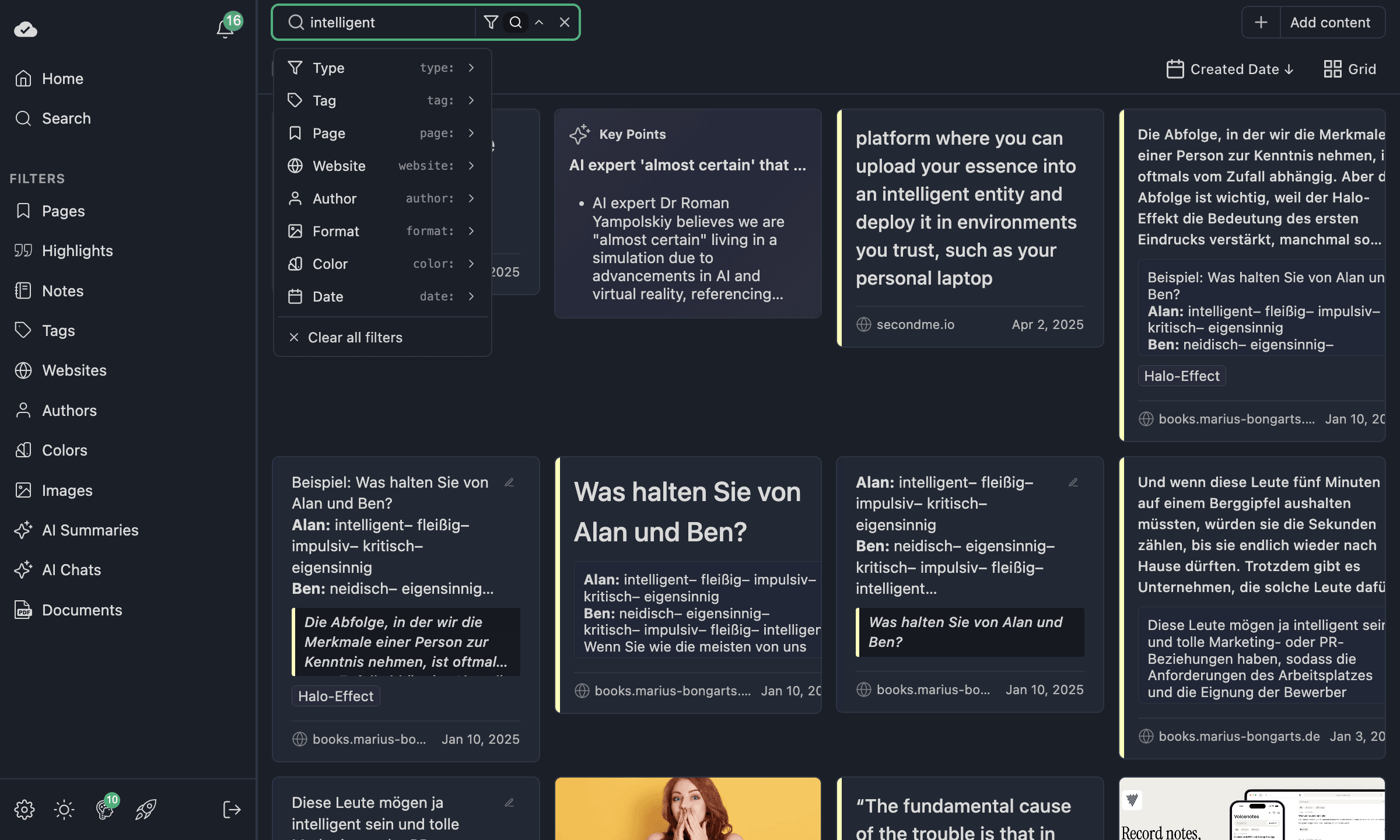
Remember a sentence but not the PDF it came from? In Chrome, you’d have to open files one by one. Search in Web Highlights looks through your highlights, your notes and your page titles at once.
Not Just PDFs
Chrome’s tool only exists inside the PDF viewer. Web Highlights works the same way on websites, on YouTube video transcripts and even on your own text, which you can paste into your library and highlight like any other page. So a paper, the article that cited it and the lecture about it can all sit under the same tag.
On Your Phone and Tablet
Chrome’s desktop marks stay in the file you saved. Web Highlights has a native Android app: share a PDF into it from any app, then highlight, take notes and add tags right there. iPhone and iPad don’t have an app yet, so you use the web app in your browser.
To be clear about the price: the extension and the web app are free to use, but syncing between devices is the paid part. You get it free for a 7-day trial, with no credit card. After that, your highlights stay where they are and only the syncing stops.
Do Something With Your Highlights
Once your highlights are in one place, you can use them. Turn them into flashcards with spaced repetition, copy them as Markdown or send them to Notion. If you’d like the full walkthrough, here’s my guide to highlighting PDFs, or watch the video:
Should You Use Chrome or Web Highlights?
Stick with Chrome if you:
- sign a form or fill in a few blanks
- mark up one document and send it to someone
- want to draw or write by hand
- don’t plan to come back to your marks
Try Web Highlights if you:
- read PDFs for studying, research or work, and want to find things again
- want notes attached to the passages they’re about
- collect knowledge from websites and YouTube as well as PDFs
- move between a computer and a phone or tablet
You can also use both. Nothing stops you from signing a form in Chrome’s viewer and reading your papers in Web Highlights.
Final Thoughts
Chrome shipped a well-thought-out, minimal tool for annotating PDFs. I mean that. It can be enough for many people, and if you’re one of them, save yourself the install.
If you want a real knowledge tool, one that brings all your highlights together, syncs your notes and lets you highlight PDFs on your phone and tablet too, Web Highlights might be worth a look. I think it’s the best PDF highlighter out there for combining PDFs, websites, YouTube videos and your own notes in one place. But I’m the one who built it, so try it and decide for yourself.
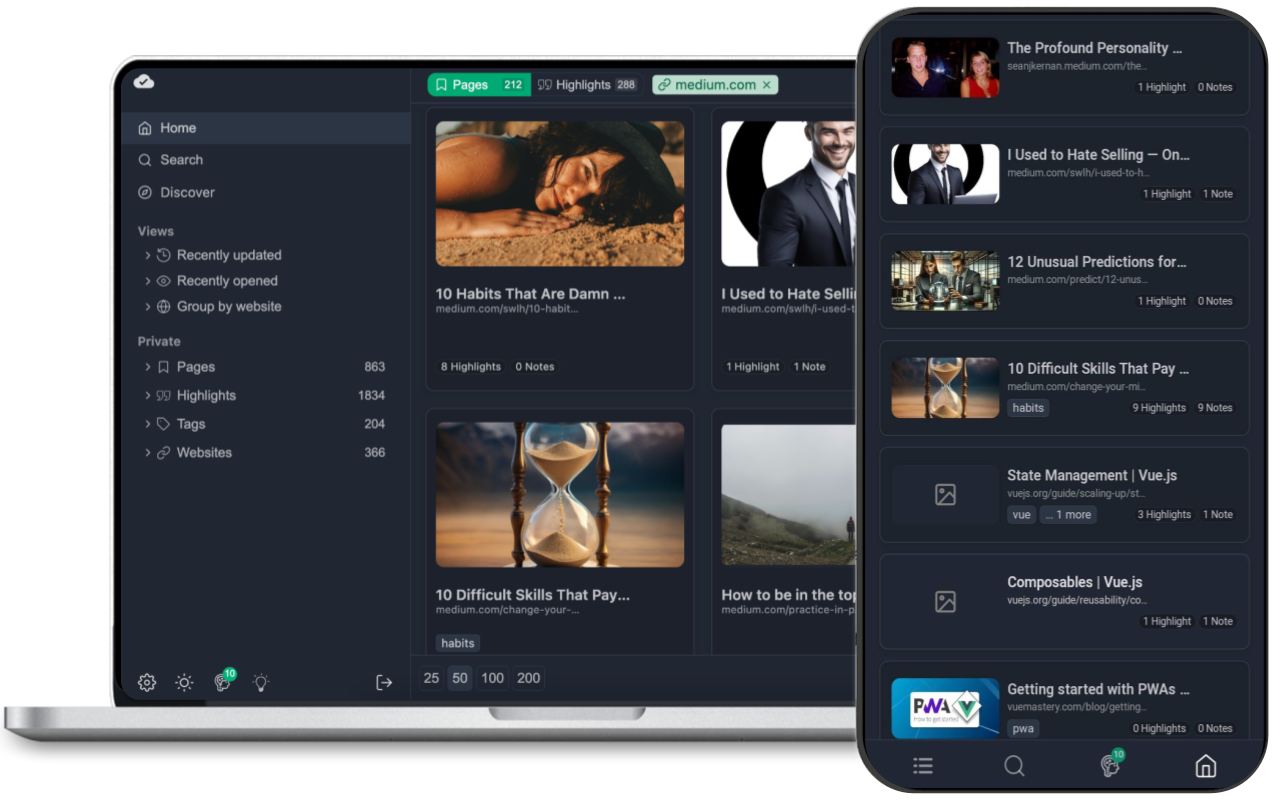
Don’t want to install anything? Our free online PDF highlighter lets you upload a PDF, highlight it and download it with your highlights, without an account.
I’m happy to answer questions, and I’m open to criticism 😊. You can find me on LinkedIn and Twitter.