A while ago I watched a 45-minute talk on YouTube that was really useful. A few weeks later I tried to tell a friend about it — and I couldn’t remember a single point from it. I watched the whole video and kept almost nothing.
Videos are the easiest thing to consume and the hardest thing to keep.
I don’t think that’s a discipline problem — it’s the format. Watching is easy: the video keeps playing even when your attention drifts, and nothing ever asks you a question. And without being asked, you forget. I wrote about the science behind that in Spaced Repetition: How to Make Your Readings Stick in Long-Term Memory , so I’ll keep it short here.
Here’s what I do now: every YouTube video has a transcript sitting behind it — text you can read, highlight, and learn from. With my free Web Highlights Browser Extension , I open the video as text, mark what mattered, and turn it into flashcards.
If you prefer a video, here is a full tutorial:
What is Web Highlights?
Web Highlights is a free browser extension used by hundreds of thousands of people.
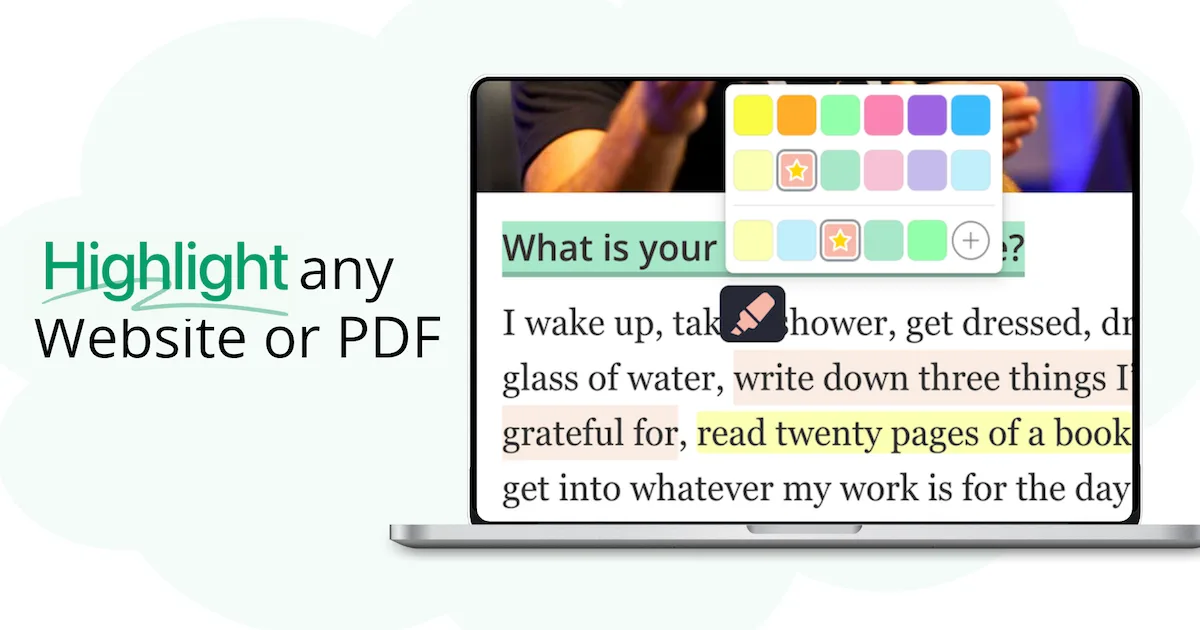
I built it so you can highlight whatever you read in your browser — web pages, PDFs, and YouTube transcripts — and keep it all in one library, with notes and flashcards attached to the exact text they came from.
How Can I Turn a YouTube Video into Flashcards?
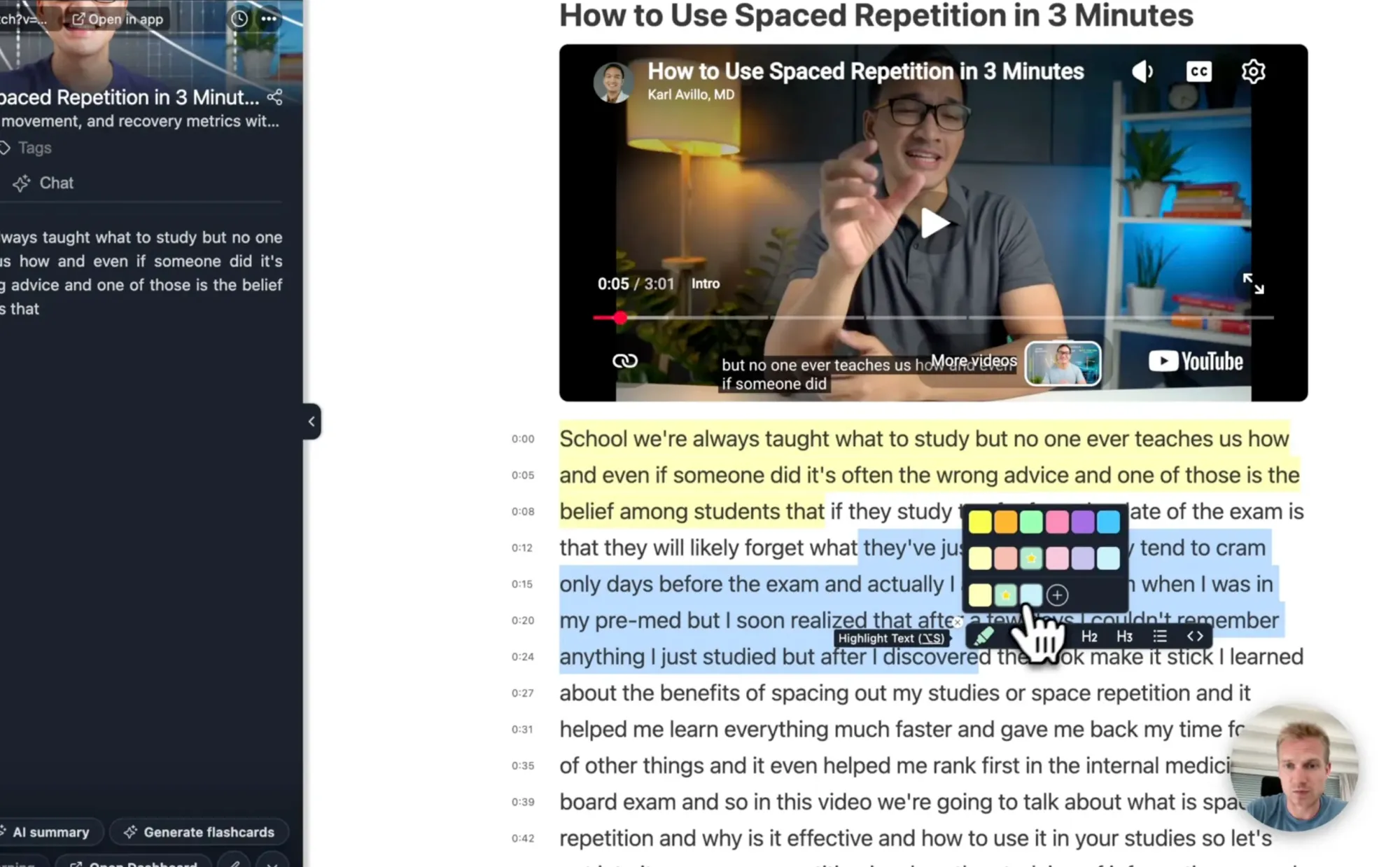
With the extension installed , open the video in the Web Highlights reader and you get the player with its transcript beside it.
If you don’t want to install the extension, you can also use our free Youtube Highlighter or the free Youtube Flashcard Generator where you can simply paste a YouTube URL to get started.
The video becomes a highlightable article you can watch and mark at the same time. Of course, you can also just skim the transcript.
From there, there are two easy ways to get to flashcards:
1. Turn a Single Transcript Highlight into a Flashcard
If one moment of the talk is the thing you want to keep, highlight that sentence in the transcript, find it in the sidebar, and click the brain icon.
The flashcard editor opens with the quote as the answer — write the question yourself, or hit ✨ Generate with AI and have it drafted on your device.
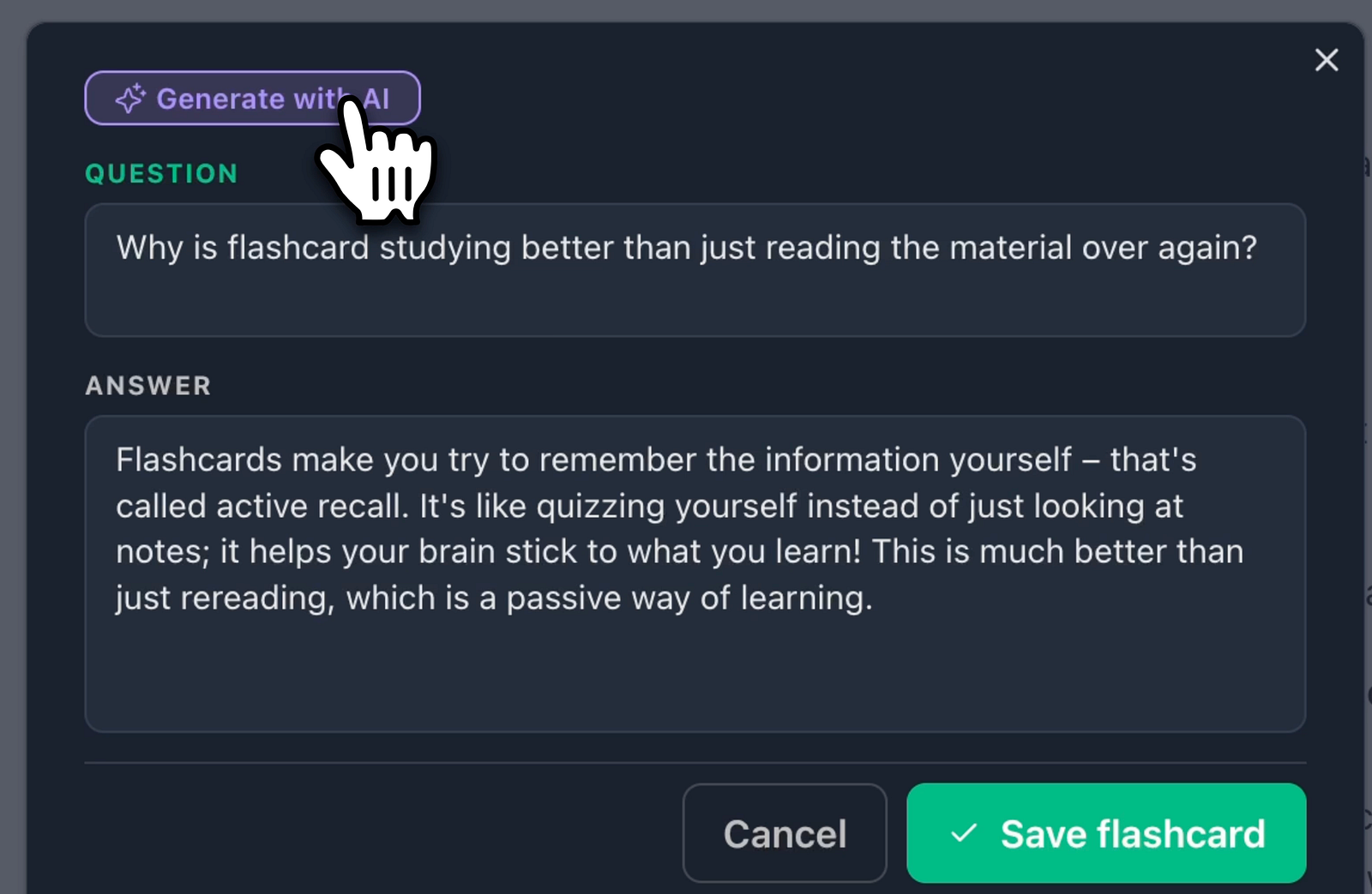
The card keeps the highlight on its back, so you’ll always know which video it came from.
2. Turn the Whole Video into a Flashcard Deck
For a talk with several points worth keeping, open the saved video and choose “✨ Generate Flashcards” from its quick actions. The AI Flashcard Generator drafts question-and-answer cards from your highlights and the transcript. A slider sets the number of cards (1 to 20), each card appears checked by default, and you can edit any question, uncheck the filler, or regenerate for a fresh batch.
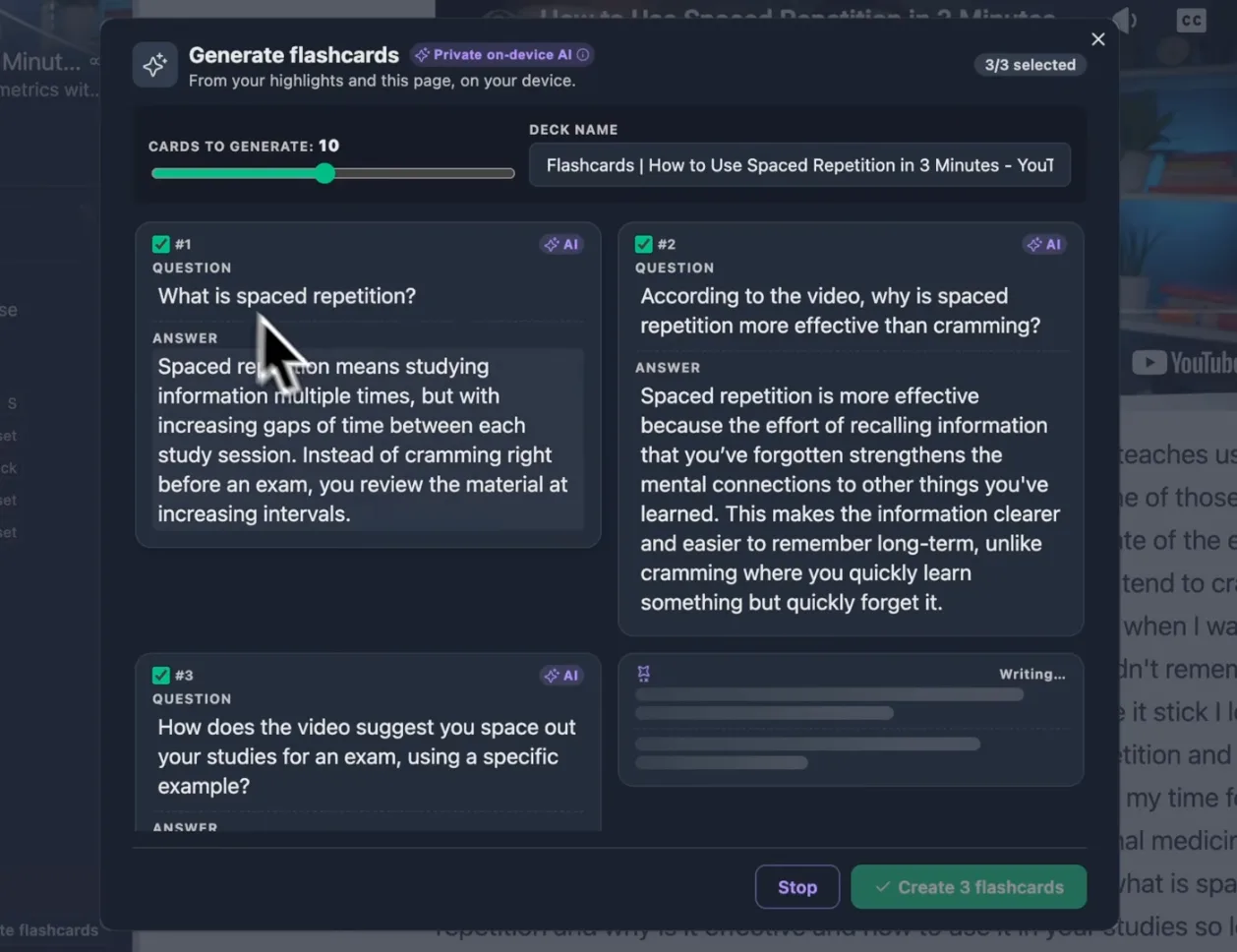
Your highlights go in; questions come out — edit before saving
Hit “Create flashcards” and the deck is in your library — and the talk you watched in March starts asking you questions in April.
No Install? Paste the Link Instead
If you’d rather see the output before installing anything, I built a free YouTube Flashcard Generator : paste a video link, the transcript opens in the reader, and the same generator drafts a deck — no account, no signup. It works from the whole transcript rather than from your highlights, which, as you’ll see in a moment, is exactly the difference that matters on a long video.

Review Until It Sticks
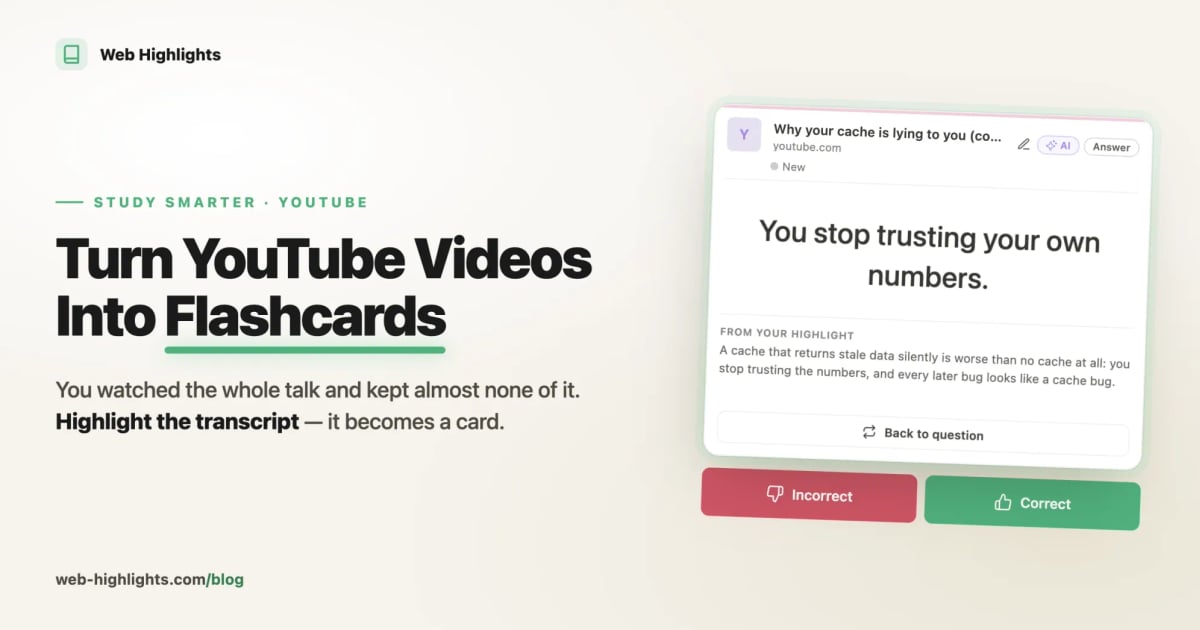
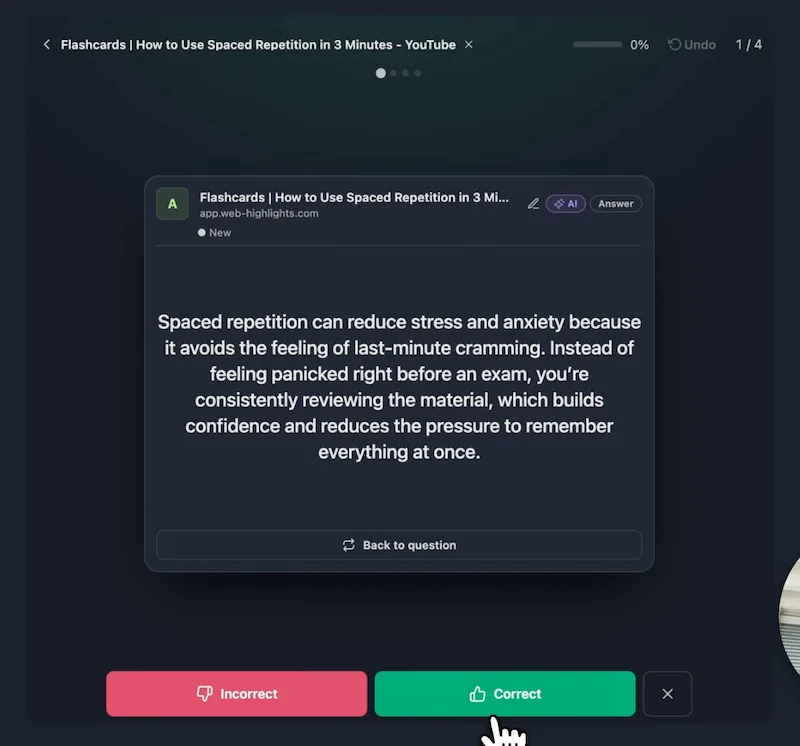
Now the reviewing starts. Every day you get a session of ten cards — two or three minutes. Each card shows its question; you answer in your head, reveal, and grade yourself Correct or Incorrect.
A variant of the SuperMemo algorithm — the same family Anki made famous — pushes what you know further out and brings back what you don’t. On the learning dashboard you watch your cards climb from “Likely to Forget” toward “Long-Term Memory”. For more details check out our spaced repetition docs if you want to understand how it works under the hood.
A Few Things to Know
- The video needs captions. No captions, no transcript, no cards — you’ll get the player and nothing to study. Most talks, lectures and tutorials are fine; some are not.
- Free is one video and one deck per day. Fetching transcripts genuinely costs me money, so the free limit is small and honest. Conveniently, that’s one video, one deck — about what a study session should be. The Ultimate plan lifts both.
- Card generation needs Chrome 138+ or a recent Microsoft Edge on desktop. The first run downloads the on-device model (a few gigabytes; Chrome wants around 22 GB of free disk before it agrees). Edge has its model only on Windows and macOS, and there is no on-device AI on phones yet. Highlighting and reviewing work in any browser — and because the model runs on your device, the transcript is never sent to a cloud AI to write your cards.
Final Thoughts
Next time a video is worth 45 minutes of watching, give it two more. Install Web Highlights for free , highlight the three things you’d hate to lose, and turn them into flashcards. Or try it with nothing installed — paste one link into the free generator and let the questions bring back a talk you’d otherwise forget.
I hope you enjoyed reading this article. I am always happy to answer questions and am open to criticism. Get in touch with me via LinkedIn or follow me on Twitter .
Frequently Asked Questions
Can I turn any YouTube video into flashcards?
Any video with captions, which is most of them. A normal watch link, a youtu.be short link or a Shorts link all work. Private and age-restricted videos, and anything without captions, won’t produce a transcript — and no transcript means no cards.
Is it really free?
Yes, with limits I’d rather state than hide: one video and one deck a day, no account needed. Sign up free when you want your decks kept; syncing them across devices is free for your first 7 days.
Does my video data get uploaded anywhere?
The cards are written by the browser’s built-in AI (Gemini Nano in Chrome, Phi-4-mini in Edge) running on your own computer, so the transcript isn’t shipped to a cloud model to be turned into flashcards. That’s the part most of these tools don’t mention at all.