Import
Diigo Import
Upload the .csv export file from Diigo to import your highlights and add them to your saved pages.
How it works
Sign in to Diigo
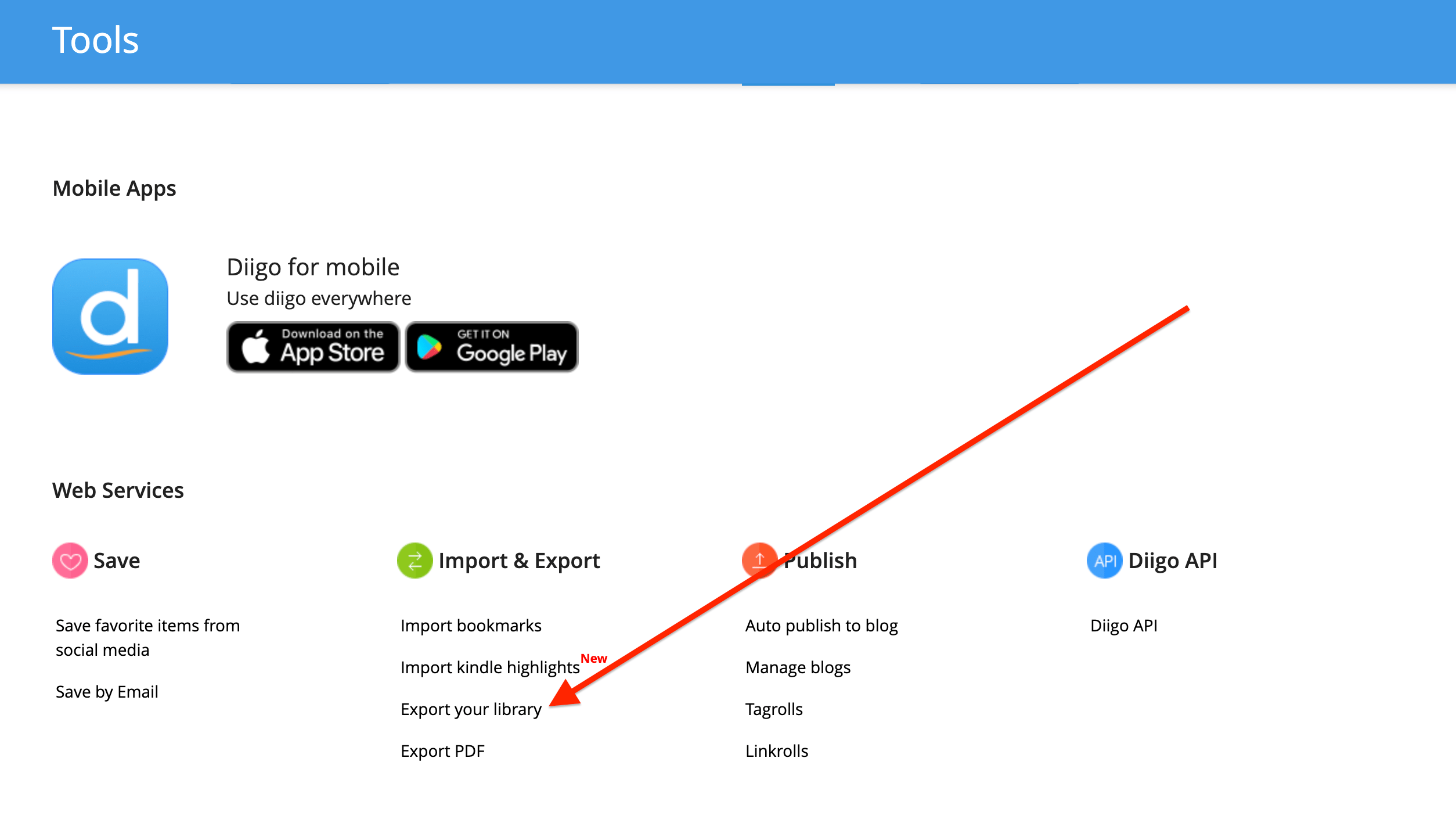
Visit the Diigo dashboard and sign in.
Export to CSV format
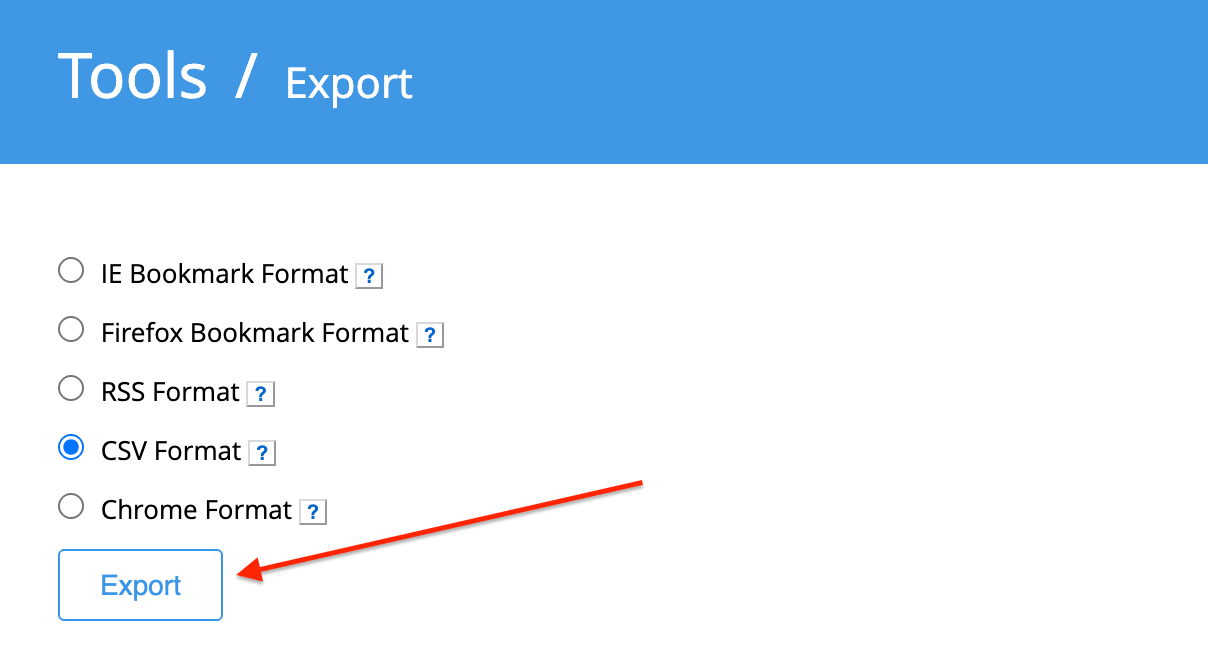
Choose the CSV format and click "Export". You should receive an email with the exported CSV file. Alternatively, you can also download the file from the "Export History" page which will appear after the export is complete. You might need to refresh the page.
Download the CSV export file
Download the exported CSV file from the email or from the Export History.

Upload .CSV File To Web Highlights
In Web Highlights, open Settings → Integrations → Diigo Import. Click 'Upload Diigo CSV File' and select the exported Diigo .csv file.
Import your Diigo Research
If you've uploaded the right Diigo CSV file, you'll see a button to import your highlights and pages. Click it, and Web Highlights will import your Diigo research.
Learn more
Read the full walkthrough on our blog: Diigo Import guide
Try it in Web Highlights
Open the app and go to Settings → Integrations to use this integration — the same steps as on this page.
Open Web Highlights