How to Export Edge Bookmarks (+ Restore & Import Guide)
Exporting Edge bookmarks saves every bookmark and folder into a single HTML file. The exact menu path in Edge is below, step by step. Once you have the file you can keep it as a backup, move it to another computer, or use it to restore your bookmarks in another browser or import them into Web Highlights.
Every step in Edge:
- Open Microsoft Edge.
- Click the three-dot menu (Settings and more) in the top-right corner.
- Click Favorites.
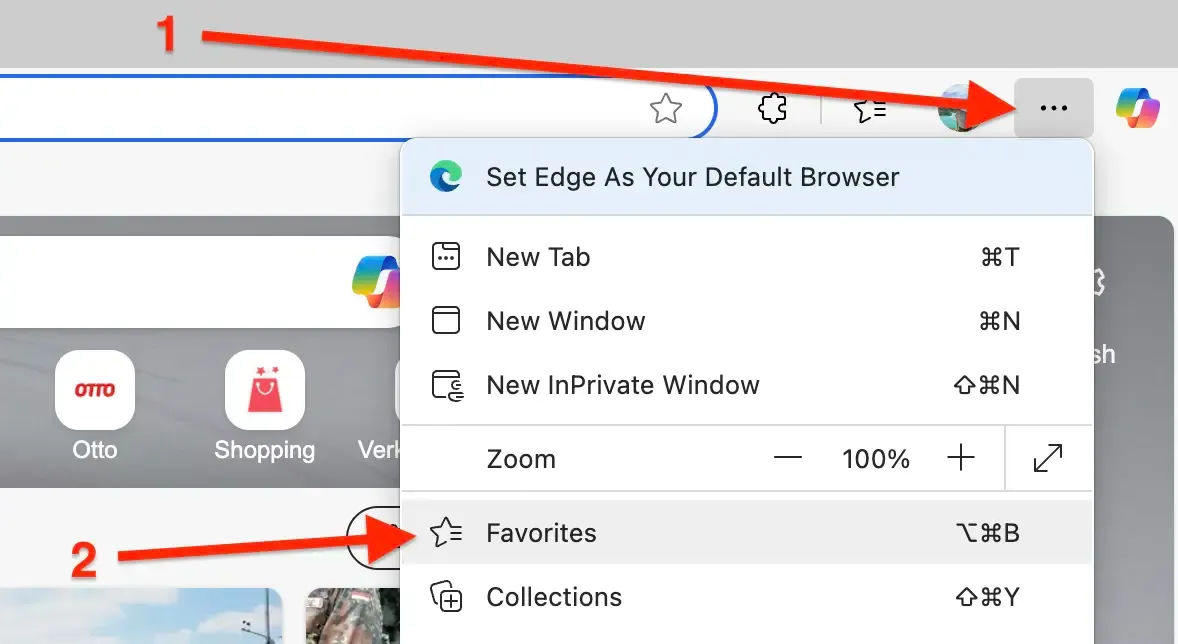
- In the Favorites pane, click the three-dot menu (More options), then Export favorites.
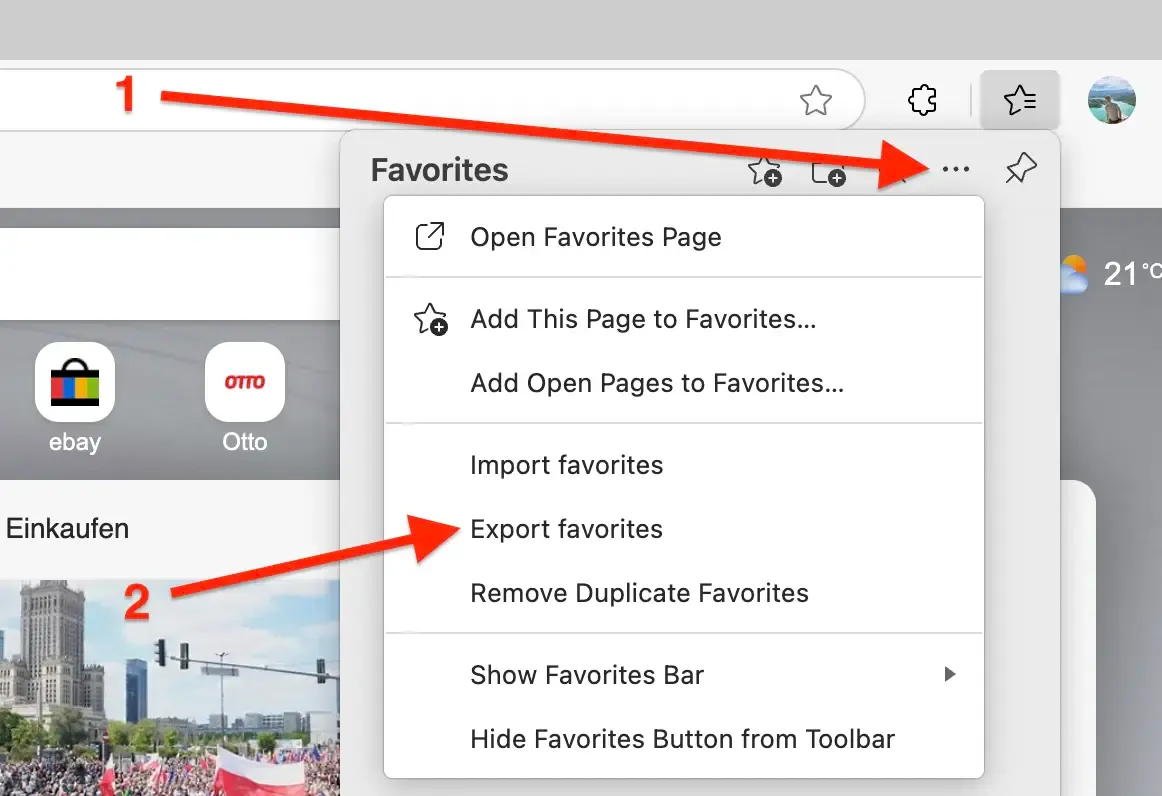
- Save the HTML file to your computer.
How to Restore Bookmarks in Edge
- Open Microsoft Edge.
- Click the three-dot menu (Settings and more) in the top-right corner.
- Click Favorites.
- In the Favorites pane, click the three-dot menu (More options), then Import favorites and select your HTML file.
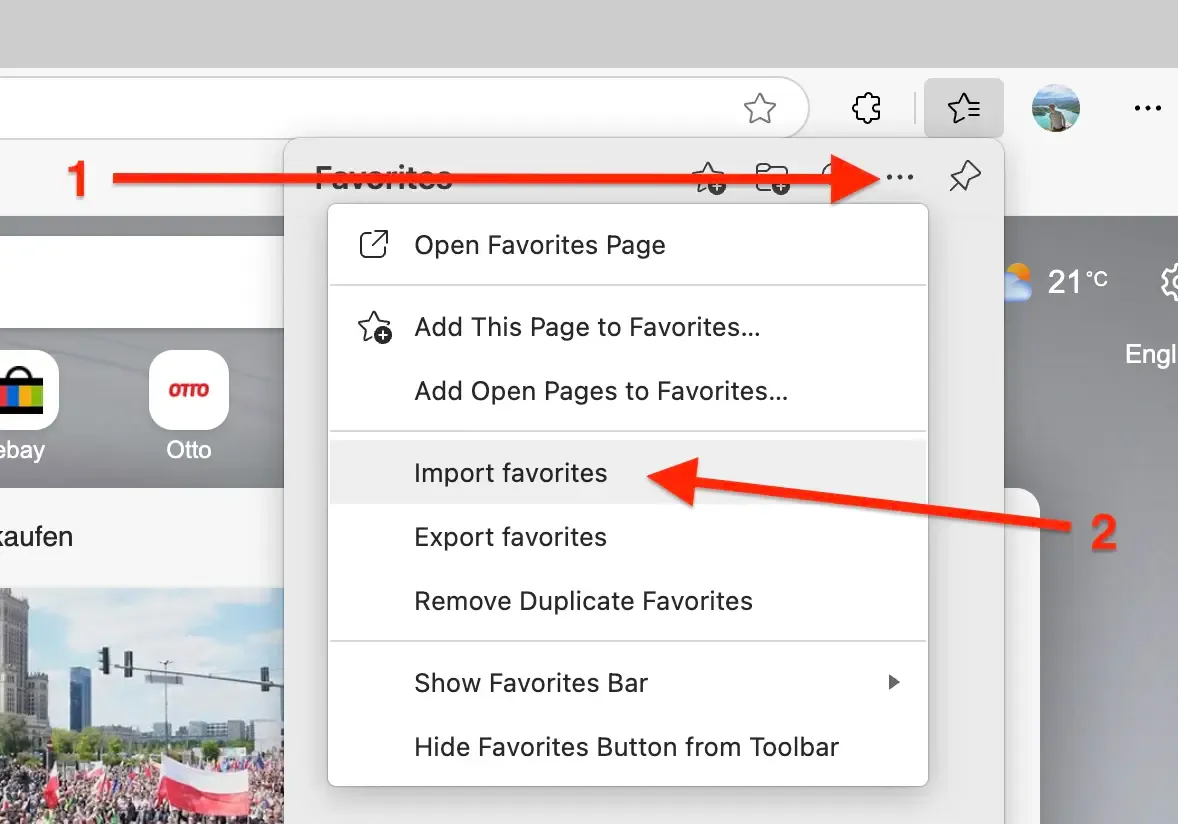
Note: If you already have favorites in Edge, the imported ones will be added to your existing collection. You may need to remove duplicates if needed.
Import Bookmarks to Web Highlights
- Install the Web Highlights extension on your browser.
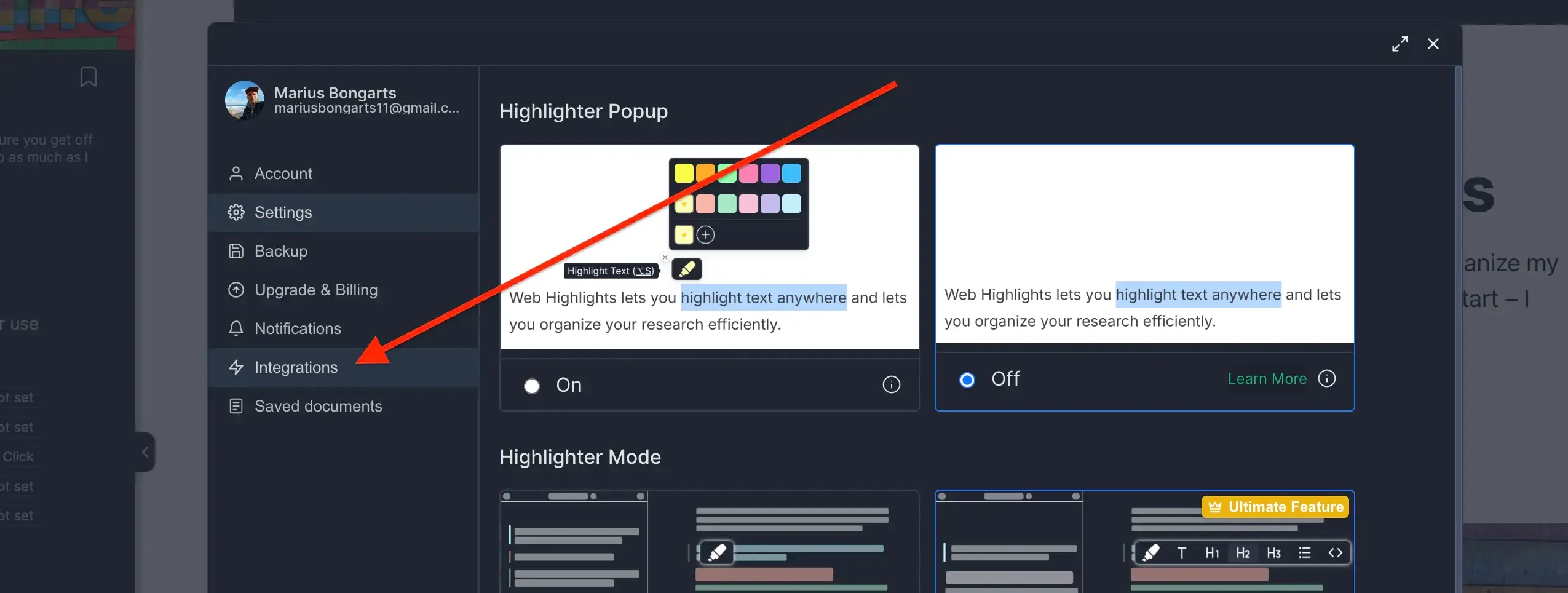
- Open Web Highlights settings.
- Go to Integrations.
- Go to Bookmarks Import.
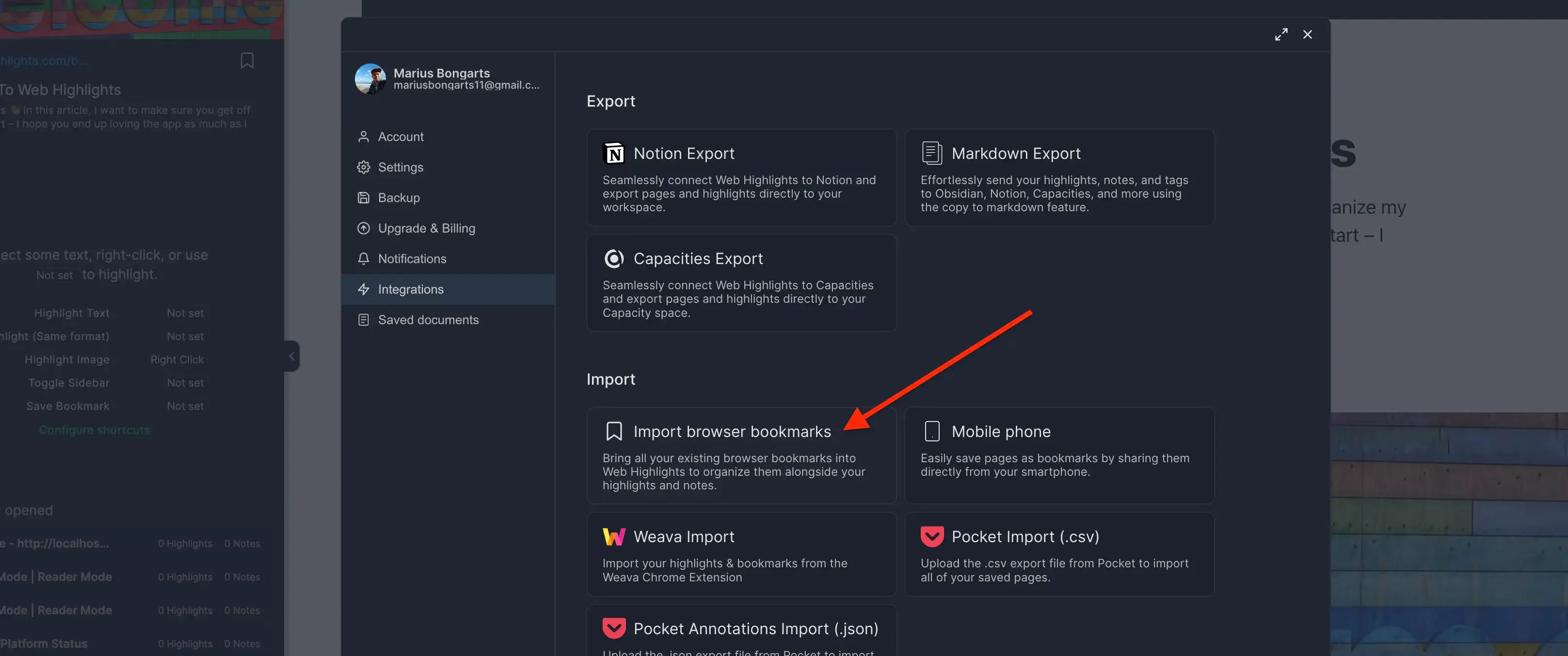
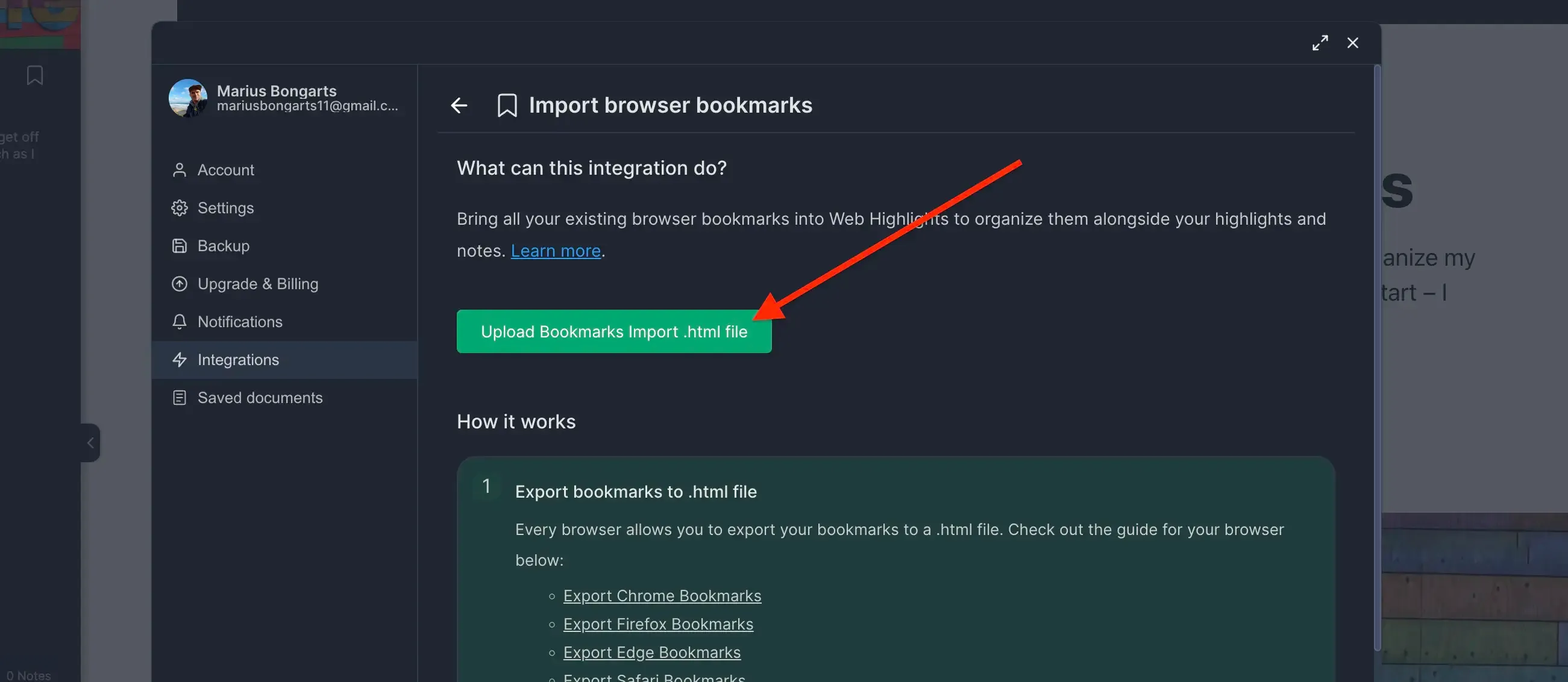
- Click Upload bookmarks file and select the HTML file you exported.
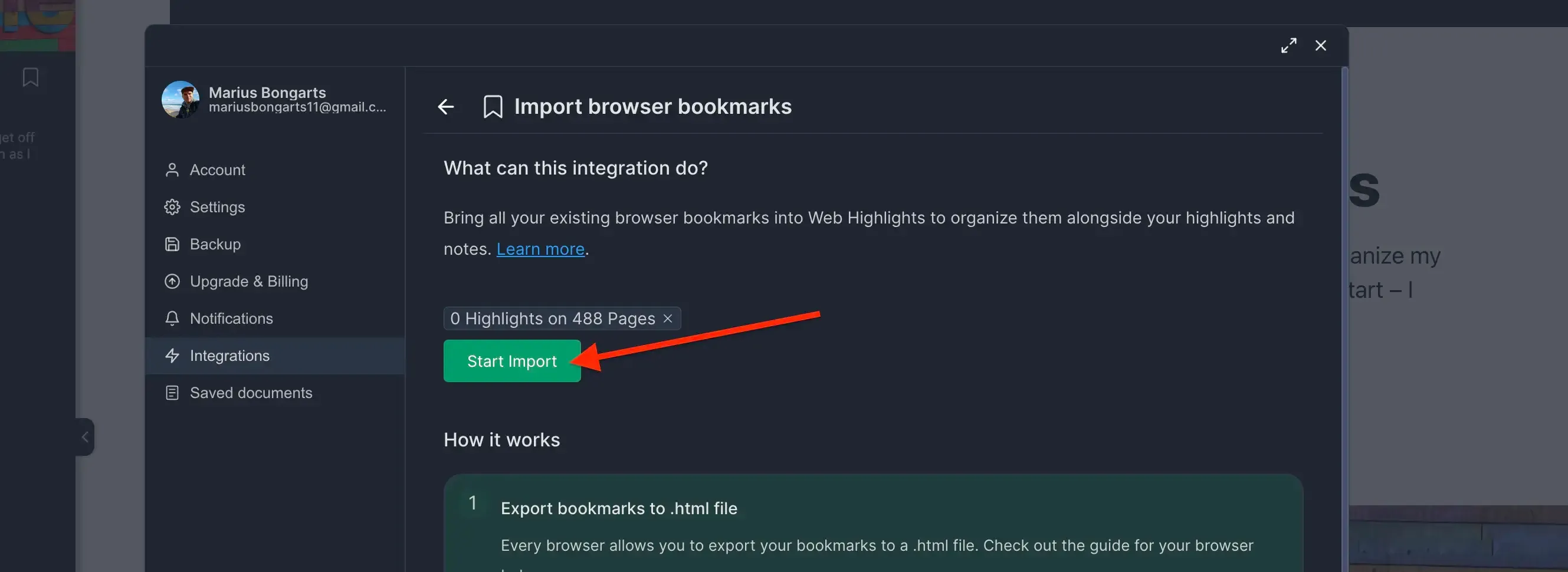
- Click Import to add your bookmarks to Web Highlights.
Need help with another browser? Check out our other browser tutorials.