How to Save Bookmarks in DuckDuckGo (And Actually Find Them Again)
To save a bookmark in DuckDuckGo, open the page and press Ctrl + D (Cmd + D on a Mac), then choose a folder and confirm. That part takes two seconds. Finding it again months later is the hard part — so this guide covers the native DuckDuckGo way first, then how to make saved pages searchable.
Save a bookmark in DuckDuckGo, step by step
- Open the page you want to bookmark in DuckDuckGo Browser.
- Mobile: Tap the three-dot menu → Add Bookmark.
- Desktop (macOS): Click the three-dot menu → Bookmark This Page (or press
Cmd + D).
DuckDuckGo Browser has basic bookmarking but limited organization features. You can sync bookmarks across devices using DuckDuckGo's Sync & Backup feature.
The Problem with Browser Bookmarks
Browser bookmarks are great for saving URLs, but they lack context. A bookmark tells you where you saved something, but not why. Over time, long bookmark lists become hard to navigate — you end up with hundreds of links and no idea which ones matter.
Web Highlights solves this by turning bookmarks into rich research entries: each saved page can carry highlights, notes, tags, and AI summaries — so you always remember why you saved it.
DuckDuckGo Bookmarks vs. Web Highlights
| Feature | DuckDuckGo | Web Highlights |
|---|---|---|
| Save a page | ✅ URL only | ✅ URL + highlights + notes |
| Organization | 📁 Folders | 🏷️ Tags (multi-label) |
| Search | Title/URL only | Full-text (highlights, notes, content) |
| Highlight & annotate | ❌ | ✅ Multiple colors + notes |
| AI summaries | ❌ | ✅ On-device AI |
| Export | HTML file | Notion, Markdown, PDF, HTML |
| Cross-browser sync | Same browser only | ✅ Any browser + web app |
Save Bookmarks with Web Highlights
With the Web Highlights web clipper, you can save any page as a bookmark with one click:
- Install Web Highlights for DuckDuckGo from the extension store.
- Open any webpage and click the bookmark icon in the Web Highlights sidebar.
- Your page is saved — add tags, notes, and highlights to make it findable later.
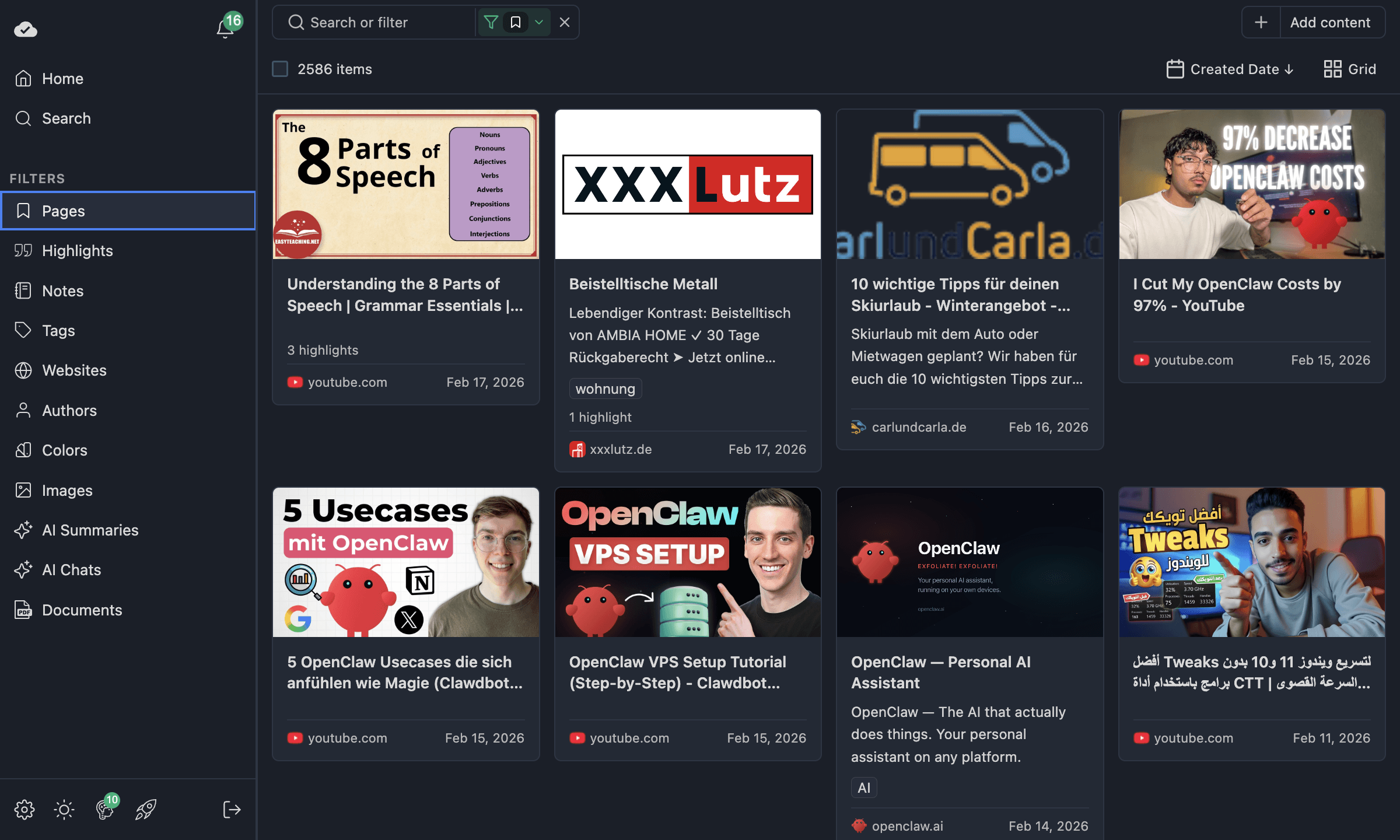
Every saved page automatically appears in your Web Highlights dashboard with the page title, description, preview image, and metadata like the author — so you can recognize any bookmark at a glance, even months later.
Organize Your Bookmarks
Unlike browser bookmark folders, Web Highlights uses tags for organization. A single bookmark can carry multiple tags, making it easy to find pages through different lenses — by project, topic, or priority.
You can search across all your bookmarks, highlights, and notes from the web app on any device.
Import Existing DuckDuckGo Bookmarks
Already have a large collection of DuckDuckGo bookmarks? You can export them and import them into Web Highlights to organize them alongside your highlights and notes.
Frequently Asked Questions
Where are my bookmarks saved in DuckDuckGo?
DuckDuckGo stores bookmarks locally in your browser profile. They are only accessible in DuckDuckGo on that device (or via DuckDuckGo's sync feature if you're signed in). With Web Highlights, bookmarks are saved to the cloud and accessible from any browser or the web app.
Can I bookmark a page without installing anything?
Yes — every browser lets you save bookmarks natively using the steps above. However, native bookmarks only save the URL. To save highlights, notes, and metadata alongside the bookmark, you need the Web Highlights extension.
How do I find a bookmark I saved weeks ago?
In DuckDuckGo, you'd need to scroll through your bookmark list or search by title. In Web Highlights, you can search across titles, URLs, highlights, notes, and tags — or filter by color, date, or domain in the web app.
Is Web Highlights free?
Yes. Highlighting, bookmarking, notes, and tags are free with no sign-up required. Advanced features like cloud sync, AI summaries, and unlimited exports are available on paid plans (with a 7-day free trial).
Try Web Highlights for DuckDuckGo
Save bookmarks with highlights, notes, and tags — free, no sign-up required.
Install Web HighlightsNeed help with another browser? Check out our other browser tutorials.