How to Export Bookmarks from Chrome & Import to Web Highlights
Learn how to export bookmarks from Chrome, Firefox, Edge & Safari. Restore them in any browser or import into Web Highlights — your bookmark manager.


Whether you want to back up your Chrome bookmarks, export bookmarks to a new browser, or organize all your saved pages in one place — exporting your bookmarks is quick and easy.
Quick Steps: Export Chrome Bookmarks
- Open Chrome → Three-dot menu (⋮) → Bookmarks and lists → Bookmark manager
- Click three-dot menu (⋮) in Bookmark Manager → Export bookmarks
- Save the HTML file to your computer
- Import into Web Highlights via Settings → Integrations → Bookmarks Import
All major browsers let you export bookmarks as an HTML file, which means you can transfer bookmarks between Chrome, Firefox, Edge, Safari, and any other browser.
This guide will show you how to export bookmarks from Chrome (or any other browser), restore them in a different browser, and import them into Web Highlights — so you can keep all your research, notes, and favorite sites organized in one spot.
Table of Contents
- Why Export Bookmarks in Chrome?
- How to Export Bookmarks from Chrome
- How to Export Bookmarks from Firefox
- How to Export Bookmarks from Edge
- How to Export Bookmarks from Safari
- How to Export Bookmarks in Any Other Browser
- How to Restore Bookmarks in Chrome
- How to Restore Bookmarks in Any Other Browser
- Import Chrome Bookmarks to Web Highlights
- Why Use Web Highlights for Bookmarks?
- FAQ
- Final Thoughts
Why Export Bookmarks in Chrome?
Exporting your Chrome bookmarks can be helpful if you:
- Want to back them up so you don't lose anything
- Plan to switch to a different browser or device
- Need to organize bookmarks across multiple browsers
- Want to manage your bookmarks together with highlights and notes in a tool like Web Highlights
How to Export Bookmarks in Chrome
Here is a step-by-step guide for exporting bookmarks in Chrome:
Step 1: Open Google Chrome.
Step 2: Click the three-dot menu (⋮) in the top-right corner.
Step 3: Go to Bookmarks and lists → Bookmark manager. Alternatively, enter chrome://bookmarks in your address bar.
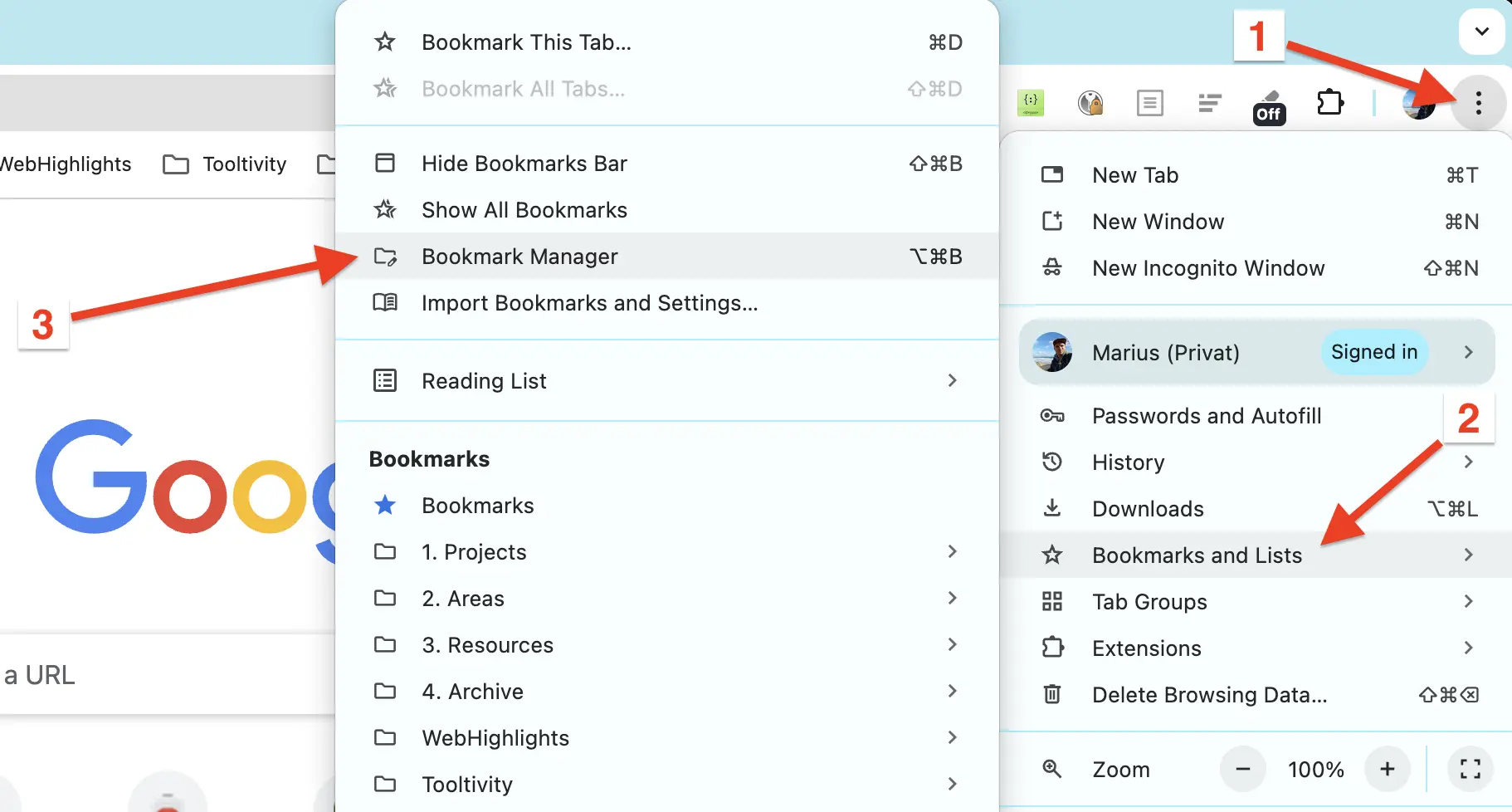
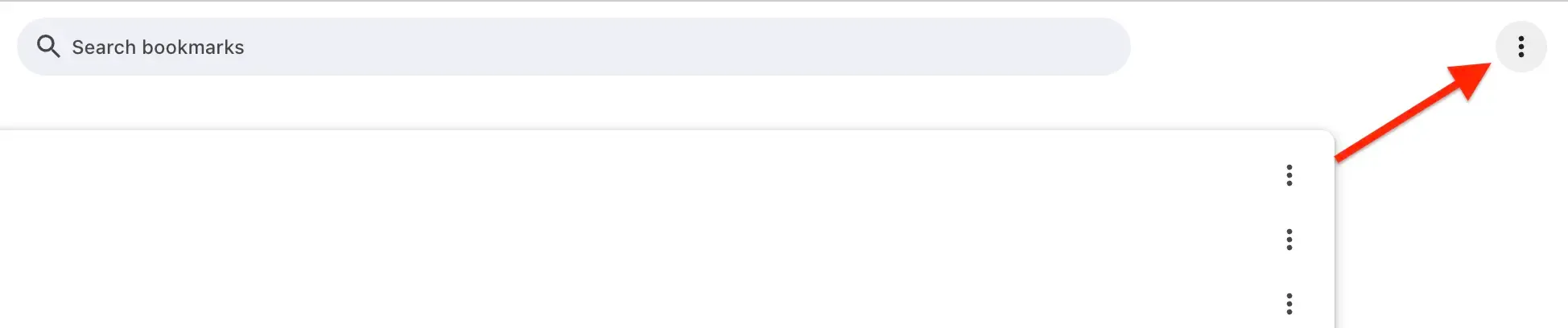
Step 4: In Bookmark Manager, click the three-dot menu (⋮) again.
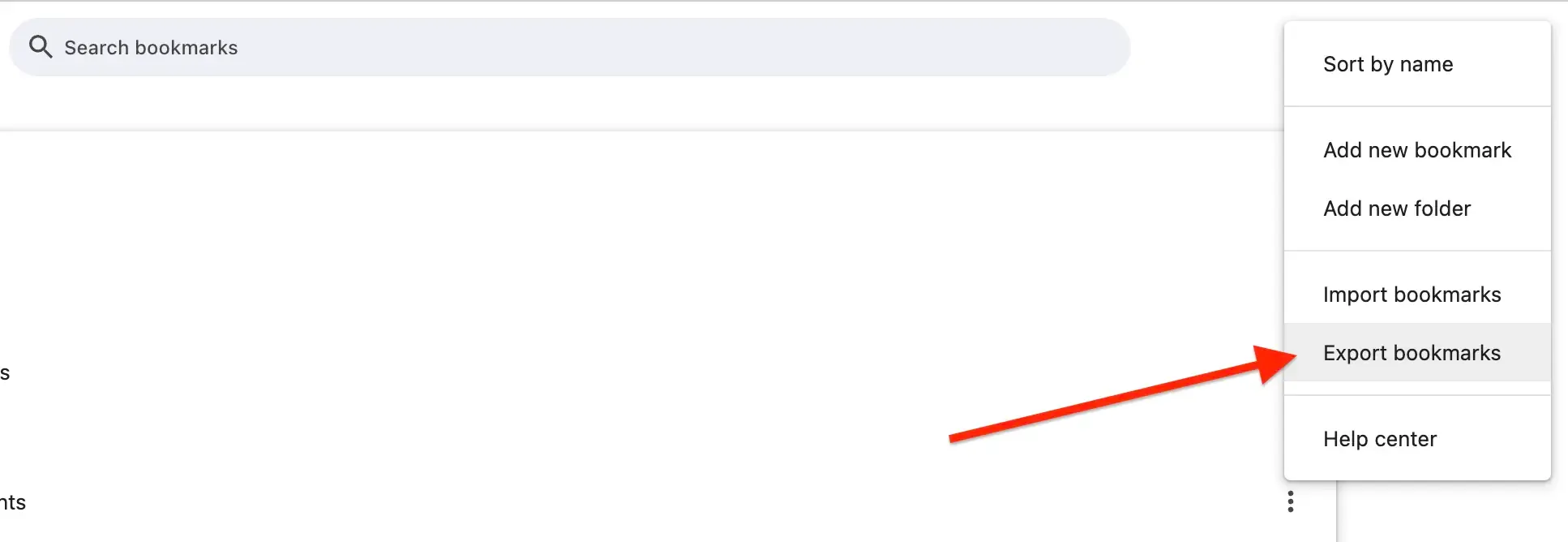
Step 5: Click Export bookmarks and save the HTML file to your computer.
For a detailed walkthrough, see our Chrome bookmark export tutorial.
How to Export Bookmarks from Firefox
Firefox also lets you export bookmarks as an HTML file in just a few steps:
Step 1: Open Mozilla Firefox.
Step 2: Click the three-line menu button in the top-right corner.
Step 3: Click Bookmarks → Manage bookmarks.
Step 4: In the Library window, click Import and Backup → Export Bookmarks to HTML.
Step 5: Save the HTML file to your computer.
For a detailed walkthrough with screenshots, see our Firefox bookmark export tutorial.
How to Export Bookmarks from Edge
Microsoft Edge uses the term "Favorites" instead of bookmarks, but the export process works the same way:
Step 1: Open Microsoft Edge.
Step 2: Click the three-dot menu in the top-right corner.
Step 3: Click Favorites.
Step 4: In the Favorites pane, click the three-dot menu → Export favorites.
Step 5: Save the HTML file to your computer.
For a detailed walkthrough with screenshots, see our Edge bookmark export tutorial.
How to Export Bookmarks from Safari
On macOS, Safari lets you export your bookmarks through the File menu:
Step 1: Open Safari.
Step 2: In the menu bar, click File → Export Browsing Data to File....
Step 3: Enable the toggle switch for Bookmarks and click Export.
Step 4: Save the .zip file to your computer, then extract it to get the HTML file.
For a detailed walkthrough with screenshots, see our Safari bookmark export tutorial.
How to Export Bookmarks in Any Other Browser
Luckily, all browsers use the same format to export bookmarks as an HTML file. That's why you can easily export and import your bookmarks across any browser.
Here are step-by-step guides for all remaining major browsers on how to export your bookmarks:
- How to Export Opera Bookmarks
- How to Export Brave Bookmarks
- How to Export DuckDuckGo Bookmarks
- How to Export Vivaldi Bookmarks
How to Restore Bookmarks in Chrome
If you already have a bookmark file and want to restore it in your Chrome browser, that’s easy to do as well.
Here’s a step-by-step guide to help you restore your bookmarks in Chrome:
Step 1: Open Google Chrome.
Step 2: Click the three-dot menu (⋮) in the top-right corner.
Step 3: Go to Bookmarks and lists → Import bookmarks and settings.
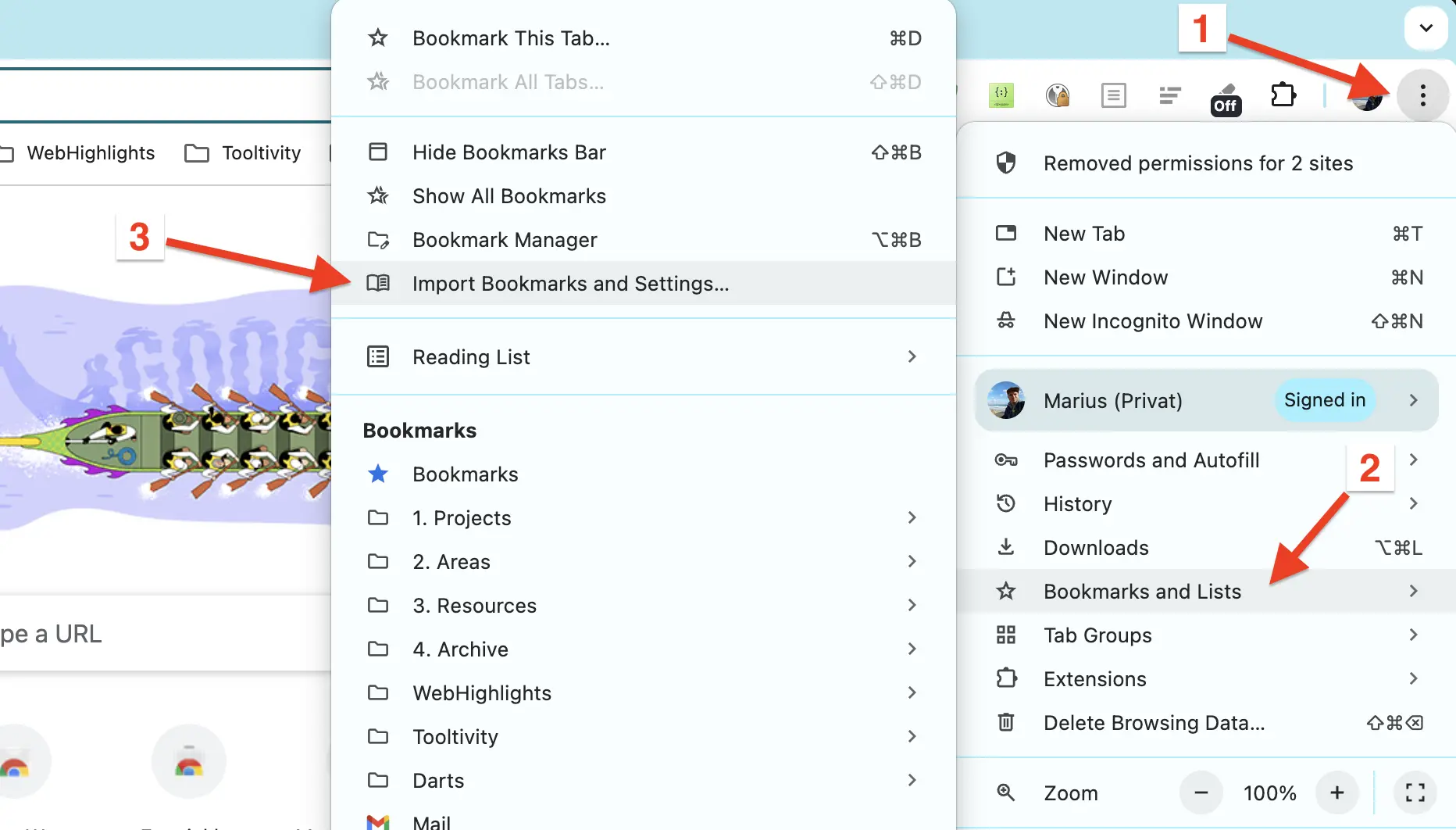
Step 4: Choose Bookmarks HTML File from the dropdown.
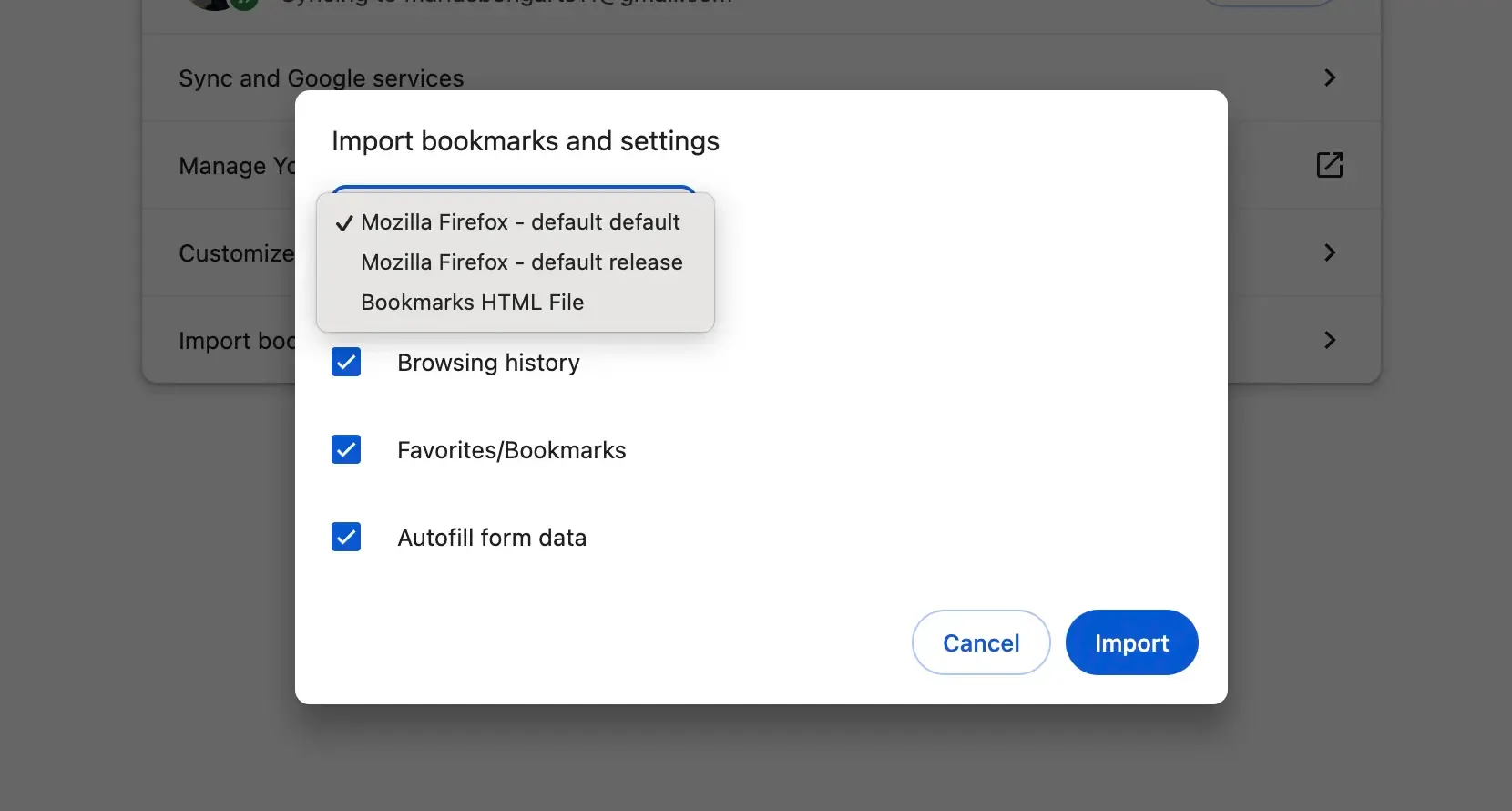
Step 5: Navigate to your local backup file (HTML format), select it, and click Open.
Step 6: Click Done to complete the import.
Note: If you already have bookmarks in Chrome, the imported ones will appear in a new folder called "Other bookmarks" or "Imported."
Alternative method to restore bookmarks in Chrome:
Step 1: Open Google Chrome.
Step 2: Click the three-dot menu (⋮) in the top-right corner.
Step 3: Go to Bookmarks and lists → Bookmark manager. Alternatively, enter chrome://bookmarks in your address bar.
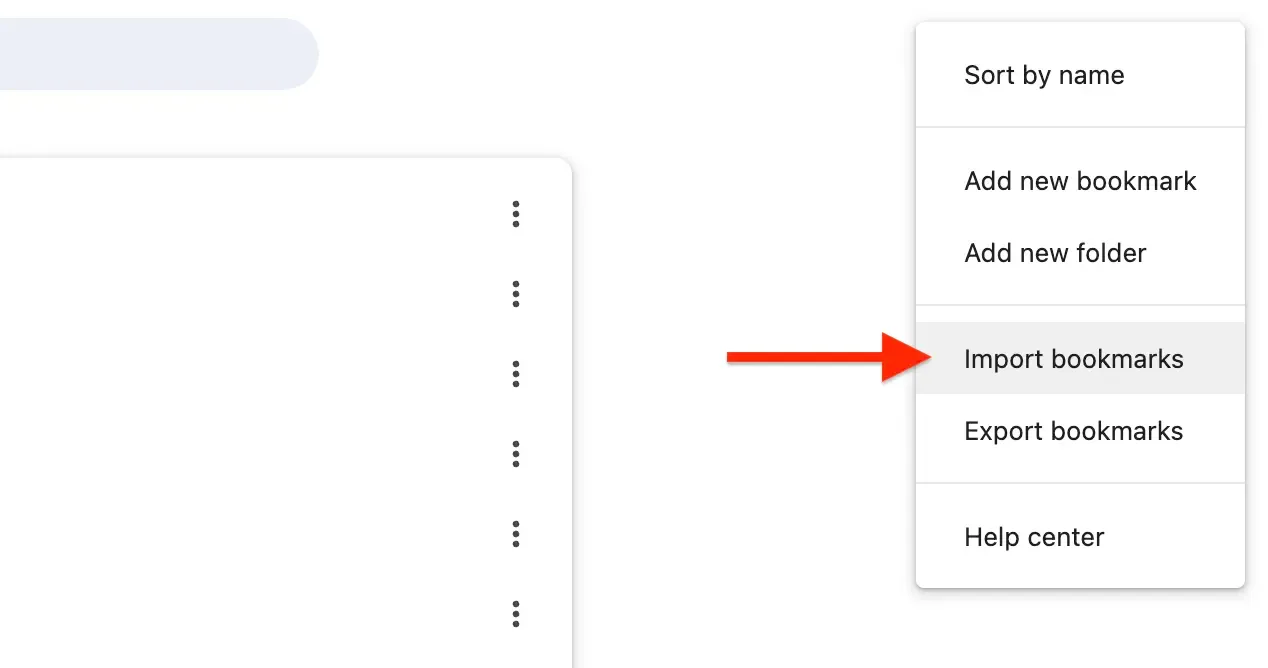
Step 4: In Bookmark Manager, click the three-dot menu (⋮) again.
Step 5: Click Import bookmarks and choose the exported HTML file from your computer.
How to Restore Bookmarks in Any Other Browser
Since all browsers use the same export format, you can easily restore your bookmarks on any browser.
This means you can import your bookmarks from Chrome to Firefox, vice versa, or between any other browsers without any hassle.
Below are step-by-step guides for all major browsers on how to restore your bookmarks using your exported HTML file:
- How to Restore Bookmarks in Chrome
- How to Restore Bookmarks in Firefox
- How to Restore Bookmarks in Edge
- How to Restore Bookmarks in Safari
- How to Restore Bookmarks in Opera
- How to Restore Bookmarks in Brave
- How to Restore Bookmarks in DuckDuckGo
- How to Restore Bookmarks in Vivaldi
Import Chrome Bookmarks to Web Highlights
Now that you have your bookmarks exported, you can easily import them into Web Highlights and organize them alongside your highlights and notes.
Here is a step-by-step guide for importing your bookmarks to Web Highlights:
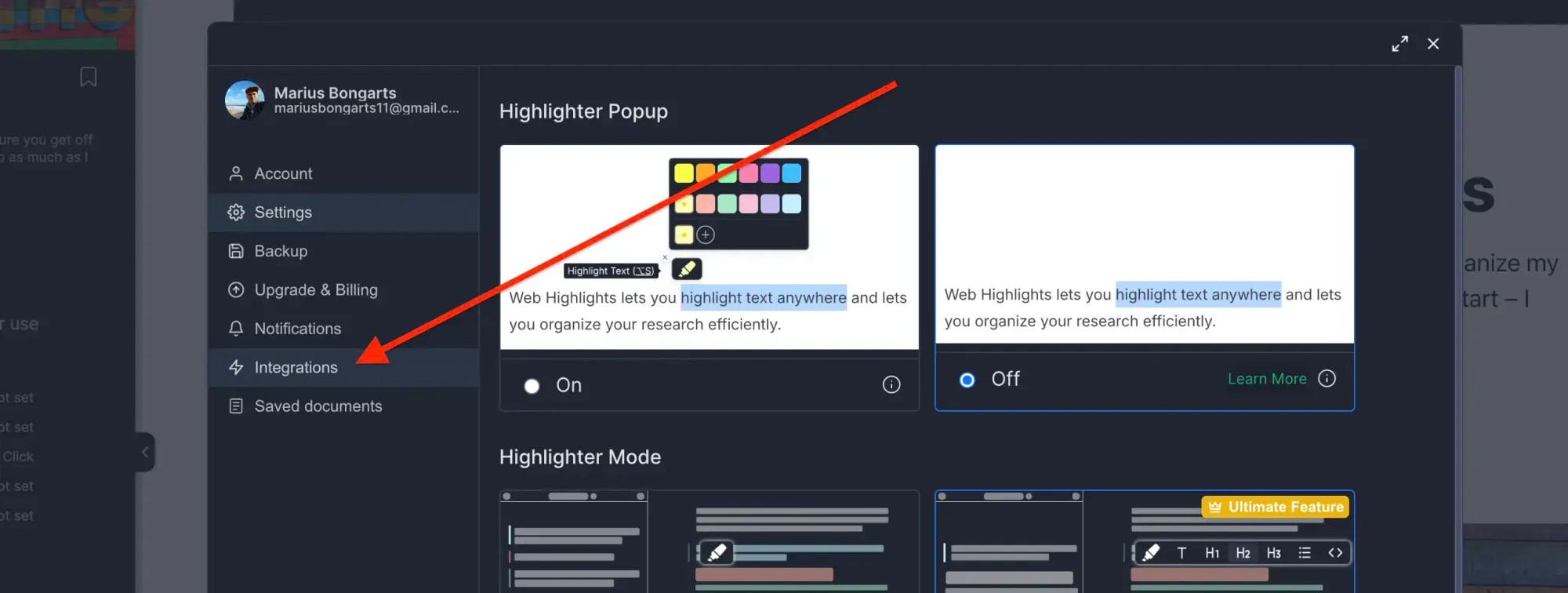
Step 1: Open Web Highlights settings
Step 2: Go to Integrations
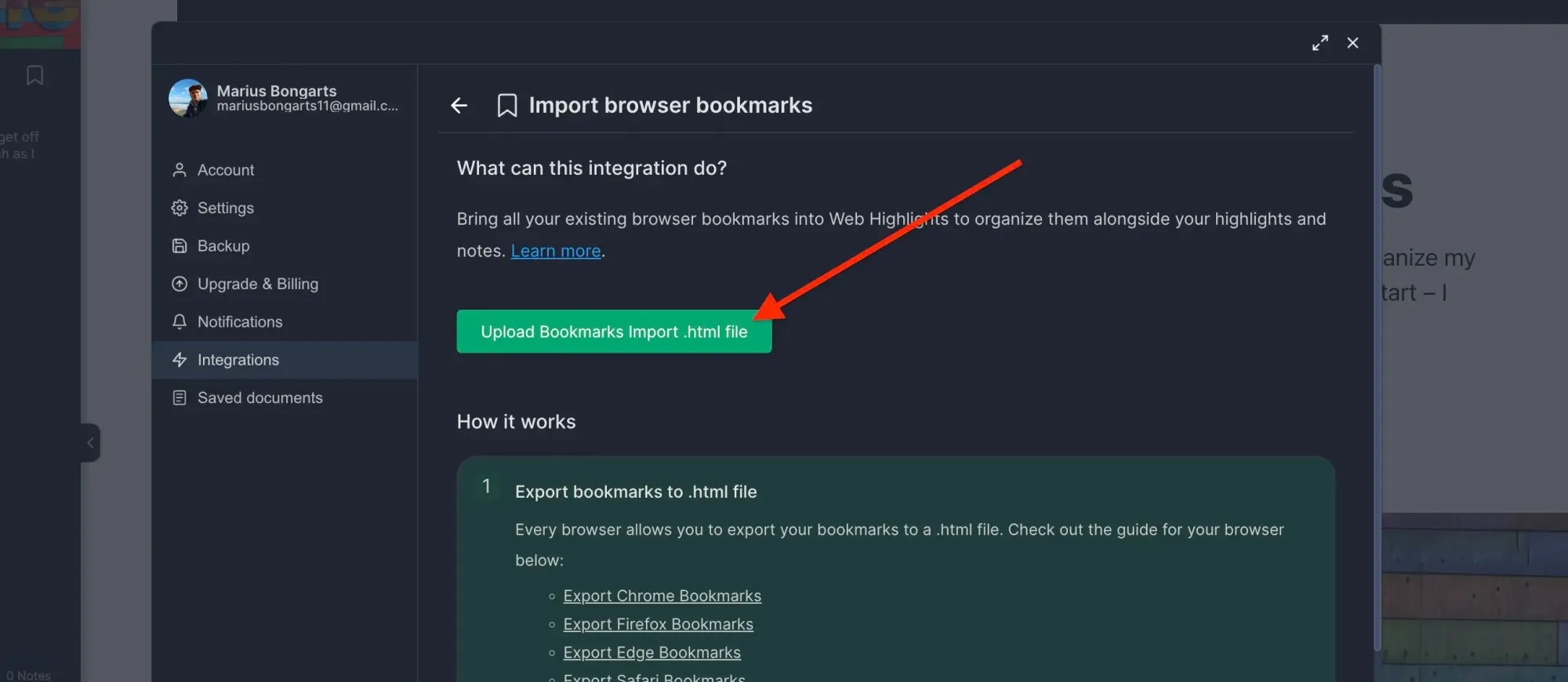
Step 3: Go to Bookmarks Import.
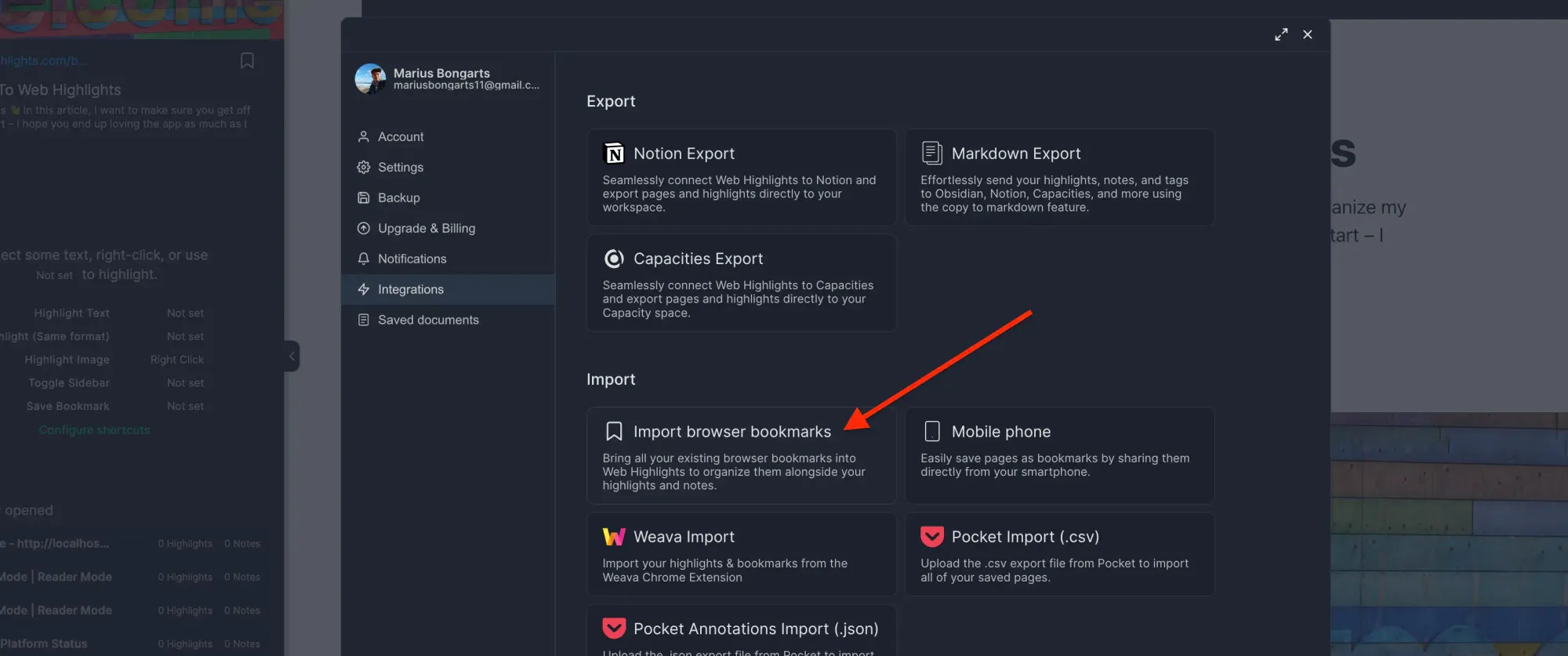
Step 4: Click Upload bookmarks file and select the HTML file you exported.
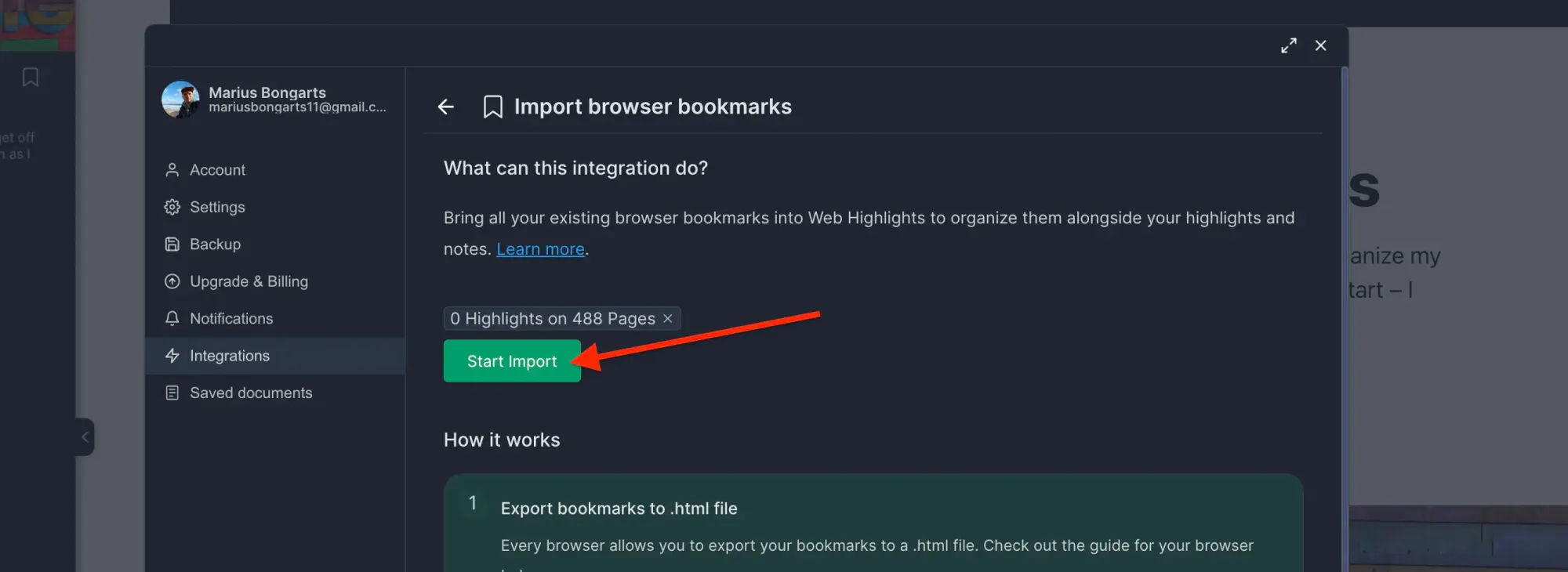
Step 5: Click Import to add your bookmarks to Web Highlights.
Why Use Web Highlights for Bookmarks?
Web Highlights is a Chrome Extension with over 250K users and an average rating of 4.8⭐️.
It's loved by users who want to keep their online research and saved pages in one place to stay better organized.
Here are the main benefits of using Web Highlights as your bookmark manager:
- All-in-one research hub: Keep bookmarks, highlights, and notes together.
- Tag and organize: Easily find and group your saved pages.
- Cross-browser support: Import bookmarks from Chrome, Firefox, Edge, and more.
- Seamless workflow: Add notes and highlights to your bookmarks for better research and productivity.
Install Web Highlights on your browser Install our browser extension to highlight & annotate Websites & PDFs – free, easy to use, no sign-up required.


FAQ
Can I export bookmarks from Chrome to Firefox?
Yes! All browsers export and import bookmarks in the same HTML format. Export your Chrome bookmarks, then import the HTML file into Firefox (or any other browser) using the restore steps above.
Where are my exported bookmarks saved?
When you click "Export bookmarks" in Chrome, you'll be prompted to choose a location on your computer. The bookmarks are saved as an HTML file that you can store anywhere.
Can I export Chrome bookmarks with folders?
Yes. The HTML file keeps your folder structure for other browsers. In Web Highlights, imported bookmarks appear as saved pages you can organize with tags, highlights, and notes.
How do I export Chrome bookmarks on Android?
Chrome on Android doesn't have a built-in bookmark export feature. The best workaround is to sync your mobile bookmarks to your Google account, then export them from Chrome on a desktop computer.
Can I organize my exported bookmarks?
Absolutely. After importing your bookmarks into Web Highlights, you can organize them with tags, add highlights and notes, and access everything from one dashboard. This makes it easy to manage bookmarks across all your browsers.
Can I import bookmarks from Pocket to Web Highlights?
Yes! Besides browser bookmarks, Web Highlights also supports importing saves and annotations from Pocket. See our Pocket import guide for details.
Final Thoughts
Exporting your Chrome bookmarks and importing them into Web Highlights is quick and easy.
With all your saved pages, highlights, and notes in one place, you'll never lose track of important information again.
Ready to get started? Install our Chrome add-on and import your Chrome bookmarks to Web Highlights now!
 Marius Bongarts
 Marius Bongarts