Pocket, Mozilla's read-it-later app, shut down on July 8, 2025, and its export closed on November 12, 2025. You can no longer download your data from getpocket.com. But if you exported your Pocket saves before then, that file still works: Web Highlights imports your saved pages from the CSV and your highlights from the annotations JSON.
Here are the key dates, from Mozilla's Pocket support page :
- Pocket shut down on July 8, 2025 .
- Its “export-only mode” ran until November 12, 2025 (the original deadline was October 8, 2025).
- Since November 12, 2025, the export is disabled and all user data is queued for permanent deletion.
Below, we'll show you how to import your Pocket export into Web Highlights—the perfect alternative to Pocket .
If you haven't installed the Web Highlights browser extension yet, please do so. You can install it here .
Step 1: Find Your Pocket Export File
When Pocket's export was still running, clicking
"Export CSV file"
on getpocket.com sent a file called
pocket.zip
to the email address linked to your account. That export can't be requested anymore, so look for the
pocket.zip
file you downloaded back then—it's often still in your Downloads folder.
If you're not sure whether you exported, search your inbox for Pocket's export email. It looks like this:
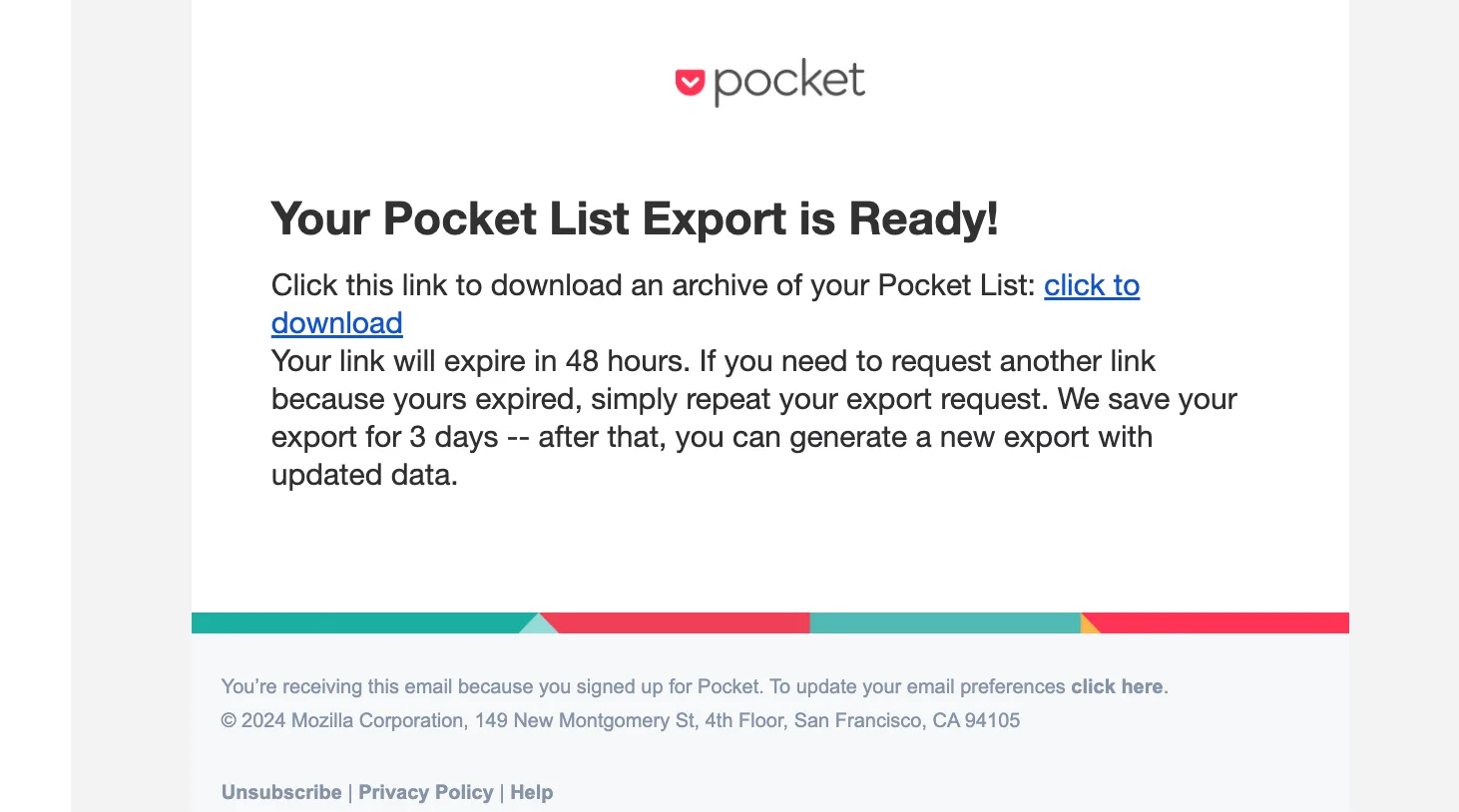
Once you've found your
pocket.zip
file, extract it—you’ll get a
.csv
file that you can use to import your data into other read-it-later tools.
If you’ve used the Pocket highlighter to
make annotations
, the
pocket.zip
file will also include an
annotations
folder. Inside, there’s a
.json
file that contains all the highlights you’ve made.
No export file? Then your Pocket saves can't be recovered, but you can still bring in the links you kept elsewhere, for example by importing your browser bookmarks .
Next, we’ll show you how to import all your saved pages and annotations into Web Highlights—the perfect alternative to Pocket .
Step 2: Import Highlights into Web Highlights
Make sure to be signed in with your Web Highlights account and go to the integration settings at app.web-highlights.com/settings/integrations .
Here you’ll find two ways to import content from Pocket:
- Pocket Import (.csv): Upload the .csv file you exported from Pocket to bring in all your saved pages.
- Pocket Annotations Import (.json): If your exported zip file includes a .json file with annotations, you can upload it here to import your notes.
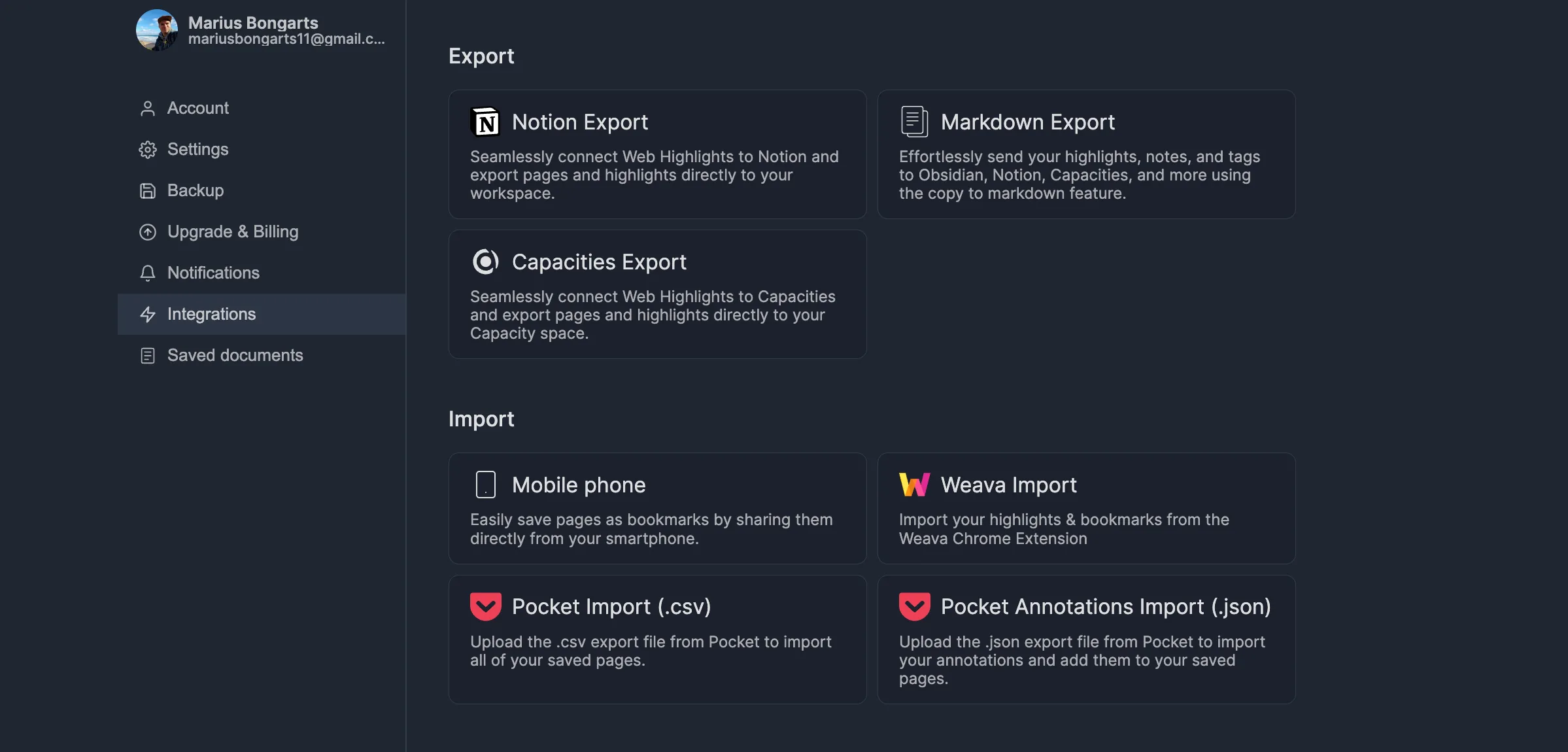
In all cases, we recommend that you first perform the CSV import , which imports all saved bookmarks to Web Highlights. The annotation import can then be performed.
Pocket Import (.csv) - Import all saved pages
- Click on "Pocket Import (.csv)"
- Click "Upload Pocket .csv file" and select your pocket.csv file
- If the file is valid, you will see an info on how many pages can be imported. Now, click "Start Import"
Pocket Import (.json) - Import your Pocket annotations
- Click on "Pocket Annotations Import (.json)"
- Click "Upload Pocket .json file" and select the .json file from the annotations folder
- If the file is valid, you will see an info of how many pages & annotations can be imported. Now, click "Start Import"
Great news, you're done 👏
Your data is now successfully imported to Web Highlights, and you can start exploring all of the awesome features of our PDF & Web Highlighter Browser Extension.
Step 3: View the Imported Pages & Annotations
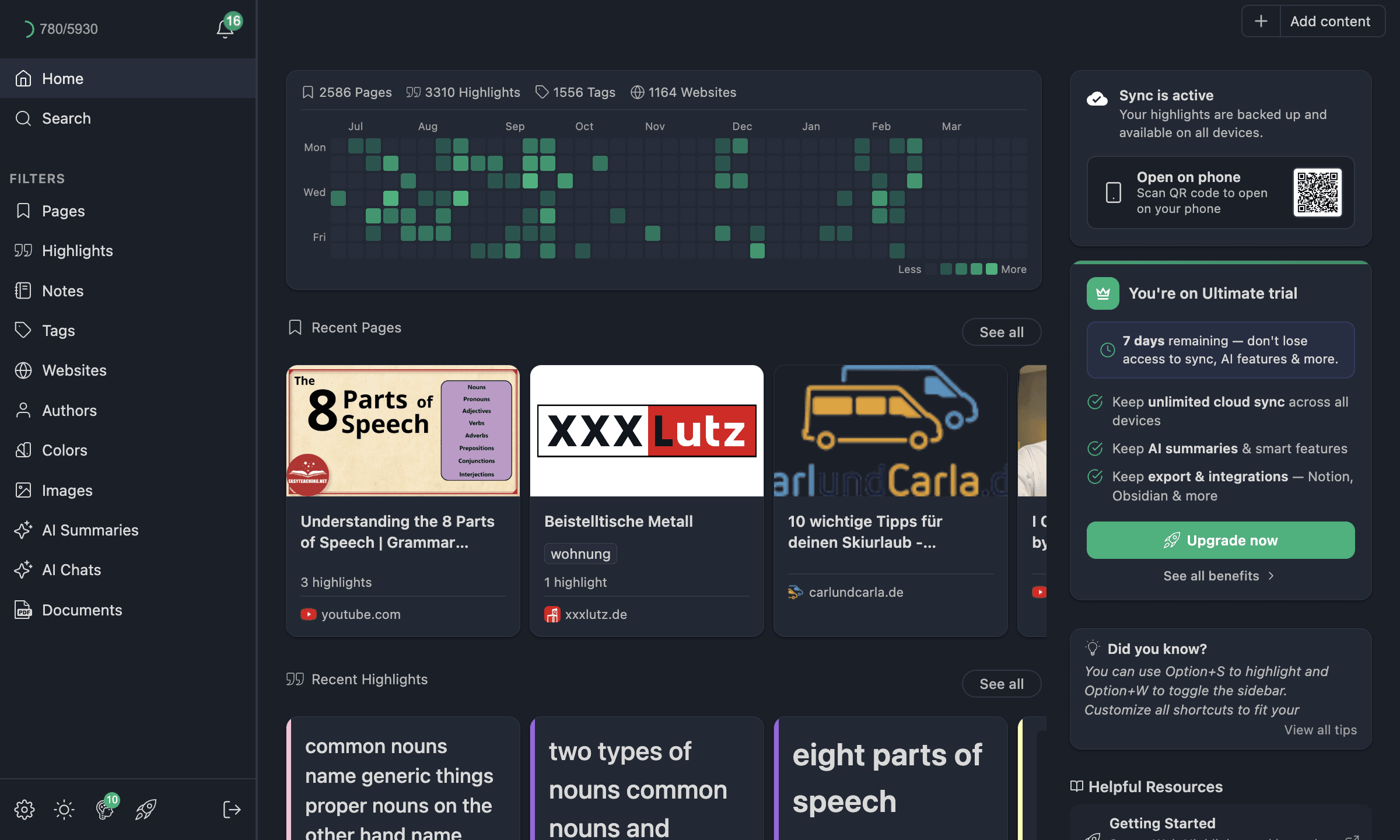
If the import was successful, you'll find your imported pages & annotations in your dashboard.
Here is how our dashboard looks:
Step 4: Install Web Highlights Extension
Web Highlights' core features are available through our browser extensions for Chrome, Firefox, and Edge. So, make sure to install it here .

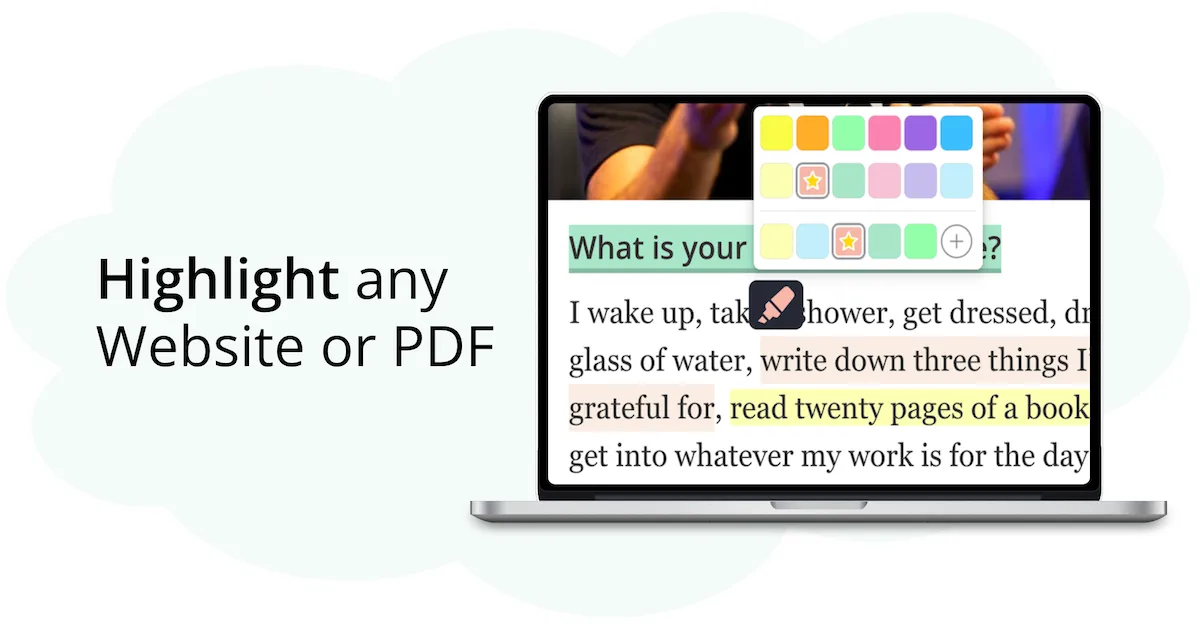
Once installed, the extension lets you do lots of cool things, like:
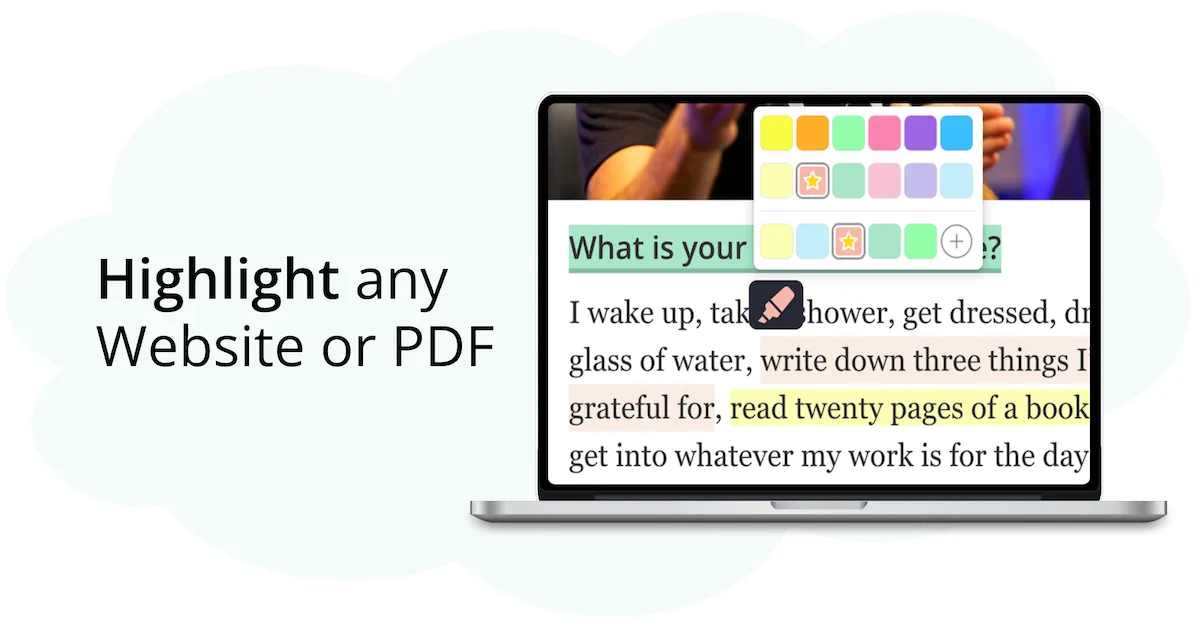
- Highlighting websites in multiple colors
- PDF Highlighting for online & local files
- Directly take notes on your highlights
- Add tags to your highlights
- Save bookmarks
- ... and much more.
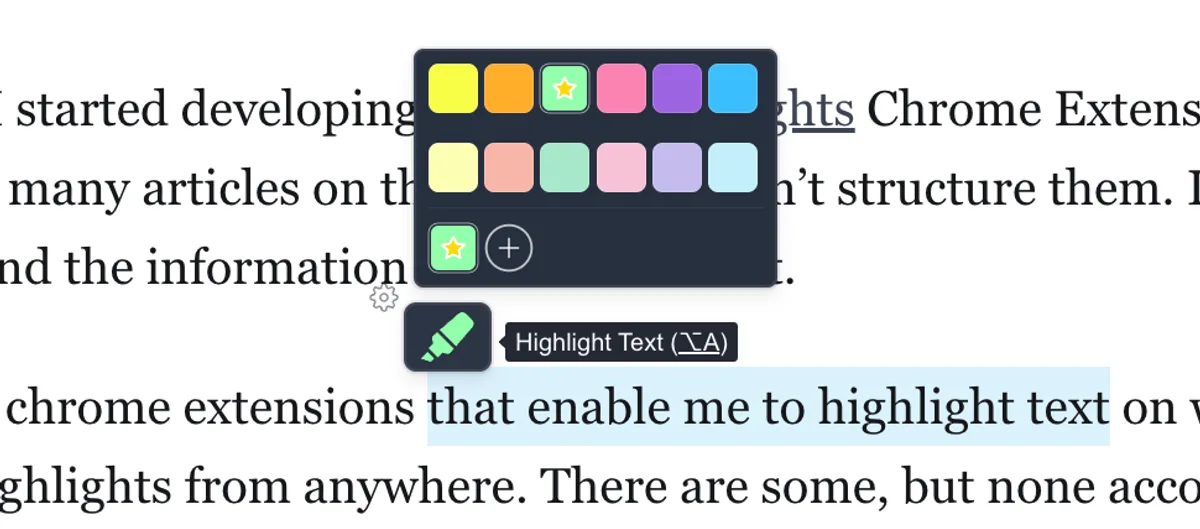
Highlighting websites is as simple as visiting any website and selecting some text on the website:
Learn more about our tool in our simple guide:
 Marius Bongarts

Step 5: Revisit your Pocket pages
If you’ve also imported your Pocket annotations, you can go back to the pages you marked up in Pocket.
Just open a page you’ve highlighted, and your highlights should show up right on the page.
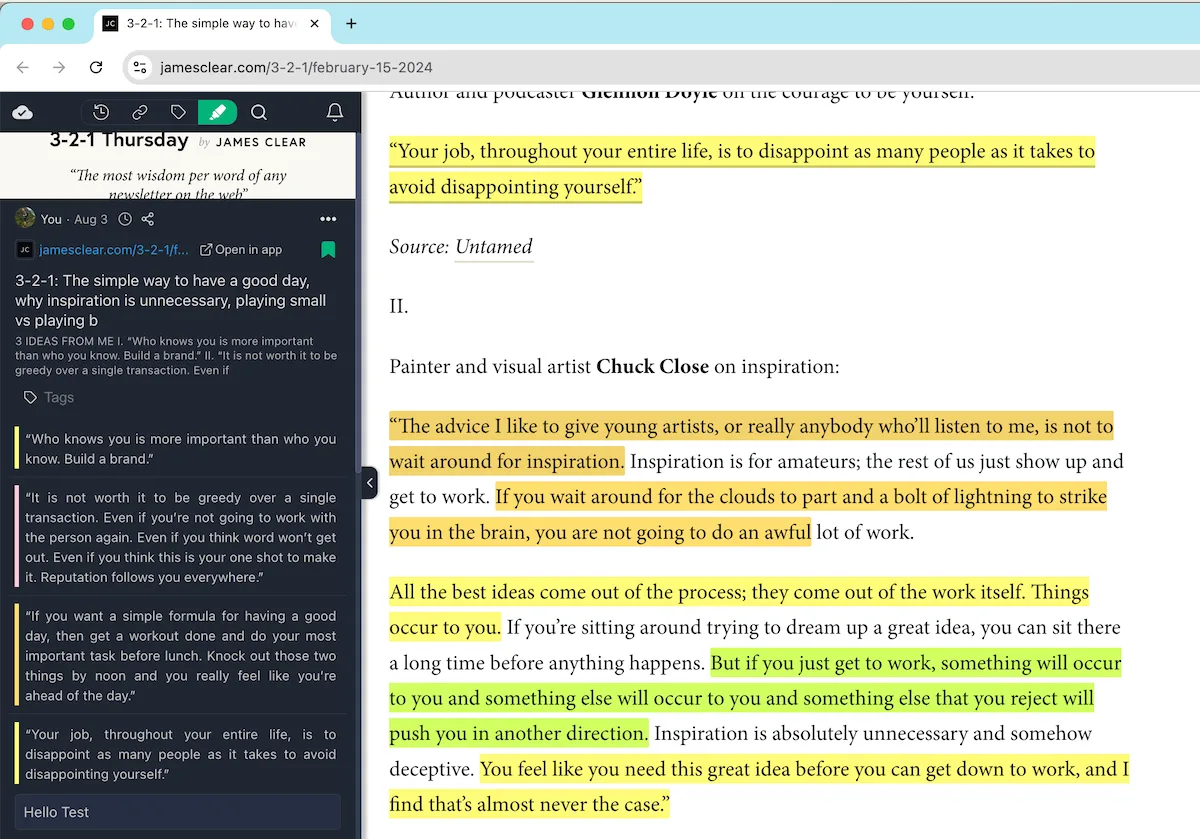
However, keep in mind that Web Highlights tries to recreate the highlights on the page, and this might not always work perfectly because Pocket uses a different annotation algorithm.
Some highlights might not display correctly on the page, but they will always be accessible in the sidebar and the web app.
You can learn more about why highlights might not be visible here .
Final Thoughts
Pocket is gone—Mozilla shut it down in July 2025 and closed its export in November 2025. If you still have your export file, Web Highlights lets you import all your content so you can pick up right where you left off.
Just install the Web Highlights extension , create an account, and import your Pocket export file—it’s that simple.
 Marius Bongarts
 Marius Bongarts