How to Restore Vivaldi Bookmarks From a Backup File
Restoring your Vivaldi bookmarks means importing an HTML backup file — the kind you get from a bookmark export, in any browser. The exact menu path is below, step by step. This guide assumes that you have already exported your bookmarks from Vivaldi to a local backup file. If you haven’t, here is our guide for exporting bookmarks in Vivaldi. Here is a step-by-step guide for importing bookmarks in Vivaldi:
- Open Vivaldi.
- Click the Vivaldi menu button (three horizontal lines) in the top-left corner.
- Go to File → Import from Applications or Files.
- From the dropdown menu, select Bookmarks HTML file.
- Click Start Import.
- Navigate to your local backup HTML file, select it, and click Open.
- The imported bookmarks will be added to your bookmark collection.
- Alternative method: Go to the Bookmark Manager (Ctrl+B) and click the Import icon near the top-right corner.
- Note: Imported bookmarks will appear in a new folder placed after all other bookmark folders. Use the Bookmark Manager to organize them as needed.
Import Bookmarks to Web Highlights
Web Highlights offers a simple way to bring all your existing browser bookmarks into Web Highlights to organize them alongside your highlights and notes.
Here is a step-by-step guide for importing bookmarks to Web Highlights:
- Install the Web Highlights extension on your browser.
- Open Web Highlights settings.
- Go to Integrations.
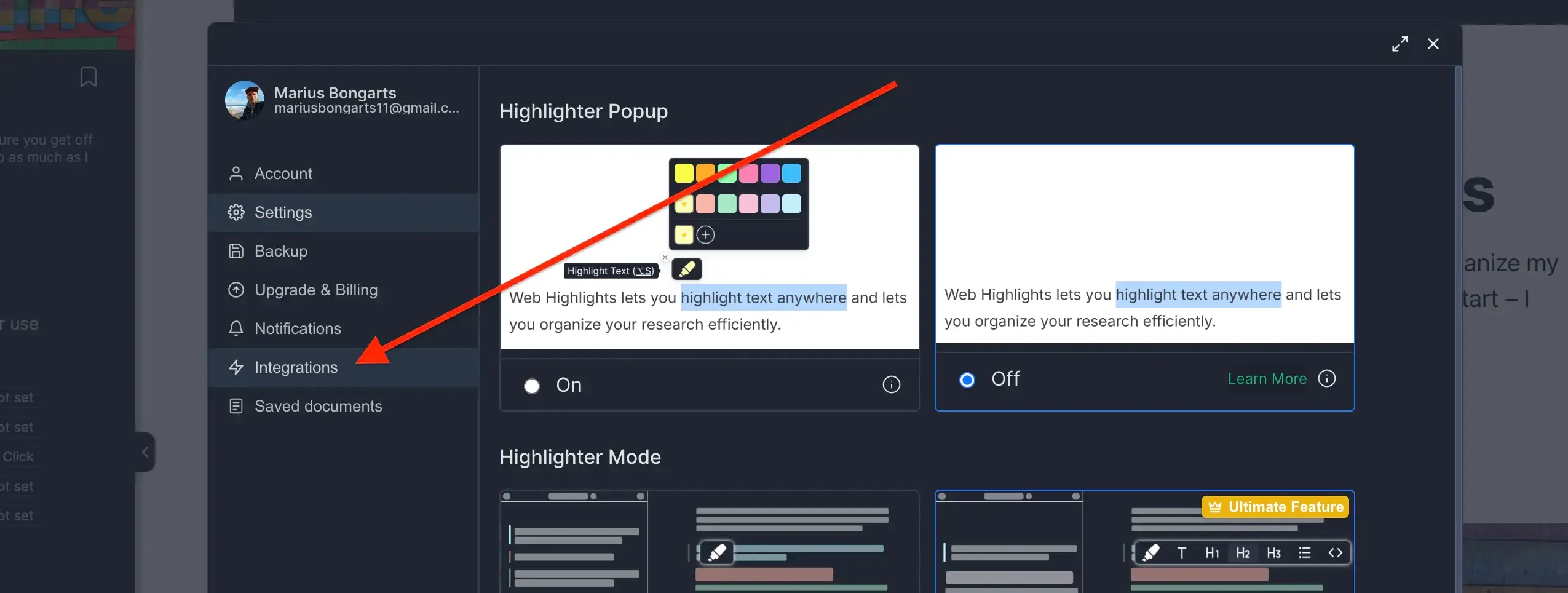
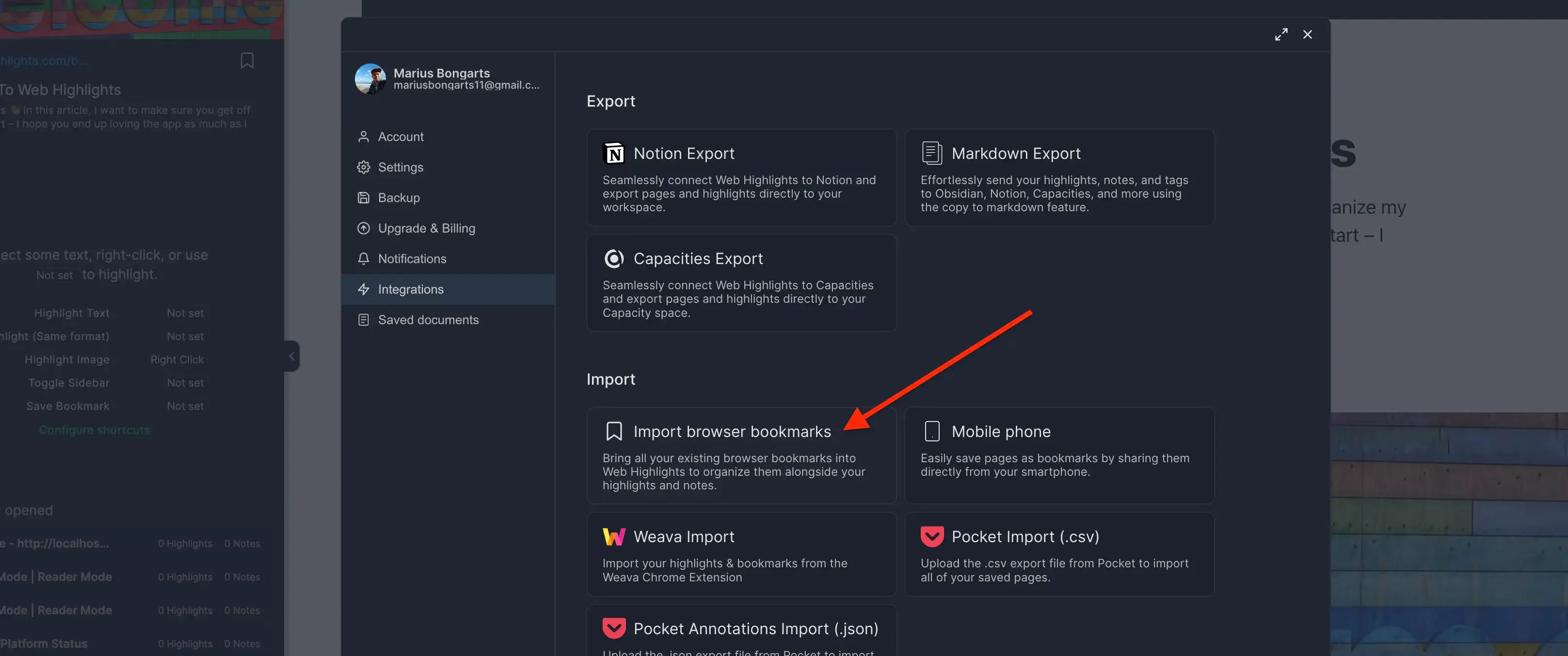
- Go to Bookmarks Import.
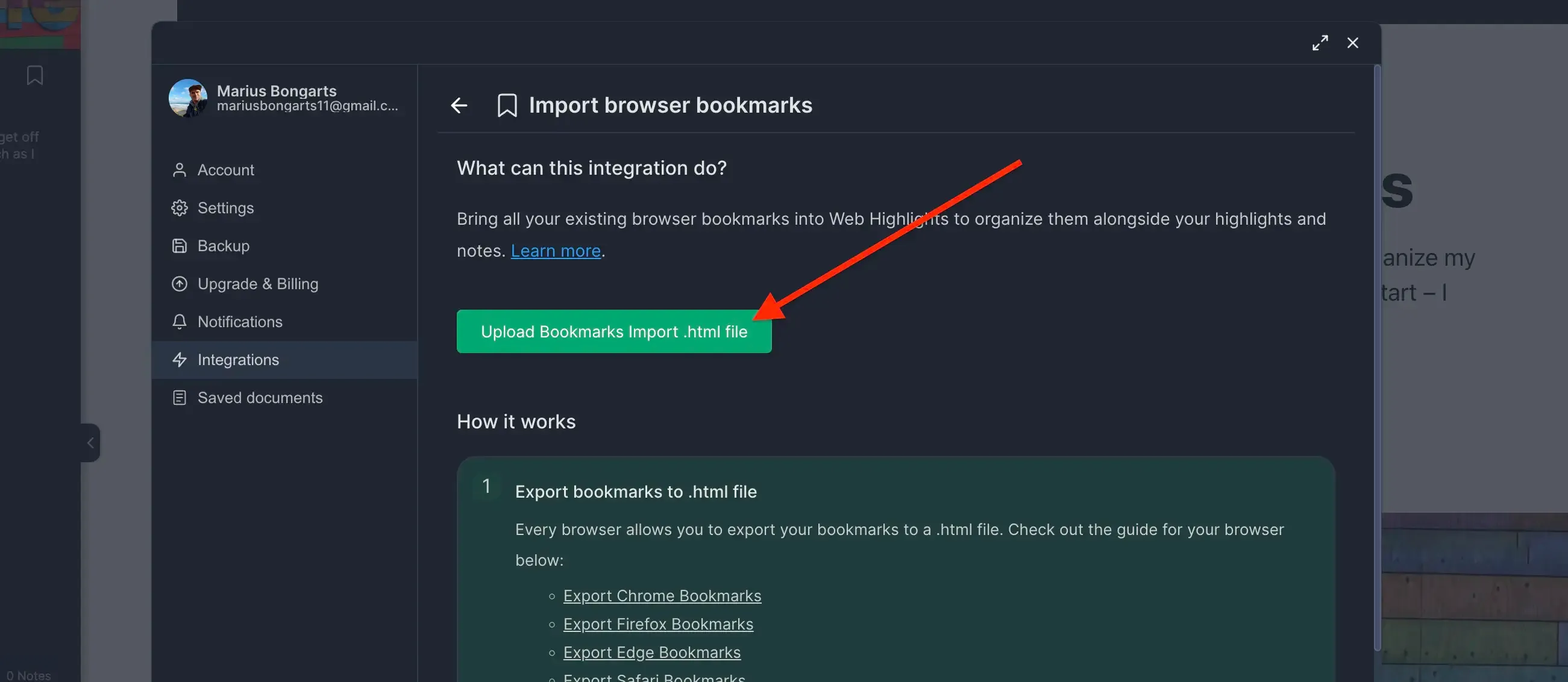
- Click Upload bookmarks file and select the HTML file you exported.
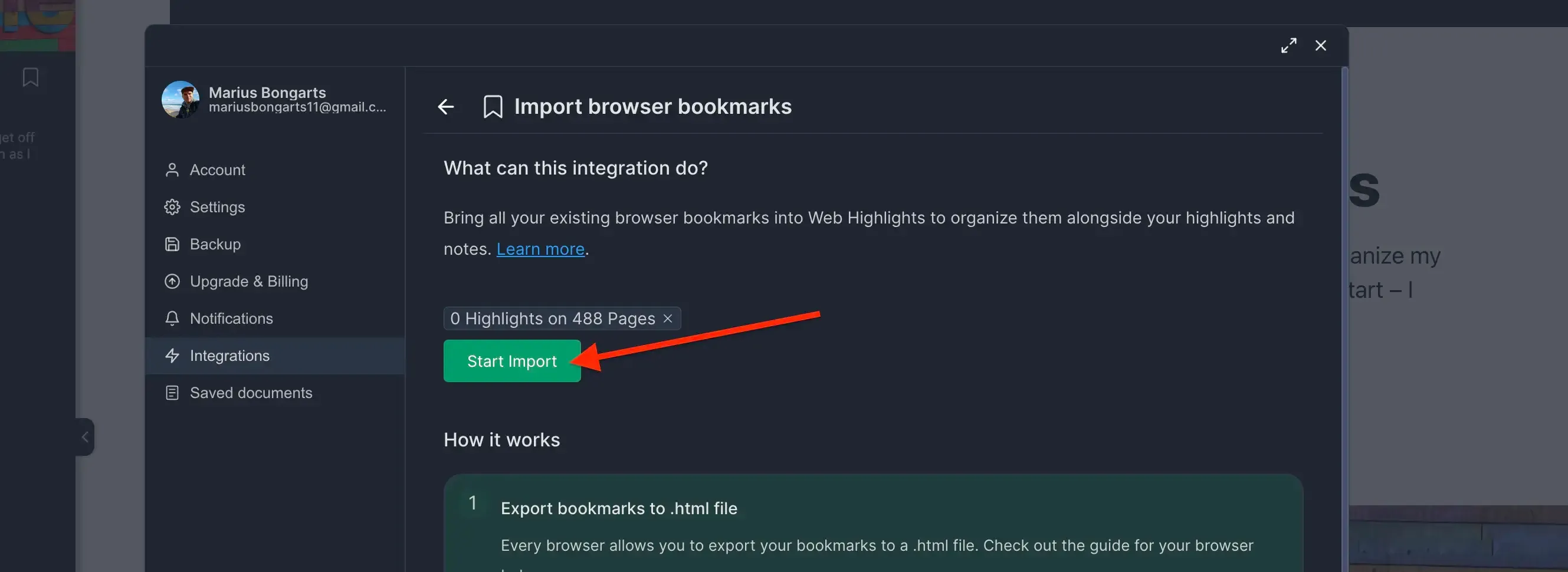
- Click Import to add your bookmarks to Web Highlights.
Need help with another browser? Check out our other browser tutorials.