
Forty tabs open, three of them the same paper, and the quote you need for your essay is in none of them. Sound familiar? Most of the extensions that fix that are free.
The short answer: the best Chrome extensions for students in 2026 are Grammarly for writing, Zotero Connector for citations, Web Highlights for highlighting what you read and turning it into flashcards, and Read Aloud for listening to your readings. All four have a useful free plan.
Full disclosure: I built Web Highlights, so it’s on this list. I put it where I think it honestly belongs. Every other fact below — free plans, prices, browsers — was checked on the vendors’ own pages and store listings on October 4, 2026. Tooltivity, where the reviews I link to live, is run by my company too.
Key takeaways
- You don’t need to pay for a good student setup: every pick has a free plan, and five of them are free outright.
- Start with one extension per job — writing, sources, reading, focus — instead of installing twenty. Every extension you add can read the pages you visit, so fewer is safer and faster.
- LanguageTool and Speechify dropped out of this list since the last update: LanguageTool’s extension now stops working after a 14-day trial, and Speechify’s free voices are limited.
The best Chrome extensions for students at a glance
| # | Extension | Best for | Free plan | Paid from | Also on |
|---|---|---|---|---|---|
| 1 | Grammarly | Essays, emails and forum posts | Grammar, spelling, tone, 100 AI prompts | $12/mo (yearly) | Edge, Firefox, Safari |
| 2 | Zotero Connector | Saving sources and citations | Fully free (300 MB cloud storage) | $20/yr for more storage | Edge, Firefox, Safari |
| 3 | Web Highlights | Highlighting web pages and PDFs, flashcards | Highlights, notes, tags, flashcards, no account needed | Paid plans add sync (7-day free trial) | Edge, Firefox |
| 4 | QuillBot | Paraphrasing, summaries, citations | Limited paraphraser and summarizer, free citation generator | $8.33/mo (yearly) | Edge, Safari |
| 5 | Read Aloud | Listening to readings | Free with your browser’s voices, open source | Optional cloud voices | Edge, Firefox |
| 6 | OneTab | Too many research tabs | Fully free, no signup | — | Edge, Firefox, Safari |
| 7 | StayFocusd | Blocking distractions | Free | — | Edge |
| 8 | Todoist | Assignments and deadlines | 5 projects, reminders | $5/mo (yearly) | Edge, Firefox, Safari |
| 9 | Screencastify | Video assignments | 10 videos, 30 minutes each | $7/mo (yearly) | Edge |
| 10 | Google Scholar Button | Finding full-text papers | Fully free | — | Firefox (older version) |
| 11 | Text Blaze | Typing the same things again and again | Limited number of snippets | $2.99/mo (yearly) | Edge |
| 12 | Clockify | Tracking study hours | Unlimited tracking, Pomodoro timer | $3.99/mo (yearly) | Edge, Firefox |
Prices are the cheapest paid plan billed yearly, in US dollars, as listed on October 4, 2026. None of the twelve offers an individual student discount on its pricing page.
1. Grammarly — best for writing essays and emails
Grammarly checks your spelling, grammar and tone everywhere you type — in Google Docs, your learning platform, and that slightly awkward email to your professor. With more than 40 million users on the Chrome Web Store, it’s the most installed extension on this list by far.
- Free: spelling and grammar, tone detection, and 100 AI prompts.
- Paid: Pro is $30 a month, or $144 a year ($12 a month). It adds a plagiarism and AI-text check.
- Browsers: Chrome, Edge, Firefox and Safari.
Keep in mind: check your school’s rules before you let any AI rewrite your work. The free grammar fixes are safe everywhere.
2. Zotero Connector — best for sources and citations
If you write anything with a bibliography, install Zotero Connector. One click on a journal article, a library catalog or a news page saves the reference — and the PDF when it’s available — into Zotero. Zotero then formats your citations and bibliography in APA, MLA, Chicago or whatever style your course wants.
- Free: Zotero is free and open source, with 300 MB of free cloud storage.
- Paid: only storage — 2 GB costs $20 a year.
- Browsers: Chrome, Edge, Firefox and Safari. It needs the free Zotero desktop app.
3. Web Highlights — best for highlighting what you read (and remembering it)
This one is mine. Web Highlights lets you highlight text on any website or PDF in your browser, add notes and tags, and find everything again later in one place.
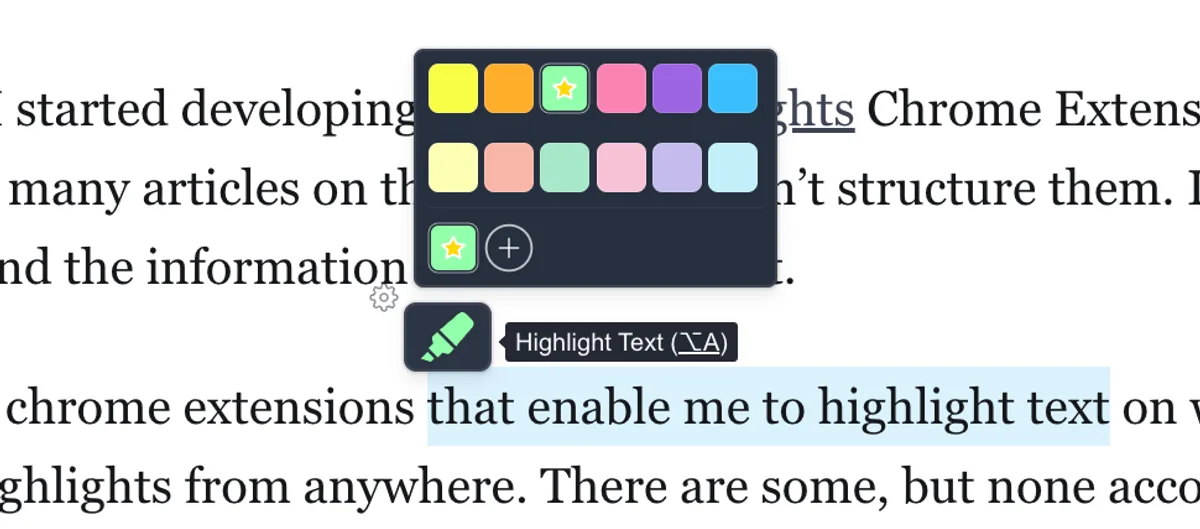
For studying, the part I’d point you to is learning: any highlight can become a question-and-answer flashcard, and spaced repetition brings it back right before you’d forget it. On Chrome, the browser’s built-in AI can draft the card for you, right on your device.
- Free: highlighting on websites and PDFs, notes, tags, flashcards and spaced repetition — no account needed to start.
- Paid: syncing between devices is free for 7 days, then part of the paid plans.
- Browsers: Chrome, Edge and Firefox (also Brave, Vivaldi and Opera). Not Safari.
Don’t want to install anything yet? The free online PDF highlighter works right in your browser.
4. QuillBot — best for paraphrasing and summarizing
QuillBot rewrites a sentence in different ways, summarizes long readings and has a free citation generator. It’s most useful when your own draft sounds clumsy and you want to see other ways to say it.
- Free: a limited paraphraser and summarizer, and the citation generator.
- Paid: Premium is $19.95 a month or $99.95 a year.
- Browsers: Chrome, Edge and Safari — no Firefox extension.
Keep in mind: paraphrasing someone else’s text is still their idea. Cite it.
5. Read Aloud — best for listening to your readings
Read Aloud reads web pages, PDFs and Google Docs out loud in more than 40 languages. It’s great for long readings on the bus, for proofreading your own essay by ear, and for students with dyslexia.
- Free: free and open source, using the voices built into your browser.
- Paid: optional cloud voices that sound more natural cost extra.
- Browsers: Chrome, Edge and Firefox.
Want the most natural voices? Speechify is the premium option ($139 a year), but its free plan only has 10 robotic voices. For more options, there’s a comparison of the 10 best text to speech extensions for Chrome.
6. OneTab — best when you have forty tabs open
OneTab turns all your open tabs into one list with a single click and frees up memory. When you start a new assignment, park the old research tabs there instead of closing them and losing them. It’s completely free, needs no account, and works in Chrome, Edge, Firefox and Safari.
7. StayFocusd — best for blocking distractions
StayFocusd gives you a daily time budget for distracting sites. When it’s used up, they’re blocked for the rest of the day — and the “Nuclear Option” blocks them right away for a study block. It’s free and works in Chrome and Edge.
Keep in mind: StayFocusd is now owned by Sensor Tower, an app-analytics company. If that bothers you, LeechBlock NG is a free, open-source alternative for Chrome and Firefox. If StayFocusd isn’t strict enough, the website blocker comparison covers stricter options such as Cold Turkey Blocker.
8. Todoist — best for assignments and deadlines
Todoist is a simple to-do list for every deadline. The extension saves the page you’re on as a task, so a reading list or a course page becomes a to-do in one click.
- Free: 5 personal projects, reminders and quick add — enough for one semester of courses.
- Paid: Pro is $7 a month or $60 a year. There’s no student discount anymore.
- Browsers: Chrome, Edge, Firefox and Safari.
9. Screencastify — best for video assignments
Screencastify records your screen, a tab or your webcam — handy for presentations, video homework or explaining something to your study group. It works well on school Chromebooks.
- Free: 10 videos of up to 30 minutes each.
- Paid: Starter is $19 a month, or $7 a month billed yearly.
- Browsers: Chrome and Edge.
Why not Loom? Loom’s free plan stops recordings at 5 minutes, which is too short for most presentations — though students can get its Business plan at 75% off.
10. Google Scholar Button — best for finding full-text papers
Select the title of a paper on any page, click the Google Scholar Button, and it finds the full text — on the web or through your university library — or gives you a formatted citation. It’s free and made by Google. It hasn’t been updated since May 2024, but it still does its one job well.
11. Text Blaze — best for things you type again and again
Text Blaze turns a short shortcut like /prof
into a full text: the opening of an email to your professor, a citation format, the boilerplate of a lab report.
It’s rated 4.9 stars on the Chrome Web Store.
- Free: free forever, with a limited number of snippets.
- Paid: Pro is $3.49 a month, or $2.99 a month billed yearly.
- Browsers: Chrome and Edge, plus Windows and Mac apps.
12. Clockify — best for tracking your study hours
Clockify is a time tracker with a built-in Pomodoro timer. Track time per course, and at the end of the week you see where your hours actually went — usually not where you thought.
- Free: unlimited tracking, timesheets, reports and the Pomodoro timer.
- Paid: Basic is $4.99 a month, or $3.99 billed yearly — you won’t need it as a student.
- Browsers: Chrome, Firefox and Edge.
What’s a good student productivity setup?
If I were starting a semester today, I’d install just these five:
- Grammarly for everything I write.
- Zotero Connector for every source I might cite.
- Web Highlights to highlight readings and turn the important parts into flashcards.
- OneTab so research tabs don’t pile up.
- StayFocusd (or LeechBlock NG) for exam weeks.
Everything else is a good add-on once you notice the problem it solves. For more ideas sorted by category, our review site Tooltivity keeps a list of the best education Chrome extensions.
How I picked these extensions
- A free plan that covers daily study. A trial that ends after two weeks doesn’t count.
- Still maintained. Every pick runs on Chrome’s current extension platform (Manifest V3).
- Works beyond Chrome. Most picks also run in Edge or Firefox, so you aren’t locked in.
- One job each. If two extensions did the same thing, I kept the one with the better free plan.
If you study with flashcards, I also compared the best free Quizlet alternatives. And if you mostly study from PDFs, here’s my guide on how to highlight PDFs in Chrome.
Final thoughts
The right extensions won’t do your reading for you. But they take the small annoyances — lost sources, lost tabs, lost quotes — out of the way, so the hours you spend studying go into the material.
I am always happy to answer questions, and I am open to criticism. Feel free to contact me at any time 😊