The best text to speech extension for Chrome right now is GPT Reader. It reads web pages, PDFs and Google Docs in ChatGPT’s voices, doesn’t cap free listening and scores 8.88/10 on Tooltivity. Helperbird (8.33) is the better pick when reading itself is hard work, and Speechify (8.00) is the most complete reader if you’re willing to pay. If all you want is the free classic, Read Aloud has 6,000,000 users and needs no account, though its voices are plainer.
There is a point in every long article where your eyes stop working. You reach the bottom of a paragraph and realise nothing went in, so you scroll back up and start it again. A text to speech extension takes the reading off your eyes: you listen while you walk, cook or commute.
For a long time, browser speech sounded like a robot reading a phone book. The better extensions now use AI voices that pause at commas and hold a sentence together. The category has also split into four kinds of tool: readers for the page in front of you, document readers built for PDFs, accessibility suites aimed at dyslexia, and voice tools for teachers.
This comparison ranks the ten text to speech extensions Tooltivity has reviewed on the Chrome Web Store. Read side by side, their listings and recent reviews show that the voices matter less than three other things: whether the tool reads the page you’re on or sends your text somewhere else, what the free tier gives you before it stops, and whether the extension opens reliably. On that last point, the one with 19,000,000 users does worst.
Key takeaways
- GPT Reader (8.88/10) leads on free listening: ChatGPT’s voices with no character cap. As of October, audio downloads, seeking and speeds above 1.5x need its Pro plan.
- Helperbird (8.33) is the accessibility pick, with an Immersive Reader, dyslexia fonts, a reading ruler and colour overlays. Its listing prices Pro at $30 a year.
- Speechify (8.00) is the most complete reader: 1,000 voices in 60+ languages, according to its listing. Its last 100 reviews average 4.40, up from 4.18 a month ago.
- Read Aloud (7.33) is the free classic: 6,000,000 users, 40+ languages and no account, with plainer voices unless you connect a paid cloud provider.
- Mind where your text goes – Selection Reader speaks with the browser’s own engine, so nothing is uploaded. ElevenReader adds the page to your account on its own service before it reads it.
- Reach isn’t quality – Read&Write has 19,000,000 users and a 2.22 average across its last 100 reviews, the lowest of the ten.
How this list was made: the scores come from Tooltivity, a review site run by my company — the same one that makes Web Highlights. It rates each extension from its Chrome Web Store listing, its ratings and what recent reviews report, and this list is ordered by that score. I haven’t tested these ten hands-on, so the descriptions below summarize each listing and what its users report. The store numbers were read from the Chrome Web Store on October 11, 2026; where I compare them with “a month ago”, that is Tooltivity’s crawl from early September. Web Highlights isn’t in the list because it doesn’t read text aloud.
List of the Best Text to Speech Extensions for Chrome:
- GPT Reader: Free AI Text to Speech
- Helperbird: Dyslexia & Accessibility Tools
- Speechify — Text to Speech
- Mote for Google Chrome™
- Read Aloud TTS: Text to Speech AI Voice Generator
- Read Aloud: A Text to Speech Voice Reader
- NaturalReader - AI Text to Speech
- Selection Reader (Text to Speech)
- ElevenReader — Text Reader by ElevenLabs
- Read&Write for Google Chrome™
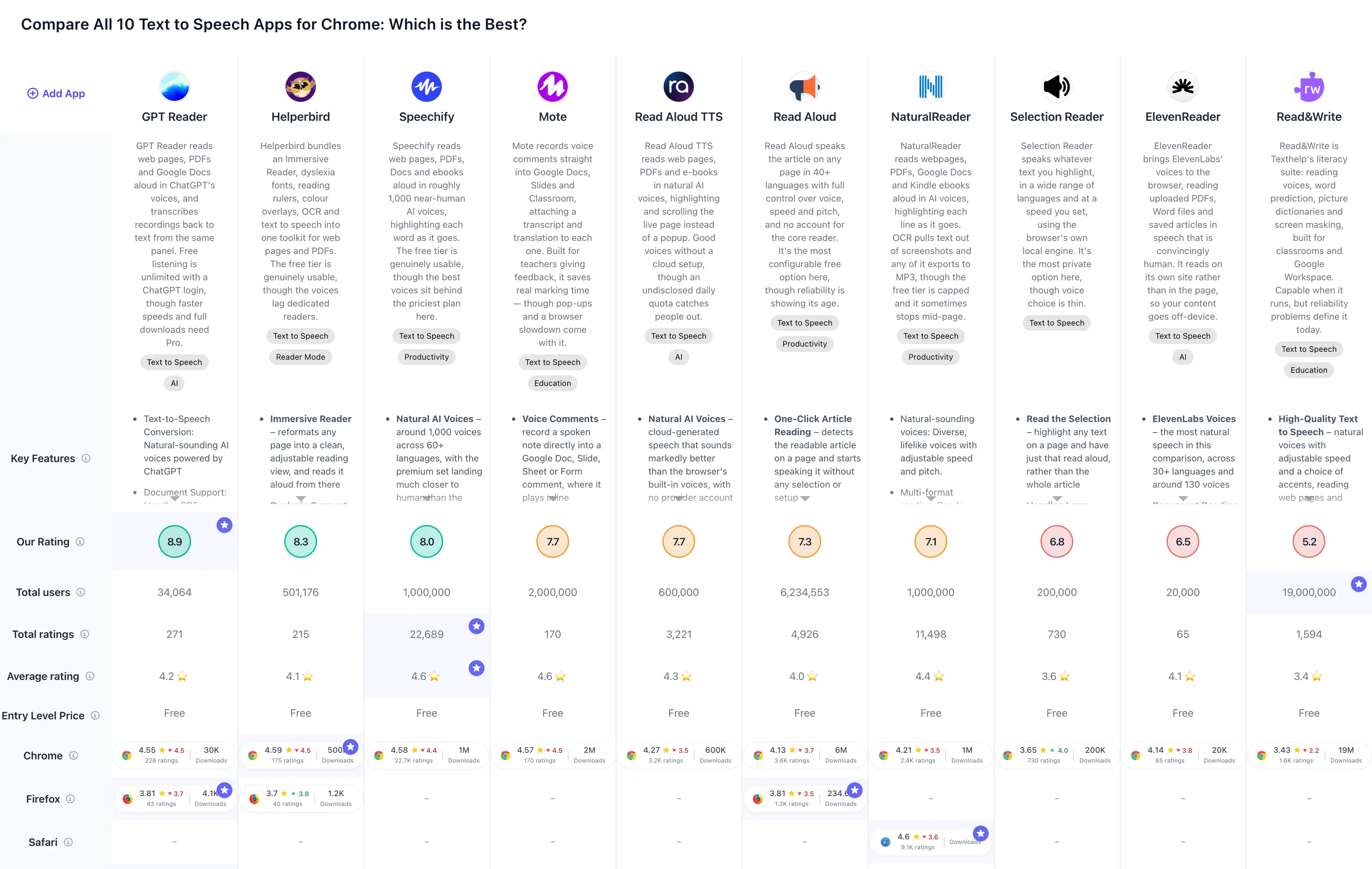
If you prefer a comparison overview, check out the full comparison table of all Chrome text to speech extensions:
Can Chrome read a page aloud without an extension?
Yes. Chrome on desktop has a reading mode with a Play button. Right-click a page and choose “Open in reading mode”, or press Alt + Shift + R (Command + Option + R on a Mac), then press Play. You can change the voice and the playback speed and choose how the spoken text is highlighted. Google’s help page also lists the limits: reading mode isn’t available on every website, and it may not work as expected on forms, image galleries and some video or forum sites.
So try that first. The extensions below earn their place when you need what it lacks: PDFs and Google Docs, more natural voices, audio you can take with you, or reading aids such as dyslexia fonts and overlays. And if the clutter on the page is the real problem, a reader mode extension is the lighter fix.
1. GPT Reader: Free AI Text to Speech

GPT Reader is one of the two smallest tools in this comparison and the one that scores highest. It has 30,000 users and a 4.55-star rating on the Chrome Web Store from 228 ratings, and its recent reviews hold close to that, as evidenced by its 4.48 rating for the last 100 reviews against 4.43 across the last 500. The store now lists it under a longer name, “ChatGPT Reader/Transcriber: Free AI Text to Speech/Speech to Text (TTS/STT)”.
The idea is that it borrows ChatGPT’s voices instead of building its own. You sign in with a ChatGPT account, and it reads web pages, PDFs, Google Docs and pasted text. The same panel transcribes a recording back into text. Listening on the free version has no character cap.
What has changed since the summer is the paywall. Tooltivity’s review, updated on October 5, notes that audio downloads, playback above 1.5x and jumping around with the seek bar now belong to a Pro subscription. The store listing still calls the extension “completely free to use” with “a premium tier for more serious users”, so check what the free version includes before you count on the download.
Key Features
- ChatGPT Voices – natural-sounding AI speech that runs through your own ChatGPT account
- Document Support – reads PDFs, Google Docs and ordinary web content from one panel
- Audio Download – saves the generated speech as a file for offline listening; the full download options are part of Pro
- Speech to Text – transcribes recordings back into text, so one extension covers both directions
- Playback Controls – adjustable speed, pause and rewind, with speeds above 1.5x reserved for Pro
- Multi-Format Input – works with pasted text, uploaded documents and the page you’re on
Pros & Cons
Pros:
- Audio download for offline listening (full options on Pro)
- High-quality, natural-sounding voice output
- Unlimited free listening
- Supports multiple document formats
Cons:
- Requires ChatGPT registration
- Limited functionality with large documents
- Seeking and fast speeds are paid
- Rating pop-up on every session
Who is this great for?
GPT Reader is perfect for anyone who already has a ChatGPT account and doesn’t want a second subscription just to have things read to them. Free listening with no cap is rare in this list.
It’s especially great for users who read articles and study notes more than whole books. Its reviewers report that very large documents can trip it up, and ChatGPT’s own hourly request limit still applies.
Compared to others
Against NaturalReader, which also exports audio, GPT Reader has the looser free tier: NaturalReader’s listing limits its premium voices to 20 minutes a day. Speechify covers more formats and languages, and the price of its paid plan is the complaint that comes up most in its reviews. And where ElevenReader saves your page to its own service to read it, GPT Reader sends the text through your own ChatGPT account.
Detailed comparisons
GPT Reader vs NaturalReader • GPT Reader vs Speechify • ElevenReader vs GPT Reader
Rating Summary
30,000 users is modest, but a 4.55 rating from 228 ratings with 4.48 across the last 100 reviews is one of the steadiest scorecards in this comparison. Tooltivity gave GPT Reader: Free AI Text to Speech a score of 8.88/10. Check out the full review here.
2. Helperbird: Dyslexia & Accessibility Tools

Helperbird has 500,000 users and a 4.59-star rating on the Chrome Web Store from 175 ratings, and recent feedback is holding up, as evidenced by its 4.51 rating for the last 100 reviews. A month ago the store showed 400,000 users. It also has a Firefox build, though a much smaller one.
This is the broadest tool here by a distance. Alongside reading text aloud, it offers an Immersive Reader that strips a cluttered page down to legible text, dyslexia-friendly fonts, letter and line spacing controls, a reading ruler, colour overlays, OCR, a summariser and annotation tools, and it applies them to PDFs as well as web pages. That is much of what Read&Write promises, from a small independent developer, and its reviews don’t carry Read&Write’s complaints about a toolbar that fails to load.
The honest caveat is that speech is its weakest part. Reviewers describe the voices as serviceable but not excellent, and the speed controls are thinner than a dedicated reader’s.
Key Features
- Immersive Reader – reformats any page into clean, adjustable reading text, then reads from that instead of the raw page
- Dyslexia Support – OpenDyslexic and similar fonts, letter and line spacing, and a reading ruler to hold your place
- Colour Overlays and Tints – page tinting that reduces visual stress for Irlen syndrome and scotopic sensitivity
- Text to Speech – reads a selection or a whole page, across web pages and PDFs
- Built-In PDF Reader – applies the same accessibility tooling to PDFs instead of sending you elsewhere
- OCR – pulls readable text out of images and scanned documents so they can be read aloud
- Highlighter and Sticky Notes – annotate a page and export what you marked
- AI Summariser – condenses a long page before you commit to reading it
Pros & Cons
Pros:
- Excellent Immersive Reader mode
- Deep, genuine dyslexia tooling
- All-in-one accessibility toolkit
- Responsive, engaged developer
- Works on web pages and PDFs
Cons:
- Speech voices are only adequate
- Limited speed customisation
- Best features need a Pro plan
- Settings occasionally fail to save
- Small Firefox build lags Chrome
Who is this great for?
Helperbird is perfect for anyone whose reason for being in this category is accessibility more than convenience. If reading takes real effort because of dyslexia, visual stress or a processing difficulty, the fonts, spacing, rulers and overlays do more for you than better voices would.
It’s especially great for users who’d otherwise install four extensions. Reformatting, tinting, summarising, annotating and reading aloud all come from one panel. According to Tooltivity’s review, the free tier covers the fonts, the ruler, the overlays, basic text to speech and the Immersive Reader, and the listing prices Pro at $30 a year.
Compared to others
The direct rival is Read&Write, which has a comparable toolkit and an institutional licence, and whose last 100 reviews average 2.22. NaturalReader and Speechify both get better marks for their voices if listening is the whole job, but neither offers reading aids like these.
Detailed comparisons
Helperbird vs Read&Write • Helperbird vs NaturalReader • Helperbird vs Speechify
Rating Summary
500,000 users, a 4.59 rating from 175 ratings and 4.51 across the last 100 reviews describe a small product with a loyal audience. Tooltivity gave Helperbird: Dyslexia & Accessibility Tools a score of 8.33/10. Check out the full review here.
3. Speechify — Text to Speech

Speechify is the name most people find first, and its numbers explain why: 1,000,000 users and a 4.58-star rating on the Chrome Web Store from 22,689 ratings, a count no other reader here comes close to. The recent picture has improved, as evidenced by its 4.40 rating for the last 100 reviews. A month ago that figure was 4.18, and much of the lift comes from a run of short five-star reviews in September.
What you get is the most complete reading experience in this list. Its listing promises 1,000 voices in 60+ languages for Google Docs, PDFs, web pages and books. It highlights each word as it speaks and scrolls the page to follow.
Two themes run through its reviews. The first is focus: a large share of the praise comes from students and people with ADHD or dyslexia, who say it got them through reading they would otherwise have abandoned. The second is price, the most common complaint, along with pop-ups that push the upgrade.
Key Features
- Natural AI Voices – 1,000 voices across 60+ languages, per its store listing
- Reads Almost Anything – web pages, Google Docs, PDFs, emails and ebooks without exporting the text first
- Follow-Along Highlighting – highlights each word as it’s spoken and scrolls the page with it
- Speed Control – ramps well past normal talking pace, which is the point for reading in volume
- Skip and Scrub – jump by sentence or paragraph instead of restarting a long article
- Cross-Device Sync – hand a document between the extension and the mobile app
- OCR on Scanned Text – pulls readable text out of scanned PDFs and images
- Multilingual Switching – changes voice to match the language it meets mid-page
Pros & Cons
Pros:
- Best-in-class natural AI voices
- Big focus gain for ADHD and dyslexia
- Reads PDFs, Docs and web pages
- Follow-along word highlighting
- Genuinely usable free tier
- Responsive customer support
Cons:
- Premium price is the top complaint
- Settings can reset after updates
- Local PDFs can be finicky
- Pop-ups push the upgrade hard
- Some AI features unavailable at times
Who is this great for?
Speechify is perfect for anyone who listens daily and not just now and then. If reading is part of your job or your degree and you’re doing an hour of it a day, the format coverage and the follow-along highlighting are what you’re paying for.
It’s especially great for users who want one tool for every file type. According to Tooltivity’s review, the free tier covers standard voices and web-page listening, so you can find out whether it fits before you pay.
Compared to others
NaturalReader is the closest like-for-like, with OCR and MP3 export on top. Read Aloud TTS covers everyday article reading inside a daily free quota. And ElevenReader gets the highest marks for voice quality in this list, but it doesn’t read the page you’re on.
Detailed comparisons
NaturalReader vs Speechify • Read Aloud TTS vs Speechify • ElevenReader vs Speechify
Rating Summary
1,000,000 users and a 4.58 rating from 22,689 ratings make this the most-reviewed tool in the comparison, and its last 100 reviews have recovered to 4.40. Tooltivity gave Speechify — Text to Speech a score of 8.00/10. Check out the full review here.
4. Mote for Google Chrome™

Mote approaches this category from the opposite end. Instead of turning text into speech for you, it turns your speech into feedback for someone else: voice comments dropped into Google Docs, Slides, Sheets, Forms and Classroom, each with a transcript attached. It has 2,000,000 users, twice what the store showed a month ago, and a 4.57-star rating on the Chrome Web Store from 170 ratings, holding steady at 4.52 for the last 100 reviews.
The audience is teachers, overwhelmingly. Its reviewers say a thirty-second spoken comment on an essay takes a fraction of the time typing it would, and that tone survives in a way it doesn’t in a margin note.
It belongs in a text to speech list because the listening half is real. Its listing now leads with a Reading Mode that reads pages aloud, a picture dictionary, and translation with AI voices in 50+ languages, which is what makes it work in a classroom with mixed reading levels.
Key Features
- Voice Comments – record a spoken note straight into a Google Doc, Slide, Sheet or Form comment, where it plays inline
- Automatic Transcripts – every recording gets a written transcript, so feedback is searchable and accessible
- Google Classroom Integration – works inside the assignment and feedback flow teachers already use
- Read Aloud – a Reading Mode that speaks text back, covering the receiving half of the accessibility equation
- Translation – translates text and transcripts and reads them in 50+ languages, per its listing
- Mote Everywhere – drops voice notes into web tools beyond the Google stack
- Playback Speed – listeners can speed up or slow down a recording to suit themselves
- Shareable Audio Links – recordings get a link that works outside the original document
Pros & Cons
Pros:
- Huge time-saver for marking work
- Fast, intuitive recording flow
- Deep Google Workspace integration
- Transcripts and translation included
- Makes feedback more personal
Cons:
- Intrusive pop-ups and new tabs
- Noticeably slows the browser
- Recording occasionally fails
- Slides insertion can be unreliable
- Free tier is capped
Who is this great for?
Mote is perfect for teachers, and for few other people. If you mark student work every week, replacing typed margin notes with spoken ones changes how long an evening of marking takes.
It’s especially great for classrooms where reading levels and home languages vary. Voice plus transcript plus translation means the same piece of feedback reaches a student who struggles to read, one who reads fine, and one still learning the language.
Compared to others
Nothing else here does what Mote does, so the real question is whether you want it instead of a reader. Helperbird is the better pick if the students need reading support more than you need to give feedback faster. Read&Write covers the same classroom territory with much weaker recent reviews. And GPT Reader also handles both speech directions if transcription is what drew you here.
Detailed comparisons
Helperbird vs Mote • Mote vs Read&Write • GPT Reader vs Mote
Rating Summary
2,000,000 users, a 4.57 rating from 170 ratings and 4.52 across the last 100 reviews: a product that knows who it’s for and keeps them. Tooltivity gave Mote for Google Chrome™ a score of 7.67/10. Check out the full review here.
5. Read Aloud TTS: Text to Speech AI Voice Generator

Read Aloud TTS is where people land when the free system voices stop being good enough but a full subscription is off the table. It has 600,000 users and a 4.27-star rating on the Chrome Web Store from 3,221 ratings, though the recent direction has turned sharply, as evidenced by its 3.48 rating for the last 100 reviews against 4.10 across the last 500.
The pitch is natural AI voices with no cloud account to configure. According to Tooltivity’s review, its best habit is reading on the page: it highlights the current text and scrolls with it instead of lifting the content into a popup window.
What has soured is the free tier. Recent reviewers describe a daily character quota, and tighter limits for non-English text, that they only discovered when the reading stopped mid-page. The store listing itself says only that the extension “is free and easy to use”. The developer is shipping fixes quickly (the extension went from version 2.1.5 to 2.1.13 within a month), but the recent average hasn’t recovered yet.
Key Features
- Natural AI Voices – cloud-generated speech well beyond the browser’s built-in voices, with no provider account to set up
- On-Page Reading – highlights and scrolls the live page instead of copying text into a separate window
- Wide Language Support – reads a broad set of languages with voice options for each
- Speed Control – adjustable from slow study pace up to skim listening
- PDF and E-Book Reading – handles documents alongside ordinary web pages
- Voice Picker – choose the specific voice per language instead of accepting a default
- Free Tier – a daily character allowance that covers light reading without payment
- No Account to Start – begins reading right after install
Pros & Cons
Pros:
- Natural AI voices without setup
- Reads and scrolls on the page
- Easy, uncluttered interface
- Broad language and voice choice
- Adjustable reading speed
Cons:
- Daily character quota on free tier
- Limits not disclosed before install
- Weaker non-English free support
- A recent update hurt reliability
- Premium speed complaints after purchase
Who is this great for?
Read Aloud TTS is perfect for someone who reads a couple of English articles a day and wants them to sound good. Inside the free allowance, reviewers rate the voices well, and it costs nothing.
It’s especially great for users who dislike popup readers. Watching the actual page highlight and scroll as it reads is the difference between following along and just listening.
Compared to others
Speechify does the same job with a much larger voice and language catalogue and a paid plan. NaturalReader sits at a similar level and adds MP3 export, with its own free-tier caps. And Read Aloud, the older and similarly named extension, is unlimited and free if you’ll accept plainer voices.
Detailed comparisons
Read Aloud vs Read Aloud TTS • NaturalReader vs Read Aloud TTS • Read Aloud TTS vs Speechify
Rating Summary
600,000 users and a 4.27 rating from 3,221 ratings, undercut by a 3.48 average across the last 100 reviews: a capable reader hurt by how it communicates its limits. Tooltivity gave Read Aloud TTS: Text to Speech AI Voice Generator a score of 7.67/10. Check out the full review here.
6. Read Aloud: A Text to Speech Voice Reader

Read Aloud is the workhorse of this category, the free reader that needs no account. It has 6,000,000 users, up from 5,000,000 a month ago, and a 4.13-star rating on the Chrome Web Store from 3,640 ratings. Its recent reviews sit lower, as evidenced by its 3.74 rating for the last 100 reviews, though that is up from 3.62 in September. It’s also on Firefox.
What keeps people on it is control. You pick the speech engine, the voice, the speed, the pitch and the volume, and it reads the current article with one click. Its listing counts 40+ languages, with voices from the browser itself or from cloud providers including Google Wavenet, Amazon Polly, IBM Watson, Microsoft Azure and OpenAI.
The trade-off is age. Its reviews describe clean reading on simple article pages and trouble on complex layouts: reading that starts in the wrong place, scrolling that loses its position, the occasional hang. Several also complain that it asks for permissions again after every browser restart.
Key Features
- One-Click Article Reading – finds the readable article and starts speaking with no selection or setup
- 40+ Languages – broad coverage using whatever voices your system and chosen provider expose
- Multiple Speech Engines – browser-native voices, or cloud voices from Google, Amazon, IBM, Microsoft and OpenAI
- Full Voice Controls – speed, pitch and volume are all adjustable
- Text Highlighting – marks the sentence being read so you can follow along
- Keyboard Shortcuts – start, stop and skip without reaching for the toolbar
- Reads PDFs and Google Docs – handles common documents alongside ordinary web pages
- Free and Account-Free – the core reader works right away with nothing gating it
Pros & Cons
Pros:
- Completely free, no account needed
- Deep voice, speed and pitch control
- Works in over 40 languages
- Choice of several speech engines
- Huge, long-established install base
Cons:
- Glitches, hangs and misreads pages
- Re-asks permissions every restart
- Best voices need paid providers
- Uneven language support
- Interface looks dated
Who is this great for?
Read Aloud is perfect for tinkerers and for anyone who refuses to pay for reading. If you want to choose your speech engine and set the pitch by hand, this is the tool here that lets you.
It’s especially great for multilingual readers on a budget: 40+ languages with no cap and no account, as long as you can live with system-grade voices or connect your own cloud provider, which that provider then bills you for.
Compared to others
Read Aloud TTS, a similar name and a different product, has better voices out of the box and meters them. Selection Reader is the simpler local alternative if you only ever read short passages. And NaturalReader is the upgrade path when system voices stop being good enough.
Detailed comparisons
Read Aloud vs Read Aloud TTS • Read Aloud vs Selection Reader • NaturalReader vs Read Aloud
Rating Summary
6,000,000 users and a 4.13 rating from 3,640 ratings, with the last 100 reviews at 3.74 and the last 500 at 3.58: an old favourite whose recent reviews sit well below its record. Tooltivity gave Read Aloud: A Text to Speech Voice Reader a score of 7.33/10. Check out the full review here.
7. NaturalReader - AI Text to Speech

NaturalReader is one of the oldest names in text to speech and still one of the most capable. It has 1,000,000 users and a 4.21-star rating on the Chrome Web Store from 2,406 ratings, though the recent trend has slipped, as evidenced by its 3.51 rating for the last 100 reviews against 4.11 across the last 500. Tooltivity’s review traces the slide to a late-August update that moved reading out of the page and into a side panel.
Its range is what keeps it relevant. The listing covers web pages, PDFs, Google Docs, emails and Kindle ebooks. Tooltivity’s review adds OCR that pulls text out of screenshots, MP3 export, and a pronunciation editor for the words a reader keeps getting wrong, which matters if you read technical material or unusual names.
The pressure point is the free tier, and the listing spells it out: free voices are unlimited, premium voices stop after 20 minutes a day and Plus voices after 5.
Key Features
- Lifelike AI Voices – a broad voice set with adjustable speed and pitch
- Multi-Format Reading – web pages, PDFs, Google Docs, Word files and emails from one extension
- OCR for Scanned Text – extracts text from images and screenshots so it can be read
- MP3 Export – converts what it reads into downloadable audio for offline listening
- Pronunciation Editor – fine-tune how specific words are spoken, then keep that setting
- Floating Mini Player – quick play, pause and voice controls while you browse
- Cloud Library – save texts and pick them up on another device
Pros & Cons
Pros:
- Lifelike voices with easy controls
- Simple MP3 export workflow
- Works well on webpages and PDFs
Cons:
- Free plan caps and gated features
- Occasional glitches on heavy use
- Commercial rights require higher tiers
- Unpopular side-panel redesign
Who is this great for?
NaturalReader is perfect for anyone who reads a mix of formats and wants the audio afterwards. With MP3 export and OCR together, a scanned PDF someone emailed you can become something you listen to on a run.
It’s especially great for users reading specialised material. The pronunciation editor is the feature you don’t know you need until a reader mangles the same term forty times in one document.
Compared to others
Speechify is the closest rival, with a far larger review base and better recent ratings. Read Aloud TTS matches it for everyday article reading, without the OCR or the pronunciation control. And GPT Reader offers free listening without a daily cap if you have a ChatGPT account.
Detailed comparisons
NaturalReader vs Speechify • NaturalReader vs Read Aloud TTS • GPT Reader vs NaturalReader
Rating Summary
1,000,000 users and a 4.21 rating from 2,406 ratings, with the last 100 reviews at 3.51: a deep, mature product whose redesign and free-tier limits are testing people’s patience. Tooltivity gave NaturalReader - AI Text to Speech a score of 7.12/10. Check out the full review here.
8. Selection Reader (Text to Speech)

Selection Reader is the minimal option: highlight text, hear it read, nothing else happens. It has 200,000 users, double the 100,000 of a month ago, and a 3.65-star rating on the Chrome Web Store from 730 ratings. Unusually for this comparison, the recent trend points up, as evidenced by its 4.03 rating for the last 100 reviews against 3.48 across the last 500.
That improvement matters, because for a long stretch this extension looked abandoned. Its older reviews are full of people reporting that it had stopped working. The current version, 2.0.10, was published on September 8, 2026, so the developer has come back to it.
Its real distinction is architectural. Speech is synthesised by the browser’s own engine, so, according to Tooltivity’s review, the text you select never leaves your machine. In a category that has mostly moved to the cloud, it’s the privacy pick.
Key Features
- Read the Selection – highlight any text and have just that read; a newer option reads the whole article when you click the icon
- Handles Long Passages – built to read large blocks of text without cutting out, with no cap on length
- Multilingual – reads across a wide set of languages using the voices your system provides
- Speed Adjustment – set the speaking rate to suit how you listen
- Local Speech – uses the browser’s own engine, so nothing is uploaded
- No Account Needed – works from the moment it’s installed
- Lightweight – a small install that adds almost nothing to page load
- Keyboard and Context Menu – trigger a read without hunting for the toolbar
Pros & Cons
Pros:
- Reads selected text fluently
- Very simple, no learning curve
- Works across many languages
- Local speech, nothing uploaded
- Handles long passages well
Cons:
- Long history of breaking silently
- Very limited voice choice
- Settings reset when changing speed
- Inconsistent across websites
- Occasional pronunciation errors
Who is this great for?
Selection Reader is perfect for anyone who wants a paragraph read aloud and nothing else to happen: no library, no account, no upload.
It’s especially great for reading anything you’d rather not send to a server, such as confidential documents, internal pages or draft work.
Compared to others
Read Aloud is the other option that can run on the browser’s own voices, and it gives you far more control at the cost of complexity. Read Aloud TTS has much better voices but sends your text to a server to produce them. And ElevenReader sits at the opposite extreme: the best-rated voices here and the largest privacy trade-off.
Detailed comparisons
Read Aloud vs Selection Reader • Read Aloud TTS vs Selection Reader • ElevenReader vs Selection Reader
Rating Summary
200,000 users and a 3.65 lifetime rating from 730 ratings, but 4.03 across the last 100 reviews against 3.48 over the last 500: one of the few entries here trending upward. Tooltivity gave Selection Reader (Text to Speech) a score of 6.83/10. Check out the full review here.
9. ElevenReader — Text Reader by ElevenLabs

ElevenReader has the best pedigree here. It’s ElevenLabs’ reader, built on the voice models that made the company’s name, and Tooltivity’s review rates its voices the most natural of the ten. It has 20,000 users and a 4.14-star rating on the Chrome Web Store from 65 ratings, and its written reviews average lower, at 3.83.
The gap between voice quality and score comes down to one decision. ElevenReader doesn’t read the page you’re on. Click it and, as its listing puts it, the page is added to your ElevenReader account, where it’s read back to you. The audio is excellent, but it’s detached from the article, and your text now sits on someone else’s service.
Where it does best is documents. Per its listing it reads Google Docs, PDFs, web pages and books in 130 voices across 30+ languages, and Tooltivity’s review notes that playback keeps going when you switch tabs.
Key Features
- ElevenLabs Voices – 130 voices across 30+ languages, per its store listing
- Document Reading – upload PDFs and Word files and have them read, including long-form material
- Multi-Source Queues – combine several articles or pages into one continuous listening session
- Background Playback – keeps reading when you move to another tab or window
- Article Capture – send a web page or post to your reader library with one click
- Cross-Device Library – what you save is available in the ElevenReader mobile apps
- Speed Control – adjustable playback pace for skimming or study
- Free Tier – a monthly listening allowance at no cost, with the same voice quality
Pros & Cons
Pros:
- Best-in-class natural voices
- Strong PDF and Word support
- Background playback across tabs
- Queue several sources together
- Free tier uses the good voices
Cons:
- No on-page or inline reading
- Sends your content off-site
- Redirects away from the page
- Breaks with some VPN setups
- Small, buggy install base
Who is this great for?
ElevenReader is perfect for long-form listening on material you don’t mind uploading. Queue a few articles and a report, press play and go do something else.
It’s especially great for anyone who has tried the rest and found the voices wearing. If the flat cadence of ordinary text to speech is what stops you using these tools, this is the one aimed at that problem.
Compared to others
Speechify reads the page itself, with highlighting, which for most people is the better trade. NaturalReader also exports audio and handles more formats in the browser. And Selection Reader is the answer if the upload is what bothers you.
Detailed comparisons
ElevenReader vs Speechify • ElevenReader vs NaturalReader • ElevenReader vs Selection Reader
Rating Summary
20,000 users and a 4.14 rating from only 65 ratings: highly rated voices attached to a product that is still finding its feet. Tooltivity gave ElevenReader — Text Reader by ElevenLabs a score of 6.50/10. Check out the full review here.
10. Read&Write for Google Chrome™

Read&Write is the institutional heavyweight of this category, and the cautionary tale. Texthelp’s literacy suite is deployed across schools and universities and rarely discovered by individuals, and the scale shows: 19,000,000 users, up from 13,000,000 in early September.
The reception does not match. It holds a 3.43-star rating from 1,594 ratings, and the recent picture is the worst in this comparison by a distance, as evidenced by its 2.22 rating for the last 100 reviews.
The capability is real and worth stating first. Its listing covers web pages, Google Docs, PDFs and ePubs, and Tooltivity’s review lists hover-to-speak, word prediction, picture dictionaries and vocabulary tools in one toolbar, inside Google Docs where the coursework happens.
The problem is reliability. The complaint that dominates its recent reviews, well ahead of anything about the features, is that the toolbar doesn’t open on pages where it should.
Key Features
- High-Quality Text to Speech – natural voices with adjustable speed and a choice of accents
- Hover Speech – speaks text as you move over it, useful for scanning a page
- Word Prediction – suggests the next word while writing, aimed at students who struggle to start sentences
- Picture and Text Dictionaries – definitions with visual support for unfamiliar vocabulary
- Screen Masking – tints and shades the page to reduce visual crowding
- Vocabulary and Highlight Tools – collect highlighted terms into a vocabulary list for study
- Google Workspace Integration – works inside Docs, Slides and the wider Google stack schools run on
- Translation – word and passage translation for multilingual classrooms
Pros & Cons
Pros:
- Genuinely high-quality reading voices
- Deep literacy and writing support
- Strong Google Workspace integration
- Adjustable speed and accents
- Broad accessibility toolset
Cons:
- Frequently fails to open on sites
- Clunky, slow, unresponsive UI
- Free version is heavily limited
- Usually imposed by a school
- Privacy worries about monitored installs
Who is this great for?
Read&Write is for students whose school has already bought it. If it’s on your managed device, the reading voices and the Docs integration are worth using, and the toolset is deeper than anything else here.
It’s especially useful in a school that trains people on it and has IT support when it breaks. It isn’t something an individual should go out and buy: the listing offers every feature free for 30 days and a free premium subscription for teachers, and according to Tooltivity’s review the free tier that remains keeps text to speech and translation and puts the rest behind a licence priced for institutions.
Compared to others
Helperbird is the direct answer: a comparable accessibility toolkit with Pro listed at $30 a year. Speechify is the better choice if you mainly want reading with good voices. And NaturalReader covers the reading and export side without the institutional overhead.
Detailed comparisons
Helperbird vs Read&Write • Read&Write vs Speechify • NaturalReader vs Read&Write
Rating Summary
19,000,000 users against a 3.43 rating from 1,594 ratings, 2.79 across the last 500 reviews and 2.22 across the last 100: the widest gap between reach and satisfaction in this comparison. Tooltivity gave Read&Write for Google Chrome™ a score of 5.17/10. Check out the full review here.
Which text to speech extension should you choose?
On Tooltivity’s score the winner is GPT Reader at 8.88/10. It borrows ChatGPT’s voices instead of building its own, and free listening has no cap. A 4.55 rating with 4.48 across its last 100 reviews says the people who find it stay. The catches are the ChatGPT account it needs, the Pro plan that now holds downloads and seeking, and very large documents, which its reviewers say still trip it up.
The rest of the field sorts itself by what you’re trying to do. Helperbird is the pick if reading is hard for you: the Immersive Reader, dyslexia fonts, rulers and overlays matter more than voice quality, and most of it is free. Speechify is the one to pay for if you listen for an hour a day and want every format covered. NaturalReader wins on formats, with OCR and a pronunciation editor, and Read Aloud TTS suits light everyday reading as long as you stay inside its daily quota. Read Aloud is the answer if you never want to pay or sign up. Teachers should look at Mote instead of any of these.
Two warnings. ElevenReader has the best-rated voices here but saves your pages to its own service to read them, so keep it for material you don’t mind sending off your device. Selection Reader is the local alternative when that matters. And Read&Write has 19,000,000 users and a 2.22 average across its last 100 reviews, mostly because people say it won’t open. If your school hasn’t already bought it, pick something else.
Every extension here installs free, so try the ones you like on the material you really read before you pay for anything. The disappointments in this category are rarely about how the voices sound. They’re about a daily quota nobody mentioned, a document that went somewhere you didn’t expect, or a toolbar that didn’t load. Start with the full comparison table, pick two, and give them a week.
Listening isn’t the only way to get through a long page. A reader mode extension strips the clutter away, there’s a separate list of reading tools for dyslexic students, and for documents there’s the comparison of PDF extensions for Chrome. And if the goal is to keep what you read or hear, active recall is what makes it stick.