A while ago I caught myself asking ChatGPT exactly the same question — for the third time. Same question, same answer, same “ah, right.” And even the third time around, I hadn’t really learned anything.
If you had to ask twice, you didn’t learn it the first time
I feel like that’s a contradiction we all feel more and more: we finally have an assistant that explains anything, and remembering becomes optional because asking again is so cheap. One thing hasn’t changed: reading something once isn’t enough to remember or even understand it. You have to recall it , again and again.
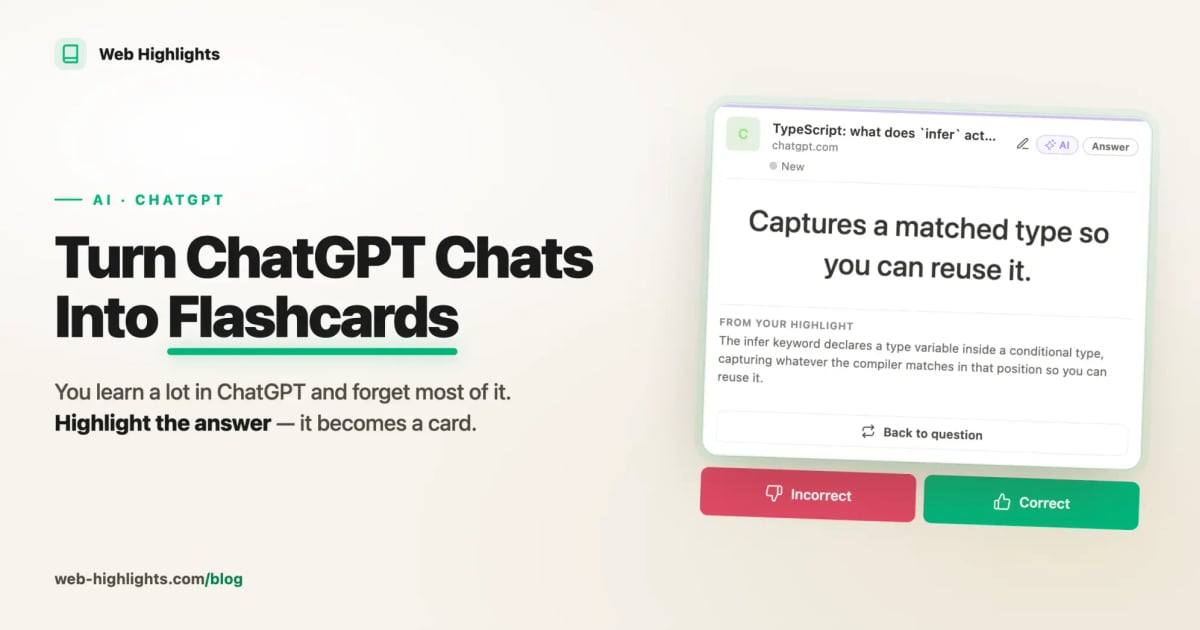
Here’s the fix I use: Whenever I’m having a conversation with ChatGPT that’s worth remembering, I use my free Web Highlights Browser Extension to generate flashcards from the conversation.
If you prefer a video, here is a full tutorial:
What is Web Highlights?
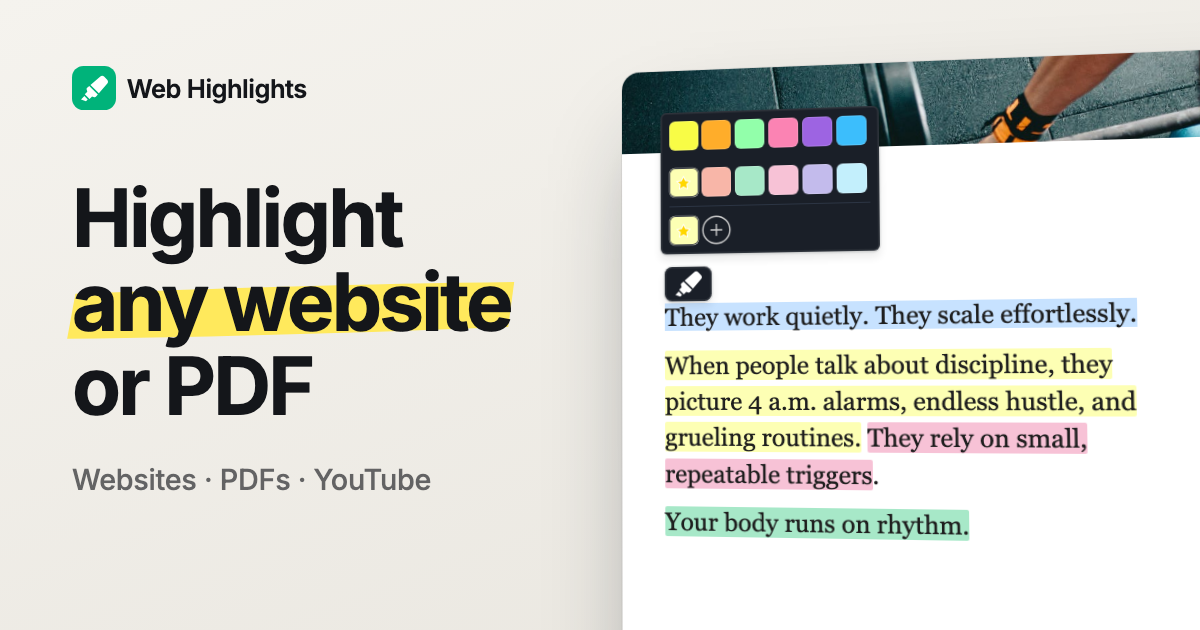
Web Highlights is a free browser extension I built that’s now used by hundreds of thousands of people to highlight and save anything they read online. You can mark up text in multiple colors, add notes right on the page, and everything gets synced automatically to your personal library.
 Marius Bongarts
Here’s how it works with ChatGPT specifically:
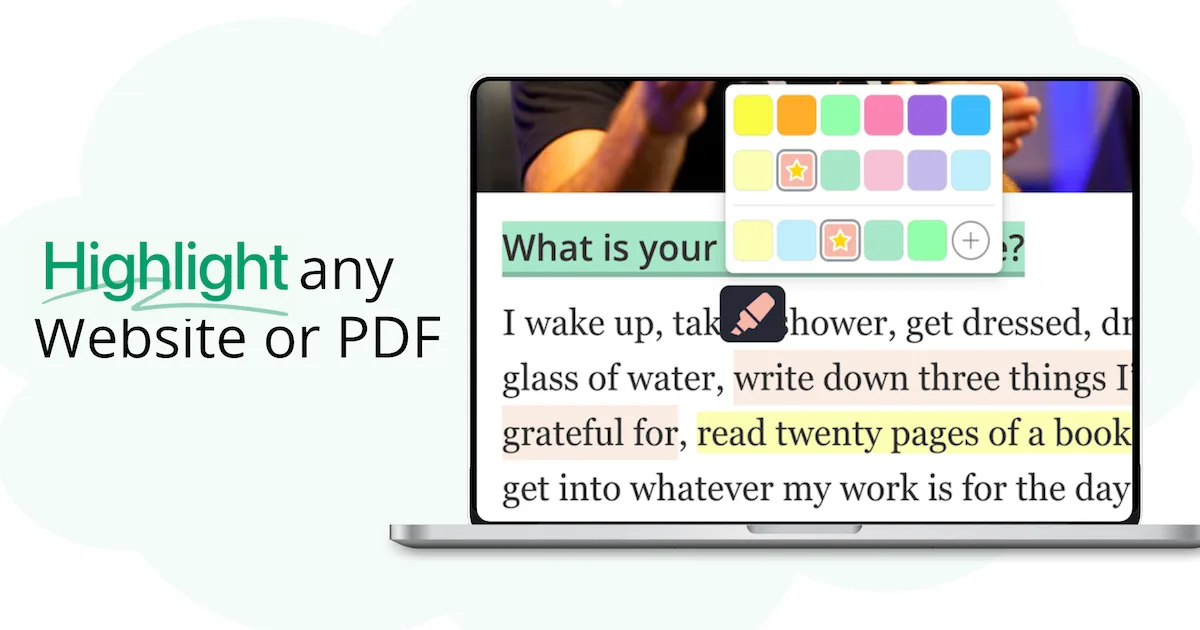
The Web Highlights extension treats a ChatGPT conversation like any other webpage. You can highlight any part of the conversation using multiple colors and add notes directly on the page.
All your highlights are automatically saved to your library, which you can access by clicking the Web Highlights extension icon in your browser toolbar.
How Can I Create Flashcards With Web Highlights?
Given you have the Web Highlights browser extension installed, there are two easy ways to generate flashcards from any ChatGPT chat:
1. Create Flashcards By Highlighting Specific Answers
Choose this option if you just want to remember one specific thing about your ChatGPT conversation.
Given you have Web Highlights installed , just select ChatGPT’s answer using your cursor and choose a color of your liking from the highlighter popup to mark up the answer.
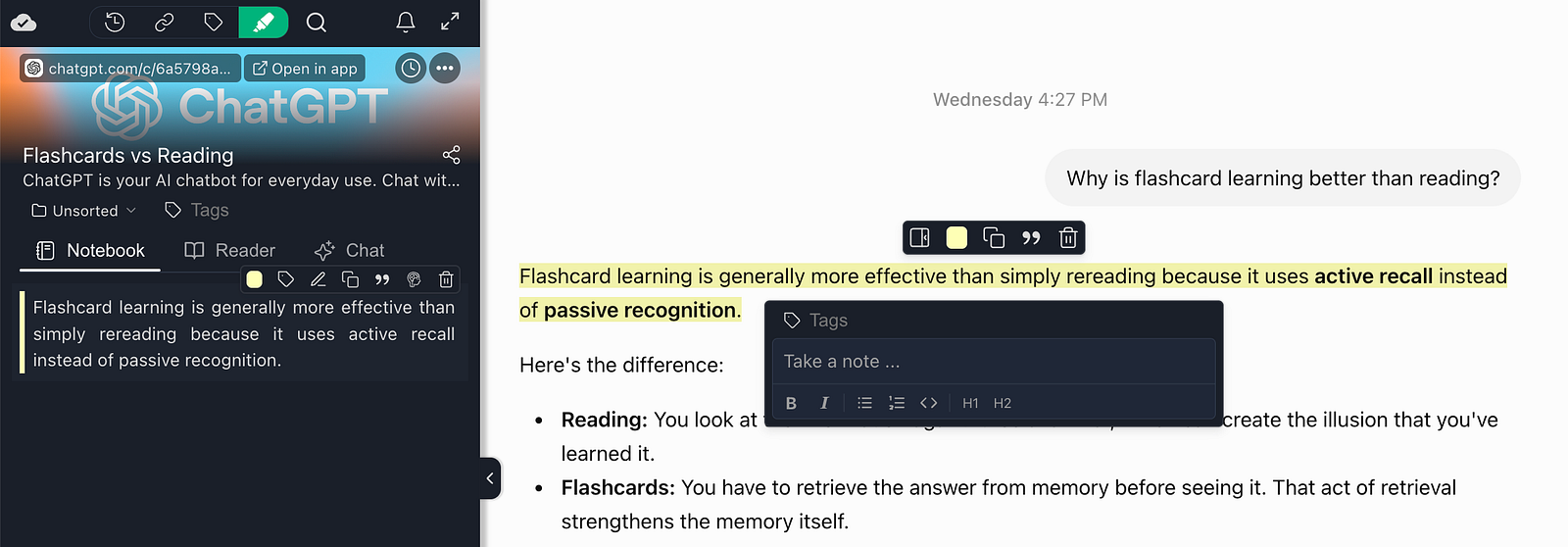
Now, find your highlight in the sidebar and click the brain icon on your highlight. This will open the flashcard editor, you can see below:
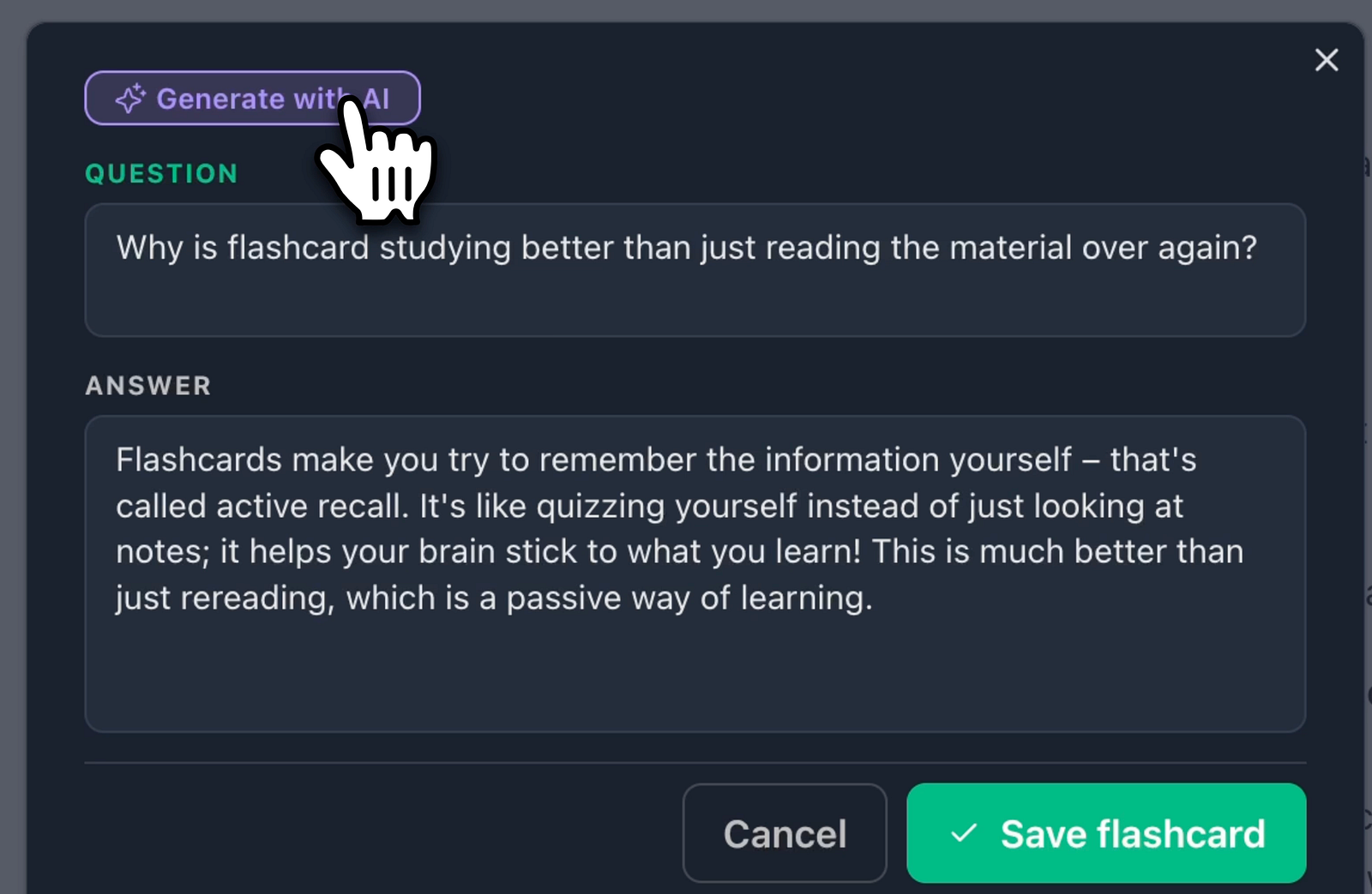
You can either write the question yourself, or hit ✨ Generate with AI and let Chrome’s built-in model draft both. The original highlight stays on the back of the card as context, so you always see where the answer came from.
Below is an easy practical of me asking ChatGPT: “Why is flashcard learning better than reading?”
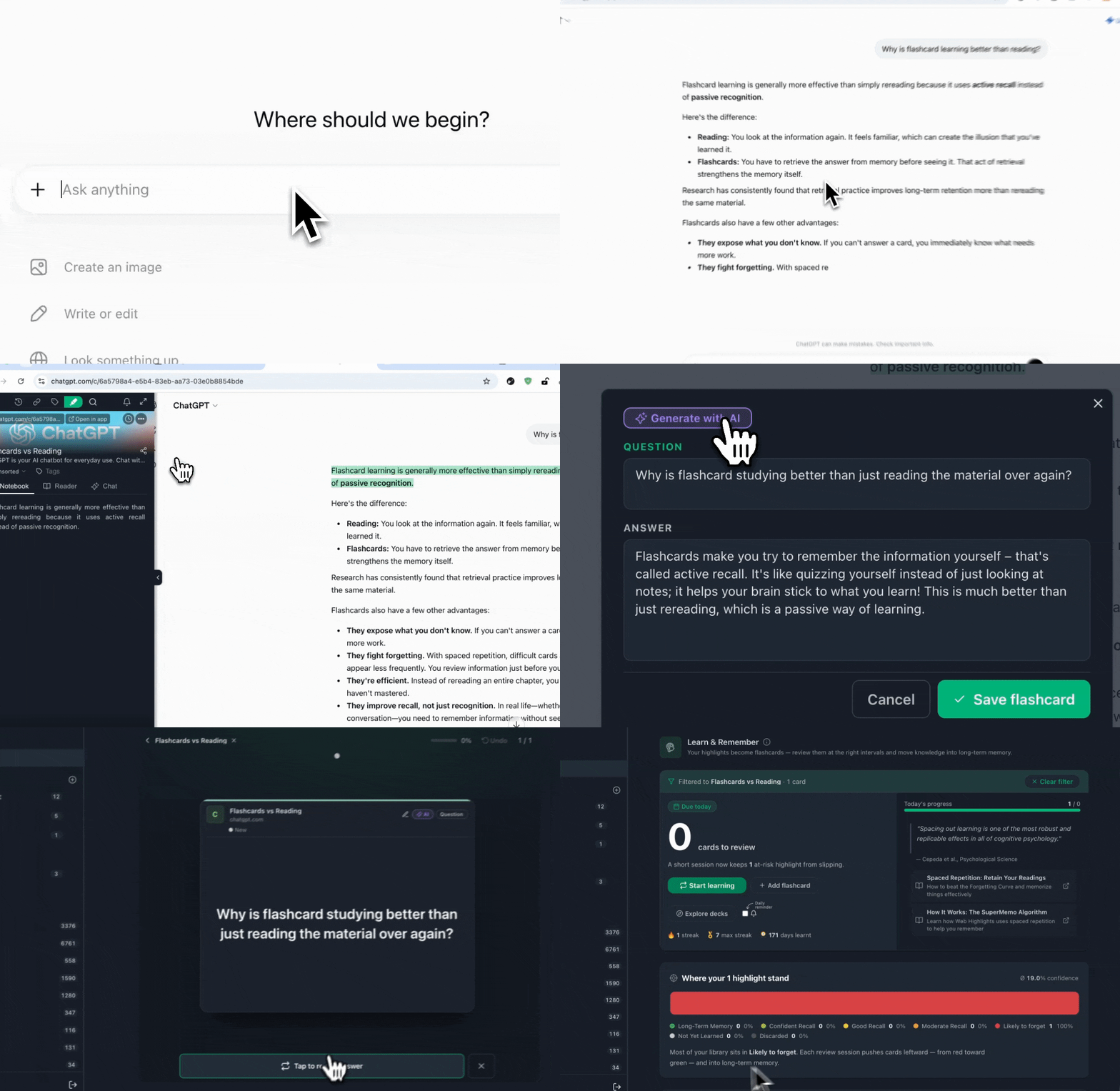
You can see that I selected ChatGPT’s answer using “Flashcard learning is generally more effective than simply rereading because it uses active recall instead of passive recognition.” in a pastel green color.
Then I used the AI generator to let the AI create a question for my highlight which filled the question with “Why is flashcard studying better than just reading the material over again?” after seconds.
Afterwards, I started a learning session for my ChatGPT chat by clicking “Start learning” from the quick actions at the bottom of my sidebar.
2. Turn a Whole Conversation into a Deck
The second option makes sense if you had a longer conversation with ChatGPT with several key points you need to remember.
In this case, you don’t even need to create colored highlights from the conversation, although highlighting is still a good idea to better understand the content yourself. It also helps guide the AI in the next step when generating flashcards, especially if the conversation is long.
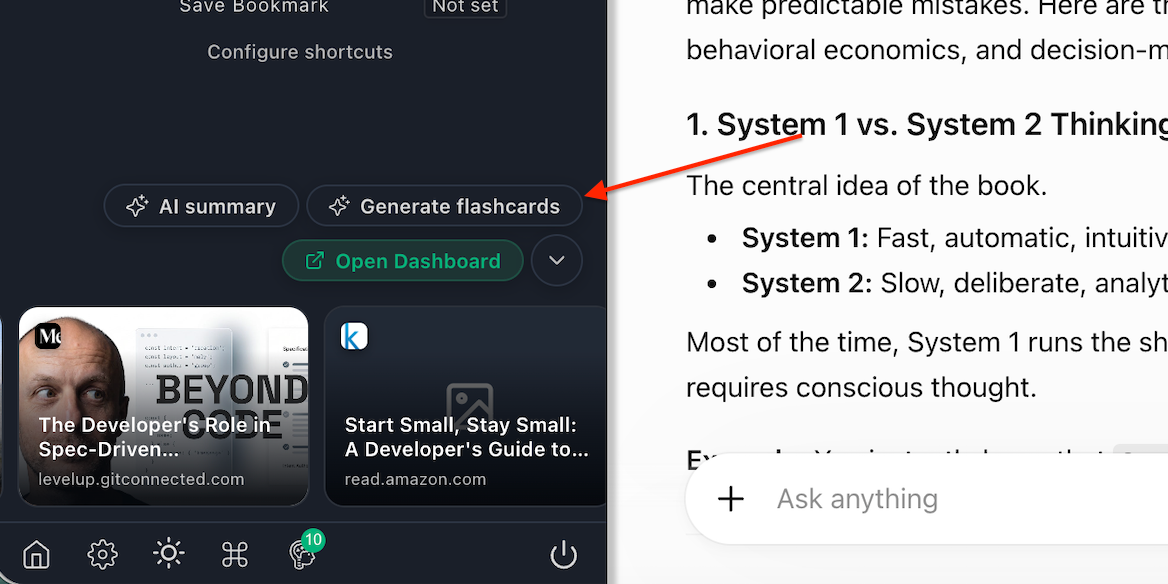
Simply visit any conversation in ChatGPT, open the Web Highlights sidebar and click “✨ Generate Flashcards” .
The AI Flashcard generator will open up and create 10 flashcards from your conversation by understanding its content and drafting questions and answers from you you can save to your library.
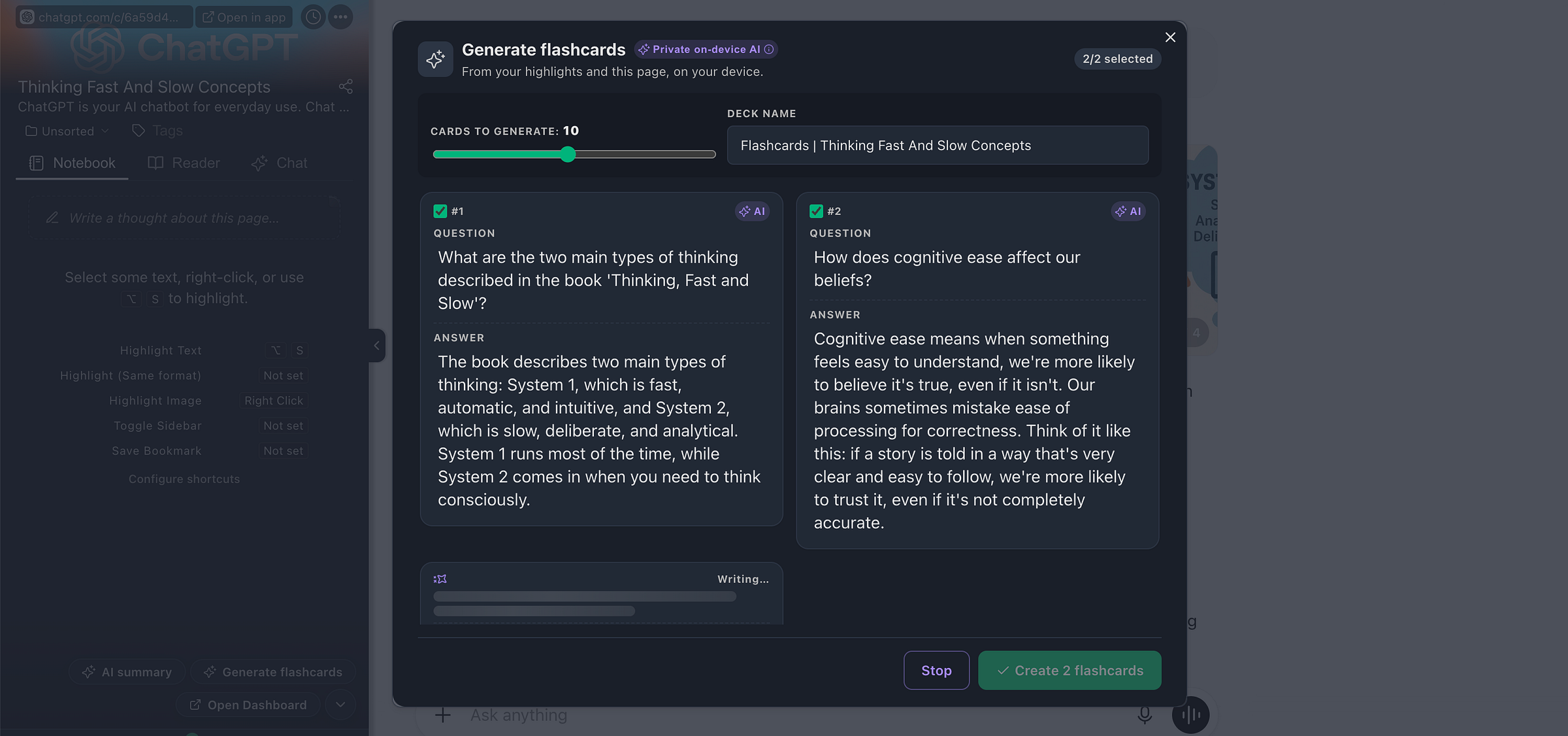
You can also adjust the amount of flashcards, fine-tune the questions/answers and drop the weak ones. If you don’t like the result, you can always just regenerate the cards to start from scratch.
Once you are happy with the result, click “Create flashcards” to save the deck to your library.
Review Until It Sticks
From here, the learning system takes over. Web Highlights has a sophisticated learning dashboard that is based on scientific spaced repetition principles.
The Learning Dashboard
The dashboard gives you a full overview of your card and also shows you a distrubution of where your knowledge currently lives in your mind.
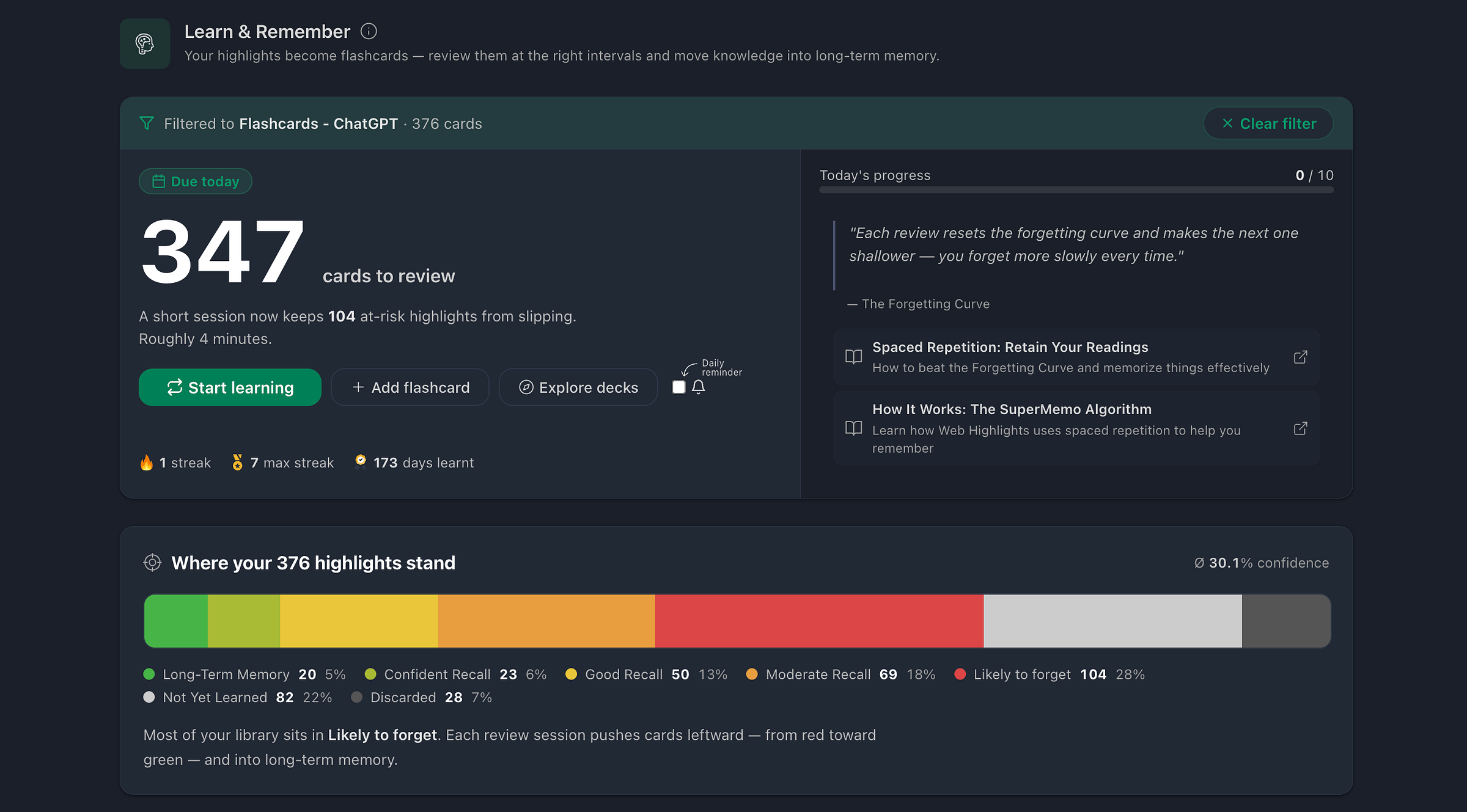
It groups your cards into different stages like “Likely to Forget”, “Confident Recall”, and finally “Long-Term Memory”.
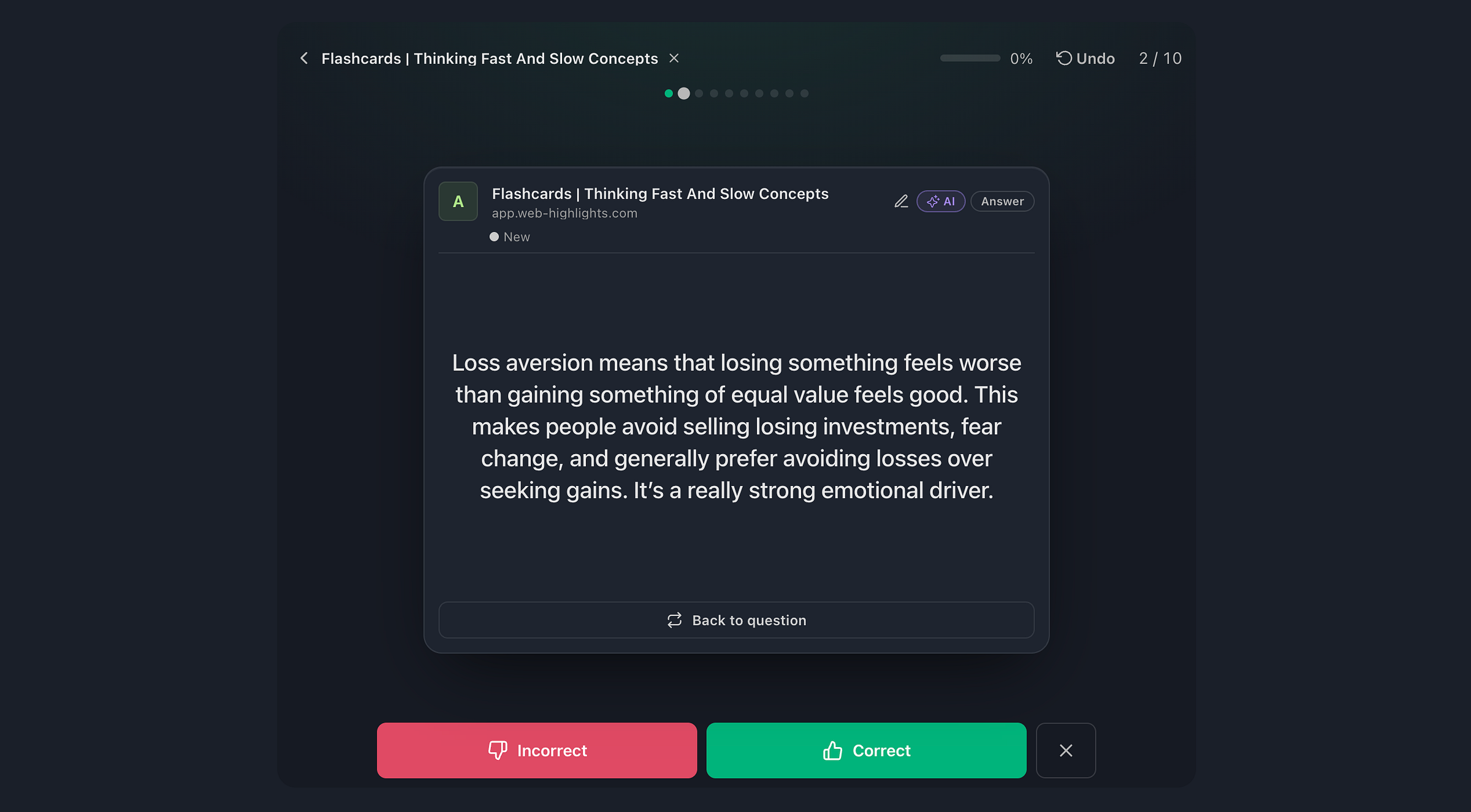
Your cards join the daily learning session — ten at a time. You see the question first, try to recall the answer, and then mark it as Correct or Incorrect. The spaced repetition algorithm then adjusts the timing and shows cards less often each time you get them right.
The ultimate goal is to move all your cards into Long-Term Memory, where your knowledge can stay with you for a long time.
The Learning Session
You can start a learning session by clicking “Start learning” from the quick actions of a learning deck or by visiting your learning dashboard via the sidebar.
Supermemo will schedule times to test them on you . It tracks. Supermemo is based on the insights that’s there an ideal moment to practice what you’ve learned. — Lessons From Using SuperMemo
Here is how a learning session looks in Web Highlights:
A Few Things to Know
- Your chats stay yours. The AI that drafts the cards runs on your device — Chrome’s built-in model. Learn more about the privacy-first AI that powers Web Highlights here.
- AI drafting needs Chrome 138+ and a one-time model download of a few gigabytes (Chrome checks for about 22 GB of free disk before allowing it). Writing questions yourself works everywhere, free and unlimited.
- Free AI quota: a few single cards and one full deck per day. The paid plans make both unlimited.
- Why an extension, not a URL tool: your ChatGPT history sits behind your login, where paste-a-URL quiz generators can’t reach. The extension runs in your browser session, so it sees the chat exactly as you do.
Can’t ChatGPT Make Flashcards Itself?
It obviously can — ask nicely and it produces a tidy list of questions and answers, and it will even quiz you in the chat.
That can be nice short-term but having the AI quiz you once will not get the knowledge into long-term memory. There’s no schedule deciding when a question should return, no record of what you keep missing, and next week the whole thing is buried under thirty newer chats & you forget what you learned.
You’ll probably also learn new things from online articles, PDFs, Kindle books, and more. Web Highlights brings everything together in one central learning hub and uses a scientifically backed spaced repetition algorithm to help you learn and remember more.
Final Thoughts
ChatGPT made explanations cheap. It didn’t make knowledge cheap — that still needs to be earned through remembering and recalling, just like back in school. The difference is that now the raw material is already sitting in your chat history, just one highlight away from becoming knowledge you actually remember.
Install the Web Highlights extension for free , open the last genuinely useful conversation in your history, and turn either specific answers or the full conversation into flashcards and learn them in daily learning sessions to actually remember what you asked with proven scientific spaced repetition principles.
I hope you enjoyed reading this article. I am always happy to answer questions and am open to criticism. Get in touch with me via LinkedIn or follow me on Twitter .
Frequently Asked Questions
Does this work with Claude, Gemini, and other AI chats?
Yes. The extension highlights any page you can open in your browser, so the same highlight-to-flashcard flow works in Claude, Gemini, Perplexity — wherever you do your thinking.
Do I have to export anything to Anki or Quizlet?
No. The highlight becomes the card, and the card lives in the same system that schedules your reviews. No CSV, no copy-paste, no second app to keep in sync. (Still deciding between flashcard apps? I compared the best free Quizlet alternatives side by side.)
What does it cost?
The extension is free, manual flashcards are free and unlimited, and the AI has a free daily quota. If you generate decks all day, the premium plans remove the limits.
Can I try the review system before installing anything?
Sure — the free learner runs in your browser with no signup: load a ready-made deck from the Learning Hub and see how the session and schedule feel.