Export
Capacities Export
Seamlessly connect Web Highlights to Capacities and export pages and highlights directly to your Capacity space.
How it works
Connect to Capacities
In the Web Highlights app, open Settings → Integrations and click "Connect to Capacities". You will be redirected to Capacities to approve the connection — no API token needed.
Choose your space on the Capacities page
The connection is bound to one Capacities space, chosen while approving access. The connected space appears in your settings afterwards — to switch spaces, disconnect and connect again.
Send to Capacities
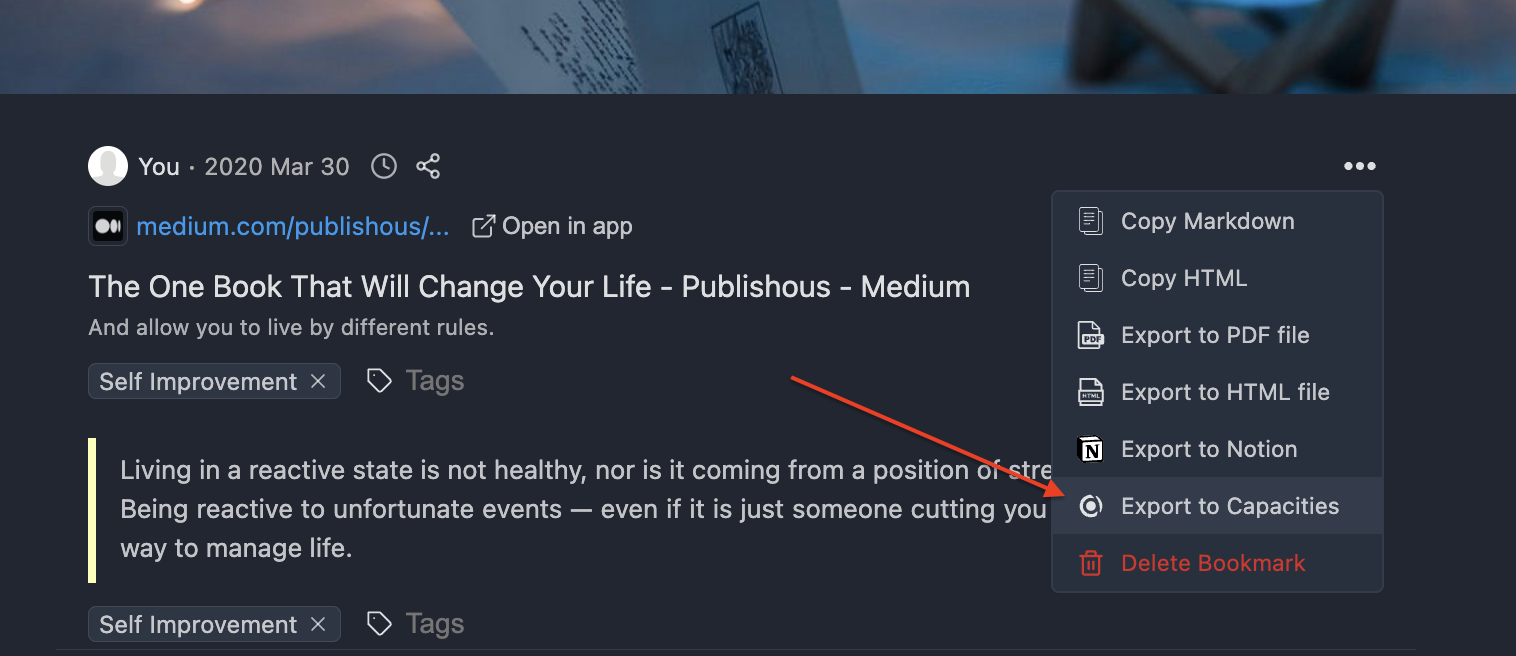
Navigate to any highlighted page and click the three dots in the sidebar. Select "Export to Capacities." Within a few seconds, your Capacities weblink will be created.
Open in Capacities
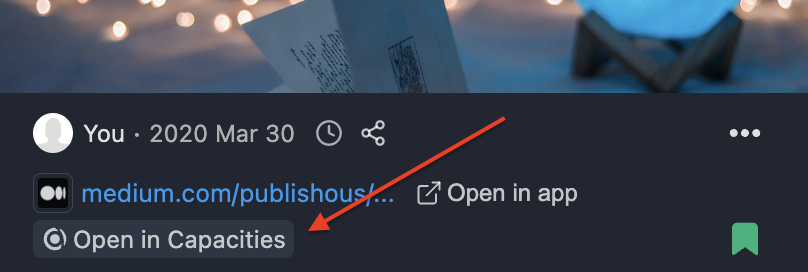
Once the weblink is created, an "Open in Capacities" button will appear on your highlighted page. Click this button to directly open the Capacity weblink in your browser.
Learn more
Read the full walkthrough on our blog: Capacities Export guide
Try it in Web Highlights
Open the app and go to Settings → Integrations to use this integration — the same steps as on this page.
Open Web Highlights