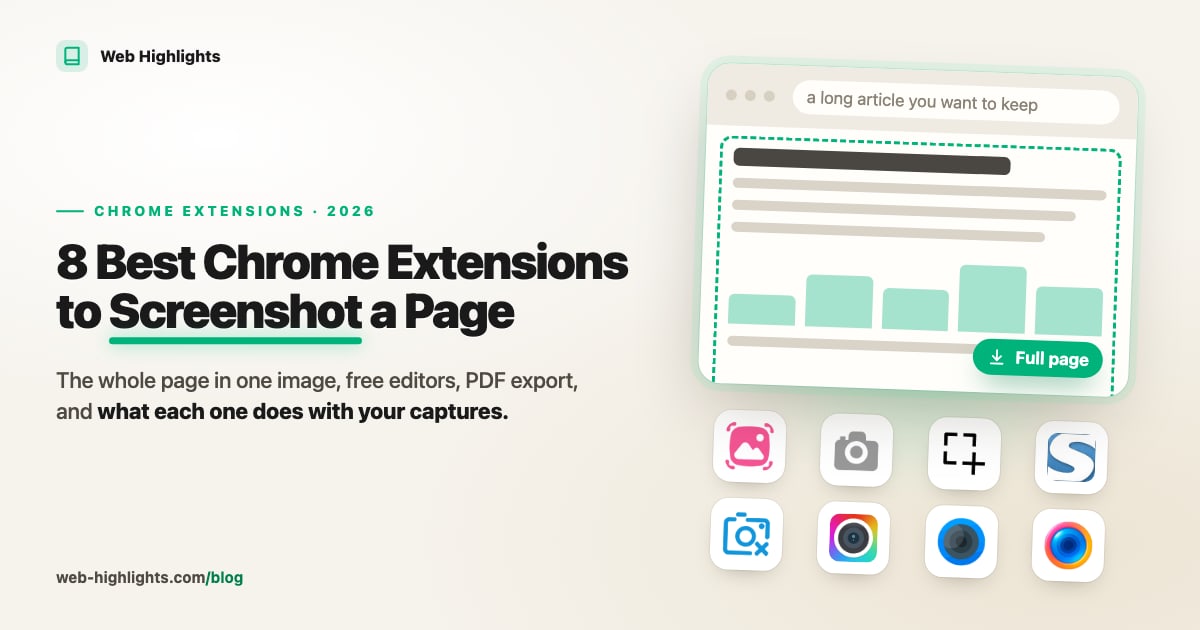
The best screenshot extension for Chrome is Full Page Screenshot. It captures the whole scrolling page, a region you drag or just what’s on screen, comes with a free editor that can blur, exports PNG, JPG, WebP or PDF, and Tooltivity’s security check found that it sends nothing over the internet. It scores 9.17/10 on Tooltivity. GoFullPage (9.00) is the one most people already have, with 11,000,000 users, and Chrome Capture (8.95) adds short screen recordings. Lightshot, with 2,000,000 users, scores 6.67 and isn’t on the list.
You want to keep a page exactly as it looked: a chart from a report, a long article before it changes, a chat you need to quote. Your computer’s screenshot shortcut gets you what fits on the screen and stops there.
The extensions in this category differ in three ways that matter more than their feature lists: whether they capture the whole page in one go, what they keep behind a paid plan, and what happens to your captures afterwards. Most keep them on your computer. A few upload them to get you a share link.
This comparison ranks the eight screenshot extensions with the highest Tooltivity scores on the Chrome Web Store, with what each one charges for and what its code does with your screenshots. It starts with the ways to take a screenshot in Chrome without installing anything.
Key takeaways
- Full Page Screenshot (9.17/10) is the best free pick: whole page, region or visible area, an editor with blur, PDF export, no paid tier, and nothing sent anywhere.
- GoFullPage (9.00) is the most installed, with 11,000,000 users. Full-page capture is free; Premium, a yearly subscription, adds the newer editor and some export options.
- Need video too? Chrome Capture (8.95), Awesome Screenshot (8.33) and Scrnli (7.67) also record your screen. Scrnli is completely free.
- Capture X (8.42) lets you pick one box that scrolls inside a page, like a long AI chat or a wide table, and captures all of it. Only five of those captures are free.
- Security – Tooltivity’s November 2026 check rates Full Page Screenshot Low risk and the other seven Minor notes, mostly for usage statistics or crash reports they send. Lightshot (Caution) isn’t on the list.
How this list was made: the scores come from Tooltivity, a review site run by my company — the same one that makes Web Highlights. It rates each extension from its Chrome Web Store listing, its ratings and what recent reviews report, and its security check reads each extension’s code. This list is ordered by that score. I haven’t tested these eight hands-on, so the descriptions below summarize each listing, Tooltivity’s review and what users report. User counts, store ratings and the averages of the last 100 reviews come from Tooltivity’s crawl of the Chrome Web Store on November 21, 2026, and the scores are as of the same day. Two web clippers that Tooltivity also files under screenshots are left out because they do a different job; more on them at the end.
How do you take a screenshot in Chrome?
The quickest way needs no extension at all: your computer’s own screenshot shortcut.
- Windows: press Windows logo key + Shift + S to open the Snipping Tool overlay, then drag a rectangle or pick a window or the full screen. Print Screen copies the whole screen to the clipboard (Microsoft’s help page).
- Mac: Shift-Command-3 captures the whole screen, Shift-Command-4 a part you drag (Apple’s help page).
- Chromebook: press the Screenshot key, or Shift + Ctrl + Show windows, then choose Screenshot in the menu at the bottom and pick a full or partial screenshot (Google’s help page).
All three capture what’s on the screen. None of those help pages mentions a way to capture the rest of a page that scrolls below it, and that’s the gap the extensions in this list fill.
How do you take a full-page screenshot in Chrome without an extension?
Chrome’s developer tools can do it. Open DevTools with Ctrl + Shift + I on Windows or Linux, or Cmd + Option + I on a Mac (Chrome’s DevTools docs). Then open the Command Menu with Ctrl + Shift + P, or Command + Shift + P on a Mac, type “screenshot” (Command Menu docs) and pick the full size screenshot. According to Google’s DevTools documentation, it captures “the whole page including the content that isn’t visible in the viewport.”
It works, but it lives in a tool built for web developers, which is why most people install an extension instead.
All 8 screenshot extensions at a glance
Every one of them captures a full scrolling page and installs for free. The differences are video and what costs money:
| # | Extension | Score | Users | Store rating | Records video | Paid plan |
|---|---|---|---|---|---|---|
| 1 | Full Page Screenshot | 9.17 | 100,000 | 4.95 | No | None |
| 2 | GoFullPage | 9.00 | 11,000,000 | 4.90 | No | Premium subscription |
| 3 | Chrome Capture | 8.95 | 300,000 | 4.95 | GIF and video | Premium plans |
| 4 | FireShot | 8.83 | 3,000,000 | 4.94 | No | Pro, one-time licence |
| 5 | Capture X | 8.42 | 40,000 | 4.75 | No | Premium |
| 6 | Awesome Screenshot | 8.33 | 4,000,000 | 4.75 | Yes, with webcam | Premium |
| 7 | Screenshot Tool | 8.17 | 1,000,000 | 4.53 | No | None |
| 8 | Scrnli | 7.67 | 1,000,000 | 4.78 | Yes, with webcam | None |
If you prefer a bigger overview, check out the full comparison table of all Chrome screenshot extensions on Tooltivity.
1. Full Page Screenshot

Full Page Screenshot has 100,000 users and a 4.95 store rating from 807 ratings, and its last 100 reviews average 4.93.
It does the three captures you’d expect, the visible area, a region you drag or the whole page scrolled and stitched into one image, and then hands you an editor that several rivals charge for. Crop, blur, arrows, shapes, freehand and text are free, and so is PDF export next to PNG, JPG and WebP. Tooltivity’s review found no Pro tier, no trial, no ads and no account.
Two settings help with long reads. A lazy-load mode waits for images that only appear as you scroll, and a long-page option lifts the length limit and splits very long pages into parts. Every capture also lands in a history inside the browser, with the page’s address and room for a note. The weak spot, according to the reviews: scrolling capture still fails on some sites, and the settings that fix it sit under Advanced. There’s no keyboard shortcut either.
Security: Tooltivity’s security check rates Full Page Screenshot Low risk after reading the code of version 3.1.0 on November 10, 2026. It only touches a page when you take a screenshot, keeps your captures on your computer and sends nothing over the internet.
Key Features
- Three capture modes – the whole page, a region you drag, or the visible area
- Free editor – crop, blur, arrows, shapes, freehand drawing and text, with undo
- Four export formats – PNG, JPG, WebP and PDF, or straight to the clipboard
- Browser frames – wraps a capture in a window with the page’s address and a date stamp
- Capture history – past screenshots with their address and your own notes, kept in the browser
Pros & Cons
Pros:
- One-click full-page capture
- Free editor with blur and arrows
- Exports PNG, JPG, WebP, PDF
- No account, ads or paywall
- Captures never leave your device
Cons:
- Scroll capture fails on some sites
- Fix settings hidden in Advanced
- No keyboard shortcut to capture
- No screen recording
- Needs access to all websites
Who is this great for?
Full Page Screenshot is perfect for anyone who wants to keep a long article, a report or a reference page as one image or PDF without paying for the editing.
It’s especially great for students and researchers who keep pages as evidence. A browser frame stamps the address and date onto the image, and the history keeps a note on why you saved it.
Tooltivity score: 9.17/10 · Read the full review
2. GoFullPage

GoFullPage is the giant of the category: 11,000,000 users and a 4.90 store rating from 84,970 ratings. Its last 100 reviews average 4.95, up from 4.55 in Tooltivity’s crawl of August 17, 2026.
Click the icon or press Alt+Shift+P, and it scrolls the page and stitches it into one image you can save as PNG, JPEG or a PDF. Its listing promises it does this “without requesting any extra permissions”, and Tooltivity’s review confirms it needs no account and shows no ads.
The catch is GoFullPage Premium, which Tooltivity’s review describes as a yearly subscription with a 7-day trial. The listing calls its editor for cropping, annotating and adding emoji “the new premium editor”, and the review notes that some export options sit behind Premium too, so exporting can prompt the trial. For a plain full-page capture you never need it. If you want to blur or mark up what you capture, Full Page Screenshot does that for free.
Security: Tooltivity’s security check rates GoFullPage Minor notes after reading the code of version 8.11 on November 10, 2026. It keeps your screenshots on your computer and sends nothing about the pages you capture. The minor note: it reports how you use it to Google, with no way to turn that off.
Key Features
- One-click capture – scrolls the page and stitches it into a single image
- Keyboard shortcut – Alt+Shift+P starts a capture without the mouse
- Three formats – PNG, JPEG, or PDF in several paper sizes
- Few permissions – no broad access to your browsing, no account, no ads
Pros & Cons
Pros:
- Reliable one-click full-page capture
- No account or extra permissions
- Fast, high-quality output
- Exports to PNG, JPEG and PDF
Cons:
- Export can prompt the paid trial
- Capture only, no screen recording
- Limited annotation compared to rivals
- Usage statistics with no off switch
Who is this great for?
GoFullPage is perfect for anyone who just wants the whole page as one file and nothing else.
It’s especially great if you don’t want to learn a tool: one shortcut, one image, done. Its 11,000,000 users suggest that’s all most people need.
Tooltivity score: 9.00/10 · Read the full review
3. Chrome Capture

Chrome Capture has 300,000 users and a 4.95 store rating from 2,024 ratings. Its last 100 reviews average 4.99, the highest of the eight.
It does two jobs. The screenshot half covers a selected area, the visible tab, the full scrolling page, or your whole desktop and any open app, and it’s free and unlimited, with arrows, shapes, text and cropping in the editor. The other half records a tab or your desktop as a GIF, WebM, MP4 or AVIF. That’s where the paid plans come in: on the free plan a GIF stops at 15 seconds, and blur and numbered steps need Premium Pro, according to Tooltivity’s review.
Shortcuts make it quick (Alt+S for a screenshot, Alt+Shift+S for the full page, Alt+R to record), and you can remap them. One gap matters if you read PDFs in Chrome: it can’t capture them, so its area and full-page modes do nothing on an open PDF.
Security: Tooltivity’s security check rates Chrome Capture Minor notes after reading the code of version 3.3.8 on November 10, 2026. It keeps your captures in your browser and runs nothing on the websites you visit. The minor note: Google and Microsoft see how you use its own menu and editor, with no switch to stop it.
Key Features
- Four capture modes – a selected area, the visible tab, the full page, or the whole desktop
- Screen recording – a tab or the desktop, saved as GIF, WebM, MP4 or AVIF
- Remappable shortcuts – screenshot, full page, recording and snipping each have one
- Google Drive upload – send a capture to Drive from the editor, or copy it
- Blur – hides names or numbers before you share, on Premium Pro
Pros & Cons
Pros:
- Excellent full-page scrolling capture
- Screenshots free and unlimited
- Capable annotation editor
- No account required
- Remappable keyboard shortcuts
Cons:
- Free GIFs capped at 15 seconds
- No PDF capture
- Blur and steps need Premium Pro
- Session analytics with no off switch
Who is this great for?
Chrome Capture is perfect for anyone who mixes screenshots with short clips: a bug report, a quick how-to for a colleague, a GIF for a chat.
It’s especially great for keyboard users, since every mode has its own shortcut. If a recording has to run longer than 15 seconds and you don’t want to pay, Scrnli records for free.
Tooltivity score: 8.95/10 · Read the full review
4. FireShot

FireShot has 3,000,000 users and a 4.94 store rating from 53,120 ratings, and its last 100 reviews average 4.95. Its listing says it’s been around since 2010.
FireShot captures the full page, the visible area or a region you draw, and it can pick out a single element on the page so you don’t have to crop afterwards. Where it stands out is what happens next: save as PDF, PNG, JPEG or GIF, copy to the clipboard, print, or send the capture to OneNote or an email.
The free version covers everyday captures. The full editor and more export options come with FireShot Pro, which Tooltivity’s review says is a one-time licence rather than a subscription, something long-time users single out. Keep one limit in mind if you save articles: its PDFs contain a picture of the page, not text you can select or search.
Security: Tooltivity’s security check rates FireShot Minor notes after reading the code of version 2.1.4.18 on November 10, 2026. It keeps your screenshots on your computer and sends nothing about the pages you visit. The minor note: it sends crash reports unless you turn them off in its options.
Key Features
- Three capture modes – the full page, the visible area, or a region you draw
- Element capture – shoots a single part of the page without cropping
- Many destinations – PDF, PNG, JPEG or GIF, the clipboard, a printer, OneNote or email
- Pro as a one-time licence – the full editor and more exports without a subscription
Pros & Cons
Pros:
- One-click full-page and region capture
- Exports to PDF, PNG, JPEG, GIF
- Send to clipboard, print, email
- Fast, reliable capture
- Capable free version
Cons:
- Best editing locked behind Pro
- PDF exports as image, not text
- No scrolling capture inside PDFs
- Rare freezes or high memory use
Who is this great for?
FireShot is perfect for anyone whose screenshot has to go somewhere specific: a OneNote notebook, an email, a printer.
It’s especially great if you’d rather pay once than subscribe. Pro is a single purchase, and the free version already does the capturing.
Tooltivity score: 8.83/10 · Read the full review
5. Capture X

Capture X is the smallest on the list, with 40,000 users and a 4.75 store rating from 300 ratings, and its last 100 reviews average 4.69. It also has an Edge version.
It’s built around the box that scrolls inside a page. A long AI chat, a sidebar, a pop-up or a wide table scrolls on its own, separate from the page around it. Capture X highlights the areas it can capture, you pick one, and it captures that box from top to bottom, without the rest of the page. A 2x HD mode doubles the resolution so small text and charts stay readable.
That’s also the part it rations. Visible, selection and full-page captures are free, with annotation, blur and PDF, PNG or JPG export. Scrollable-area and HD captures each get five free tries before they need Premium, according to Tooltivity’s review, and Premium belongs to the browser installation rather than your account, so a second computer can mean a second subscription. Its PDFs, like FireShot’s, are images rather than text.
Security: Tooltivity’s security check rates Capture X Minor notes after reading the code of version 5.1.9 on November 10, 2026. It keeps your screenshots in your browser and sends only a random code and basic device details to its own server, to run the free trial and your plan.
Key Features
- Scrollable area capture – chat panels, sidebars, pop-ups and tables captured in full
- 2x HD capture – double resolution for small text, charts and code
- Long pages in parts – splits extra-long pages into several images
- PDF layout – paper size and margins for PDF export
- Shortcuts – Ctrl+Shift+7, 8 and 9 start full-page, HD and selection captures
Pros & Cons
Pros:
- Captures scroll areas inside pages
- Stitches long pages reliably
- Annotation and blur built in
- No ads or tracking libraries
Cons:
- Only five free scrollable captures
- Standard captures can look soft
- Premium tied to one browser
- PDFs contain images, not text
Who is this great for?
Capture X is perfect for anyone who needs a whole AI chat or support conversation in one image, not just the part on screen.
It’s especially great for people who capture web apps for work: dashboards, side panels and long tables, each as its own image.
Tooltivity score: 8.42/10 · Read the full review
6. Awesome Screenshot

Awesome Screenshot has 4,000,000 users, up from 3,000,000 in Tooltivity’s crawl of July 2026, and a 4.75 store rating from 29,640 ratings. Its last 100 reviews average 4.90.
It’s the all-in-one: full-page, region and visible-area screenshots, plus a recorder for your desktop, a single tab or your webcam, with microphone narration and video up to 4K. Screenshots get arrows, text, shapes and blur, and save as PNG, JPG or a multi-page PDF, or go straight to the clipboard.
For screenshots, the free tier covers everything. The limits sit on the recorder: reviewers report a five-minute cap on free recordings, and cloud storage and sharing belong to the paid plan, with a sign-in prompt that catches some people off guard, according to Tooltivity’s review. It also asks for broad permissions for an extension.
Security: Tooltivity’s security check rates Awesome Screenshot Minor notes after reading the code of version 4.4.44 on November 10, 2026. It captures and records only what you ask for. The minor notes: usage reports with a random code go to Google, a Gmail helper inside it sends its own reports, and its screens point you to sider.ai.
Key Features
- Screenshots and recording – full page, region or visible area, plus desktop, tab or webcam video
- Narration – microphone and camera for walkthroughs and demos
- Annotation – arrows, text, shapes and blur before you share
- Export – PNG, JPG or a multi-page PDF, saved locally or to the cloud
Pros & Cons
Pros:
- Screenshots and screen recording combined
- Full-page, region and visible capture
- Easy to use
- Copy captures straight to the clipboard
Cons:
- Free recordings capped at 5 minutes
- Sign-in required for some features
- Occasional recording crashes and audio echo
- Broad permissions for an extension
Who is this great for?
Awesome Screenshot is perfect for anyone who records walkthroughs as often as they take screenshots.
It’s especially great for teachers and support teams who explain things on screen and want one extension for both. If you only ever take screenshots, the first two picks ask for less.
Tooltivity score: 8.33/10 · Read the full review
7. Screenshot Tool

Screenshot Tool has 1,000,000 users and a 4.53 store rating from 5,375 ratings, with its last 100 reviews at 4.57.
It keeps things simple: the full page, the visible area or a dragged selection, then crop, draw, add lines, text or a caption, and save or copy. Everything is free, with no account and no paid upgrade, and the whole extension is around 536 KB, according to Tooltivity’s review.
Reviewers have two recurring complaints: a pop-up that keeps asking for a rating, and full-page captures that stumble on long pages or pages with sticky headers. There’s no PDF export either, so it makes images, not files you’d archive an article in.
Security: Tooltivity’s security check rates Screenshot Tool Minor notes after reading the code of version 1.0.10 on November 10, 2026. It keeps your screenshots on your computer and sends nothing anywhere. The minor note: other websites can show its editor page, though they can’t see what’s in it.
Key Features
- Three capture modes – the full scrolling page, the visible screen, or a selected area
- Editor with captions – crop, draw, lines and text without leaving the browser
- Copy to clipboard – paste a selection into a chat or document without saving a file
- Completely free – every tool works with no account and no upgrade
Pros & Cons
Pros:
- Simple, uncluttered interface
- Genuinely free, no account
- Three capture modes
- Fast and lightweight
Cons:
- Rating pop-up keeps coming back
- No PDF export option
- Full-page capture can misfire
- Lighter editing than rivals
Who is this great for?
Screenshot Tool is perfect for anyone who wants a quick screenshot with a caption and nothing to sign up for.
It’s especially great on older or slower computers, where a small extension that opens fast makes a difference.
Tooltivity score: 8.17/10 · Read the full review
8. Scrnli

Scrnli has 1,000,000 users and a 4.78 store rating from 11,068 ratings, and its last 100 reviews average 4.77.
Scrnli is the free screen recorder of the group. Next to full-page, area and visible screenshots, it records your whole screen, a tab or the desktop, can add a webcam bubble, and exports without a watermark. There’s no paid tier and no account, according to Tooltivity’s review, and reviewers often mention recording online lectures and meetings with it.
The trade-off is polish. Reviewers report grainy video, recordings with missing audio, the occasional freeze and downloads that hang. For screenshots alone, the seven above score higher; Scrnli earns its place by giving the recording away.
Security: Tooltivity’s security check rates Scrnli Minor notes after reading the code of version 4.3.10 on November 10, 2026. It sends nothing while you browse. Files leave only when you click share or convert, and a shared screenshot carries a number that identifies your browser.
Key Features
- Screenshots – the full page, a selected area or the visible screen
- Screen recording – the whole screen, a tab or the desktop
- Webcam bubble – your camera on top of a recording, for lessons and tutorials
- No watermark – recordings and screenshots export clean, for free
Pros & Cons
Pros:
- Completely free, no watermark
- Screenshots and screen recording combined
- Easy to use
- Good for meetings and lectures
Cons:
- Video quality can look grainy
- Audio sometimes missing from recordings
- Recordings can freeze mid-capture
- Downloads occasionally hang or fail
Who is this great for?
Scrnli is perfect for students who want to record a lecture or a call without paying or creating an account.
It’s especially great as a second extension next to a screenshot specialist: keep Full Page Screenshot for pages and Scrnli for video.
Tooltivity score: 7.67/10 · Read the full review
Why isn’t Lightshot on the list?
Because it scores 6.67 on Tooltivity, below all eight. Lightshot is one of the best-known screenshot tools, with 2,000,000 users on Chrome alone, but its store rating is 3.37 from 7,027 ratings, and its last 100 reviews have averaged between 2.97 and 3.12 in every Tooltivity crawl since July 2026. Its reviewers report frequent blank or black captures, according to Tooltivity’s review. It can’t capture a full page either: it’s built for dragging a box around part of the screen and sharing a quick link.
That link is the other reason. Lightshot uploads a shared screenshot to its own server and gives you a short prnt.sc address. Tooltivity’s security check rates it Caution: in version 7.0.1, read on November 10, 2026, nothing leaves until you upload, but uploaded screenshots get public links that others can guess, and a weak spot in the upload is being reported to the maker. If you keep using it, save locally or copy to the clipboard instead of uploading anything private.
Which screenshot extension should you choose?
On Tooltivity’s score the winner is Full Page Screenshot at 9.17/10, and it’s the easy recommendation too: every capture mode, a real editor, PDF export and nothing sent anywhere, for free. GoFullPage (9.00) is the simple choice if you only ever need the whole page as one file. FireShot (8.83) is for sending captures on to OneNote, email or a printer, with Pro as a one-time purchase.
The rest sorts by job. Capture X captures one scrolling box inside a page, such as a long chat. Chrome Capture, Awesome Screenshot and Scrnli record video too: Chrome Capture for short GIFs, Awesome Screenshot for longer walkthroughs with a webcam, and Scrnli if it has to be free. Screenshot Tool is the lightest of the free ones. Every extension here installs free, so try the one that fits and keep it if the first long page comes out right. The full comparison table has all of Tooltivity’s screenshot extensions side by side.
One thing no screenshot keeps is the text. A capture of an article is a picture: you can’t search it or copy a sentence out of it later, and FireShot’s and Capture X’s PDFs are pictures too. Tooltivity also files two web clippers under screenshots, OneNote Web Clipper and Diigo Web Collector, which save a page into a notebook or a library instead of a file. If you’re saving pages to read and quote later, the web clipper comparison and the bookmark manager comparison cover that job. For PDFs you read in Chrome, there’s a separate list of PDF extensions, and the free Chrome extensions list has more tools without a paid tier.