10 Best Adobe PDF Alternatives
Looking for a lightweight Adobe PDF alternative? Compare the best tools for reading, annotating, editing, and summarizing PDF files in your browser.


Adobe Acrobat Pro is still popular, but many people now look for an Adobe PDF alternative because the app feels heavy, costs more than they need, and often includes features they never use. Most users just want something light, quick, and easy for reading or managing PDF files.
This list covers simple viewers, PDF editing tools, annotators, cloud options, and newer AI-based readers. Many people also prefer browser tools instead of downloading full desktop apps. That is why tools like Web Highlights are becoming common for handling PDFs, taking notes, creating tags, and getting quick AI summaries without installing anything.
What Makes a Good Adobe PDF Alternative?
A good Adobe PDF alternative should feel light, open fast, and work across different devices without needing a large install. Many users prefer tools that handle PDF files, offer simple PDF editing, support AI summaries, and keep documents safe. Options like Web Highlights also help when you want browser-based reading and quick notes.
Key factors to look for:
- Lightweight and not as heavy as Adobe Acrobat
- Affordable plans
- Browser-based or multi-platform access
- Annotation and basic editing
- AI reading or summarizing tools
- Collaboration or cloud sync
- Secure file handling for PDF documents
The Best Adobe PDF Alternatives
1. Web Highlights (Works in Browser + Extension)
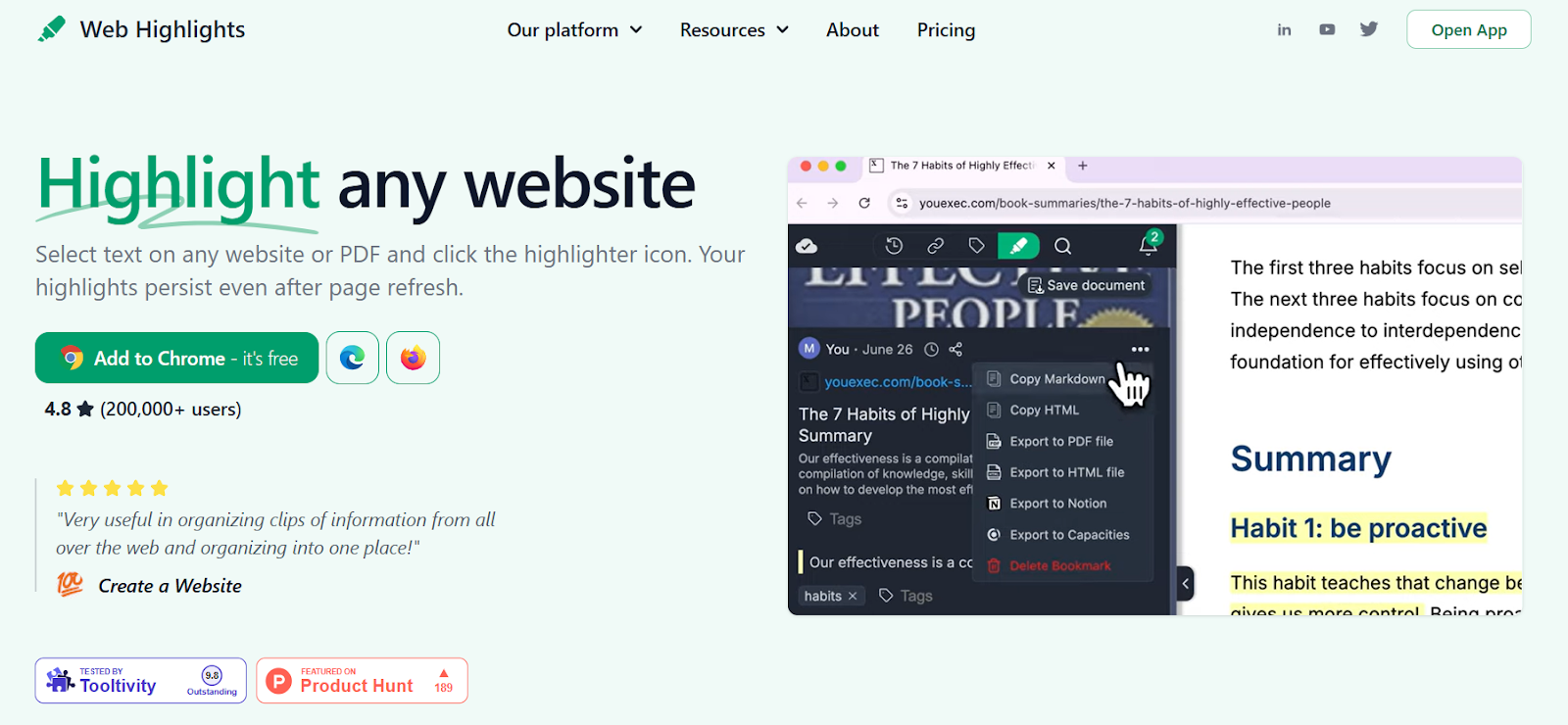
Web Highlights is a lightweight and straightforward Adobe PDF alternative for anyone who mainly needs reading, highlighting, annotating, organizing, and getting AI summaries of PDF files without downloading large Adobe software. It works inside the browser, supports PDF documents, and also covers web pages, YouTube transcripts, and long articles. It fits well for users who want clean reading, quick notes, and easy exports across devices.
Key features of Web Highlights
- Highlight and annotate PDFs, articles, and websites
- Works with local PDFs and uploaded files
- Reader Mode for a clean layout
- Add tags and notes
- Save bookmarks and search through keywords
- AI summaries for PDFs and pages
- “Add Content” lets you save URLs, text, and PDFs
- Works on Chrome, Firefox, and Edge
- Cross-device sync for your entire library
- Export to Markdown, Notion, HTML, CSV, or PDF
- YouTube transcript highlighting + AI video summaries
Pros of Web Highlights
- Easy-to-use compared to Adobe Acrobat
- No large install or heavy app size
- Great tagging and library experience
- Multiple highlight colors
- Offline access for many features
- Strong for image-heavy documents and long reading sessions
- Clean user experience
- Works well with Google Workspace, Notion, Obsidian, and Markdown exports
Ideal for: Students, researchers, writers, and anyone who prefers browser tools or extensions with a broader feature set over Adobe Acrobat Pro.
Pricing of Web Highlights
Web Highlights is mostly free to use with three simple, affordable plans:
- Basic – Free
- Premium – $3.49/month, $34.99/year, $139.99/lifetime (US prices)
- Ultimate – $3.99/month, $39.99/year, $144.99/lifetime (US prices)
2. Foxit PDF Editor
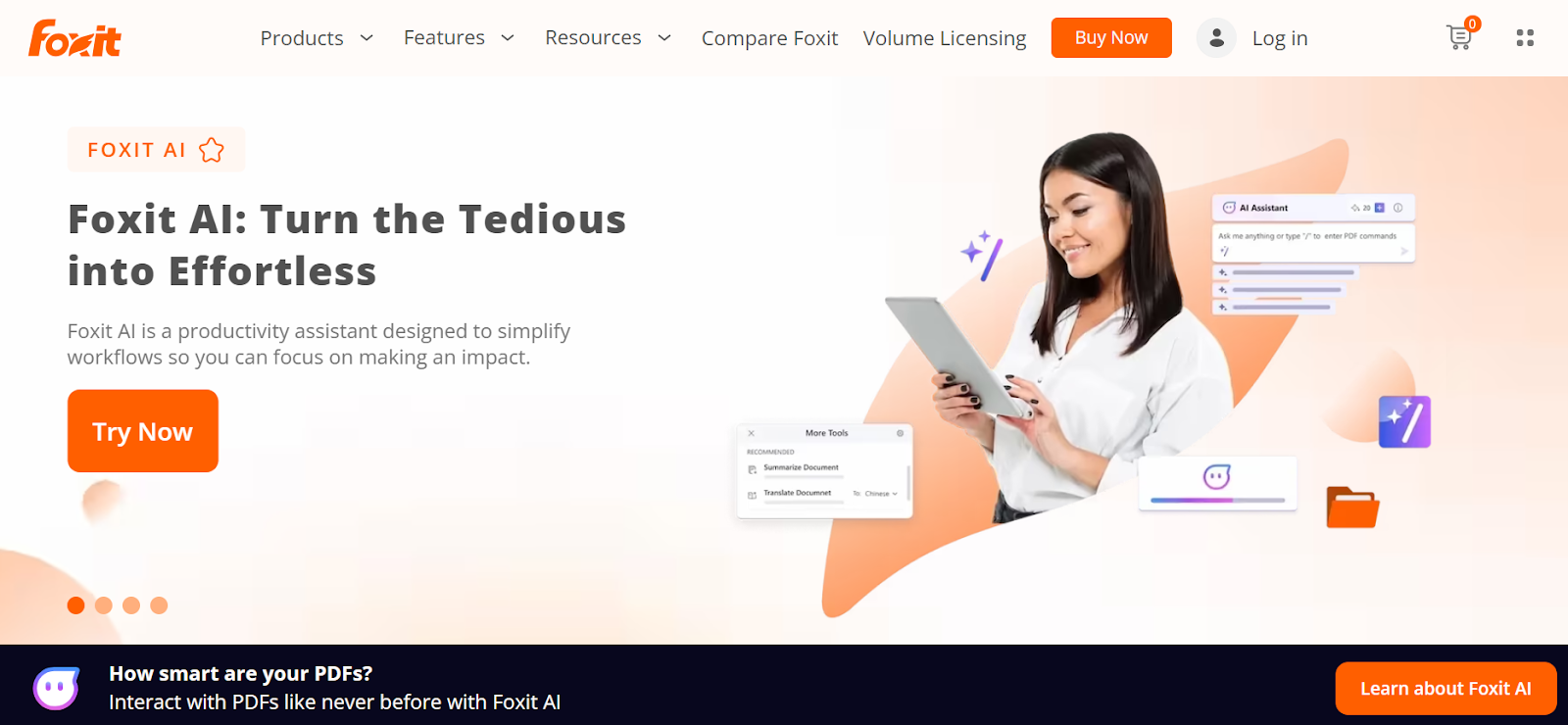
Foxit PDF Editor is a strong Adobe PDF alternative for users who need full‐fledged editing, conversion, signing, and security across PDF files and workflows. It supports Windows, macOS, and web versions, giving both desktop and cloud-native solutions.
Key features of Foxit PDF Editor
- Edit text, images, and layout within PDF documents, with paragraph-level controls.
- Convert to/from Word, Excel, PowerPoint, and other formats
- Advanced OCR technology
- Interactive form creation, digital signatures, and cloud integrations
- Collaboration features
Pros of Foxit PDF Editor
- Faster performance and lighter load compared with some full suites
- Broad platform support and cloud-friendly usage
- Works across desktop and mobile app setups
Ideal for: Users who need editing, forms, and OCR but don’t want Adobe software.
Pricing of Foxit PDF Editor
Pricing is custom. Contact their sales team.
3. Nitro PDF
Nitro PDF is another well-known Adobe PDF alternative for users who want strong PDF editing tools without the heavier feel of Adobe Acrobat. It works well for teams needing document management, PDF conversion, sharing, and signing. Nitro also integrates with Microsoft Word and other Microsoft 365 apps for everyday office work.
Key features of Nitro PDF
- Full PDF editing (text, images, layout)
- PDF conversion to Word, Excel, PowerPoint
- eSign tools + Digital signatures
- Cloud-native solution with storage options
- Highlight and take notes
Pros of Nitro PDF
- Cleaner interface than Adobe Acrobat Pro
- Good for companies needing organized document workflows
- Helpful for image-heavy documents and bulk tasks
- Works on Windows and macOS
- Reliable editing and signature handling
Ideal for: Teams that need regular editing and signing without using Adobe software.
Pricing of Nitro PDF
Nitro PDF offers the following pricing plans:
- Nitro PDF Standard: $15
- Nitro PDF Classic: $270
- Nitro PDF Plus: Contact sales
4. PDFsimpli
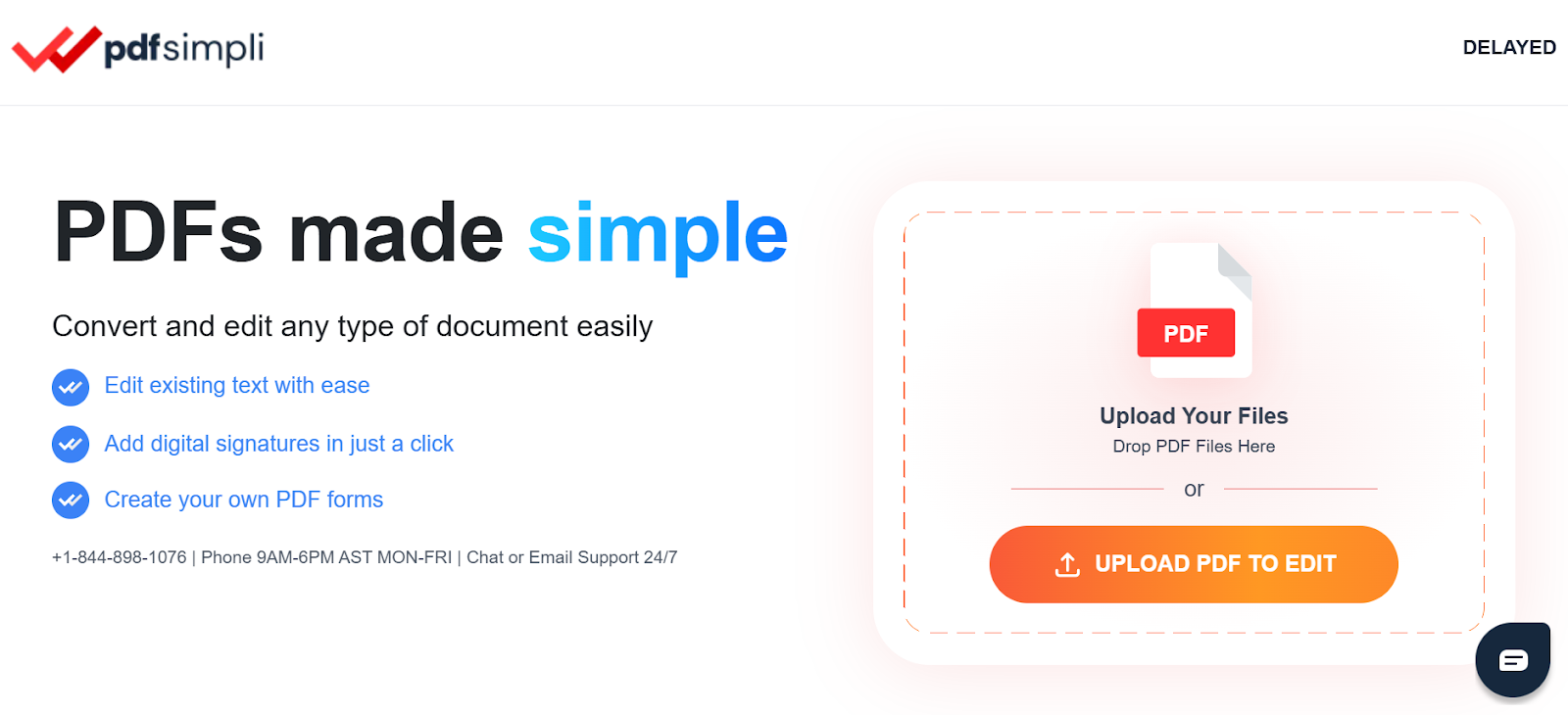
PDFsimpli is a simple browser-based Adobe PDF alternative for quick edits, annotations, and filling interactive forms. It’s useful when you want to avoid big apps like Adobe Acrobat or PDF Architect. PDFsimpli works well with standard PDF files, supports basic layout tweaks, and helps with simple daily edits.
Key features of PDFsimpli
- Edit text, links, and layout in PDF documents
- Add notes, comments, and highlights
- Form filling and form creation
- Works fully online without installs
- Supports scanned documents and basic OCR
Pros of PDFsimpli
- Works inside the browser
- Simple interface for beginners
- Handles most everyday PDF solution tasks
Ideal for: Users who need quick edits, forms, and annotations without downloading software.
Pricing of PDFsimpli
PDFsimpli is mostly free to use with subscription-based pricing models.
5. Smallpdf
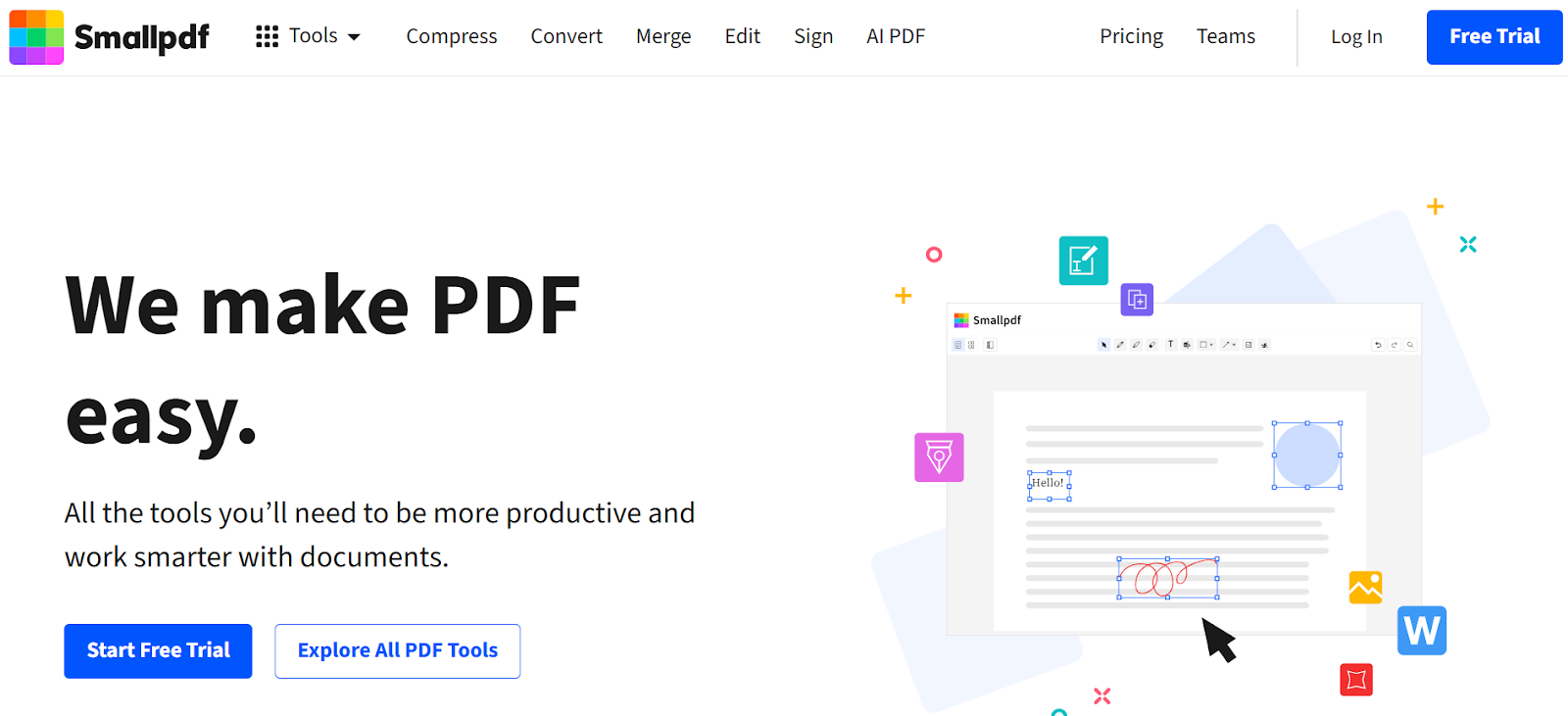
Smallpdf is a popular online Adobe PDF alternative for quick tasks such as compression, merging, conversion, and light PDF editing. It works fully in the browser, making it a good fit for users who don’t want Adobe Acrobat or other heavy desktop tools. It supports PDF files, scanned documents, and basic security settings.
Key features of Smallpdf
- Convert PDFs to Word, Excel, PowerPoint
- Compress and reduce file size
- Merge, split, rotate, and organize PDF documents
- eSign and Digital signatures
- OCR tools for scanned pages
- Works on web, mobile app, and desktop
- Integrates with Google Workspace
Pros of Smallpdf
- Fast and simple interface
- Good for small, quick document fixes
- Useful for students and office users
- Helps with everyday PDF management
- Works across devices
Ideal for: Users who want quick browser tools without installing Adobe software.
Pricing of Smallpdf
SmallPDF has the following pricing plans:
- Pro: $9/mo
- Team: $7/mo/seat for 2-19 people
- Business: Custom
6. iLovePDF
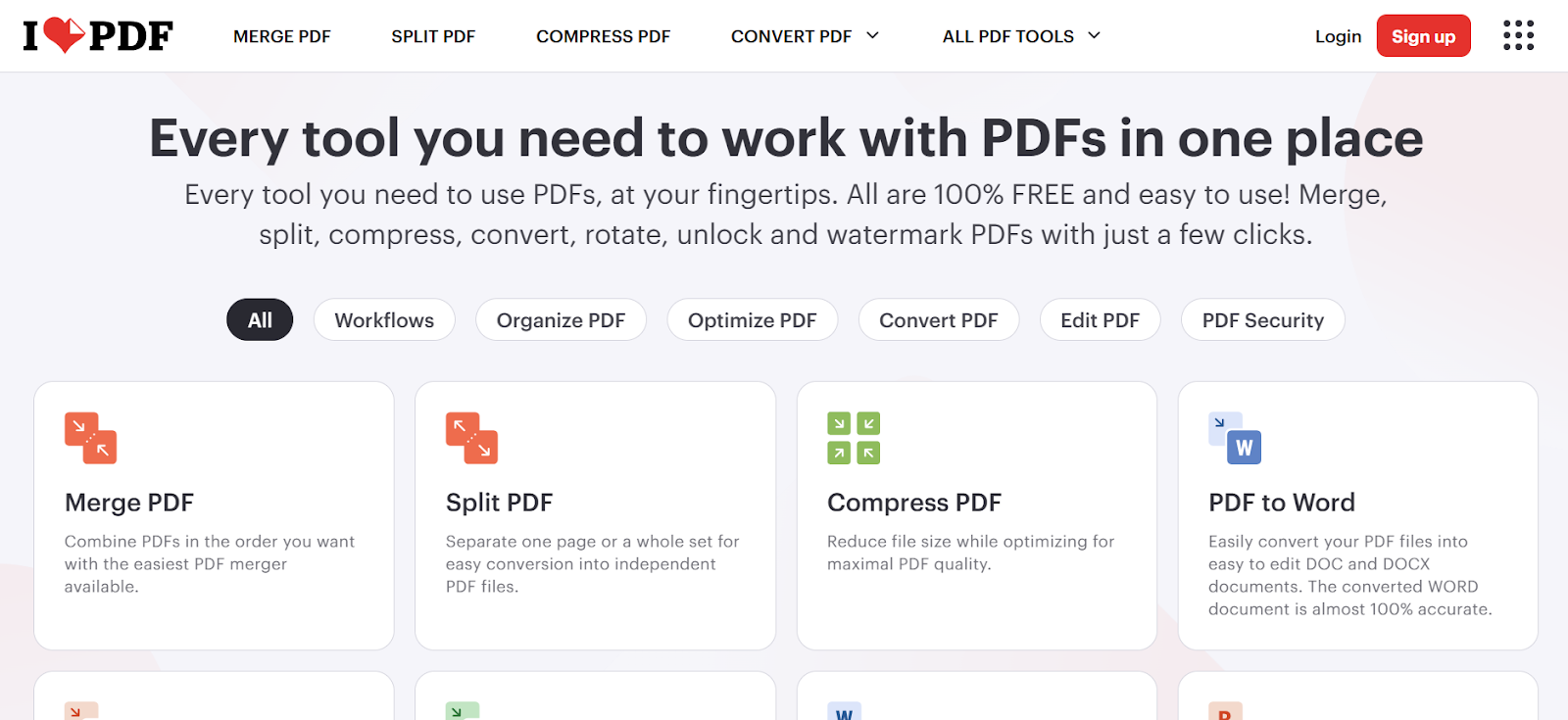
iLovePDF is another browser-based Adobe PDF alternative known for its wide set of PDF editing tools. It handles everything from PDF conversion to repair, watermarking, merging, and OCR. It works well with large PDF files, scanned documents, and image-heavy documents, making it a flexible pick for simple office tasks.
Key features of iLovePDF
- Convert PDFs to Word, JPG, Excel, and other file format types
- Merge, split, and organize pages
- Add page numbers, watermarks, or signatures
- Mobile app and web version
- Cloud management with Google Drive and Dropbox
Pros of iLovePDF
- Wide range of tools for everyday fixes
- Easy web interface
- Helpful when dealing with quick document edits
- Works with many formats, including SVG format and images
Ideal for: Users who want fast conversion and editing without Adobe Acrobat Pro.
Pricing of iLovePDF
iLovePDF has the following plans:
- Basic: Free
- Premium: $7/mo
- Business: Contact sales
7. PDF-XChange Editor
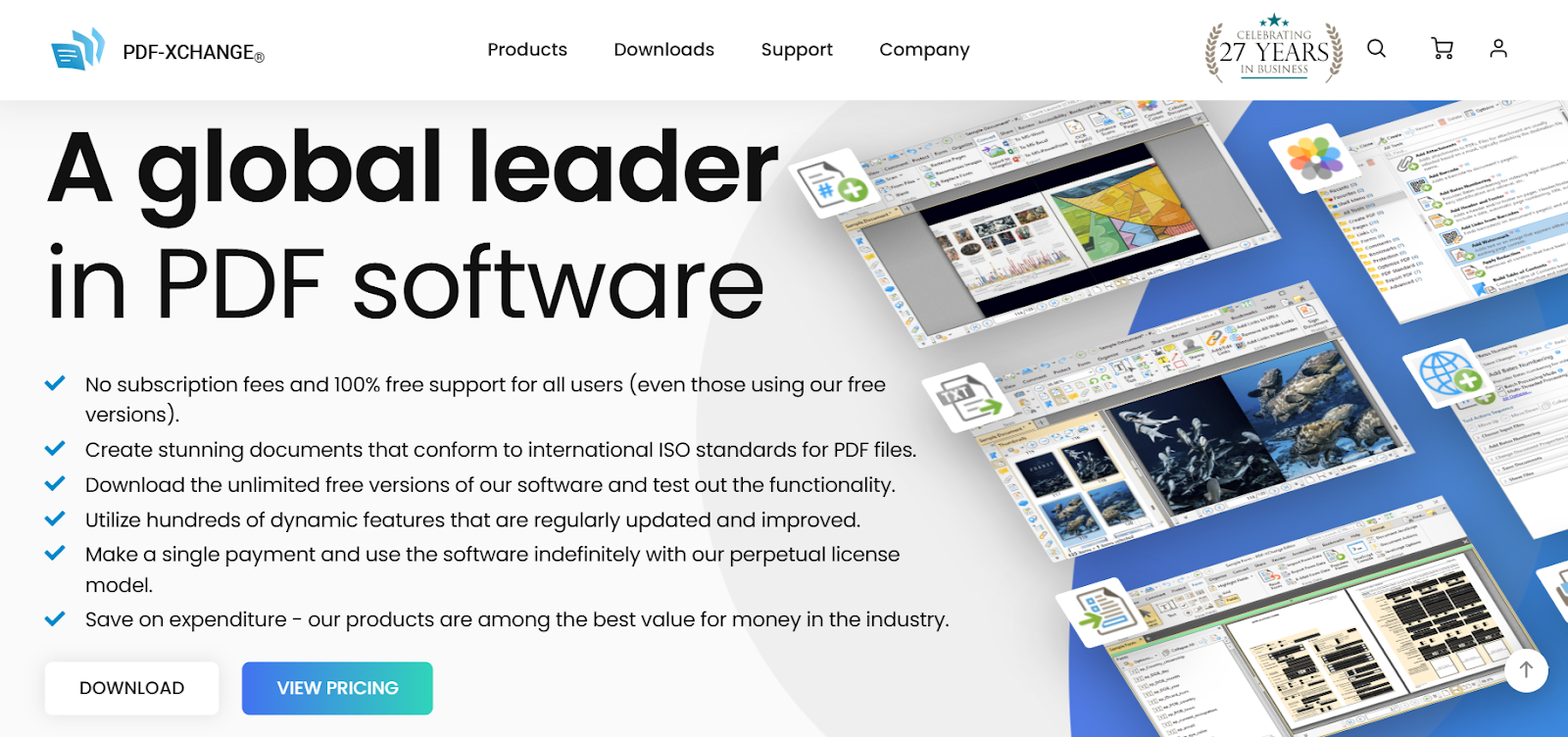
PDF-XChange Editor is a detailed Adobe PDF alternative known for fast performance and strong PDF editing tools. It works well with technical files, PDF documents, and scanned documents that need accurate text recognition. The editor includes annotation tools and layout controls, making it useful for users who don’t want the heavier Adobe Acrobat Pro setup.
Key features of PDF-XChange Editor
- PDF editing with text, images, and annotations
- Support for many file format types, including SVG format
- Fillable and interactive forms
- Digital signatures, protection tools, and redaction
- Tools for image-heavy documents and technical markups
- Works on Windows with an optional portable build
- Strong document management and versioning controls
Pros of PDF-XChange Editor
- Faster and lighter than Adobe Acrobat and other Adobe software
- Good accuracy for OCR and scanned documents
- Helpful for engineering, academic, and technical document workflows
- Feature-rich free version
Ideal for: Students or teachers needing advanced editing and OCR without Adobe software.
Pricing of PDF-XChange Editor
PDF-XChange Editor offers license-based pricing plans.
8. Kami
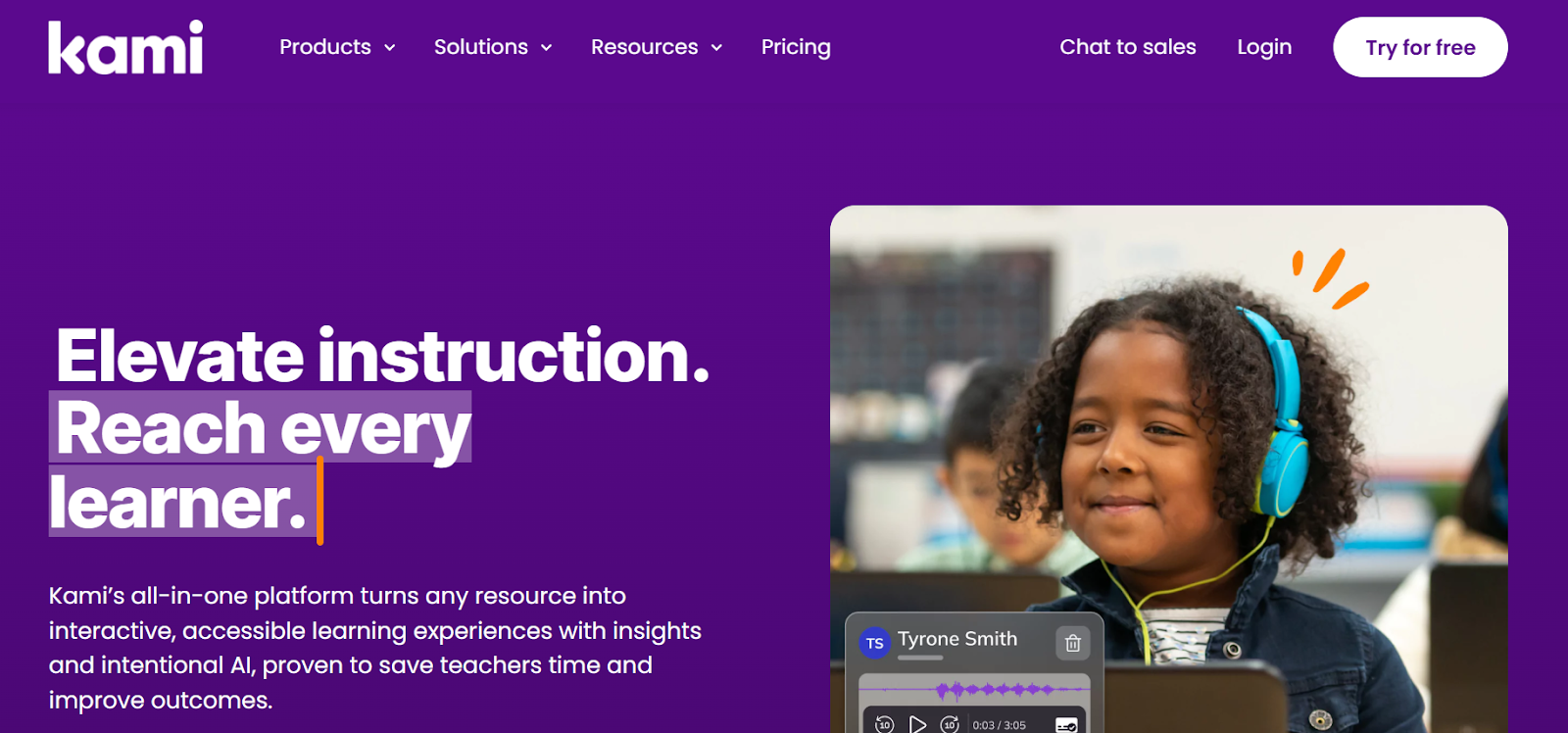
Kami is a classroom-focused Adobe PDF alternative built for teachers and students who need shared annotations, comments, and PDF documents for lessons. It works fully online and syncs with Google Workspace, making it common in schools using Chromebooks. Kami supports interactive forms, drawing tools, video comments, and real-time collaboration for assignments.
Key features of Kami
- Shared annotations for students and teachers
- Highlighting, drawing, text boxes, and shapes
- Voice notes and video instructions
- Works with Google Classroom and Microsoft 365
- Browser-based editing with autosave
Pros of Kami
- Made for students and teachers
- Works well on Chromebooks
- Good collaboration features
- Helpful for group assignments and marking
Ideal for: Schools or teachers needing shared PDF markup without Adobe Acrobat or Creative Cloud.
Pricing of Kami
- Basic Plan: Free
- Teacher Plan: $149
- School or District Plan: Custom
9. Xodo
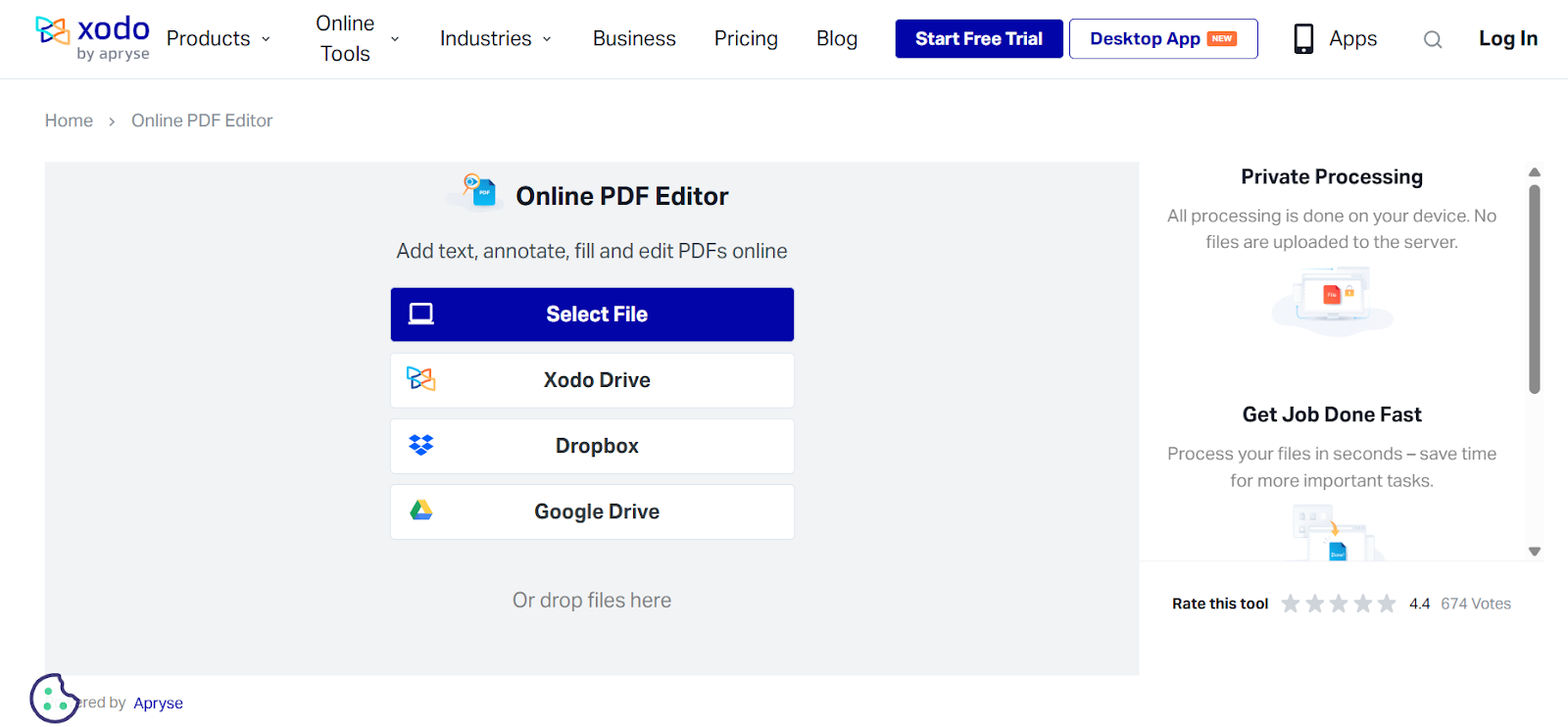
Xodo is a clean and reliable Adobe PDF alternative for users who want fast annotation on web, desktop, or mobile. It handles PDF files, supports shared reviews, and works well for everyday tasks like highlighting, filling forms, and organizing PDF documents. Xodo is often preferred by people who switch between devices.
Key features of Xodo
- Annotate, highlight, and comment on PDFs
- Sync with Google Drive, Dropbox, and OneDrive
- Form filling + Digital signatures
- Merge, organize, and rotate pages
- Works on web, Windows, Android, and iOS
- Supports image-heavy documents
Pros of Xodo
- Easy cross-device use
- Strong mobile app
- User-friendly interface
- Reliable for basic PDF management
Ideal for: Users who want a multi-platform annotation tool without Adobe Acrobat.
Pricing of Xodo
Xodo’s basic features are free to use, with paid plans starting at $12.99/mo.
10. Sejda
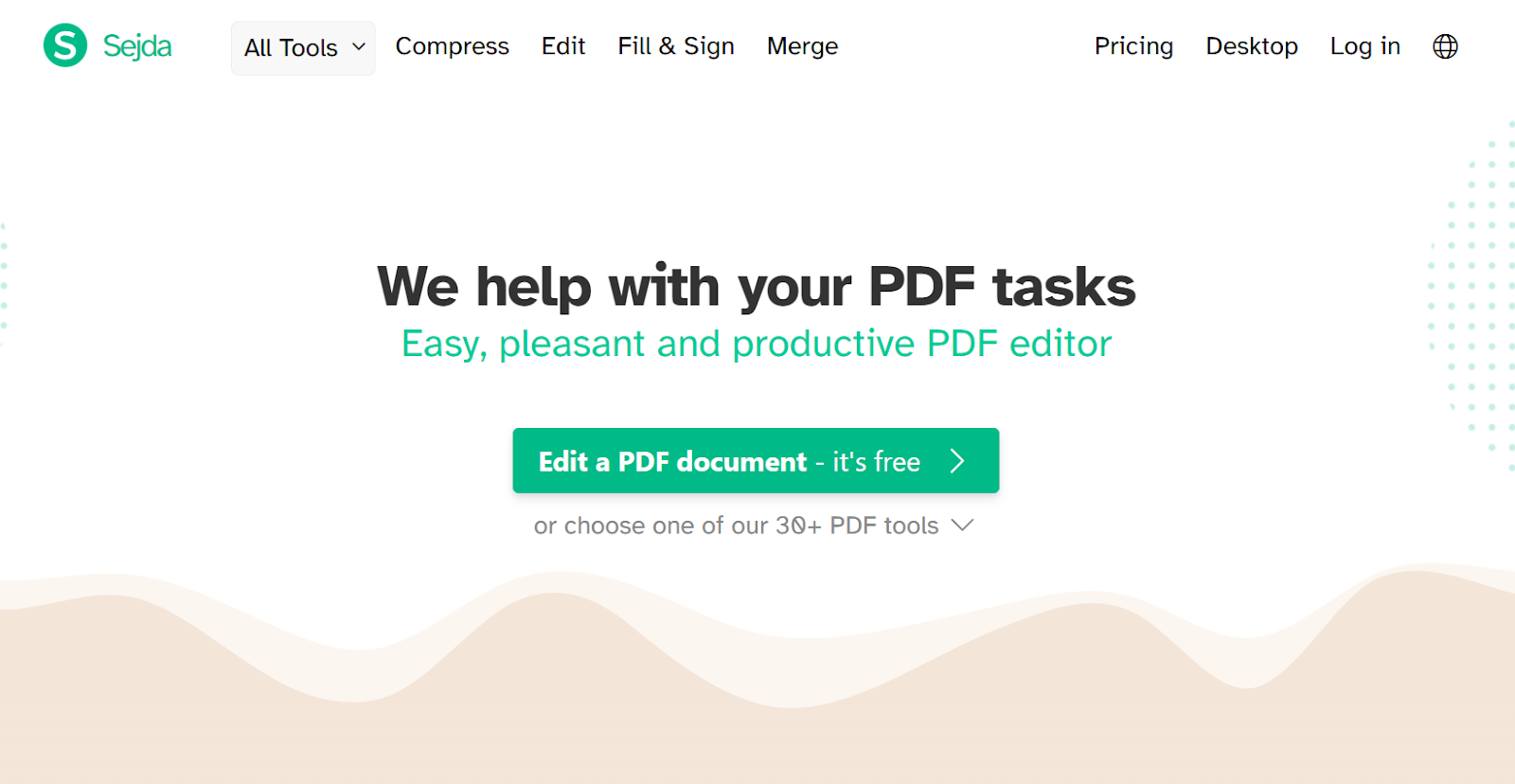
Sejda is a browser-based and desktop Adobe PDF alternative designed for quick tasks like splitting, merging, compressing, and light PDF editing. It’s useful when you need short sessions without installing heavy Adobe software. Sejda also supports PDF conversion, OCR, and basic layout changes for everyday office use.
Key features of Sejda
- Annotate text and images in PDF documents
- Add bookmarks or compress PDFs
- Convert PDFs to Word or JPG
- Web version with daily task limits
- Desktop app for offline access
- Works with many file format types
Pros of Sejda
- Simple, lightweight interface
- Works fully online
- Useful for image-heavy documents
- Helpful when handling small document workflows
Ideal for: Users who want fast browser-based edits without Adobe Acrobat Pro.
Pricing of Sejda
Here are the pricing plans of Sejda:
- Web Week Pass: $5 for 7 days
- Web Monthly: $7.50/mo
- Desktop+Web Annual: $63/year
Discounts offered for teams and high-volume usage.
Who Should Switch From Adobe PDF?
People switch from Adobe Acrobat or Adobe Acrobat Pro when they don’t need a heavy editor and want something simpler and easier to use. A good Adobe PDF alternative usually opens faster, works better with everyday PDF documents, and doesn’t require Creative Cloud. Here is who benefits most:
- StudentsNeed quick annotation, highlights, and summary tools for PDF files, scanned documents, and lecture notes. Browser tools like Web Highlights help with reading, tags, and exports.
- ResearchersWant organized document management, clean markup, and AI summaries without large Adobe software. Good for handling image-heavy documents and source material.
- Knowledge workersPrefer lightweight PDF editing tools, faster loading, and simple document workflows for reports, forms, and feedback.
- Users who want cloud-based reading or annotationNeed tools that work across devices with sync, instead of relying on Adobe Acrobat Pro installs.
- Users needing AI summariesWant fast explanations of long PDF documents using tools like Web Highlights, which support automatic summaries.
- People who don’t need a full editing suiteOnly require highlights, forms, notes, or simple edits, not everything inside Adobe software or PDF Architect.
How Web Highlights Works as an Adobe Alternative
Web Highlights is a lightweight Adobe PDF alternative for people who mainly read, highlight, and organize PDF files instead of doing heavy PDF editing. You can open PDFs in the browser, highlight, add notes, and sort everything with tags inside your library. AI summaries help when you need quick explanations of long PDF documents. Reader Mode gives a clean view of your PDF, and exports support Markdown, HTML, Notion, and PDF. Your library syncs across devices, and many online tools, like the PDF reader and AI summary tools, work without an account.
Frequently Asked Questions
1. What is the best free alternative to Adobe PDF?
If you want a free Adobe PDF alternative for reading and simple annotation, Web Highlights is one of the easiest options because it works in the browser and supports PDFs, highlights, tags, and AI summaries without requiring Adobe Acrobat or a heavy installs.
2. Can I annotate PDFs without Adobe Acrobat?
Yes, you can annotate PDF files using browser tools like Web Highlights, Xodo, or PDFescape. Web Highlights lets you highlight text, add notes, and organize everything with tags, making it useful when you don’t want Adobe software or Creative Cloud.
3. What is the best browser-based PDF tool?
Web Highlights is one of the best browser-based tools because it handles PDF documents, websites, and YouTube transcripts in one place. It supports highlights, Reader Mode, tagging, AI summaries, and exports, which makes it more flexible than many traditional PDF editing tools.
4. Can I summarize PDFs with AI?
Yes. Web Highlights offers AI summaries for PDF files, scanned documents (after text is recognized), and online articles. It’s helpful when you want a quick overview without reading the full document, especially for students and researchers.
5. Is Web Highlights free?
Web Highlights has a free version that supports highlighting, note-taking, tagging, and reading PDF documents. Premium plans add cloud sync, more export options, and other advanced features. No account is needed for many of the online tools.
6. Do Adobe alternatives support cloud storage?
Yes. Tools like Foxit, Xodo, Smallpdf, and iLovePDF work with cloud storage such as Google Drive, Dropbox, and OneDrive. Web Highlights syncs your library across devices and integrates with Notion, Markdown, and other document management workflows.
7. Which Adobe alternative is best for students?
Students prefer Web Highlights because it is light, works in the browser, supports tags, exports, and PDF management, and includes AI summaries. It also handles scanned documents, lecture notes, and article reading without needing Adobe Acrobat Pro.
Key Takeaways
There are many lighter and faster options if you don’t want to use Adobe Acrobat for everyday PDF files. Tools like Web Highlights make reading, annotating, and summarizing simple without installing anything. If you want an easy way to handle PDF documents, try Web Highlights and see how it fits your workflow.